The Countdown slide is a countdown timer for waiting periods or quiz time limits: a coffee break, five minutes of group work, or thinking time before the next question.
Set up a countdown
- 1
Add the slide
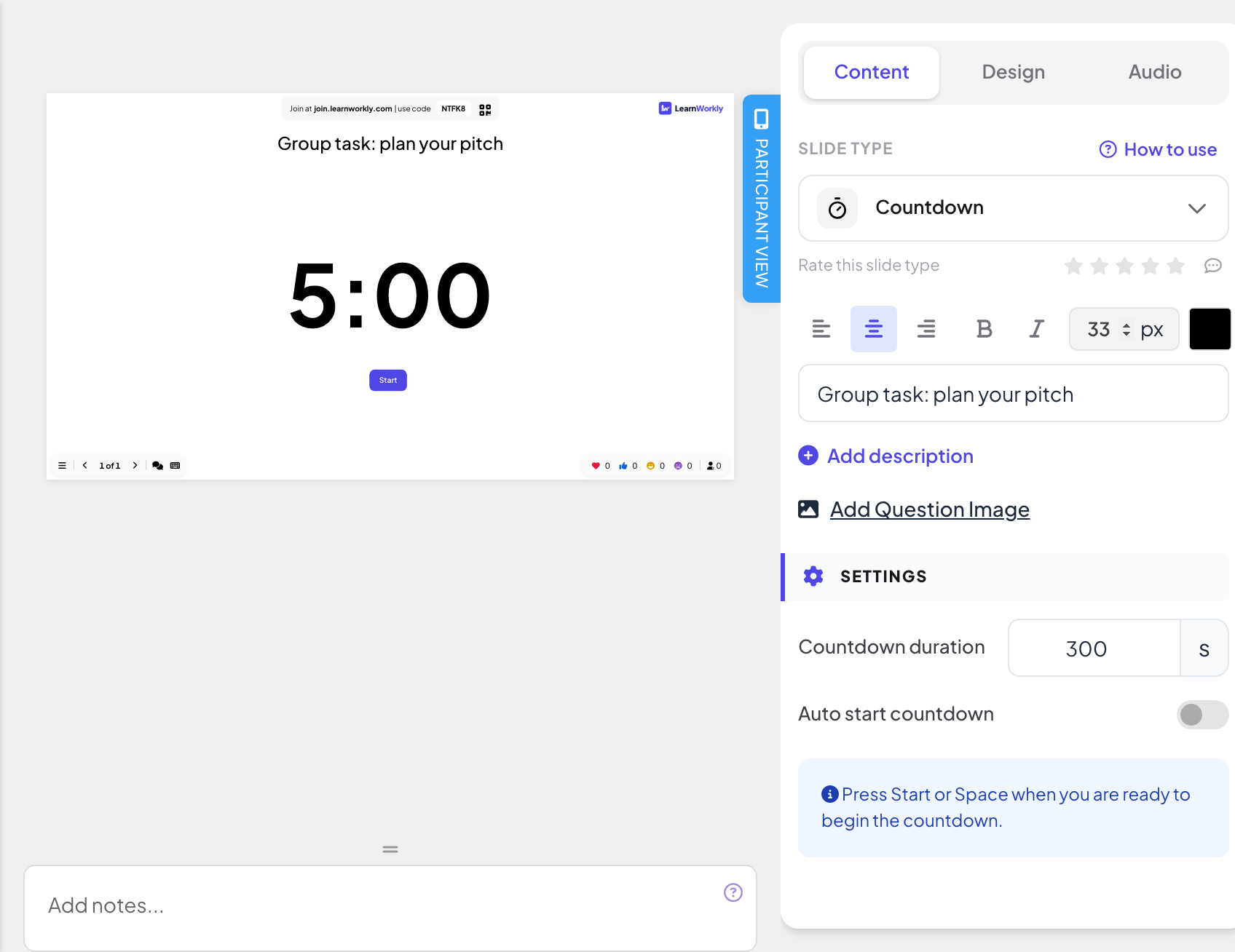
In the editor, click + New Slide. In Choose Slide Type, open the Content tab and pick Countdown. Give it a title if you want one, such as "Group task: plan your pitch".
- 2
Set the time
Under Settings, enter the Countdown duration in seconds, for example 300 for five minutes.
- 3
Choose how it starts
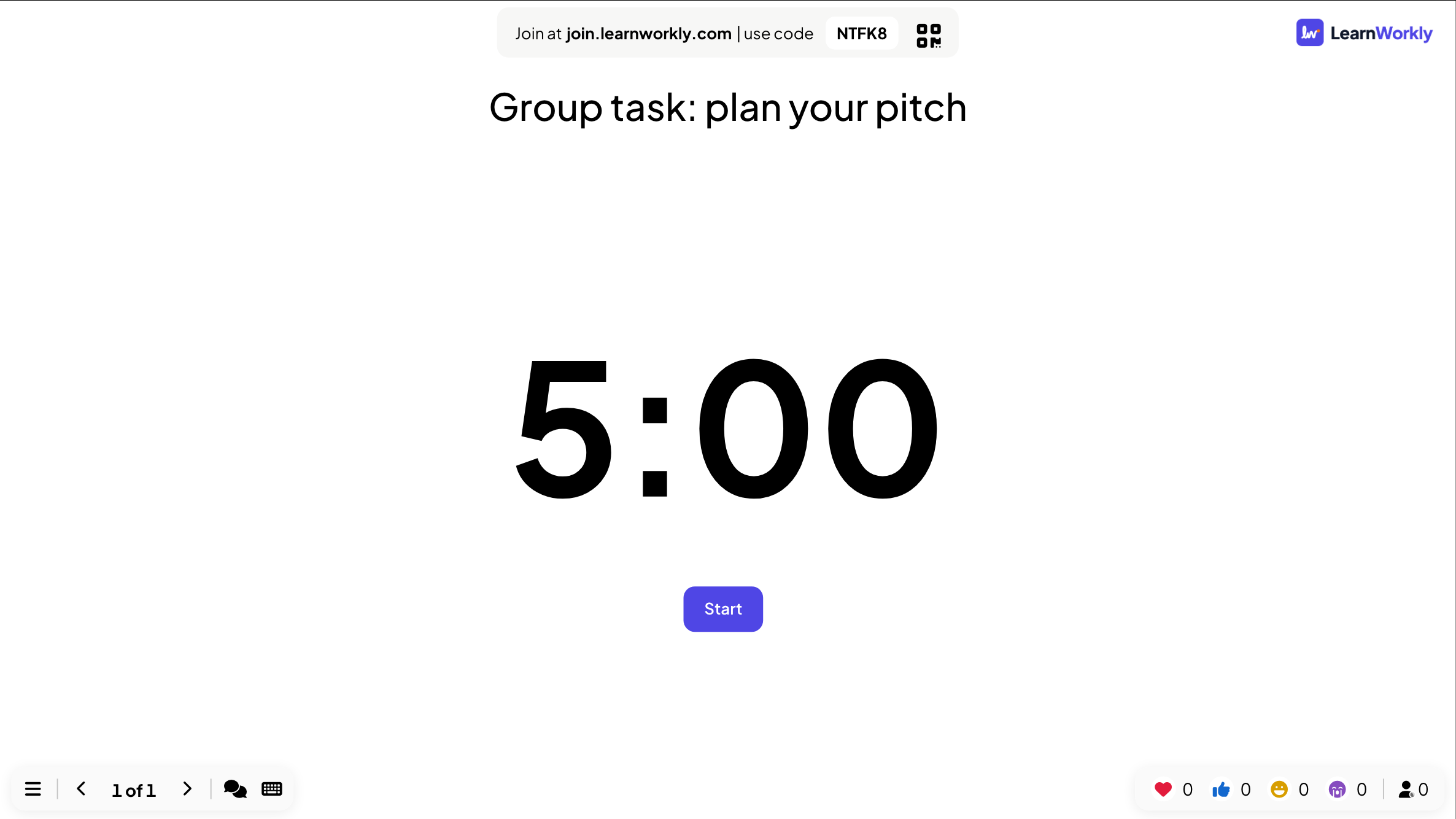
With Auto start countdown off, the slide shows the full time and a Start button: start it with the button or the Space bar. Turn it on to start the timer as soon as you present the slide.
While you present
- Press Space or Enter to pause the timer, and again to continue.
- Use Pause, Continue and Reset under the timer if you prefer the mouse.
- When the time runs out the slide shows Time is up! and a Restart button.
What participants see
The timer runs on the big screen only. Phones show View on presenter screen while this slide is on.
Frequently asked questions
Can the timer play a sound?
Add music to the slide in the Audio tab: see Slide audio.
Can I give a quiz question a time limit instead?
Quiz slides have their own Seconds to answer, and most interactive slides have a Time limit setting. Use the Countdown slide for time without a question.
The timer started too early.
Turn off Auto start countdown, then start it with Start or the Space bar when you are ready.
The timer does not start by itself.
Turn on Auto start countdown, or press Start (or the Space bar) when the slide is on screen.
Last checked against the app on 17 November 2026.
Related articles
- Content slides: design your own slidesBuild a designed slide with titles, text, images, shapes, video and GIFs, or start from a ready-made layout, then present it between your questions.
- Present on the big screenStart presenting from the editor, move through slides with the keyboard, use the menu while you present and stop when you are done.
- Slide audio: background music and quiz soundsAdd background music to a slide, upload your own audio, choose whether it plays on participants’ phones, and pick the lobby and playing music for quizzes.