PowerPoint Animated slides are PowerPoint slides imported with their animations, which you can then edit: text, layout and animation steps. Import a deck, add polls and quizzes between its slides, and present everything from one place.
Import a PowerPoint file
- 1
Click Import PPT/PDF
In the editor, click Import PPT/PDF under the list of slides and choose a .pptx file. A PDF also works, but each PDF page becomes a picture slide without animations.
- 2
Wait for the conversion
Your slides and animations are converted: this can take up to a minute. Each PowerPoint slide becomes a PowerPoint Animated slide in your presentation.
- 3
Check the result
Click a slide and use Preview in the right column to play its animations.
Edit the slide
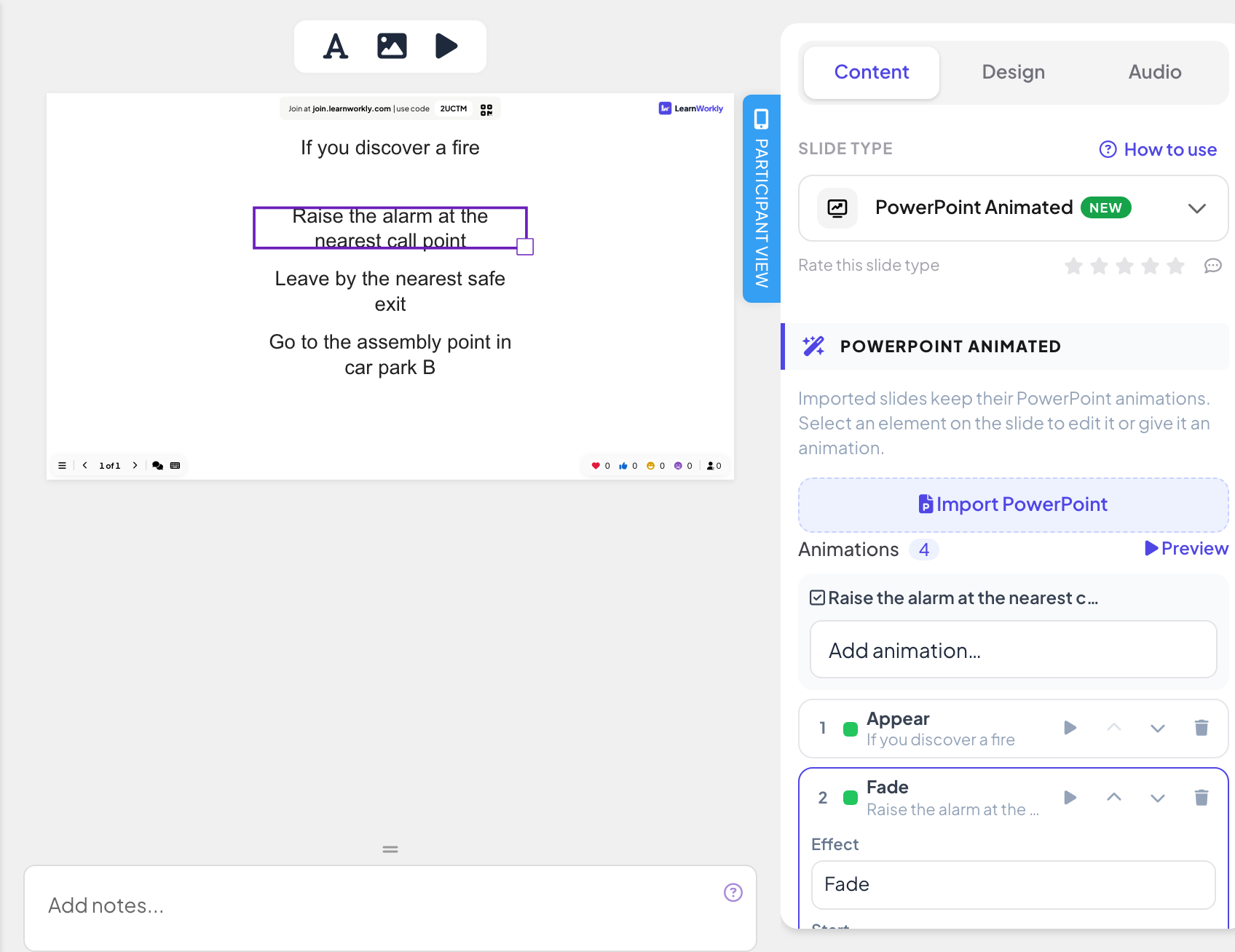
Click an element on the slide to select it, then drag to move or resize it. Double-click text to edit it. Use Add text, Add image and Preview animations in the toolbar above the slide.
You can also add another PowerPoint file from the slide itself with Import PowerPoint in the right column, or start an empty PowerPoint Animated slide from the Content tab of the slide picker.
Edit the animations
- 1
See the steps
The Animations list in the right column shows every effect on the slide in order, with the element it belongs to.
- 2
Add an animation
Select an element on the slide, then pick an effect from Add animation…: Entrance, Emphasis or Exit effects.
- 3
Change an animation
Click an effect in the list to change its Effect, Direction (when the effect has one), Start (On click, With previous or After previous), Duration (s) and Delay (s).
- 4
Reorder or remove
Use Move up, Move down and Delete on each effect, and the play button to preview it.
Presenting
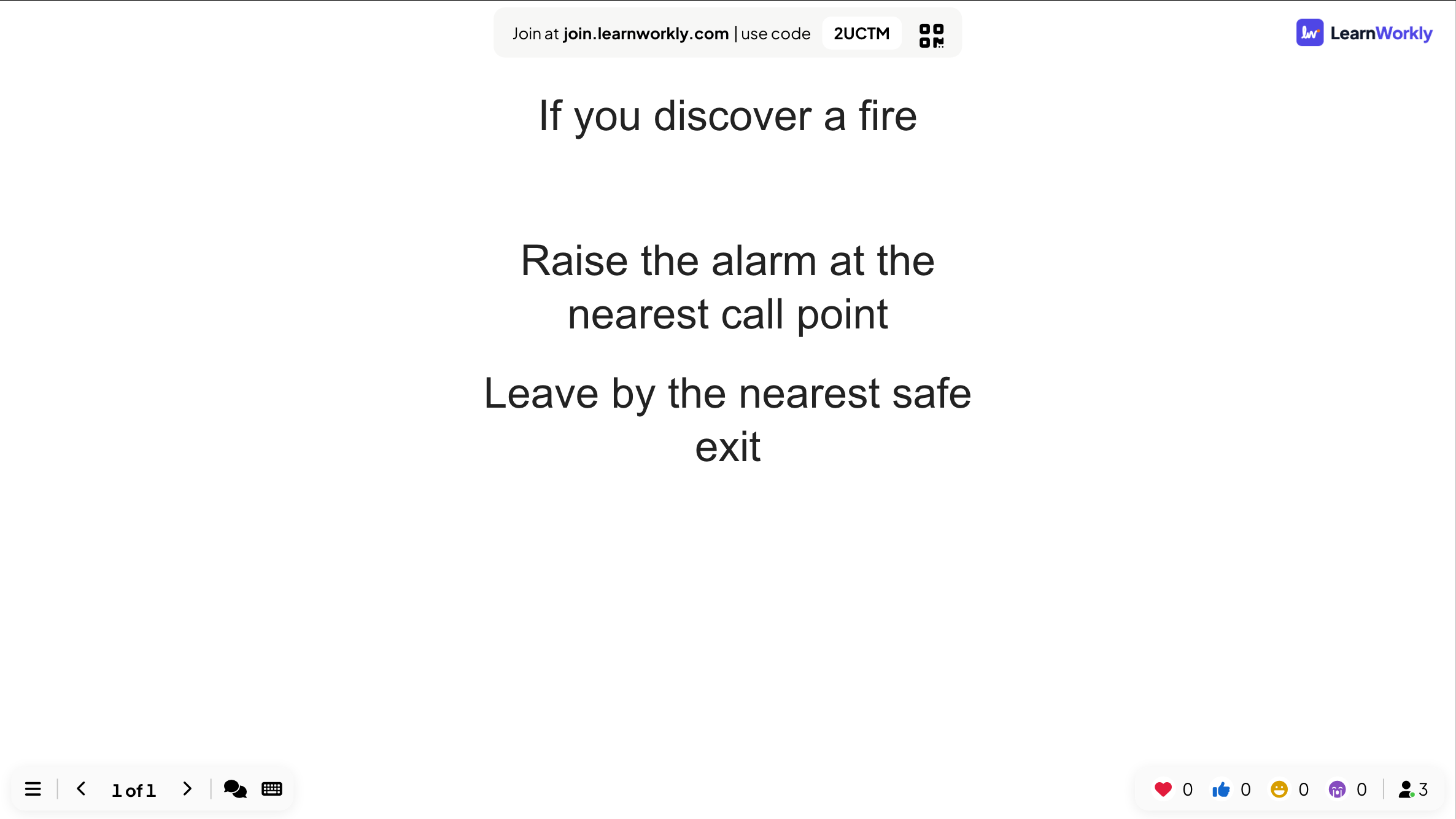
When you present, each press of Next (or the right arrow key) plays the next animation step, just like in PowerPoint. When all the steps have played, the next press moves to the next slide.
Participants see the slide on their phones at the same step as the big screen. Phones jump straight to each step without playing the animation.
Frequently asked questions
Can I show a PowerPoint file without importing it?
Yes. A Powerpoint slide shows a file you have shared online from PowerPoint, inside your presentation. It is not editable in LearnWorkly. See PowerPoint embed slide.
Do phones play the animations?
No. Phones jump straight to the step shown on the big screen, so they never fall behind.
Can I go back one step?
Yes. The left arrow key undoes the last click step on the slide. Steps that play by themselves at the start of the slide cannot be undone.
Last checked against the app on 17 November 2026.
Related articles
- Import PowerPoint and PDF slidesImport a .pptx with its animations kept and editable, or turn every page of a PDF into a slide, then add quizzes and polls between your slides.
- Content slides: design your own slidesBuild a designed slide with titles, text, images, shapes, video and GIFs, or start from a ready-made layout, then present it between your questions.
- PowerPoint slide: show an online PowerPoint fileShow a PowerPoint file from PowerPoint on the web inside your presentation by pasting its embed code. For editable slides, import the .pptx instead.