These settings are in Presentation settings (the gear on the right edge of the editor) → General Settings, under Reactions and audio and Q&A.
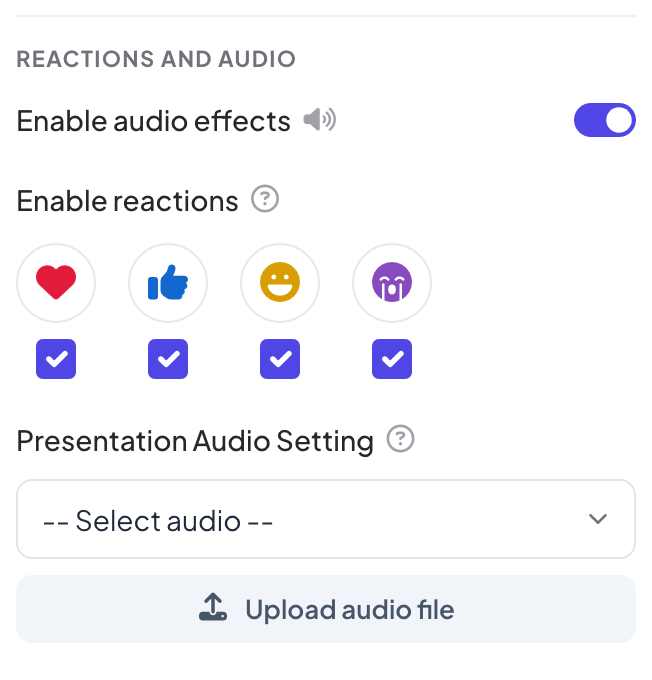
Built-in sound effects
Enable audio effects is on by default. It plays the sounds built into slide types: quiz lobby and question music, countdown ticks, the leaderboard podium, game sounds and Keyboard Magic. Turn it off to mute all of them for this presentation. Music you added yourself is not affected.
Reactions
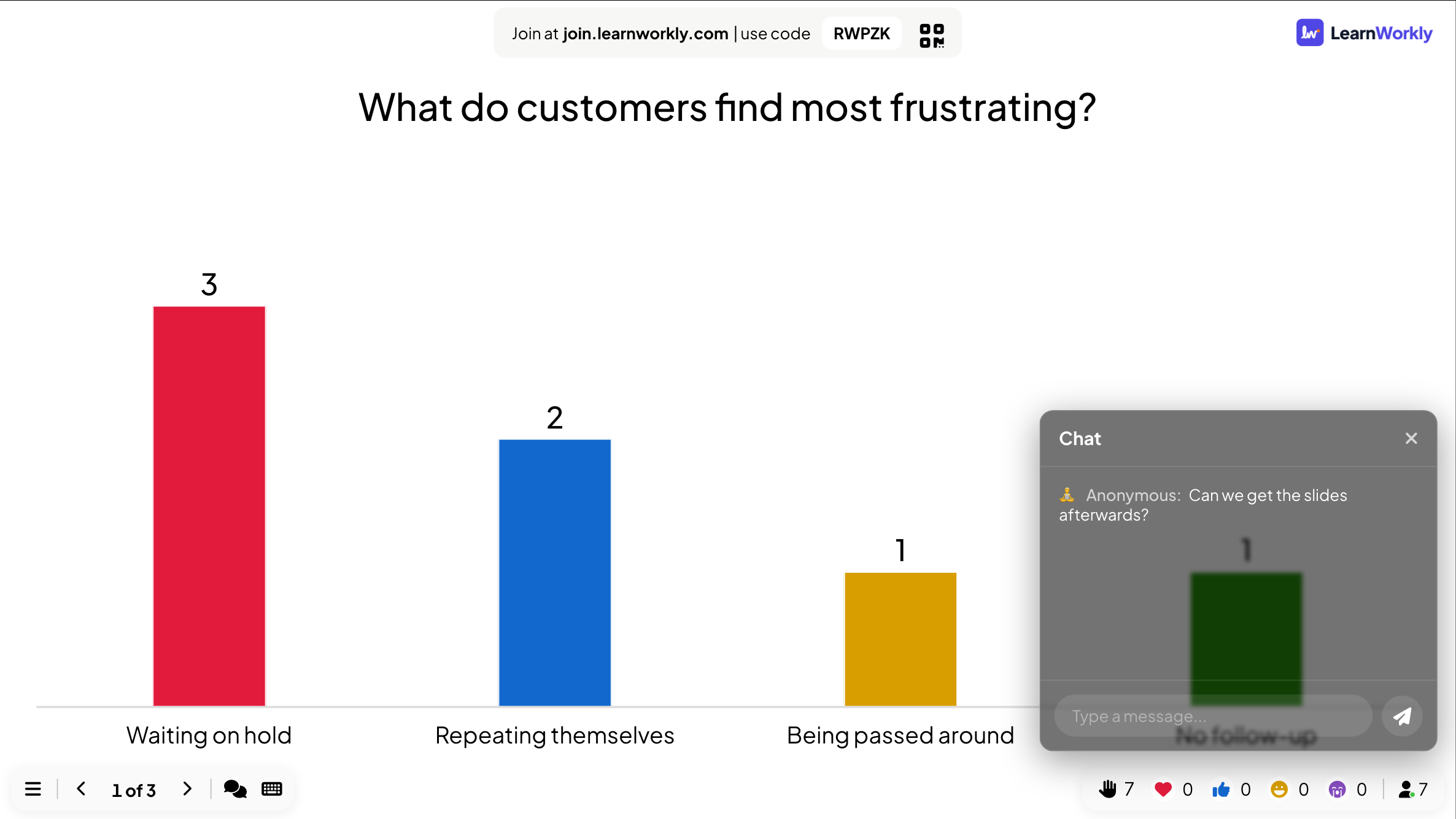
Under Enable reactions, tick the reactions participants can send: heart, thumbs up, laugh and sad (all ticked by default). They appear at the bottom of the phone screen, float up on the big screen, and the count of each is shown in the bottom bar.
Background music for the whole presentation
- 1
Pick a track
Under Presentation Audio Setting, choose a track in Select audio, or click Upload audio file to use your own.
- 2
Choose how it plays
Choose Autoplay and On Repeat. Turn on Enable on participant devices to play it on phones too, with Autoplay for participants and Show media control.
- 3
Remove it
Click Remove. Each slide can also have its own music: see Slide audio.
Live chat
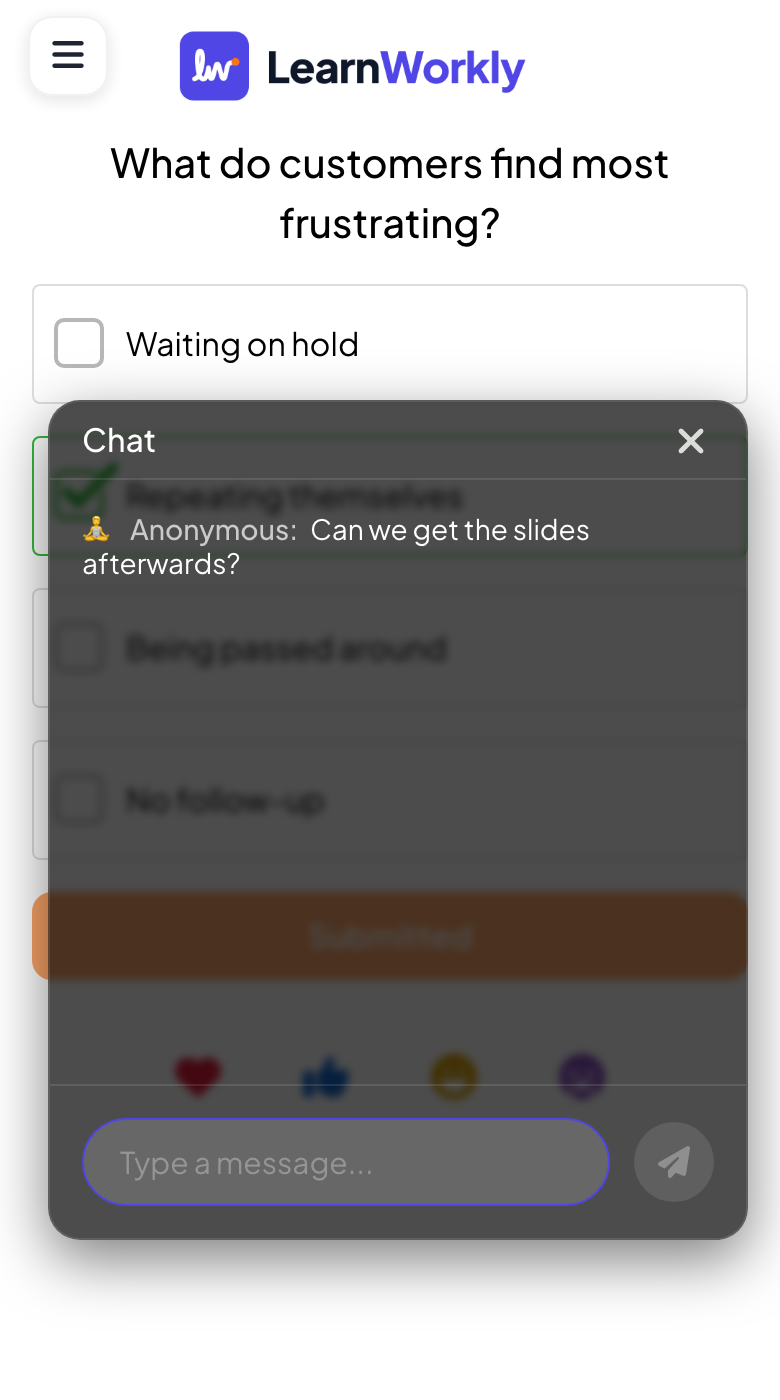
Enable Live Chat is under Q&A and is on by default. Participants open the chat with the chat button on their phone and send messages to everyone. Messages are shown with the sender’s name, or Anonymous. You open the chat from the bottom bar of the big screen, or read it on the remote.
Frequently asked questions
I do not want a chat during my talk.
Turn off Enable Live Chat under Q&A. The chat button disappears from phones and from the bottom bar.
The music does not play on phones.
Phones often block sound until the person taps the screen. Turn on Show media control so they can start it themselves.
Can I hide one reaction, such as sad?
Yes. Untick it under Enable reactions.
Last checked against the app on 17 November 2026.
Related articles
- Slide audio: background music and quiz soundsAdd background music to a slide, upload your own audio, choose whether it plays on participants’ phones, and pick the lobby and playing music for quizzes.
- Call a participant from the big screenStart a voice or video call with one participant straight from their answer, so they can explain it to the room. Built in, no other app needed.
- Moderate Q&A and filter profanityApprove questions before they reach the big screen, share a moderator link with a colleague and hide offensive words in answers.