- 1
Open Engage Type
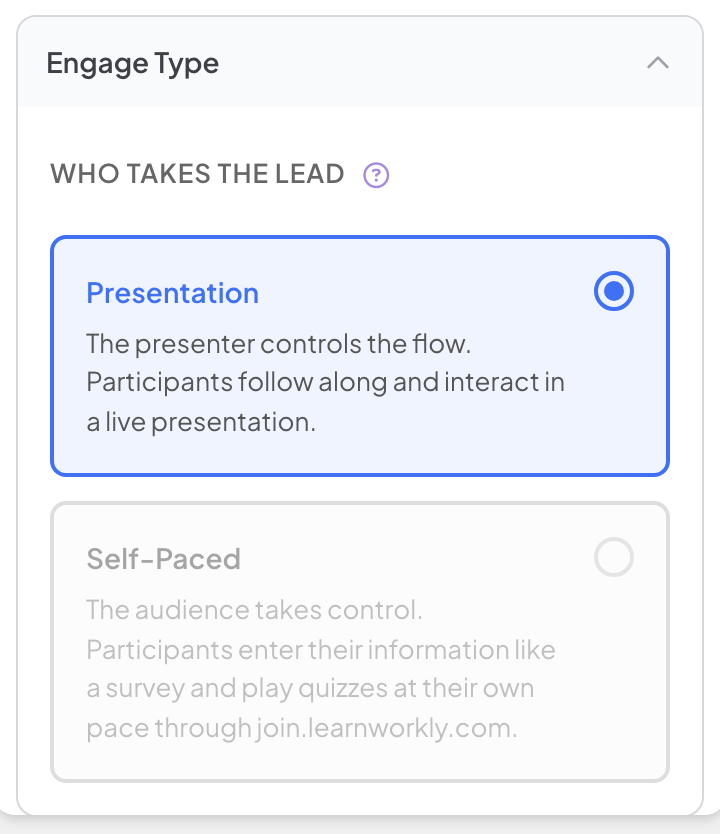
In the editor, open Presentation settings (the gear on the right edge) and expand Engage Type. Under Who takes the lead there are two options.
- 2
Pick one
Click Presentation or Self-Paced. The choice is saved straight away.
| Option | How it works |
|---|---|
| Presentation | You control the flow. Participants follow along and interact in a live session. This is the default. |
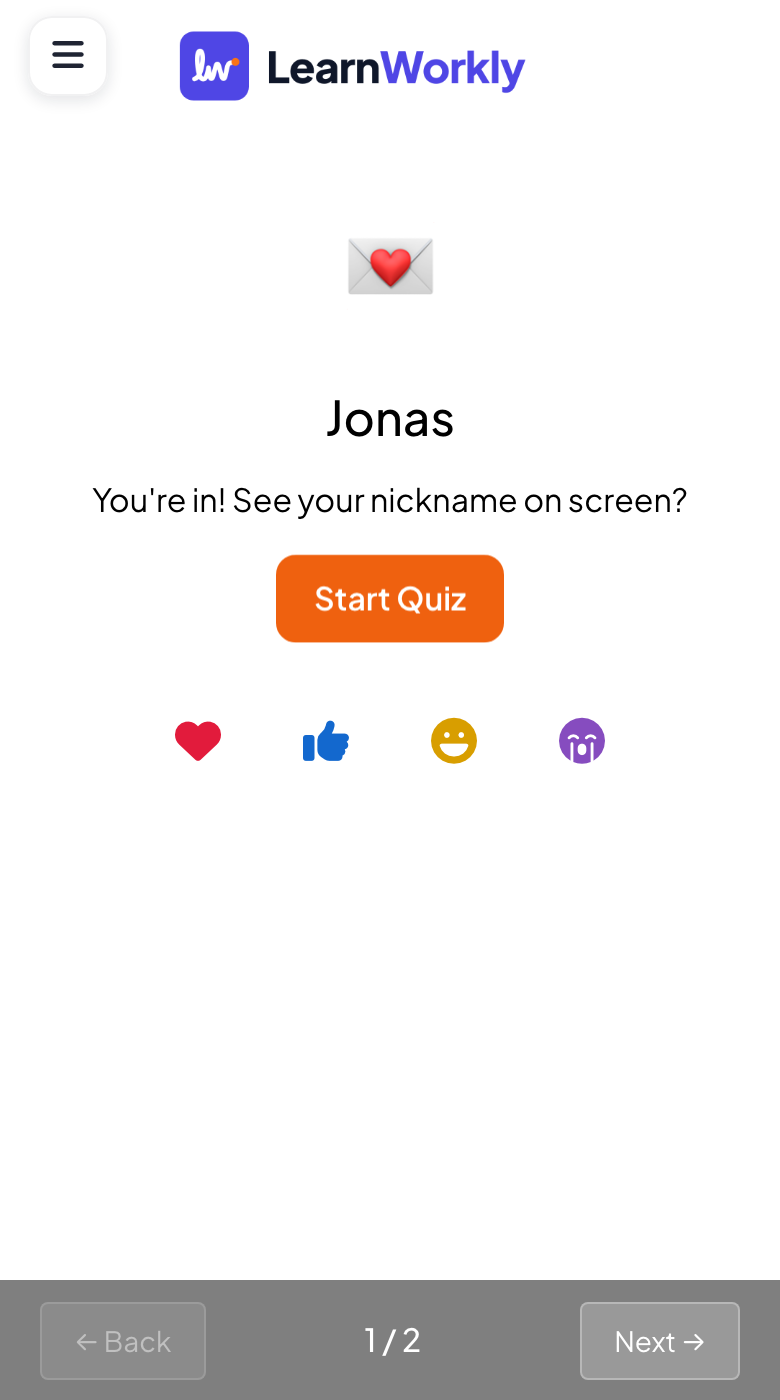
| Self-Paced | Participants take control. They enter their information like a survey and play quizzes at their own pace at join.learnworkly.com. |
Before a live session
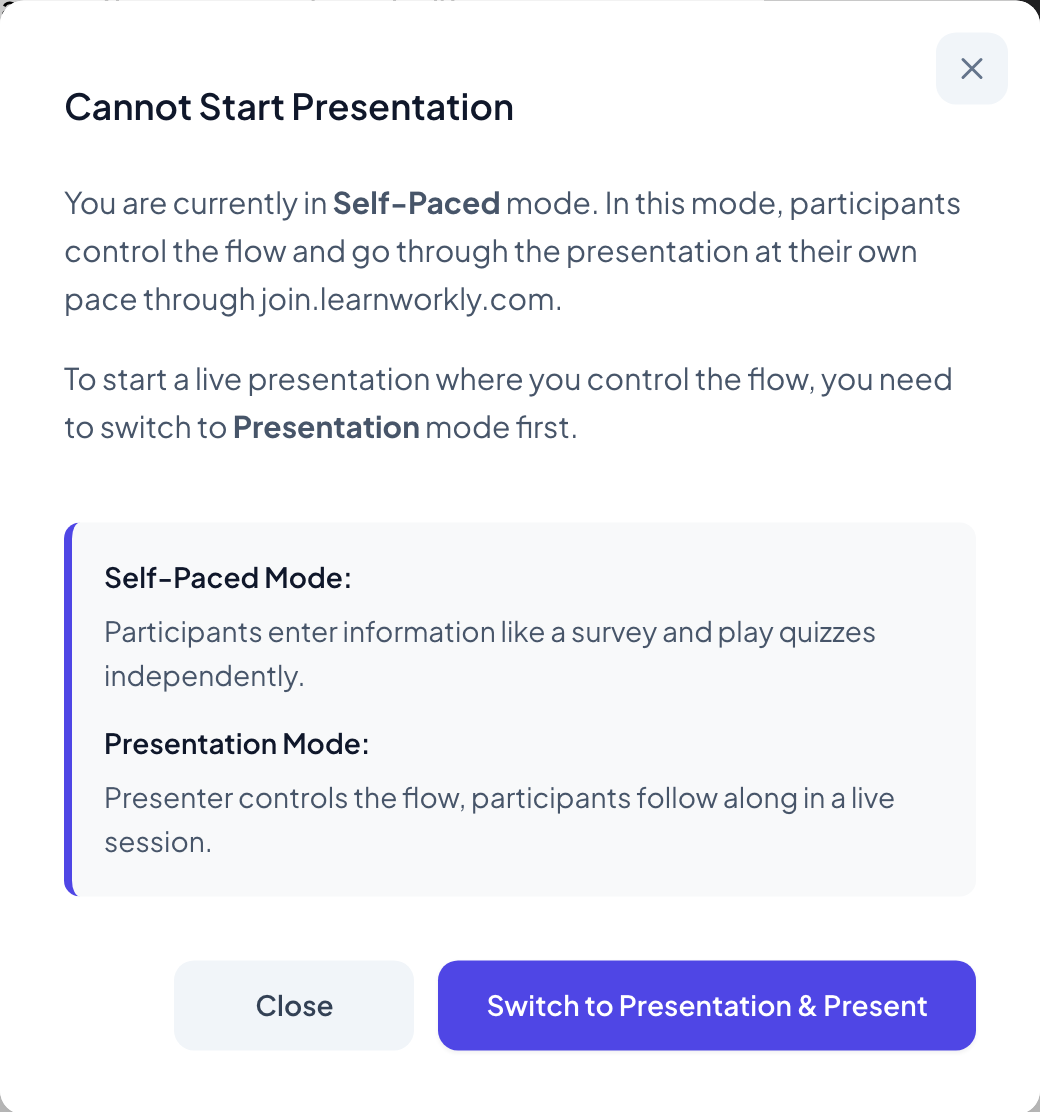
A self-paced presentation cannot be presented live. When you click Present, a window says Cannot Start Presentation and offers Switch to Presentation & Present.
Frequently asked questions
Should I use Self-Paced, a survey or an assignment?
Self-Paced runs your slides, quizzes and games without you. A survey is a form with its own link and results. An assignment adds marking, a due date, attempts and a time limit.
Where are the answers from a self-paced presentation?
In the presentation’s report, like a live session.
Can I switch back?
Yes, at any time: pick Presentation in Engage Type, or use Switch to Presentation & Present.
Last checked against the app on 17 November 2026.
Related articles
- Set a self-paced assignmentCreate a homework-style assignment with auto-marked questions, a due date, attempts and a time limit, share it with a link and review the scores.
- Collect participant informationAsk participants for their name and any other details you need, such as a team or a department, before they can take part in your presentation.
- Present on the big screenStart presenting from the editor, move through slides with the keyboard, use the menu while you present and stop when you are done.