A List is a bullet-point list in one or two columns, revealed one line at a time with the keyboard. Use it for an agenda, the steps of a process or the points you want to talk through one by one, without the room reading ahead.
Set up a list
- 1
Add the slide
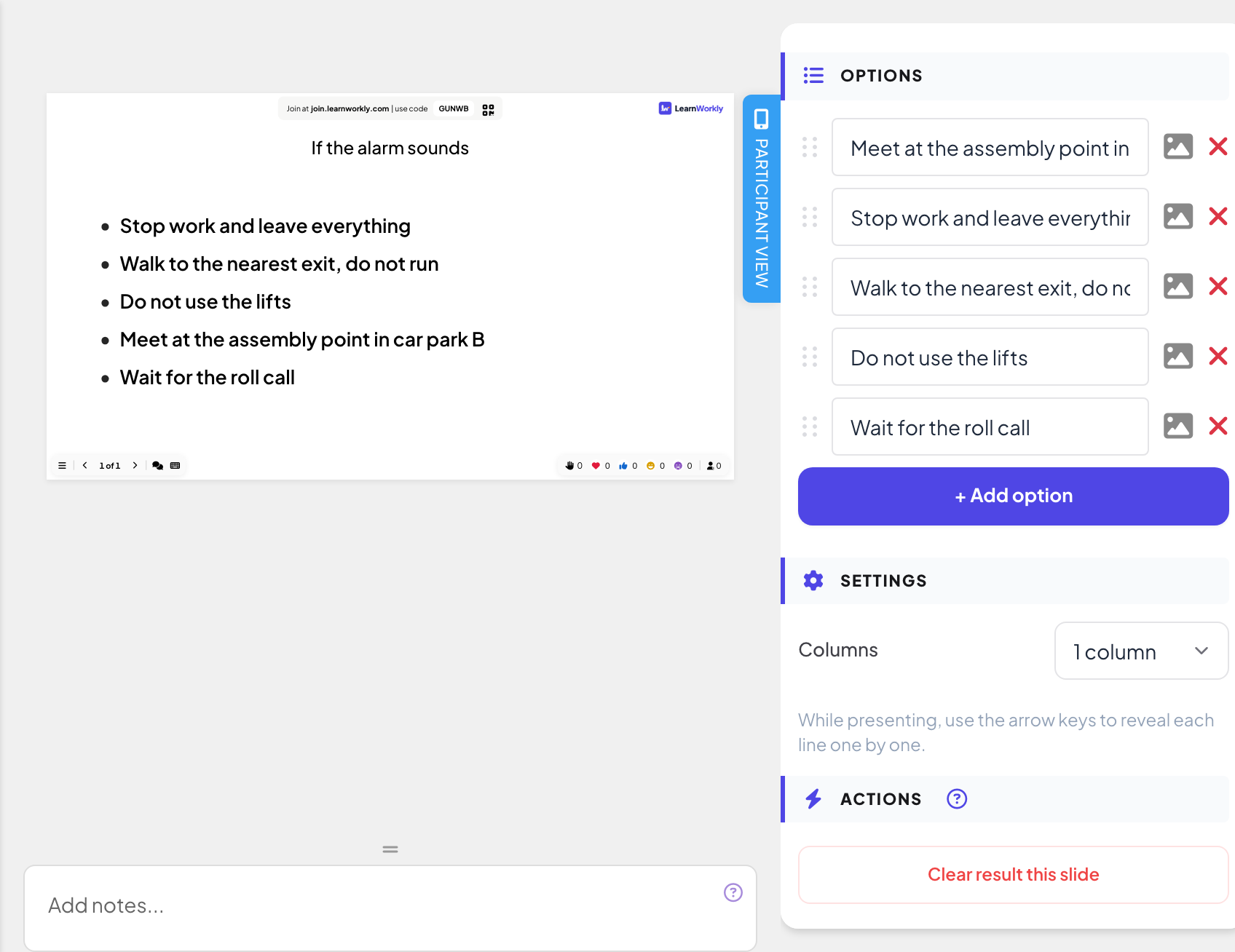
In the editor, click + New Slide. In Choose Slide Type, open the Content tab and pick List.
- 2
Write the title
Type the heading of your list in the title field, for example "If the alarm sounds".
- 3
Add your points
Under Options, type one point per line and click + Add option for the next one. Drag the points to change their order.
- 4
Choose the columns
Under Settings, set Columns to 1 column or 2 columns. With two columns, the first half of your points goes on the left and the rest on the right.
Present it
- 1
Start with an empty list
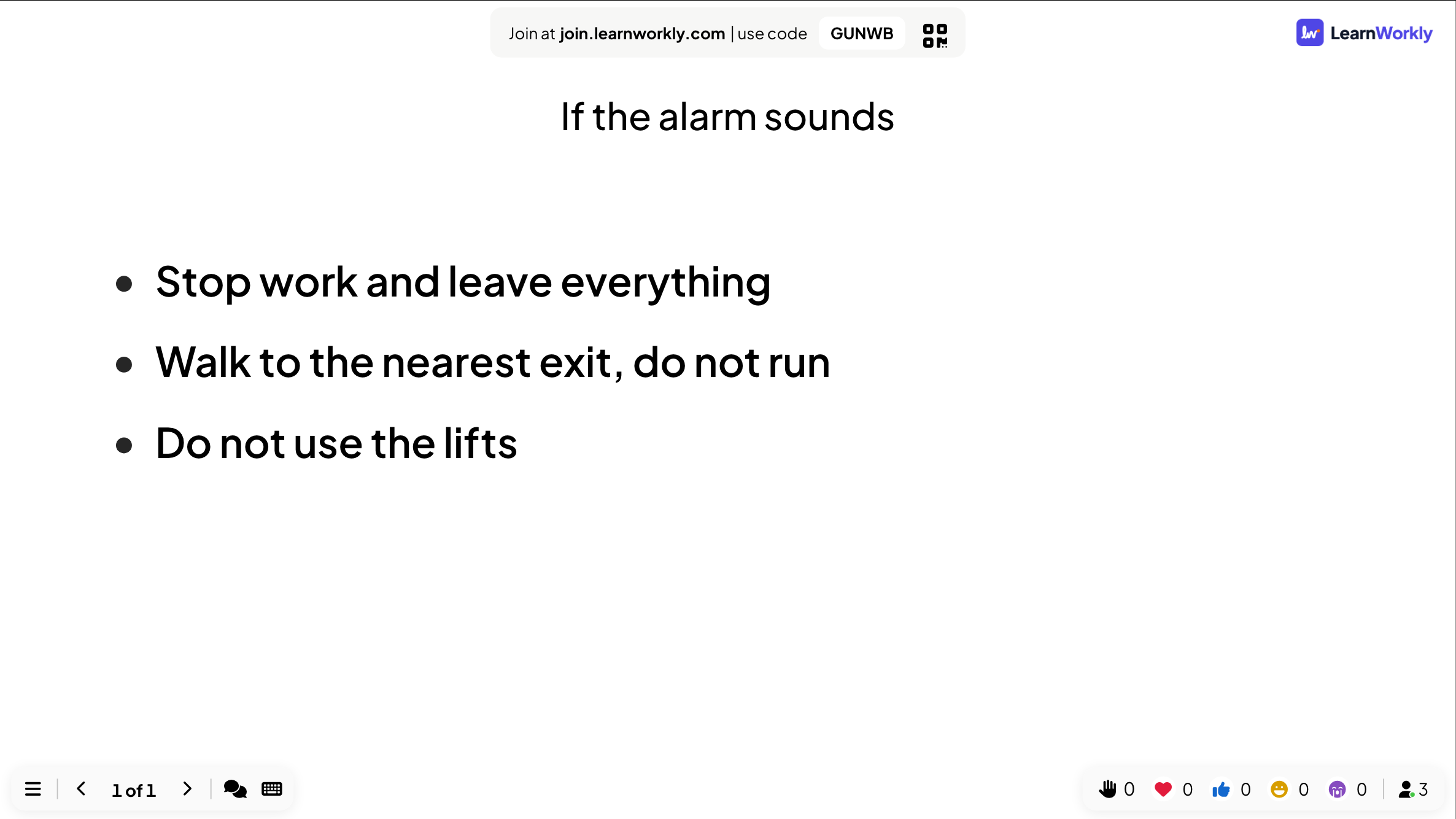
In the editor you see every point. When you present, the list starts with only the title.
- 2
Reveal line by line
Press the right or down arrow key, or Next, to reveal the next line. When every line is showing, the next press moves to the next slide. The left or up arrow hides the last line again.
- 3
Phones follow
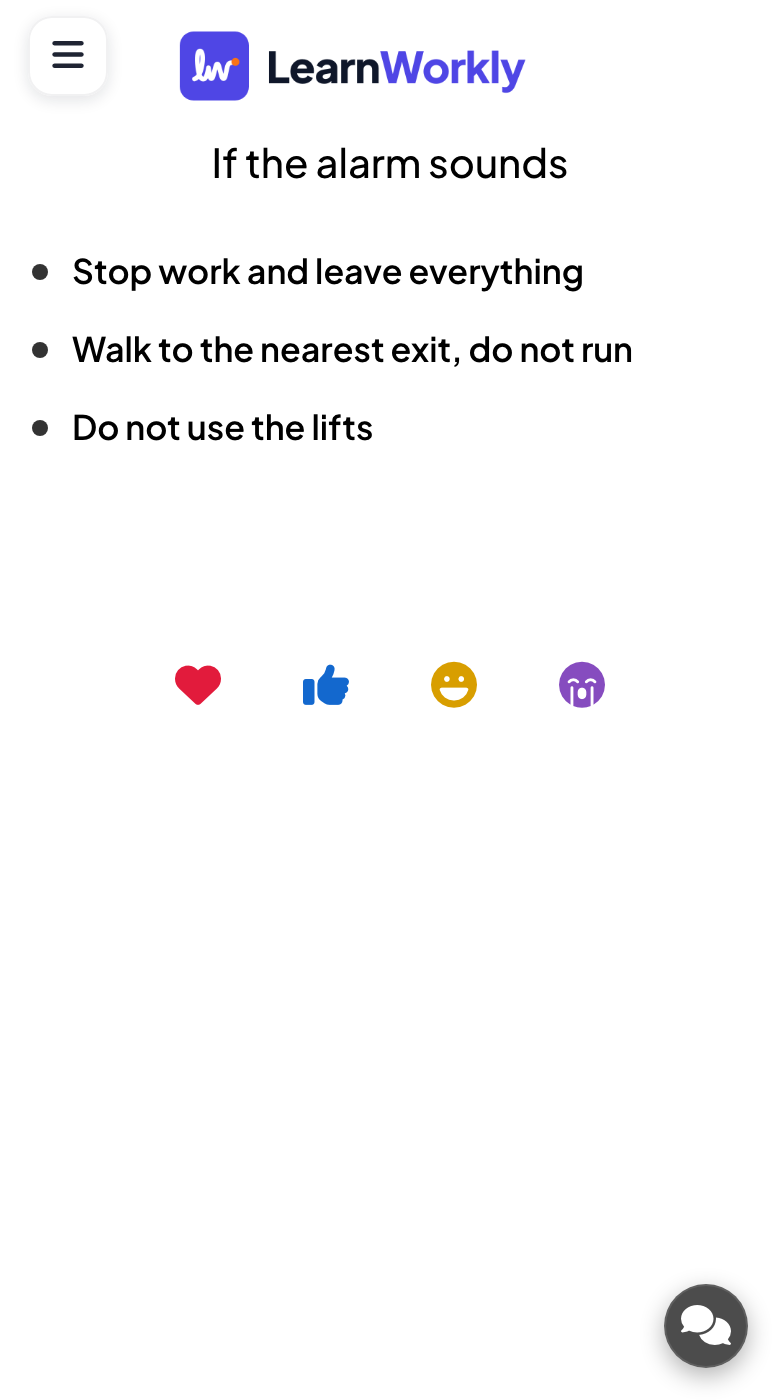
Participants see the title and the same lines on their phones, revealed at the same moment as on the big screen.
Frequently asked questions
Phones show every point at once.
The presentation is participant-paced, so phones do not follow your reveal. See Presenter-paced or self-paced.
How long can a point be?
Keep each point to one line. Long points wrap, which makes a two-column list hard to read.
Can I use a remote clicker?
Yes. Most clickers send the arrow or Page Down keys, which reveal the next line.
Last checked against the app on 17 November 2026.
Related articles
- Content slides: design your own slidesBuild a designed slide with titles, text, images, shapes, video and GIFs, or start from a ready-made layout, then present it between your questions.
- Present on the big screenStart presenting from the editor, move through slides with the keyboard, use the menu while you present and stop when you are done.
- Engage type: live or self-pacedChoose who takes the lead: you present live and everyone follows, or participants go through the slides and quizzes on their own phones.