These settings are in Presentation settings (the gear on the right edge of the editor) → General Settings → Presenting. They apply to the whole presentation.
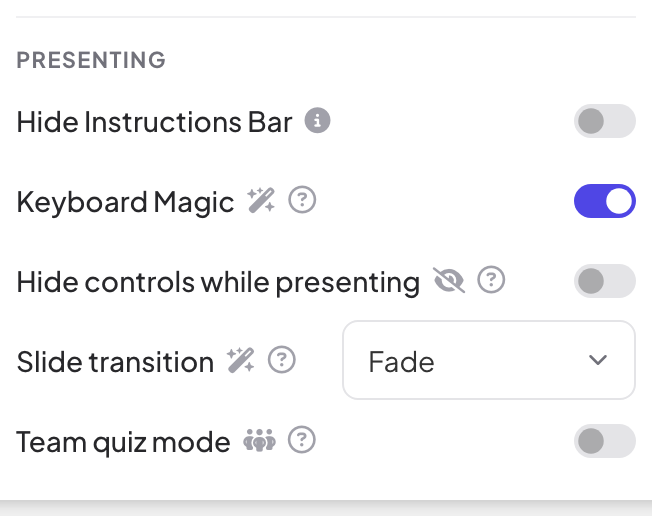
| Setting | What it does |
|---|---|
| Hide Instructions Bar | Hides the join bar at the top of the slide. It reappears when you move the mouse to the top edge. Off by default. |
| Keyboard Magic | Effects you trigger with a key while presenting (see below). On by default. |
| Hide controls while presenting | The controls at the bottom left disappear after 3 seconds without activity and come back when you move the mouse. Off by default. |
| Slide transition | The animation between slides: Fade (the default), Slide up, Slide from right, a zoom effect or None. |
| Team quiz mode | Plays quizzes in teams. See Team quiz mode. |
Use Keyboard Magic
- 1
See the shortcuts
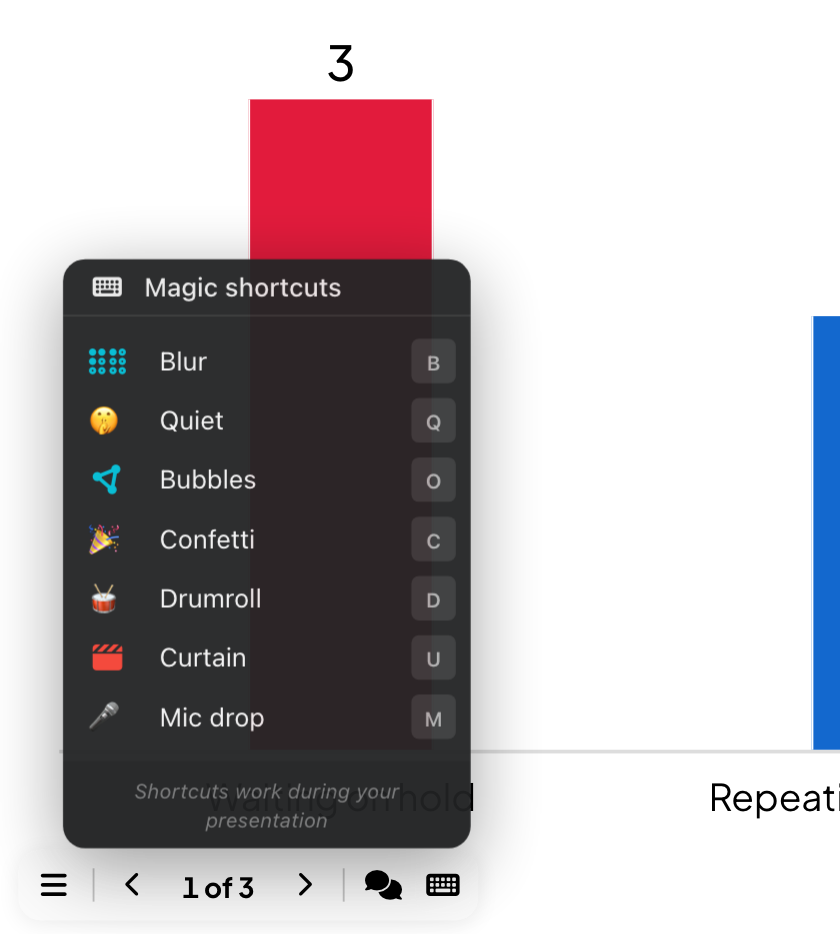
While presenting, point at the keyboard button in the bottom bar. Magic shortcuts lists every effect with its key; click one to play it.
- 2
Press a key
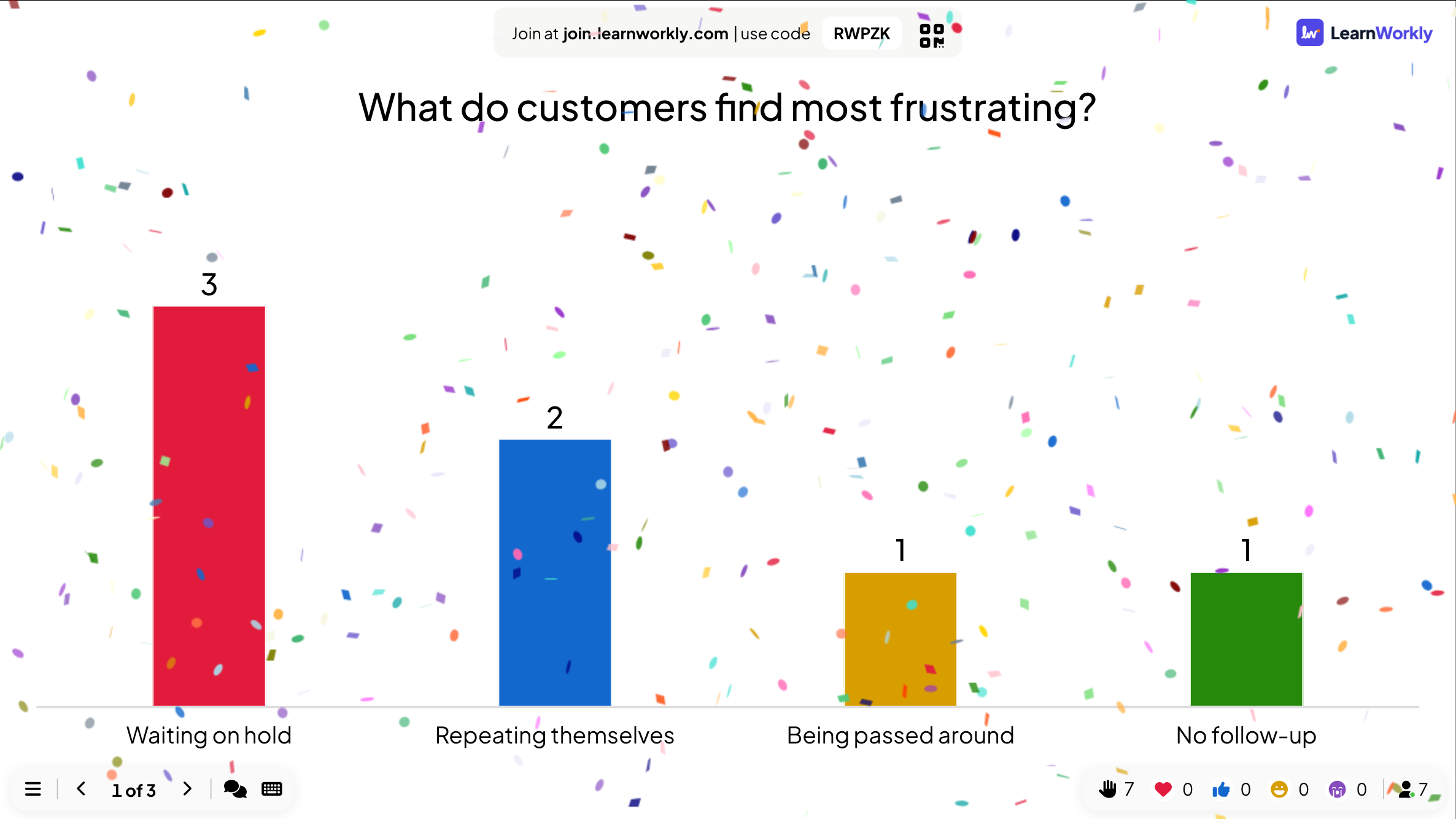
Press C for confetti, D for a drumroll and so on (table below). X clears every effect, and Esc closes the curtain, the blur, the quiet sign and the bubbles.
Keyboard Magic shortcuts
| Key | Effect |
|---|---|
| B | Blur the screen |
| Q | Quiet |
| O | Bubbles |
| C | Confetti |
| D | Drumroll |
| U | Curtain |
| M | Mic drop |
| X | Clear every effect |
Frequently asked questions
Pressing a letter does nothing.
Shortcuts only work while you are presenting and Keyboard Magic is on. Click the slide once so the browser window has the focus.
Can I turn off the sound of the effects?
Yes: turn off Enable audio effects under Reactions and audio. See Music, sound effects, reactions and live chat.
Do participants see the effects?
The effects play on the big screen, where everyone in the room sees them.
Last checked against the app on 17 November 2026.
Related articles
- Present on the big screenStart presenting from the editor, move through slides with the keyboard, use the menu while you present and stop when you are done.
- Music, sound effects, reactions and live chatAdd background music to a presentation, mute built-in sounds, choose which reactions people can send and use the live chat.
- Team quiz mode: play a quiz in teamsLet participants join teams when they enter the quiz. Set the number of teams, the team size and how team points are counted for the team leaderboard.