While you present, two things tell people how to join:
- The instructions bar at the top of the slide: Join at join.learnworkly.com | use code and your code, with a small QR button.
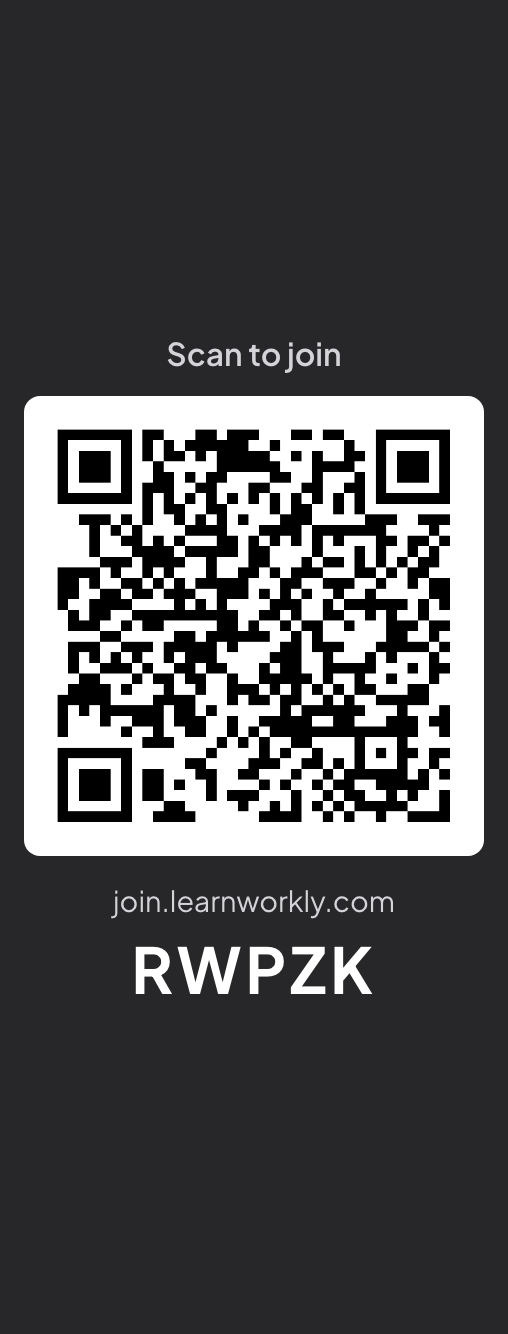
- The Scan to join column beside the slide: a large QR code, the join address and the code. The slide shrinks to make room, so the QR code never covers your content. Click the column to hide it.

Show or hide them
- 1
While presenting
Open the ☰ menu at the bottom left and use the switches Hide instructions bar and Show QR Code.
- 2
For the whole presentation
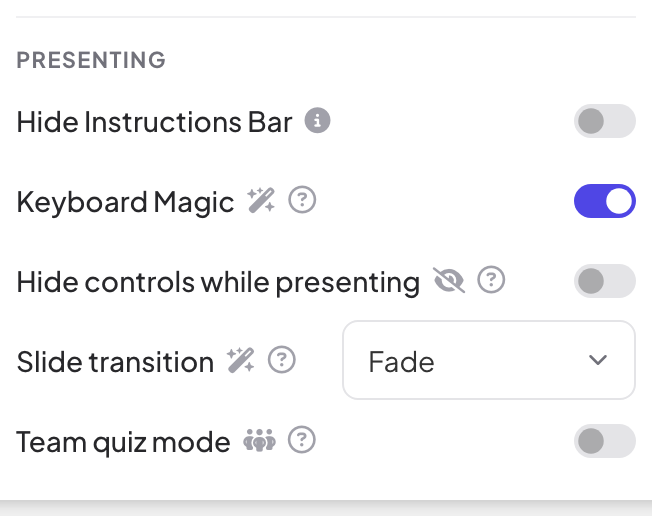
In the editor, open Presentation settings (the gear on the right edge) → General Settings → Presenting and turn on Hide Instructions Bar. The bar comes back when you move the mouse to the top edge of the slide.
- 3
With a whole slide
The Instructions slide is a full slide with the joining steps and QR code, handy at the start of a session.
Share the link or print the QR code
- 1
Open Audience Link
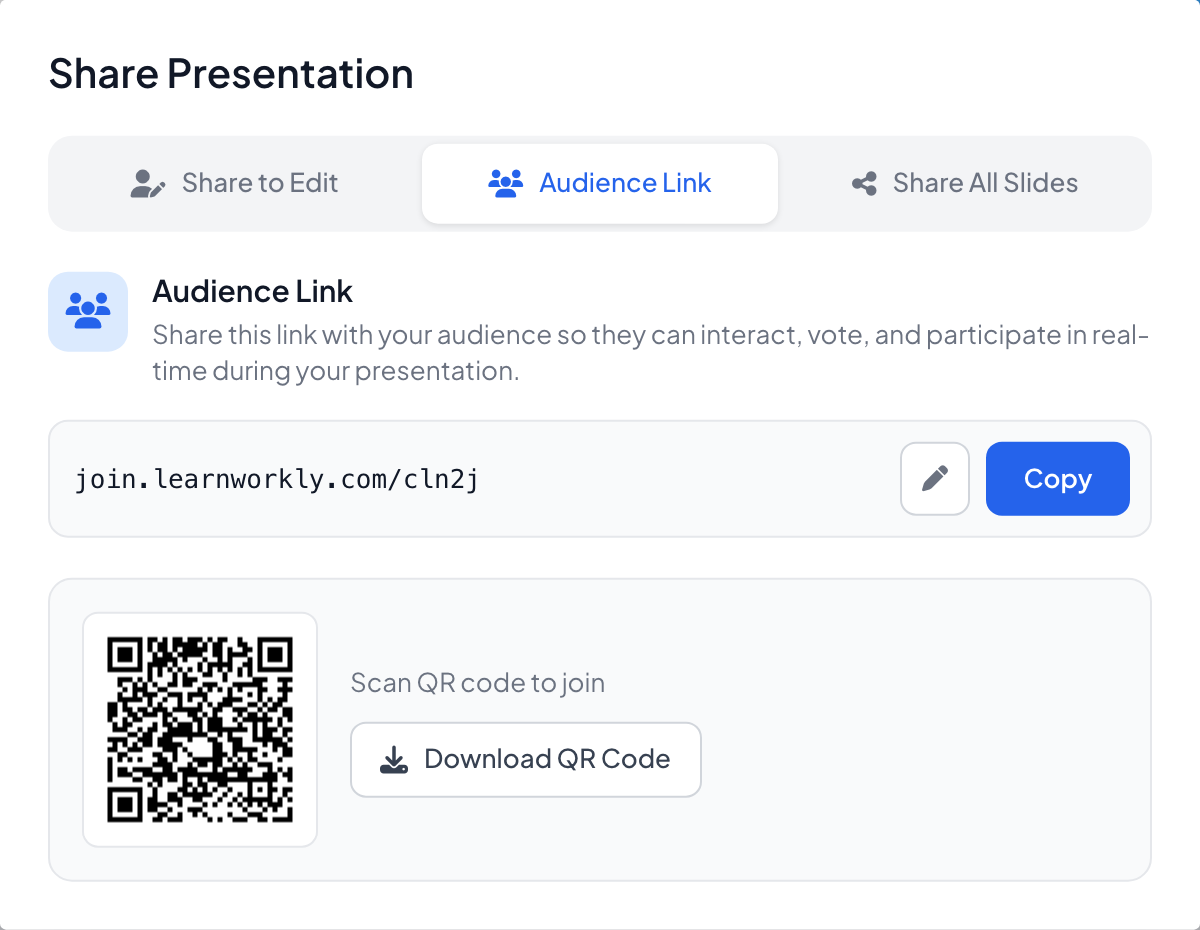
Click the share icon in the editor’s top bar and choose Audience Link. Copy copies the join link, the pencil changes the code and Download QR Code saves the QR code as an image to print.
Frequently asked questions
The QR code covers my slide.
It does not: the slide shrinks to make room for the column. Click the column, or turn off Show QR Code in the ☰ menu, to give the slide the full width.
Can I show the code later in the session?
Yes. Turn Show QR Code back on in the ☰ menu, or move the mouse to the top edge of the slide to show the bar.
Does a printed QR code keep working?
Yes, as long as you do not change the code in Audience Link. The same code works every time you present this presentation.
Last checked against the app on 17 November 2026.
Related articles
- How participants join your presentationPeople join at join.learnworkly.com with your code or by scanning the QR code, with no app and no account. See what they do and how to change the code.
- Instructions slide: show people how to joinThe Instructions slide shows the join address, your presentation code and a QR code in large type, so everyone in the room can join before you start.
- Present on the big screenStart presenting from the editor, move through slides with the keyboard, use the menu while you present and stop when you are done.