A template is a finished presentation you copy and adapt. It is the fastest way to see how different slide types work together.
- 1
Open Templates
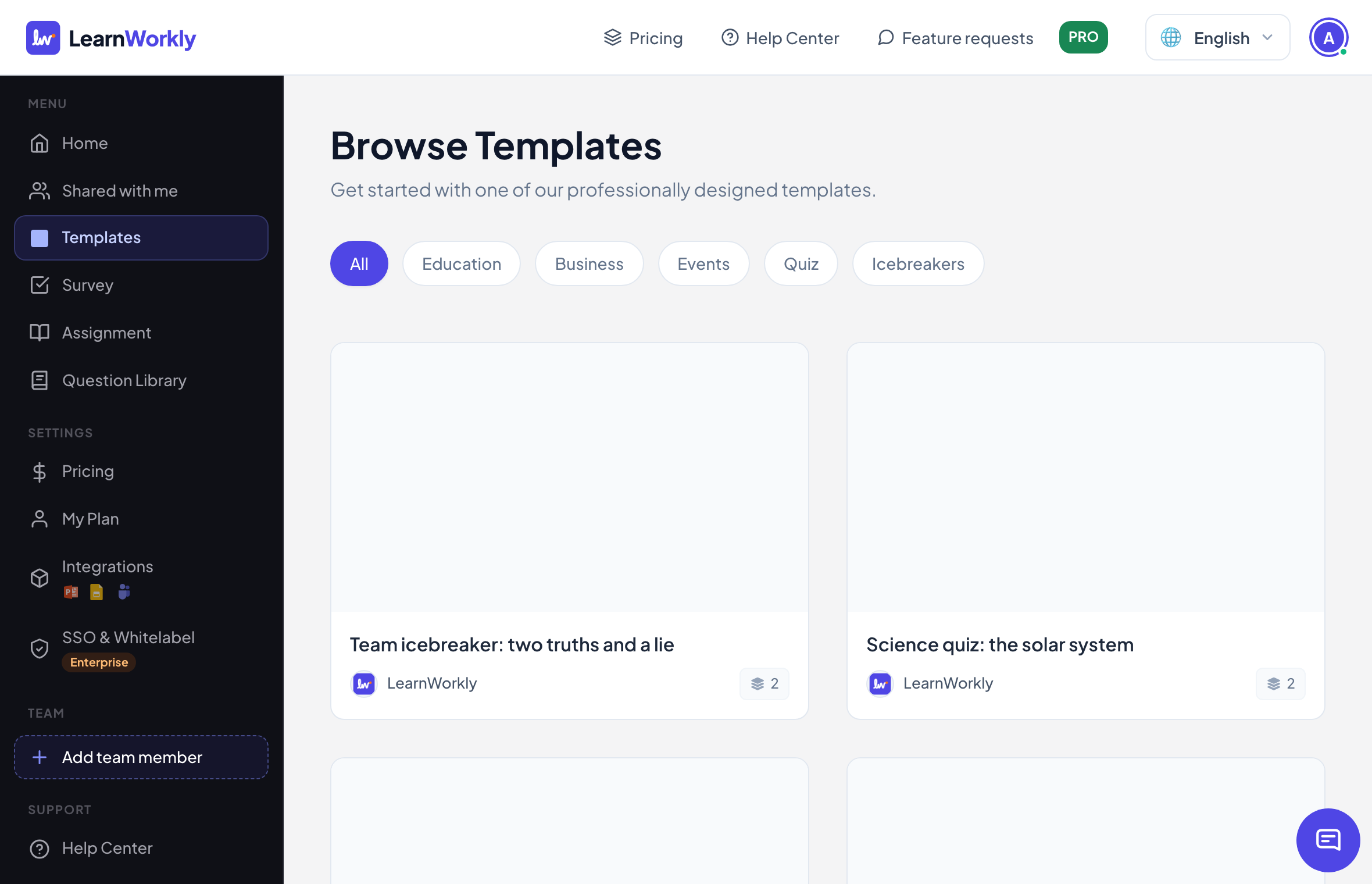
Click Templates in the menu on the left, or See all next to Templates on Home. Browse Templates shows each template with its number of slides.
- 2
Filter
Use the buttons at the top: All, Education, Business, Events, Quiz or Icebreakers.
- 3
Preview
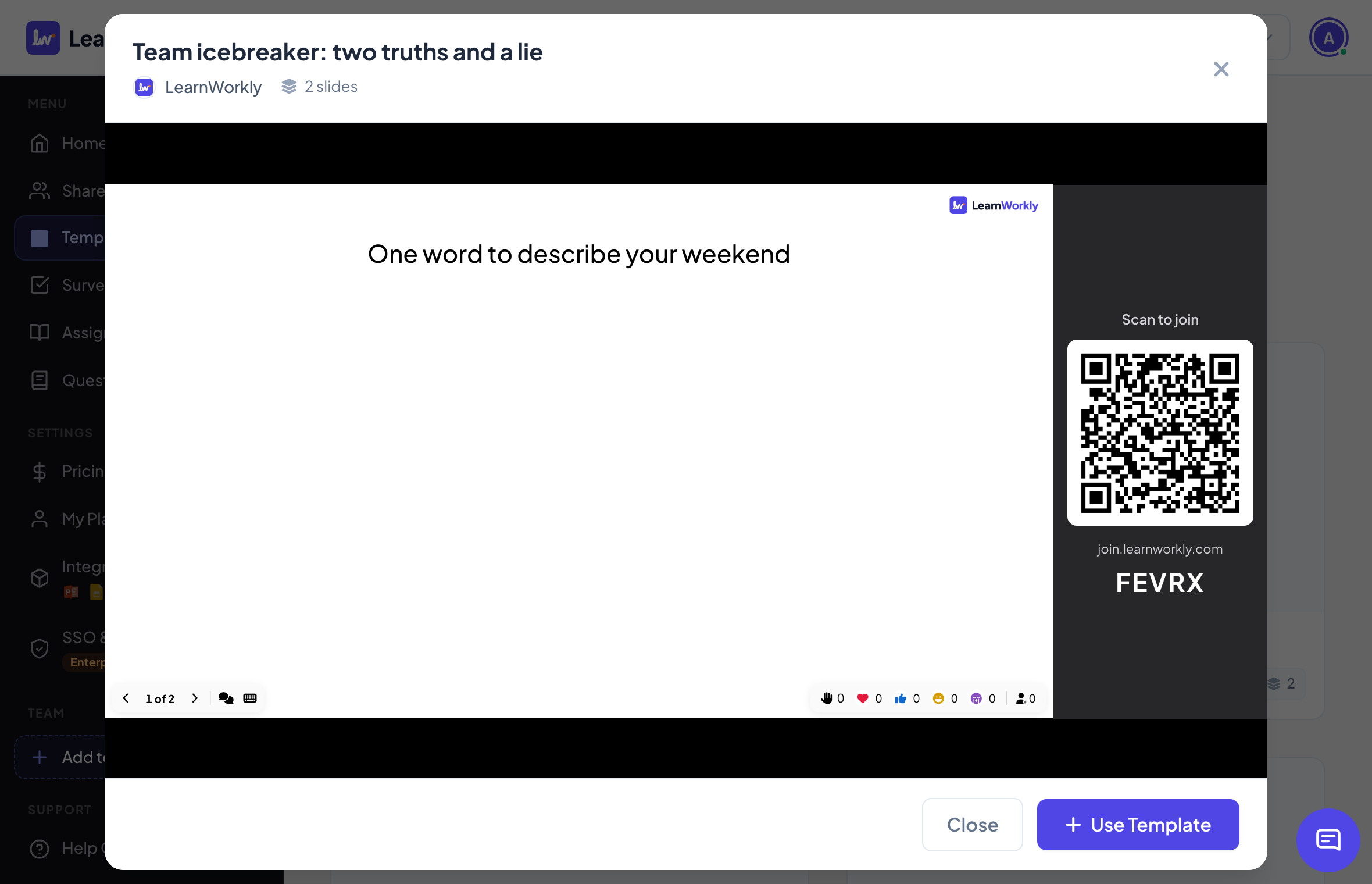
Click Preview on a template. Move through its slides with the arrows under the slide.
- 4
Use it
Click Use Template. A copy is added to your presentations and opens in the editor. Your changes never affect the original template.
Frequently asked questions
Can I make my own presentation into a template?
There is no button for that. Use Duplicate in the presentation’s menu on Home to start a new presentation from one you already have.
Do templates cost anything?
No. Templates are free on every plan.
The participants in my copy still see the old answers.
They do not: a copy starts with no results and has its own join code.
Last checked against the app on 17 November 2026.
Related articles
- Create your first presentationStart a blank presentation, add slides from more than 50 slide types, write your questions and check what participants will see before you present.
- Create a presentation with AIDescribe what you need in one sentence and AI builds the slides for you, then refine them with the AI Assistant inside the editor. Free while in beta.
- Use the Question LibraryPick ready-made trivia, true or false, debate, this-or-that and maths questions and turn them into quiz slides or a game in one click.