A presentation in LearnWorkly mixes content slides with interactive ones: quizzes, polls, word clouds, Q&A and live games. You present it on the big screen and people answer on their phones.
Build it step by step
- 1
Create the presentation
On Home, click Create new presentation. The editor opens. Click the name at the top left to rename it. Changes save as you type.
- 2
Add a slide
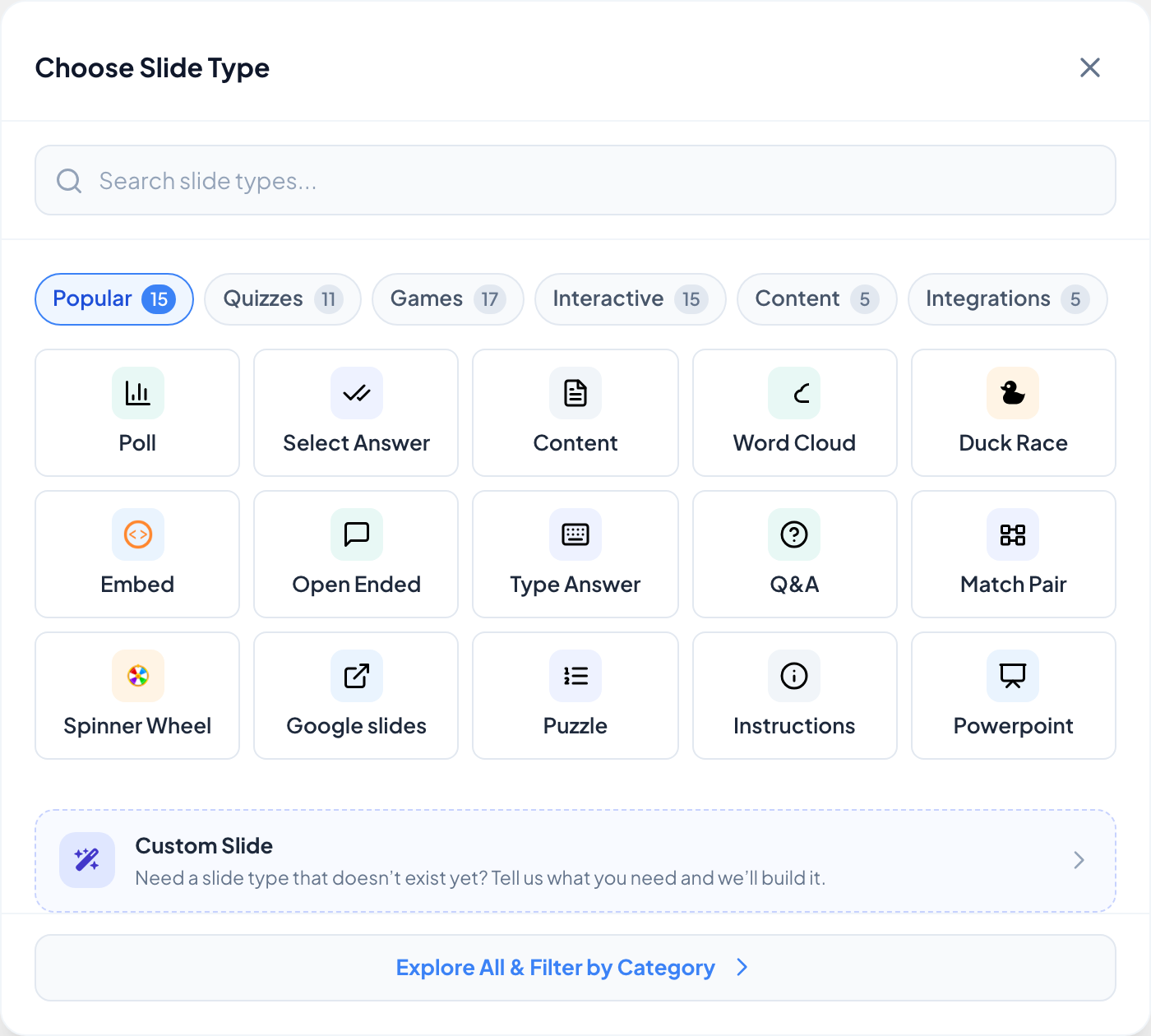
Click + New Slide at the top of the slide list. Choose Slide Type opens on Popular; the other tabs are Quizzes, Games, Interactive, Content and Integrations. Type in Search slide types... if you know the name, or click Explore All & Filter by Category.
- 3
Write the content
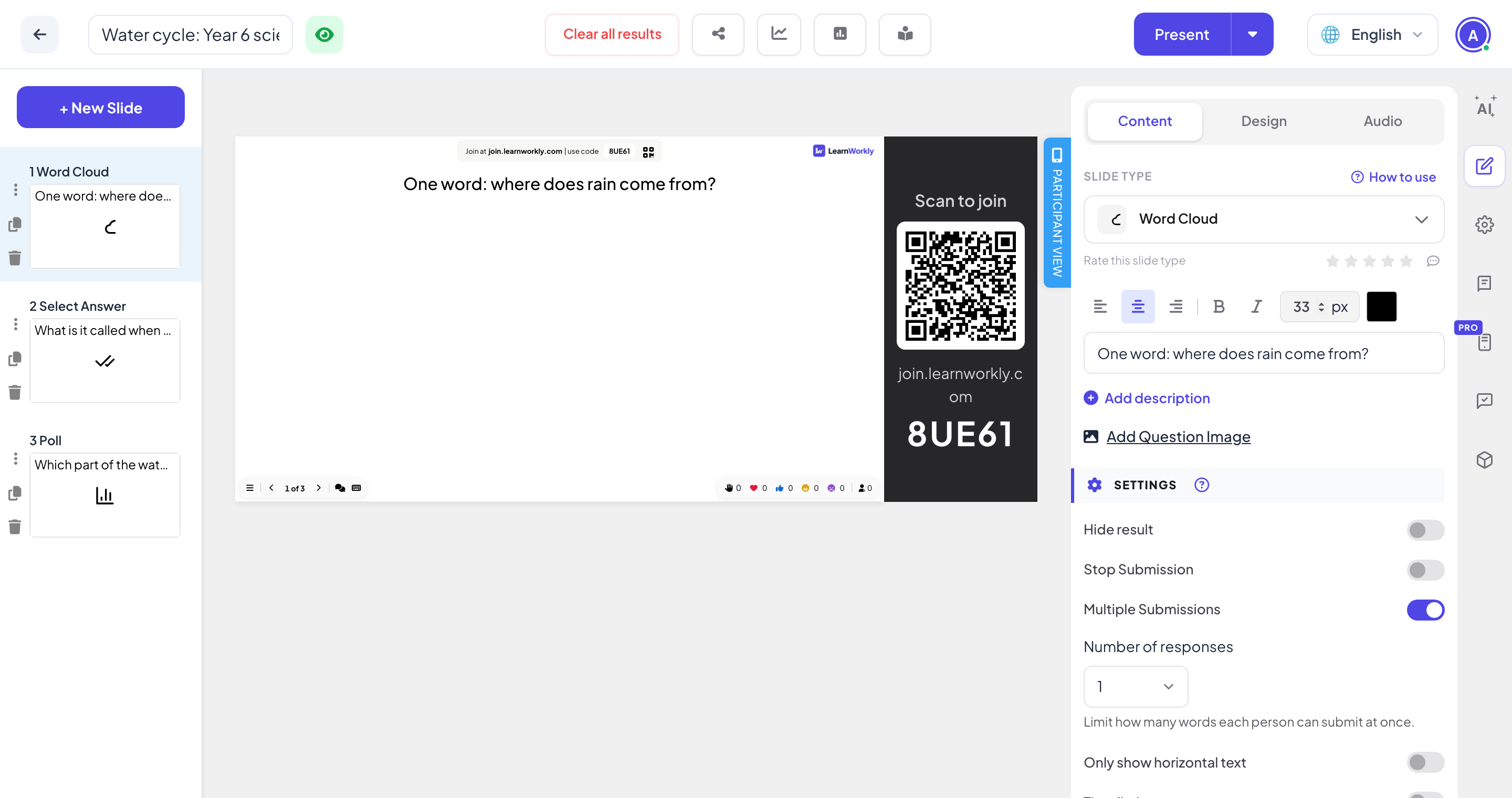
The panel on the right has three tabs: Content (the question, options and the settings of this slide type), Design (colours, font, background) and Audio (music).
- 4
Change the slide type later
At the top of the Content tab, the Slide type menu switches the slide to another type. How to use next to it opens the help article for that type.
- 5
Organise your slides
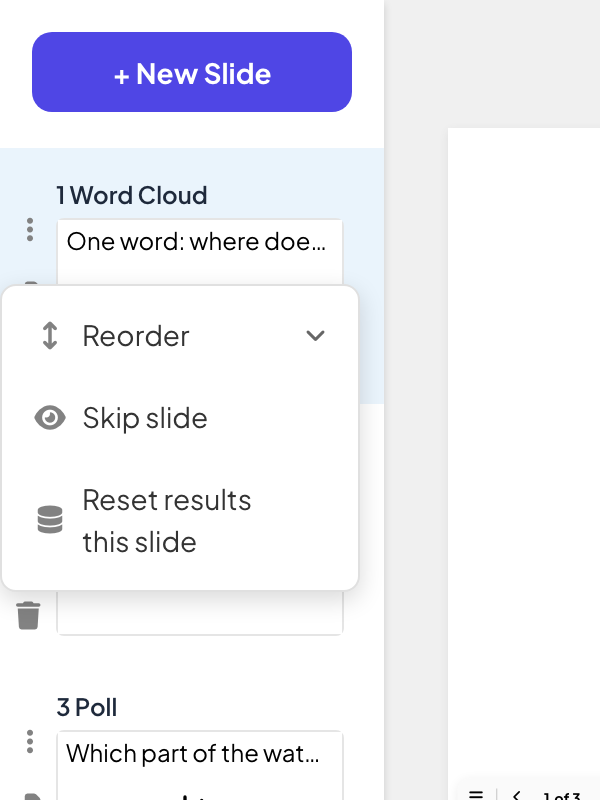
Drag slides in the list to reorder them. The icons beside each slide duplicate or delete it, and the ⋮ menu has Reorder, Skip slide (passed over when you present) and Reset results this slide.
Check the participant view
Click Participant view on the right edge of the slide to see the slide as it will look on a phone.
The icons on the right edge
From the top: AI Assistant, Edit content slide (the Content, Design and Audio tabs), Presentation settings (the gear), Question Library, Remote control (Pro), Audience feedback and Integrations. The top bar has Clear all results, then icons for Share, Report & export data, Survey and Assignment, and Present.
Frequently asked questions
Is my work saved?
Yes. Changes are saved as you type; there is no save button.
How do I start again with no answers?
Click Clear all results in the top bar. The answers so far stay in the report as an earlier session.
Can I hide a slide without deleting it?
Yes. Choose Skip slide in the slide’s ⋮ menu. The slide stays in the editor but is passed over when you present. Choose Unskip this slide to bring it back.
Where do I find all the slide types?
Each one has its own article: see Quiz slides, Games, Interactive questions, Content slides and Integrations.
Last checked against the app on 17 November 2026.
Related articles
- How participants join your presentationPeople join at join.learnworkly.com with your code or by scanning the QR code, with no app and no account. See what they do and how to change the code.
- Present on the big screenStart presenting from the editor, move through slides with the keyboard, use the menu while you present and stop when you are done.
- Create a presentation with AIDescribe what you need in one sentence and AI builds the slides for you, then refine them with the AI Assistant inside the editor. Free while in beta.