The Google slides slide links and displays slides directly from Google Slides. Your deck stays in Google Slides, and you show it between your polls and quizzes. To edit the slides, change them in Google Slides.
Get the link from Google Slides
- 1
Open your deck
Go to your Google Slides presentation.
- 2
Publish it
Select File > Share > Publish to the web. Under the Link tab, select Publish and confirm.
- 3
Copy the link
Copy the link Google Slides gives you. It contains /pub?; LearnWorkly turns it into the embed version for you.
Add it to your presentation
- 1
Add the slide
In the editor, click + New Slide. In Choose Slide Type, open the Integrations tab and pick Google slides.
- 2
Paste the link
Paste the link into the field (Enter link here). Need help with the link? shows the same steps in the app.
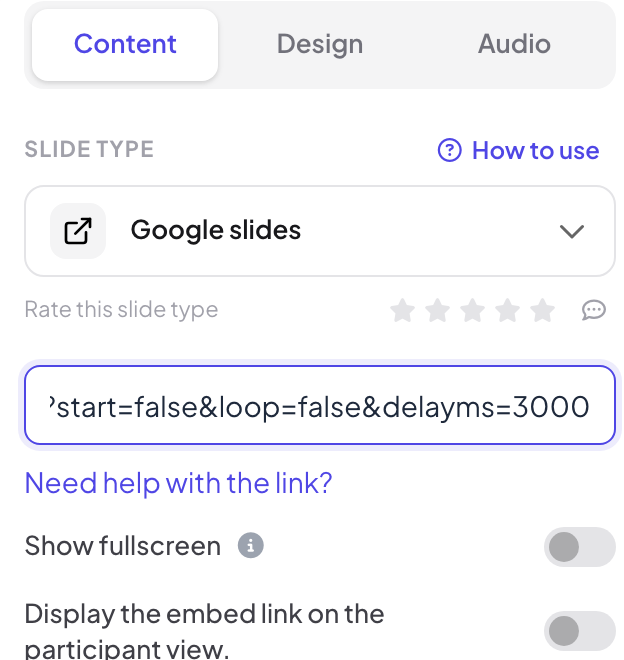

Display settings
- Show fullscreen: the embedded content fills the whole slide, edge to edge, and the slide title is hidden. The top header and bottom control bar float on top, so you can still move between slides. Off by default.
- Display the embed link on the participant view: when this is on, participants can open and browse the same content on their own phones. When it is off (the default), their phones show View on presenter screen.
Present it
Click Present. The deck appears on the big screen with Google’s own controls: click inside the deck, or use its arrows, to move through the Google slides, then use LearnWorkly’s bottom control bar to go on to your next LearnWorkly slide. With the participant view setting on, phones show the deck too and people can page through it themselves.
Frequently asked questions
I edited the deck but the slide shows the old version.
Google updates a published deck after a short while when Automatically republish when changes are made is ticked in its publish settings. Reload the presenting window to load the latest version.
It says the file cannot be found or needs permission.
The deck is not published, or you pasted the normal sharing link. Use the link from File > Share > Publish to the web.
Can I import my Google Slides deck instead?
Yes. Download it from Google Slides as a PowerPoint (.pptx) or PDF file, then use Import PPT/PDF. Imported slides become editable LearnWorkly slides. See Import PowerPoint and PDF.
Last checked against the app on 17 November 2026.
Related articles
- Import PowerPoint and PDF slidesImport a .pptx with its animations kept and editable, or turn every page of a PDF into a slide, then add quizzes and polls between your slides.
- PowerPoint slide: show an online PowerPoint fileShow a PowerPoint file from PowerPoint on the web inside your presentation by pasting its embed code. For editable slides, import the .pptx instead.
- Embed slide: show a live web pageShow a live website inside your presentation with an Embed slide: paste a link, choose fullscreen, and decide whether participants can open it too.