Pin Answer turns a picture into a quiz: "Where is Kenya?", "Click the left ventricle", "Which button saves the file?" Players drop one pin, and a pin inside a right area scores. Faster pins score more. A new slide starts with a sample picture and answer, so you can try it at once.
With a ready-made picture
- 1
Add the slide
In the editor, click + New Slide. In Choose Slide Type, open the Quizzes tab and click Pin Answer. A Leaderboard slide is added right after it, unless the next slide already is one.
- 2
Pick the picture
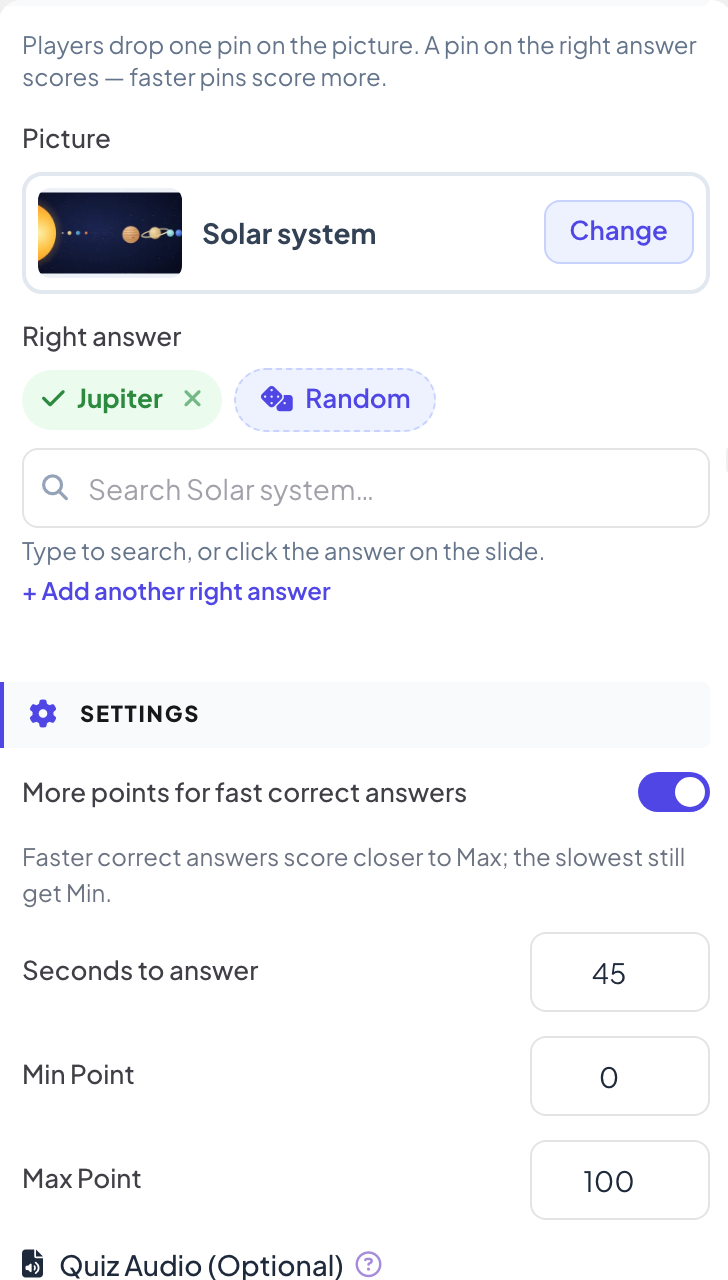
Under Picture, click Change and choose a ready-made picture: World map, Continents, Europe, Asia, Africa, The Americas, USA, Solar system or Human body.
- 3
Pick the right answer
Under Right answer, type to search, or click the answer on the slide. Random picks a random answer and writes the question for you.
- 4
Add more right answers (optional)
Click Add another right answer if more than one place should count, up to 5.
With your own picture
- 1
Upload it
Under Picture, click Change, then Your own image: a map, diagram or screenshot.
- 2
Mark the right areas
Click the picture on the slide to mark a right area, or drag to draw its size. Drag an area to move it and its white dot to resize it. Each area can be a Circle or a Rectangle. Areas are listed under Right areas, up to 5.
Play it live
- 1
Start the question
Click Present. When you reach the first quiz slide, the big screen shows the lobby with everyone who has joined. People who have not given a name yet type a Nickname on their phone first, so they appear on the leaderboard. Click Start Game when the room is ready. The game then keeps going: each later quiz slide you move forward to opens straight on its question, without the lobby. After you go back a slide, quiz slides show the lobby again until you click Start Game.
- 2
People drop a pin
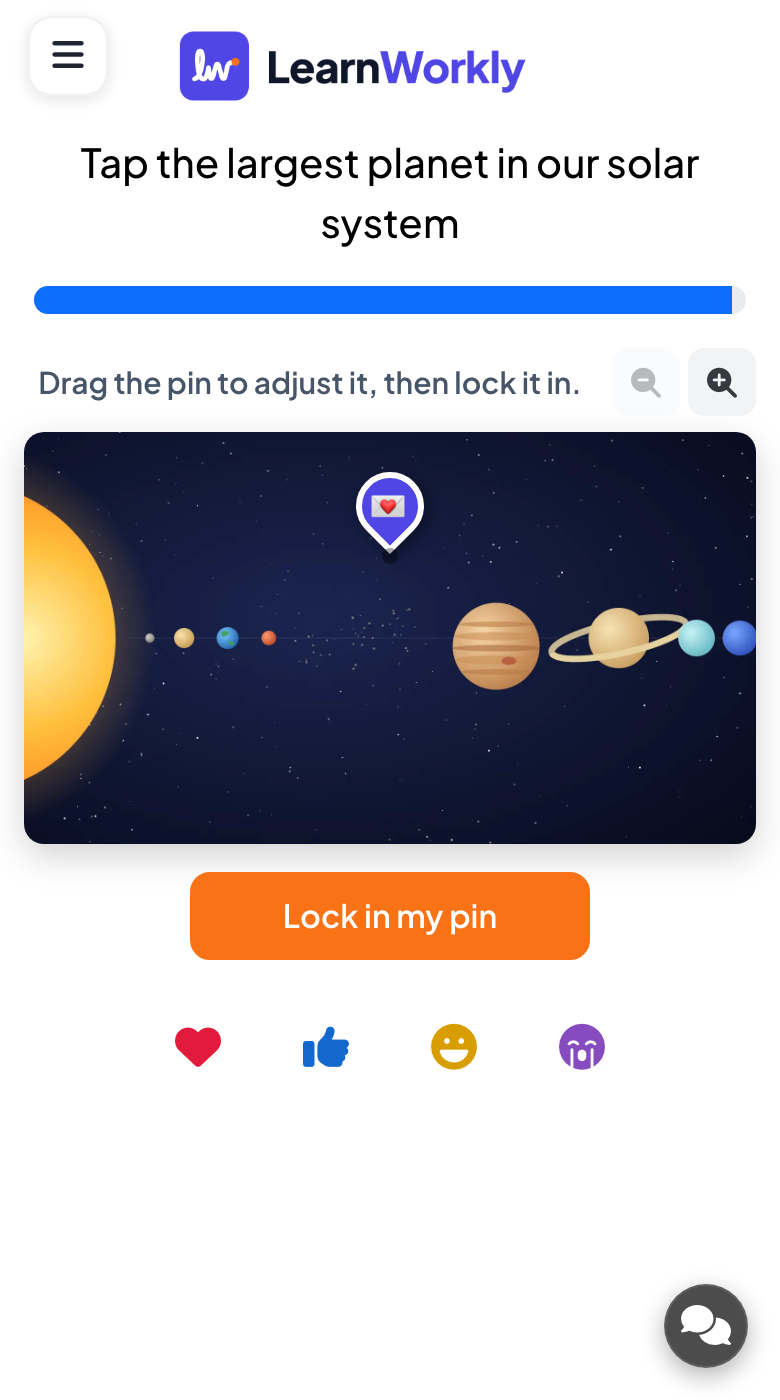
Each phone shows the picture with zoom buttons. Players Tap the picture to drop your pin, drag it to adjust, then tap Lock in my pin.
- 3
Reveal
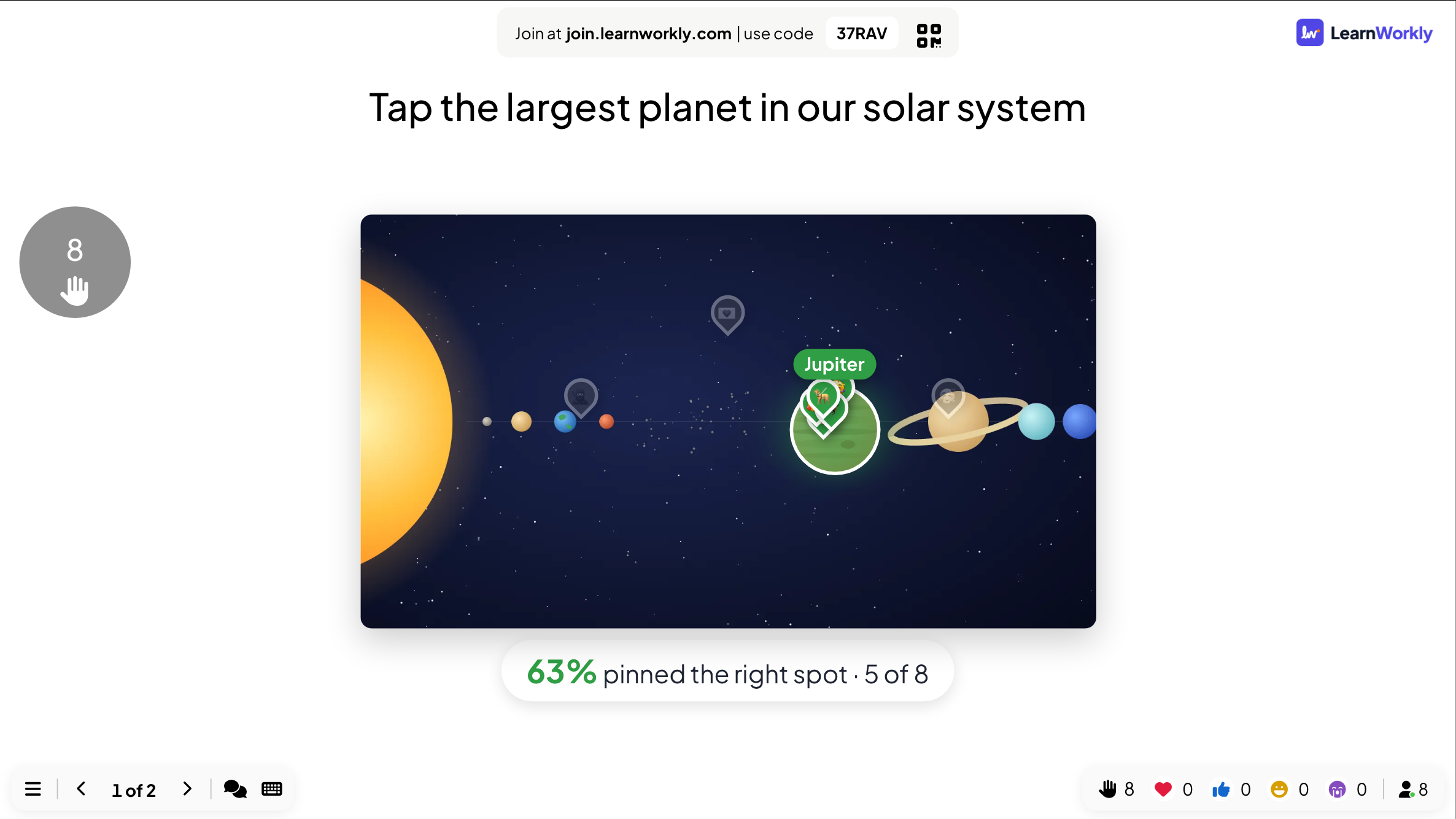
When time is up, the big screen shows everyone’s pins on the picture together with the right areas. Each phone marks the right answer in green.
Frequently asked questions
The area is too small to hit on a phone.
Make the right area bigger, or tell players to use the zoom buttons before they drop the pin.
Can a pin be moved after it is locked in?
No. Players can drag the pin as long as they like, but Lock in my pin sends it.
Someone joined while the question was running.
After they type a nickname, their phone shows the question and they can still answer until the countdown ends. Points from earlier questions are not added afterwards.
Last checked against the app on 17 November 2026.
Related articles
- Pin on Image: tap a spot on a pictureUpload a map, diagram or photo and participants drop a pin on the spot they choose. Every pin appears on the big screen in real time.
- Estimate: guess a number on a sliderPlayers drag a slider to guess a number. The closer the guess, the more points. Set the answer, the slider range, the unit and who scores points.
- Select Answer: multiple-choice quiz questionsAsk a multiple-choice question with up to six options, mark the right answers, set the time and points, and play it live with a countdown and a reveal.