With Team quiz mode, participants pick a team before the quiz starts. The lobby shows a team grid and the leaderboard gets a team ranking next to the individual one. It suits fun days, team building and classes split into groups.
Turn it on
- 1
Open the presentation settings
In the editor, click the gear icon (Presentation settings) on the right edge and open General Settings.
- 2
Switch on Team quiz mode
Under Presenting, turn on Team quiz mode.
- 3
Size the teams
Set the Number of teams (2 to 50) and Members per team (1 to 200). Teams are named Team 1, Team 2 and so on, each with its own colour.
- 4
Choose the team scoring
Pick how a team’s score is counted under Team scoring (see below).
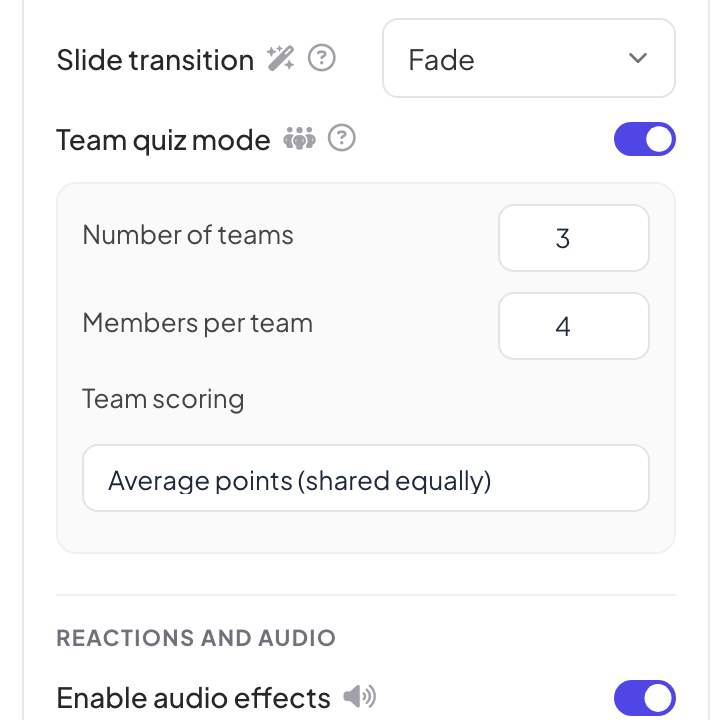
Team scoring
| Option | Team score |
|---|---|
| Total points (sum of members) | All the points the team’s members scored, added up. Bigger teams have an advantage. |
| Average points (shared equally) | The team’s total divided by the number of members who answered. Fair when teams have different sizes. |
| Fastest answer per question | For each question, only the points of the team’s fastest correct answer count. |
Play it live
- 1
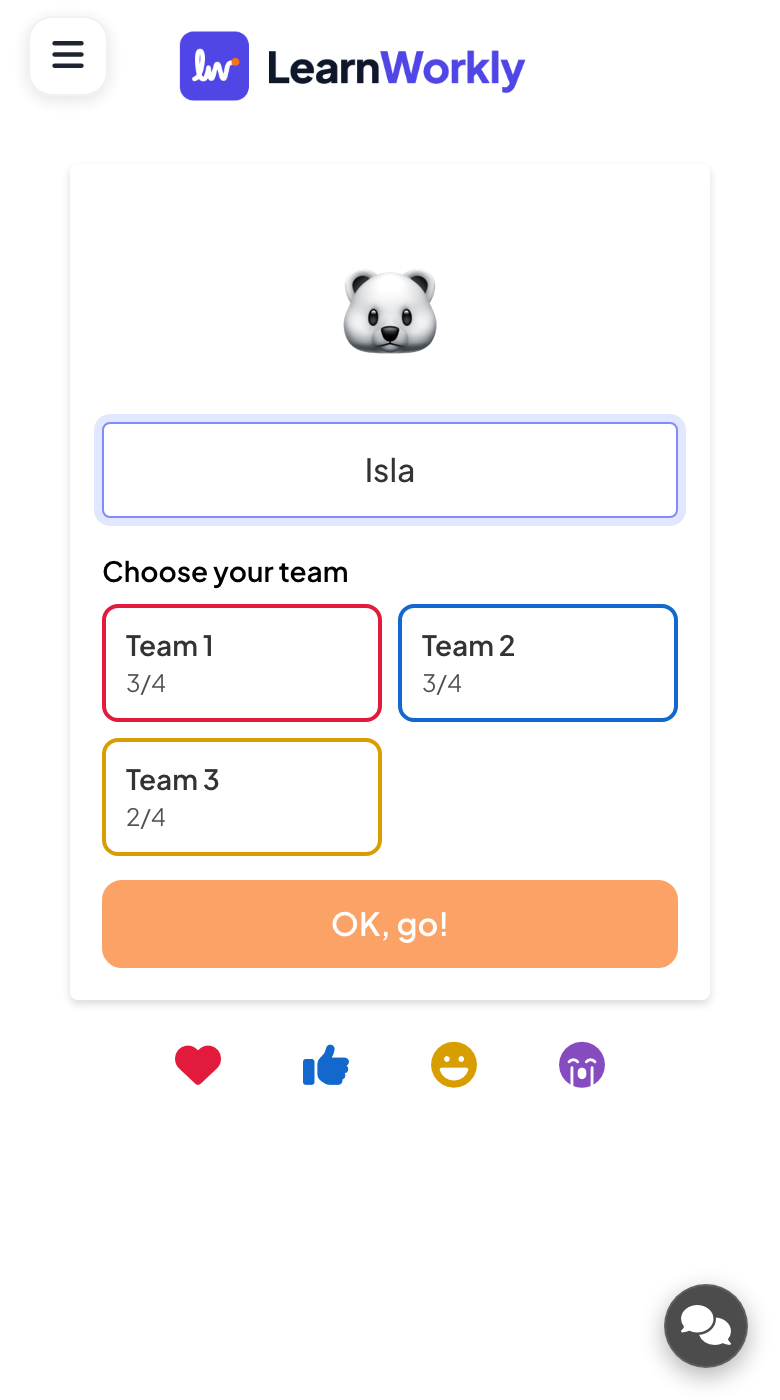
People pick a team
When they enter their nickname, participants Choose your team from the grid. Each team shows how many places are taken; a full team cannot be picked.
- 2
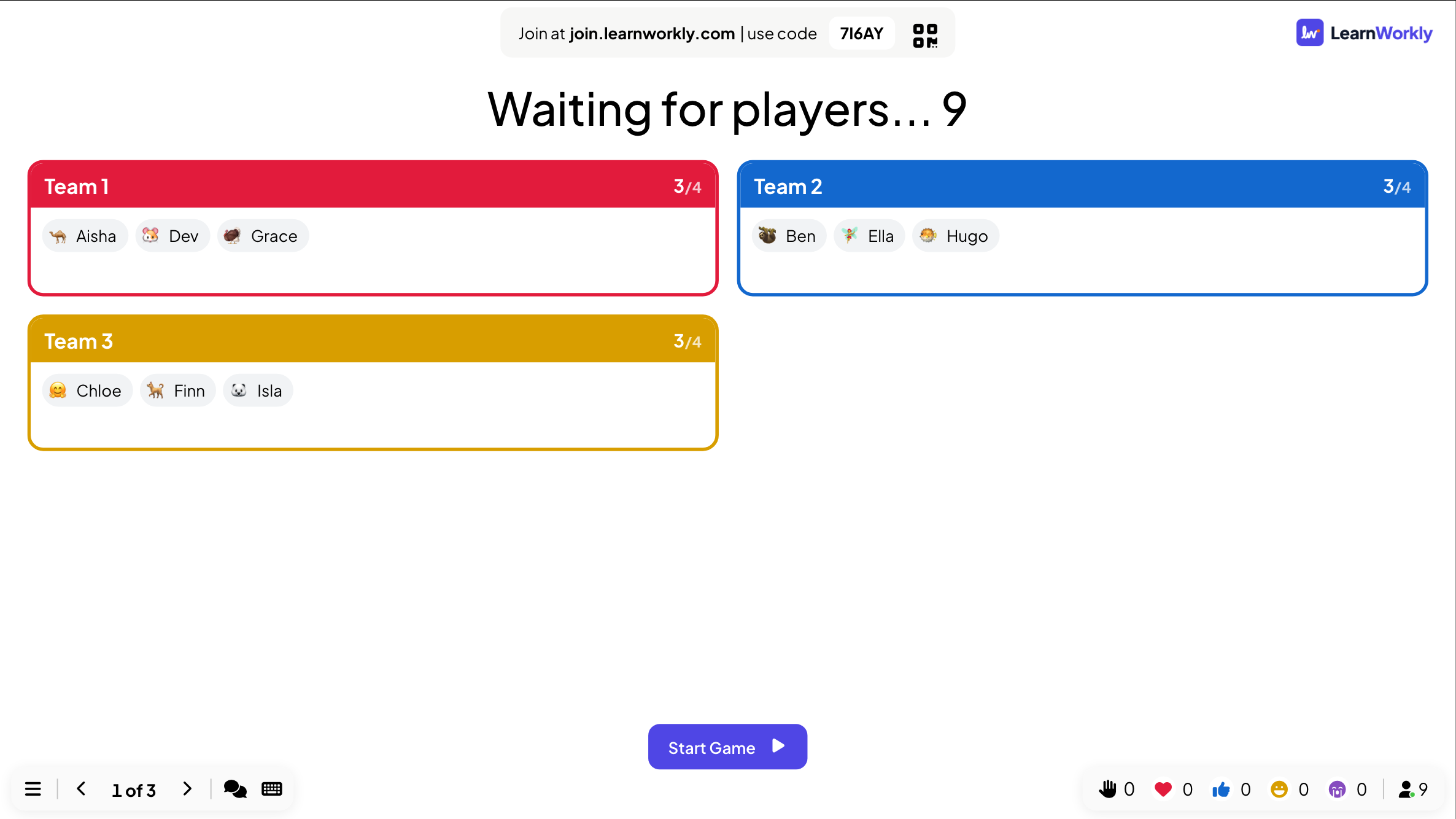
The lobby fills up
The lobby on the big screen shows every team with its members. Participants can still Change team until the game starts.
- 3
Play the questions
Each player answers on their own phone, as in any quiz.
- 4
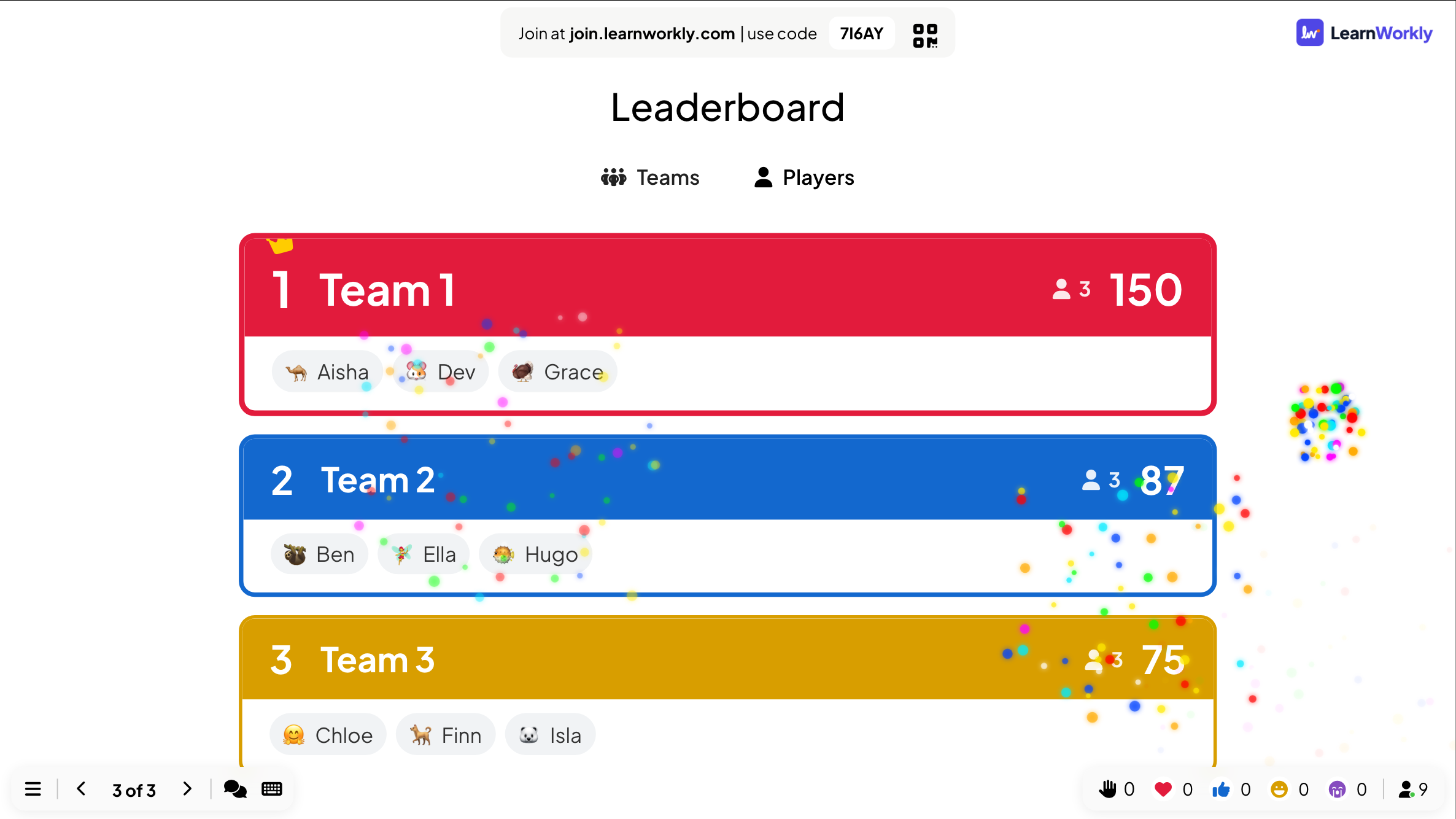
Show the team ranking
The Leaderboard slide opens on Teams. Click Players to show the individual ranking.
Frequently asked questions
A team is full.
A full team cannot be picked. Raise Members per team, or add teams with Number of teams.
Can I rename the teams?
Not at the moment. Teams are called Team 1, Team 2 and so on.
The teams have different sizes.
Use Average points (shared equally) or Fastest answer per question, so a big team does not win just by having more players.
Does team mode work with the games?
Team quiz mode is for quiz slides. Some games have their own teams: Tug of War splits the room in two and Escape Room plays in teams.
Last checked against the app on 17 November 2026.
Related articles
- Leaderboard: show the quiz scoresAdd a Leaderboard slide after your quiz questions to show every player’s rank and score, with team rankings in team mode and a winner at the end.
- Select Answer: multiple-choice quiz questionsAsk a multiple-choice question with up to six options, mark the right answers, set the time and points, and play it live with a countdown and a reveal.
- Tug of War: two teams on one ropeTwo teams on one rope: answer right and fast to pull, then tap to heave the other team into the mud. Play it as a quiz battle or a pure tap battle.
- Escape Room: crack the locks to get outTeams crack a chain of locks on their phones: every answer is a code that opens the next door. The first team out wins.