True or False asks the room to judge one statement. It is quick to write and works well for myth-busting: after the countdown the answer is stamped on the big screen together with the reason why. A new slide starts with a sample statement you can overwrite.
Set it up
- 1
Add the slide
In the editor, click + New Slide. In Choose Slide Type, open the Quizzes tab and click True or False. A Leaderboard slide is added right after it, unless the next slide already is one.
- 2
Write the statement
Type the statement in the question box, for example "Goldfish have a three-second memory."
- 3
Choose the labels
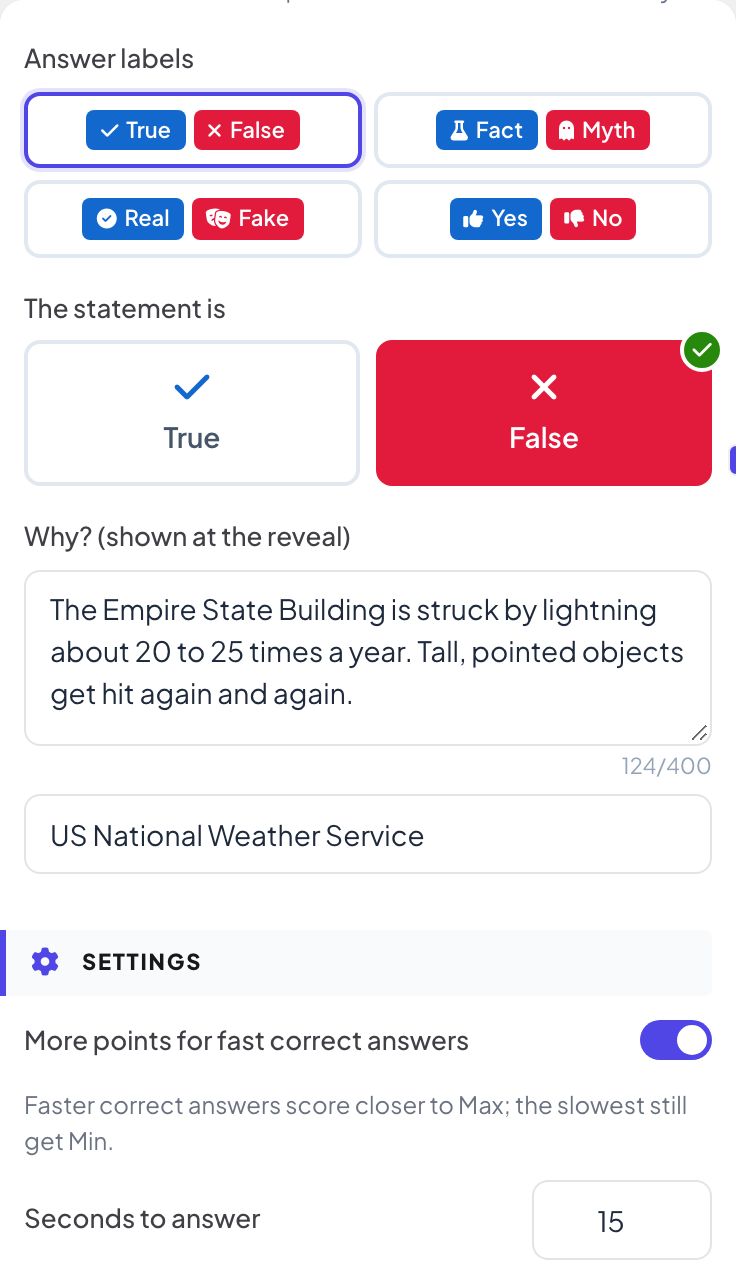
Under Answer labels, pick True / False, Fact / Myth, Real / Fake or Yes / No.
- 4
Pick the answer
Under The statement is, click the right side. The app warns you with Pick the right answer. until you do.
- 5
Explain it
In Why? (shown at the reveal), explain the answer in up to 400 characters. The box underneath is for the source, for example the organisation the fact comes from.
- 6
Set time and points
Under Settings, the time, points and More points for fast correct answers work as in Select Answer.
Play it live
- 1
Start the question
Click Present. When you reach the first quiz slide, the big screen shows the lobby with everyone who has joined. People who have not given a name yet type a Nickname on their phone first, so they appear on the leaderboard. Click Start Game when the room is ready. The game then keeps going: each later quiz slide you move forward to opens straight on its question, without the lobby. After you go back a slide, quiz slides show the lobby again until you click Start Game.
- 2
People choose a side
Each phone shows two big buttons with your labels. One tap sends the answer.
- 3
Reveal
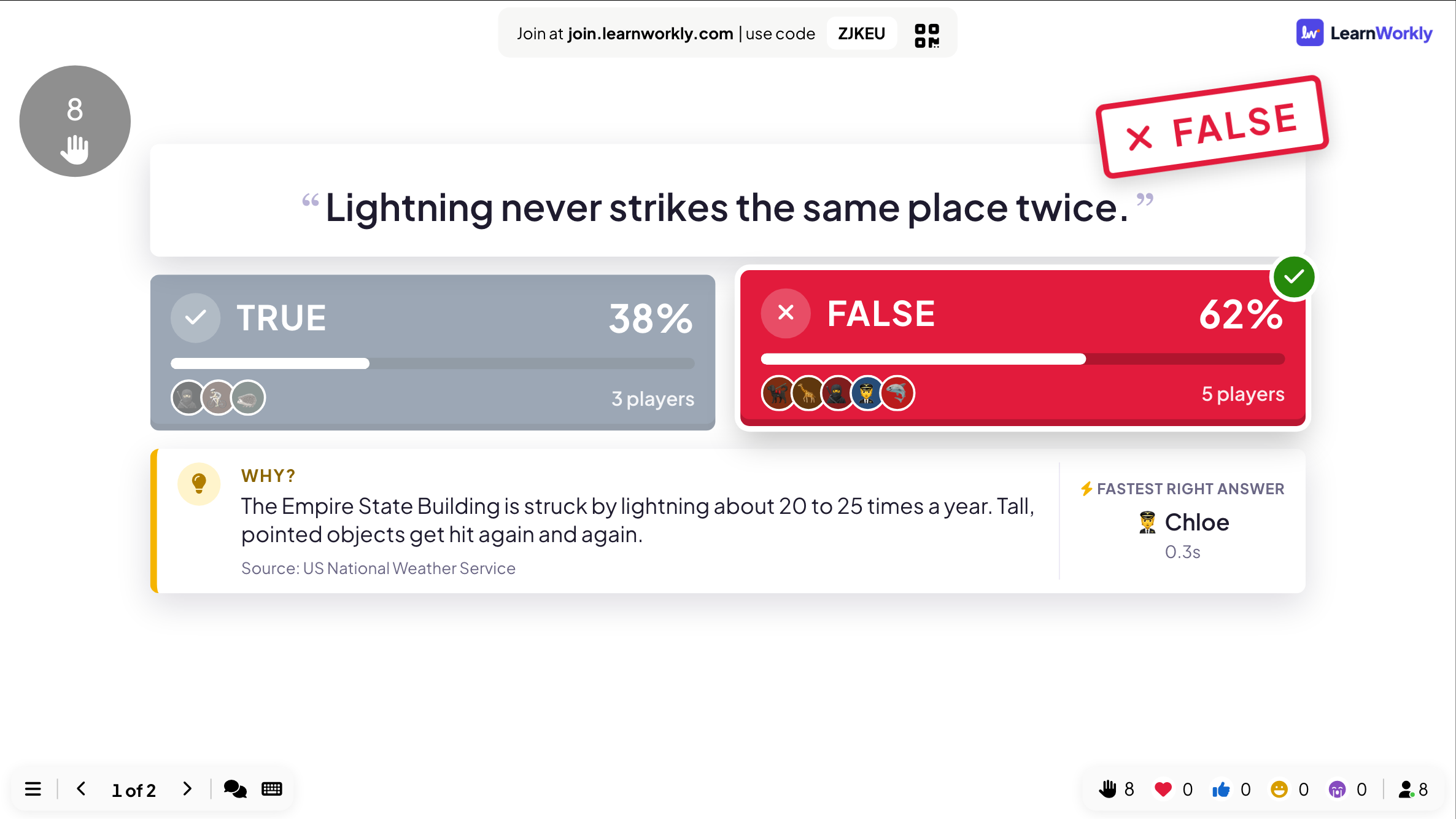
When time is up, or when you click End Quiz, the big screen stamps the right side, shows the share and the number of players on each side, the fastest right answer and your Why? text with its Source.
- 4
On the phones
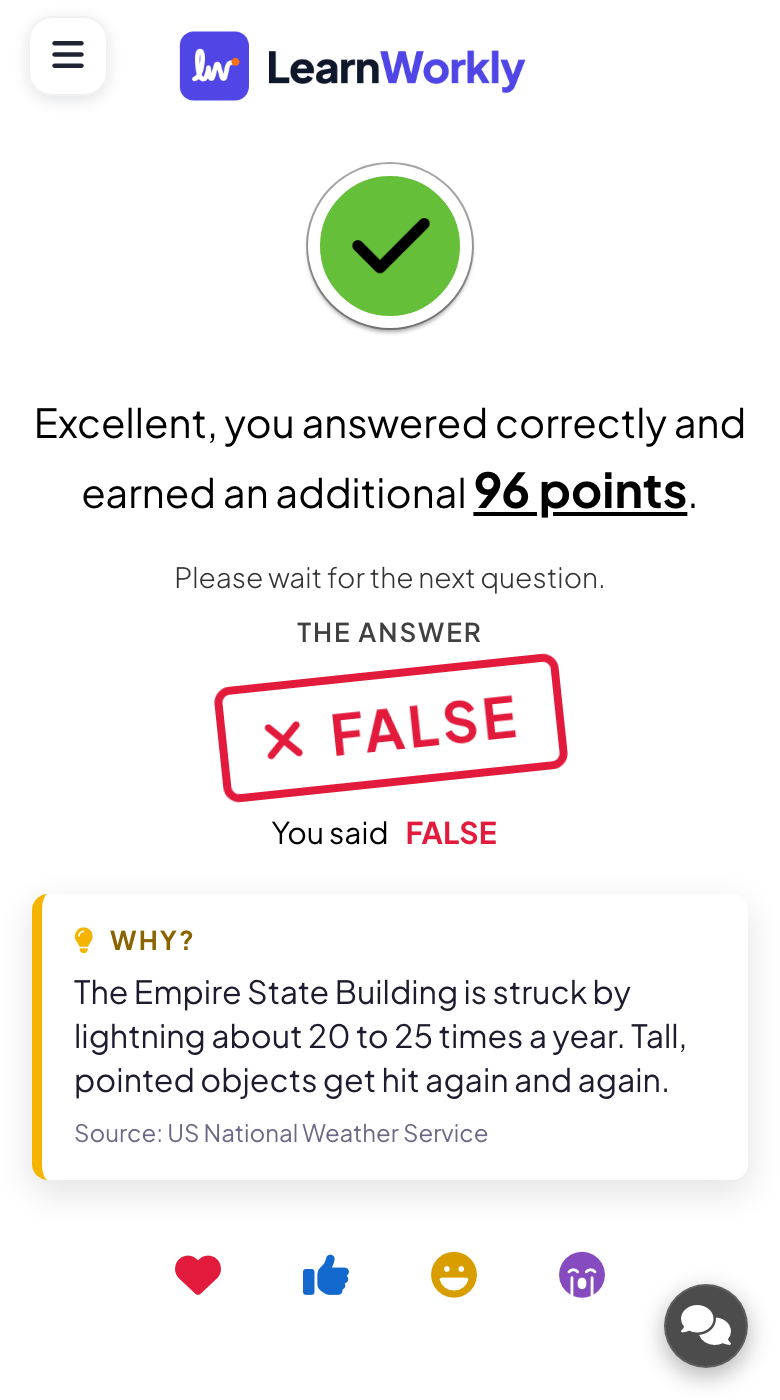
Each player sees whether they were right, the points they earned, what they said, the answer and the explanation.
Read the results
After the session, open the report of the presentation. Slide Results has a card for this slide with the number of submissions and the chart of answers; View Details lists who answered what and when.
Frequently asked questions
Someone joined while the question was running.
After they type a nickname, their phone shows the question and they can still answer until the countdown ends. Points from earlier questions are not added afterwards.
Can I change True and False to other words?
Pick one of the four pairs under Answer labels. Your own words are not possible; for other choices use Select Answer with two options.
Do I have to write an explanation?
No, but it is what makes the reveal useful. Without it the big screen shows the stamp and the split only.
Can I run a question without points?
Yes. Set Min Point and Max Point to 0 under Settings. People still answer and see whether they were right, but the leaderboard does not change.
Last checked against the app on 17 November 2026.
Related articles
- Select Answer: multiple-choice quiz questionsAsk a multiple-choice question with up to six options, mark the right answers, set the time and points, and play it live with a countdown and a reveal.
- Vote · Discuss · Revote: peer instructionEveryone votes alone with no points, discusses with a neighbour, then votes again for points. The big screen shows how the room changed its mind.
- Leaderboard: show the quiz scoresAdd a Leaderboard slide after your quiz questions to show every player’s rank and score, with team rankings in team mode and a winner at the end.