Select Answer is the classic quiz question: participants pick an answer on their phone before the countdown ends, and fast correct answers score points for the leaderboard. Use it for warm-ups, checks for understanding, exam practice and pub-quiz rounds.
Set it up
- 1
Add the slide
In the editor, click + New Slide. In Choose Slide Type, open the Quizzes tab and click Select Answer. A Leaderboard slide is added right after it, unless the next slide already is one.
- 2
Write the question
Type it in the question box at the top of the Content tab. Add description adds a line under it and Add Question Image a picture.
- 3
Add the options
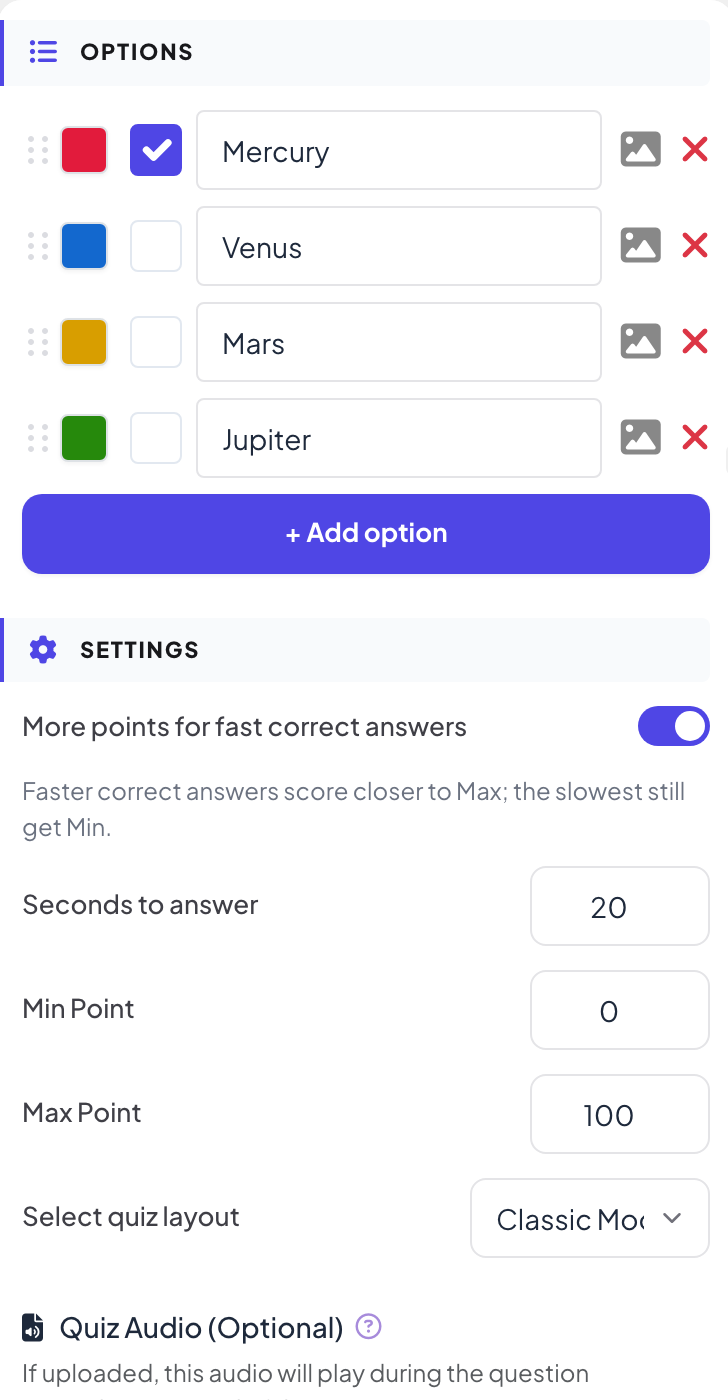
Under Options, type each answer and use + Add option for more, up to 6. Tick the box next to every right answer. The colour square changes an option’s colour, the picture icon adds an image, and the dotted handle drags it to a new place.
- 4
Check the settings
Under Settings, set Seconds to answer, the points (see the table below) and the Select quiz layout: Classic Mode or Standard Chart.
- 5
Try it
Click Try Play Game on the slide to run through the question yourself, or Participant view on the right edge of the slide to see the phone screen.
Scoring settings
| Setting | What it does | Default |
|---|---|---|
| More points for fast correct answers | On: faster correct answers score closer to Max Point, the slowest still get Min Point. Off: every correct answer gets the same Point, however fast. | On |
| Seconds to answer | How long participants have to answer. | 45 |
| Min Point / Max Point | The range of points for a correct answer when speed counts. A wrong answer or no answer scores 0. | 0 / 100 |
| Partial scoring | Shown when more than one option is marked right. On: a participant who picks some of the right options (and no wrong one) gets a share of the points. Off: all or nothing. | Off |
Play it live
- 1
Start the question
Click Present. When you reach the first quiz slide, the big screen shows the lobby with everyone who has joined. People who have not given a name yet type a Nickname on their phone first, so they appear on the leaderboard. Click Start Game when the room is ready. The game then keeps going: each later quiz slide you move forward to opens straight on its question, without the lobby. After you go back a slide, quiz slides show the lobby again until you click Start Game.
- 2
People answer on their phone
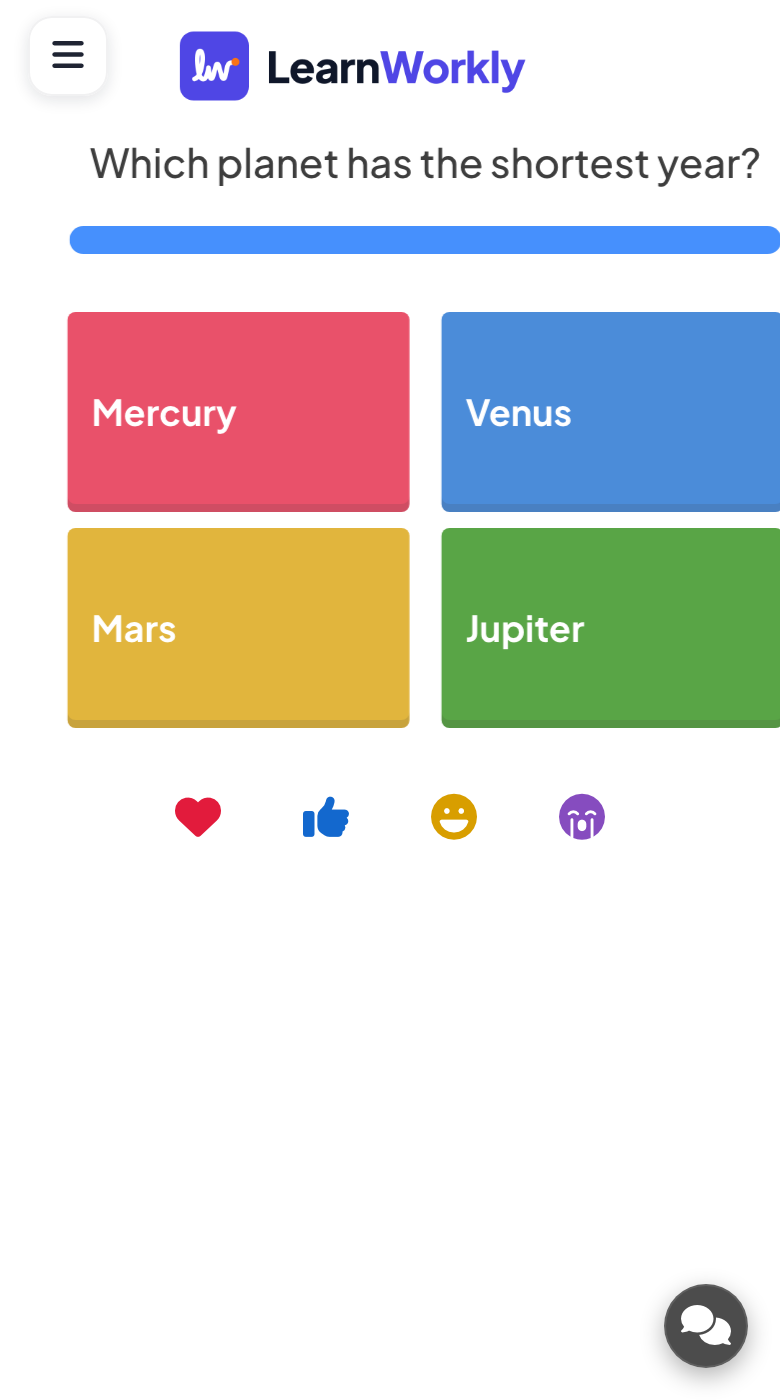
The question is shown with a short countdown, then the options appear on every phone. With one right option, a tap sends the answer straight away. With several, people select their options and tap Submit.
- 3
Watch the answers come in
The countdown runs on the big screen and on every phone. Click End Quiz to stop it early, for example when everyone has answered.
- 4
Reveal
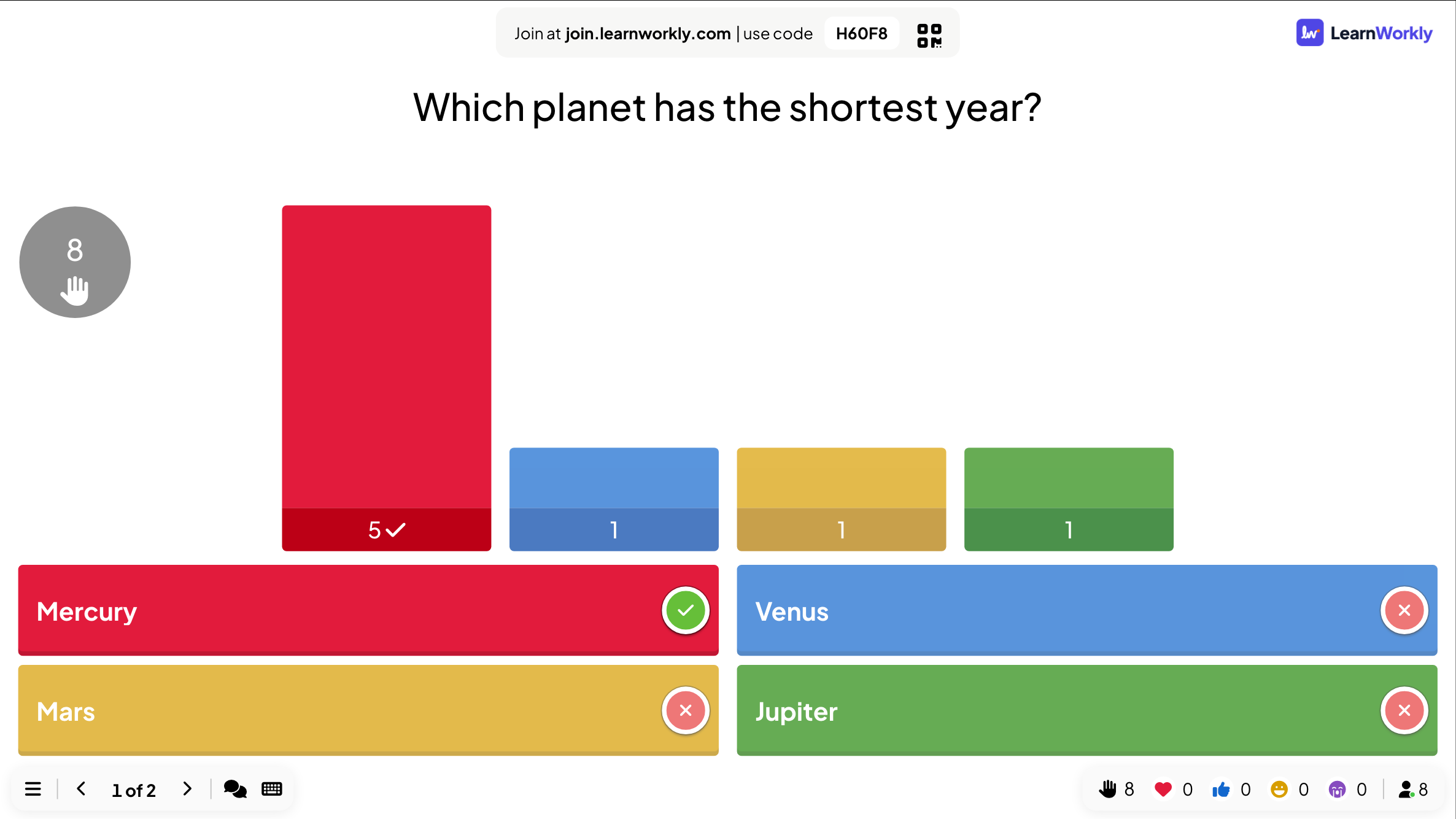
When time is up, the big screen marks the right answers with a tick and shows how many people chose each option. Each phone shows whether that person was right and how many points they earned.
Read the results
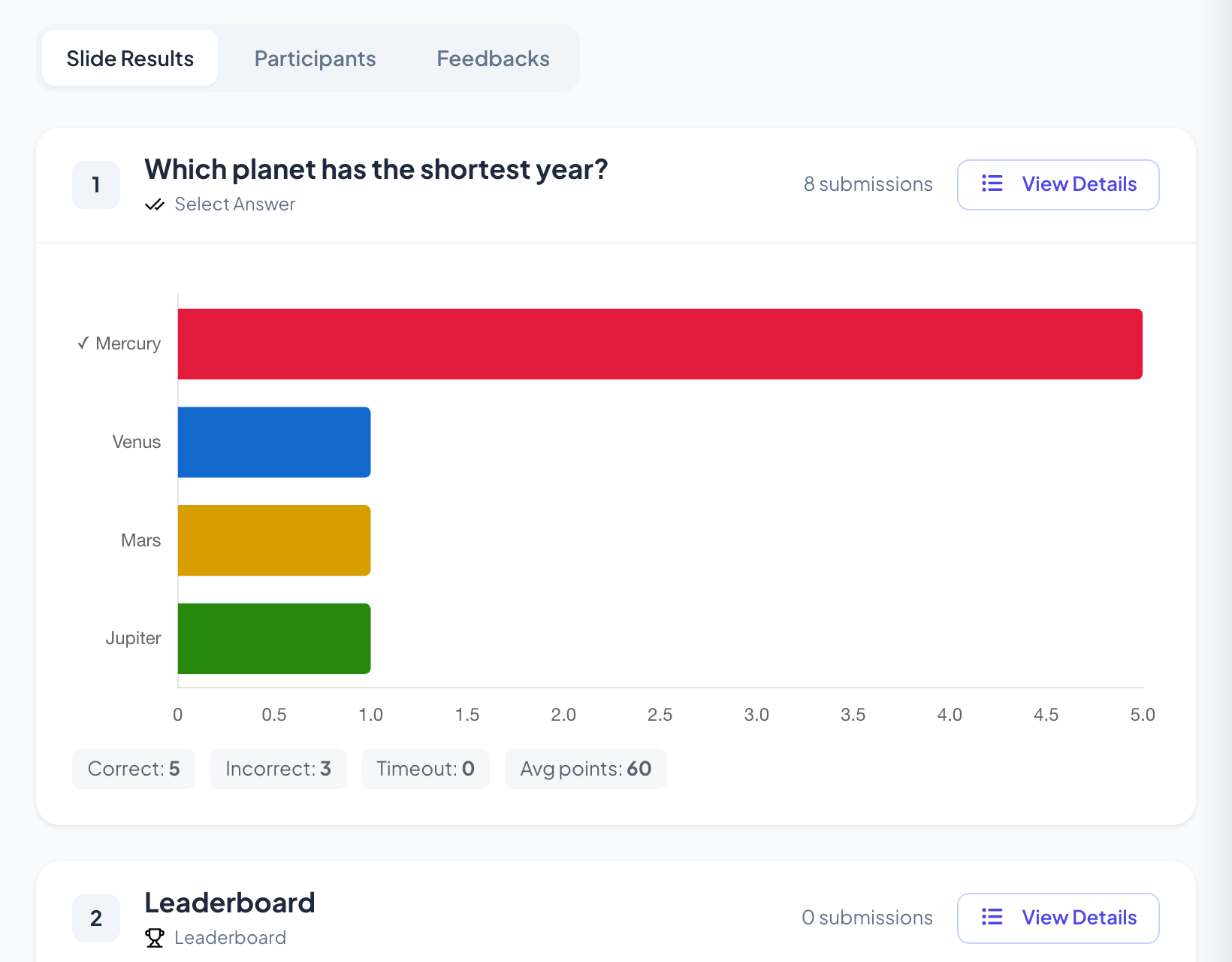
After the session, open the report of the presentation. Slide Results has a card for this slide with the number of submissions and the chart of answers; View Details lists who answered what and when. Under the chart, a Select Answer card counts the Correct, Incorrect and Timeout answers and shows the Avg points.
Frequently asked questions
Someone joined while the question was running.
After they type a nickname, their phone shows the question and they can still answer until the countdown ends. Points from earlier questions are not added afterwards.
Can I run a question without points?
Yes. Set Min Point and Max Point to 0 under Settings. People still answer and see whether they were right, but the leaderboard does not change.
Can I add music to the question?
Yes. In the Audio tab pick the Lobby Music and Playing Music, or upload your own file under Quiz Audio (Optional): it plays during the question countdown instead of the game music.
How do I run the quiz again with a new group?
Click Clear all results in the top bar of the editor and confirm. Answers and scores start from zero, and the earlier answers stay in the report as a separate session.
Last checked against the app on 17 November 2026.
Related articles
- Leaderboard: show the quiz scoresAdd a Leaderboard slide after your quiz questions to show every player’s rank and score, with team rankings in team mode and a winner at the end.
- True or False: fact or myth questionsWrite a statement, pick the right side and explain why. Players choose on their phone, then the answer is stamped on screen with your explanation.
- Bet / Wager: players bet points before answeringPlayers bet one of your chip amounts before the options appear. A right answer multiplies the bet, a wrong one loses it. Great for a final round.
- Slide audio: background music and quiz soundsAdd background music to a slide, upload your own audio, choose whether it plays on participants’ phones, and pick the lobby and playing music for quizzes.