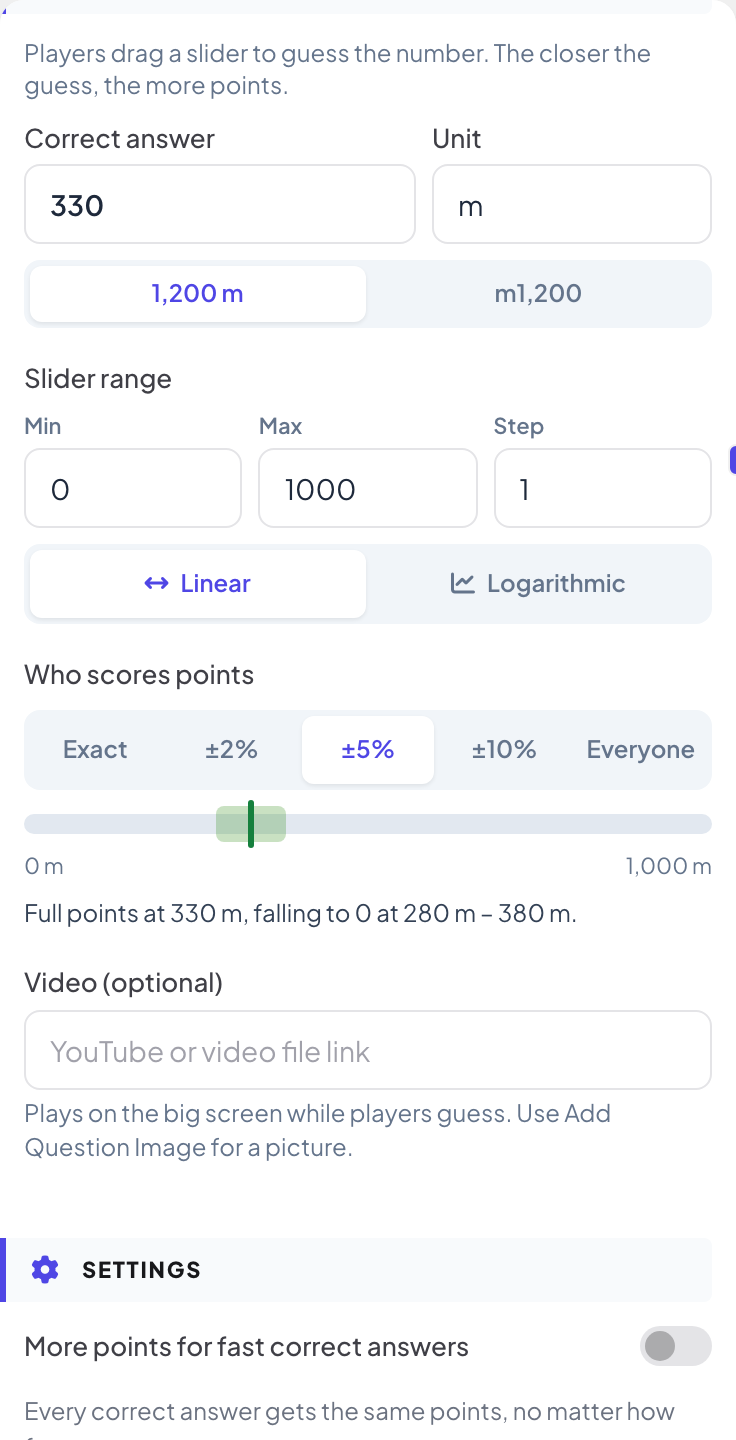
Estimate asks for a number rather than a choice: "How tall is the Eiffel Tower?", "How many people live in Lisbon?" Everyone has a fair chance, and the closest guesses earn the most points. A new slide starts with a sample question (330 m) and with More points for fast correct answers off, because accuracy matters more than speed here.
Set it up
- 1
Add the slide
In the editor, click + New Slide. In Choose Slide Type, open the Quizzes tab and click Estimate. A Leaderboard slide is added right after it, unless the next slide already is one.
- 2
Enter the answer and unit
Type the Correct answer and an optional Unit (for example m, people or $). Choose whether the unit goes before or after the number.
- 3
Set the slider range
Under Slider range, set Min, Max and Step. If the answer falls outside the range, it is moved inside it. Choose Linear, or Logarithmic for huge ranges such as 1 to 1,000,000, so small numbers get as much room on the slider as big ones.
- 4
Choose who scores points
Under Who scores points, pick Exact, ±2%, ±5%, ±10% or Everyone. The percentage is a share of the slider range. The line underneath explains the rule, for example "Full points at 330, falling to 0 at 280 – 380."
- 5
Add a video (optional)
Paste a YouTube link or a direct .mp4 / .webm link in Video (optional) to play it on the big screen while players guess.
Play it live
- 1
Start the question
Click Present. When you reach the first quiz slide, the big screen shows the lobby with everyone who has joined. People who have not given a name yet type a Nickname on their phone first, so they appear on the leaderboard. Click Start Game when the room is ready. The game then keeps going: each later quiz slide you move forward to opens straight on its question, without the lobby. After you go back a slide, quiz slides show the lobby again until you click Start Game.
- 2
People guess
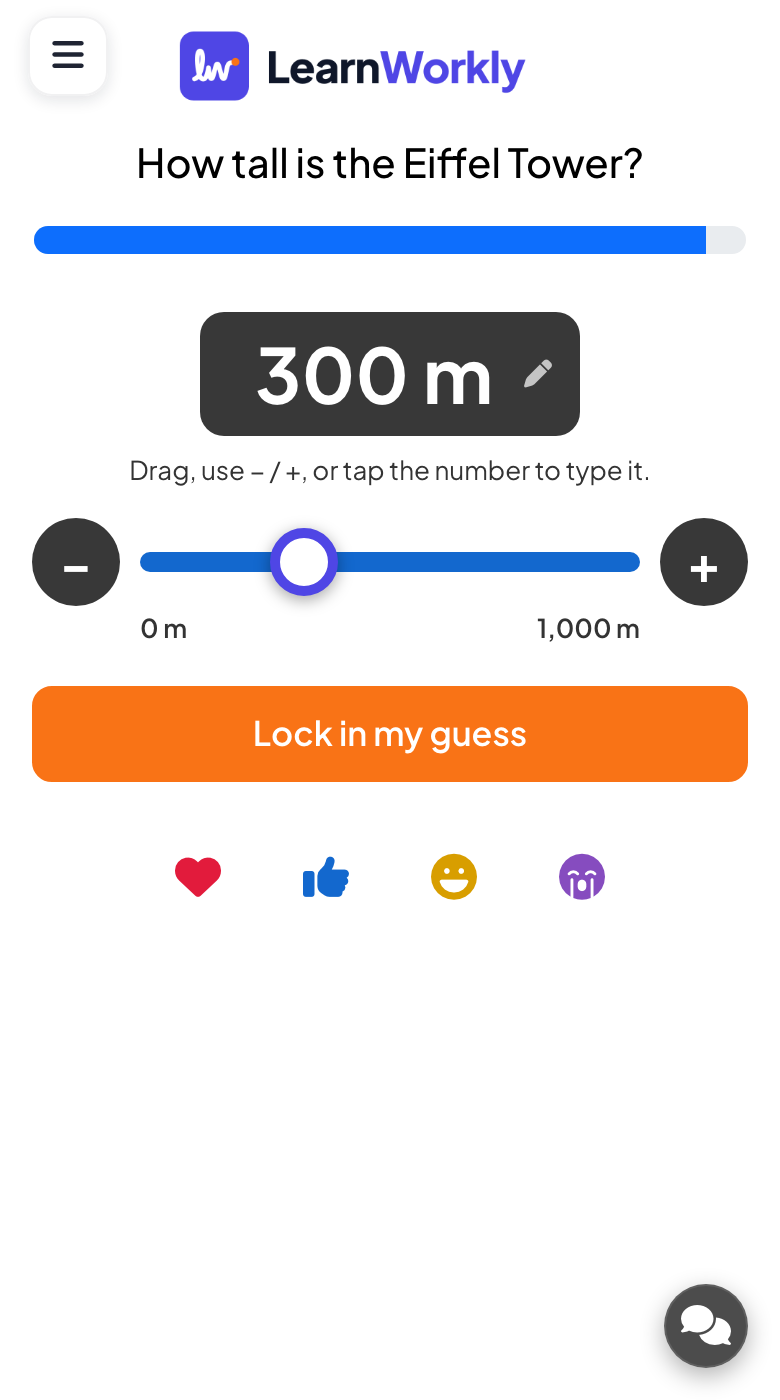
Each phone shows a slider with no starting value, so nobody is anchored by it. Participants drag it, use − and +, or tap the number to type it, then tap Lock in my guess.
- 3
Scoring
A guess on the answer gets full points; points fall in a straight line to 0 at the edge of the margin you chose. Speed counts too if you turn on More points for fast correct answers.
- 4
Reveal
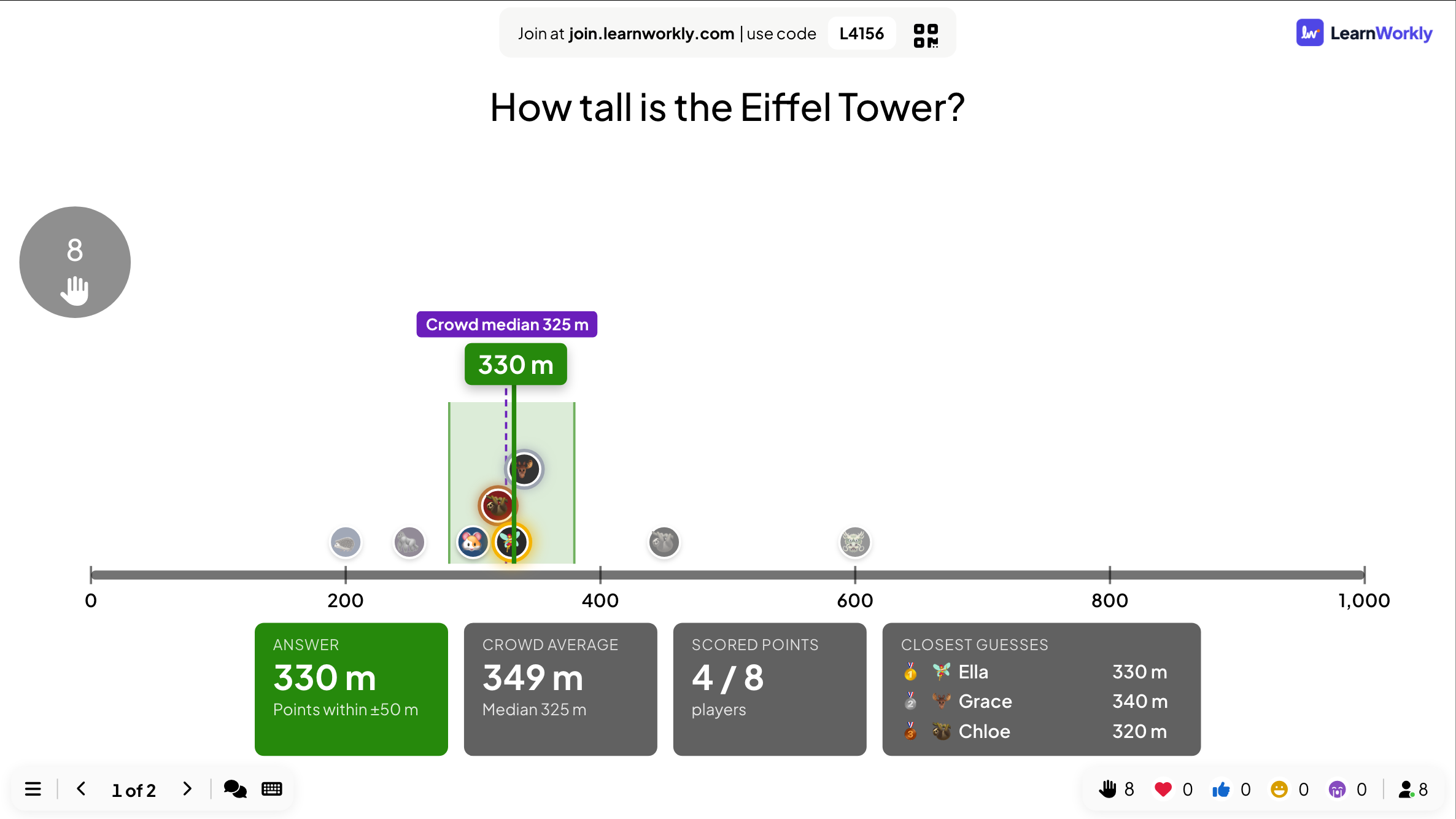
When time is up, the big screen places every guess on a number line next to the answer and its scoring margin, with the crowd average and median, how many players scored points and the three closest guesses. Each phone shows the player’s guess, how far off it was and how they ranked.
Frequently asked questions
Nobody scored any points.
The margin may be too tight. With Exact only the exact answer scores. Try ±5% or ±10%, or Everyone so every guess scores something.
The numbers are huge. The slider is hard to use.
Switch the range to Logarithmic, and remind people they can tap the number to type it.
Someone joined while the question was running.
After they type a nickname, their phone shows the question and they can still answer until the countdown ends. Points from earlier questions are not added afterwards.
Last checked against the app on 17 November 2026.
Related articles
- Bet / Wager: players bet points before answeringPlayers bet one of your chip amounts before the options appear. A right answer multiplies the bet, a wrong one loses it. Great for a final round.
- Pin Answer: tap the right spot on a picturePlayers drop a pin on a map, diagram or screenshot. A pin on the right area scores. Use a ready-made map or upload your own picture and mark the areas.
- Leaderboard: show the quiz scoresAdd a Leaderboard slide after your quiz questions to show every player’s rank and score, with team rankings in team mode and a winner at the end.