Speaker notes are your private reminders for each slide: what to say, a question to ask, a story to tell. They are never shown on the big screen or on participants’ phones.
Write notes
- 1
Open a slide
Select the slide in the editor.
- 2
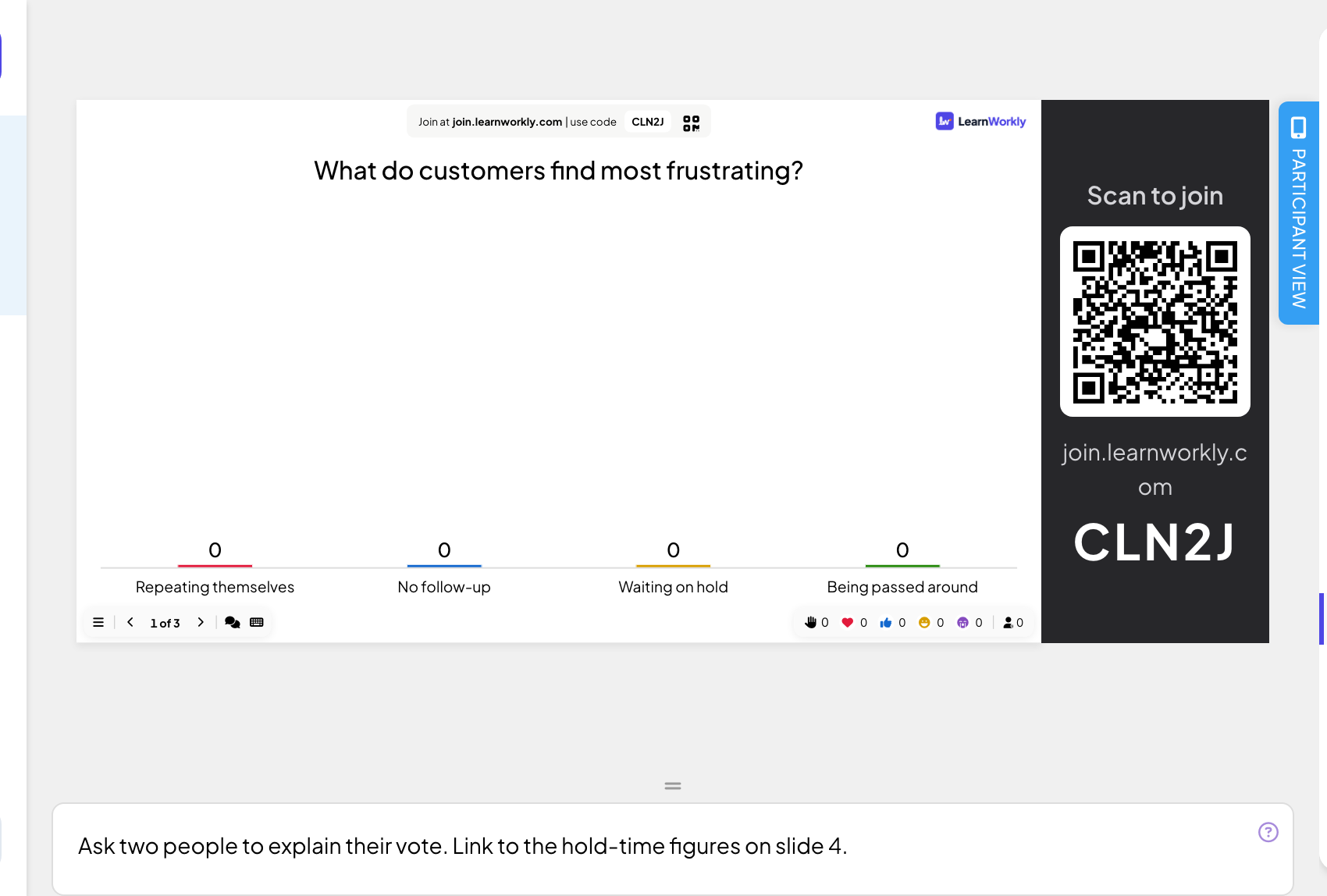
Type your notes
Click the box under the slide (Add notes...) and type. Notes save automatically.
- 3
Make room
Drag the handle above the notes box to make it taller or shorter.
Read your notes while presenting
- 1
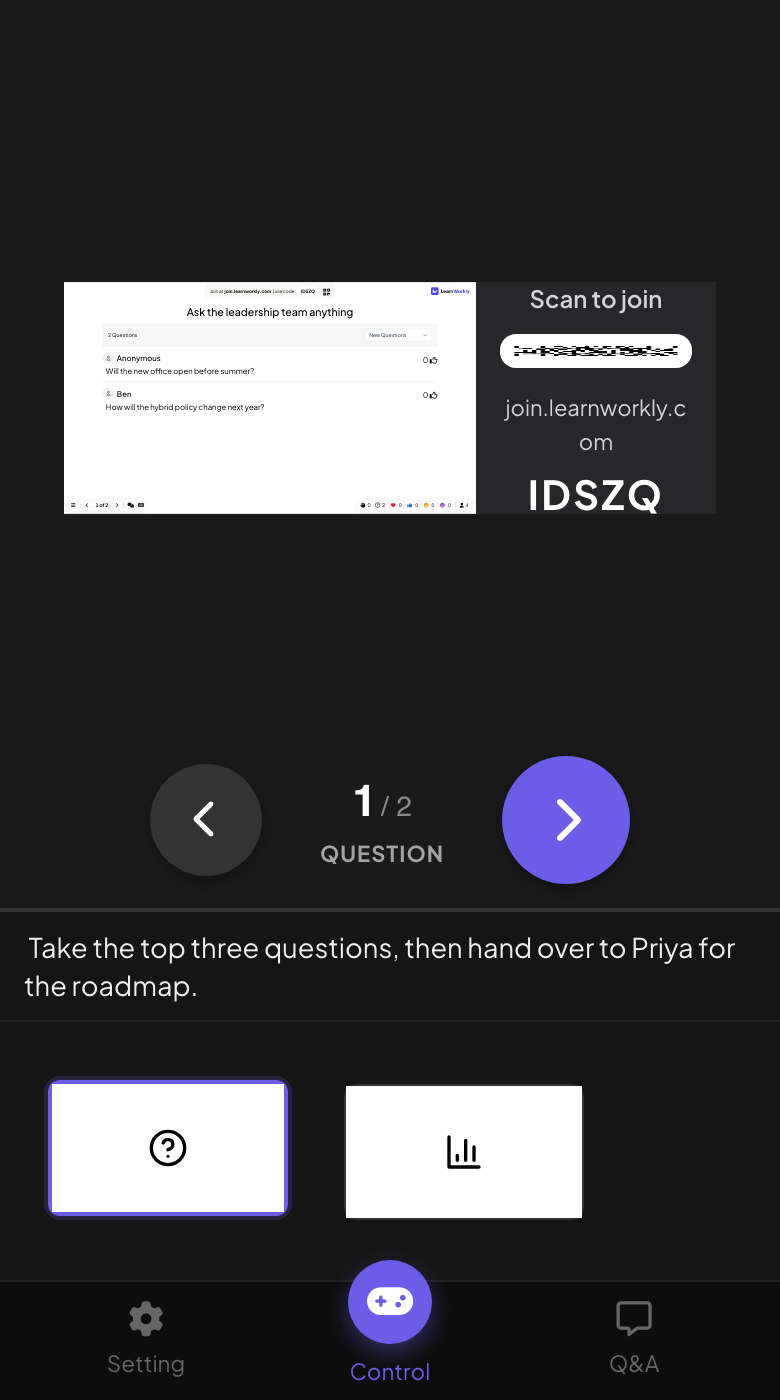
Open the remote
The notes box is only in the editor, not on the big screen. Open remote control on your phone (Pro and Enterprise).
- 2
Follow along
The Control tab shows the notes of the current slide under the slide preview, and changes with every slide.
Frequently asked questions
Can participants see my notes?
No. Notes are never sent to participants’ phones or shown on the big screen.
Are notes imported from PowerPoint?
No. Speaker notes in a .pptx are not imported. Copy them into the notes box of each slide after the import.
I am not on Pro. How do I see my notes?
Keep the editor open on a second screen or print them. The remote, which shows notes while you present, is part of Pro and Enterprise.
Last checked against the app on 17 November 2026.
Related articles
- Control your presentation from your phoneOpen a private remote link on your phone to change slides, read speaker notes and moderate Q&A while the big screen shows the presentation.
- Present on the big screenStart presenting from the editor, move through slides with the keyboard, use the menu while you present and stop when you are done.
- Create your first presentationStart a blank presentation, add slides from more than 50 slide types, write your questions and check what participants will see before you present.