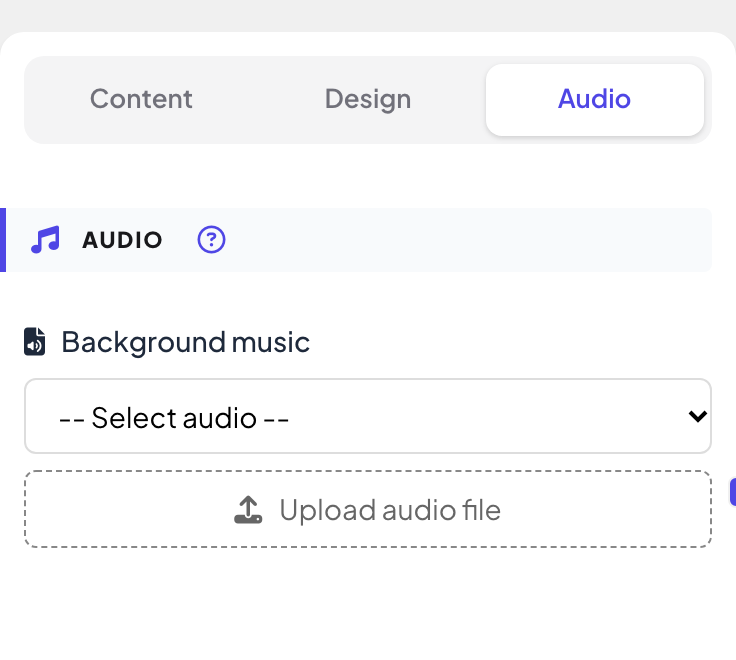
Open the Audio tab in the right column of the editor. What you see depends on the slide: most slides have Background music; Select Answer quiz slides have Lobby Music and Playing Music.
Add background music to a slide
- 1
Pick a track
Under Background music, choose a track from Select audio, or click Upload audio file to use your own.
- 2
Listen to it
A player appears so you can preview the track. Remove takes it off the slide.
- 3
Choose how it plays
Tick Autoplay to start the music when the slide opens, and On Repeat to loop it.
- 4
Play it on phones too (optional)
Tick Enable on participant devices to play the audio on participants’ phones as well. Then choose Autoplay for participants and Show media control to give them a player.
Music for a quiz slide
- 1
Lobby and playing music
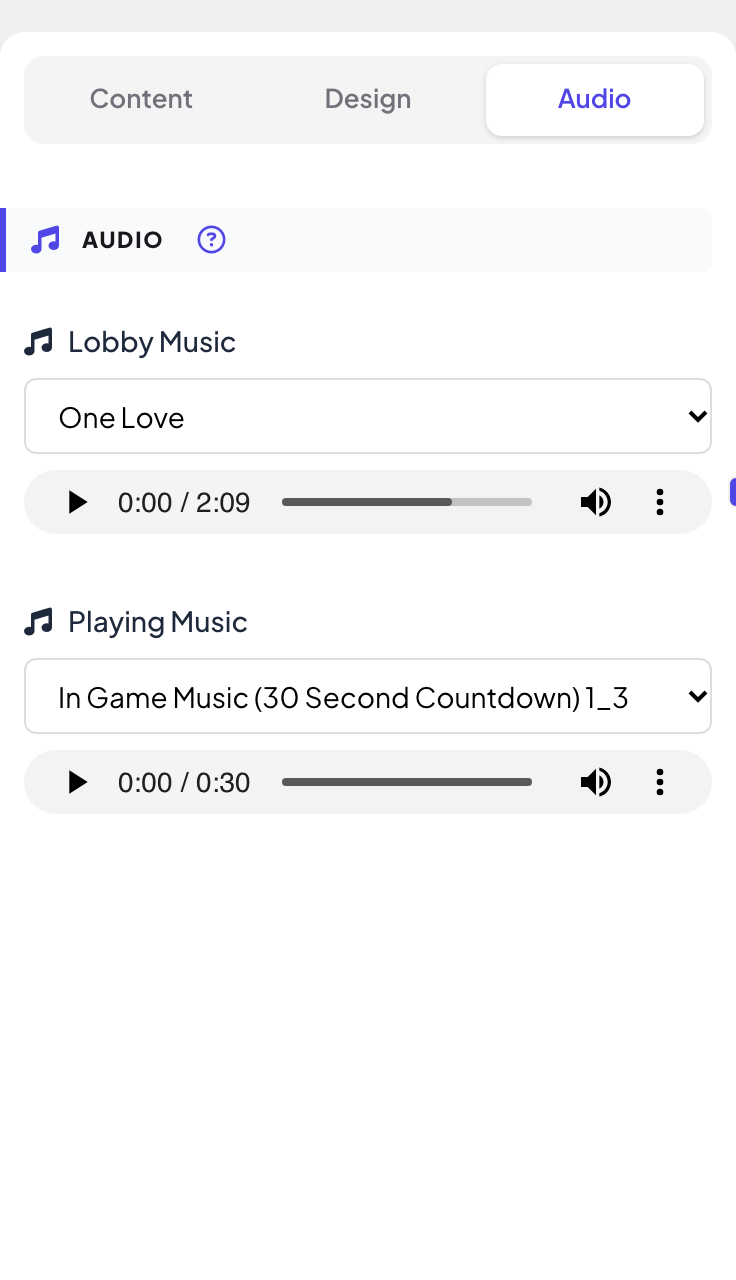
On a Select Answer slide, the Audio tab has Lobby Music (while people wait for the question to start) and Playing Music (while they answer). Choose None for silence.
- 2
Your own countdown audio
On the Content tab, under Settings, Quiz Audio (Optional) lets you upload a file that plays during the question countdown instead of the game music.
Frequently asked questions
How do I add music to the whole presentation?
Use Presentation Audio Setting in Presentation settings: see Music, sound effects, reactions and live chat.
How do I mute the built-in quiz and game sounds?
Turn off Enable audio effects under Reactions and audio in Presentation settings. Music you added yourself still plays.
The music does not start on phones.
Phones often block sound until the person taps the screen. Tick Show media control so they can start it themselves.
Last checked against the app on 17 November 2026.
Related articles
- Music, sound effects, reactions and live chatAdd background music to a presentation, mute built-in sounds, choose which reactions people can send and use the live chat.
- Select Answer: multiple-choice quiz questionsAsk a multiple-choice question with up to six options, mark the right answers, set the time and points, and play it live with a countdown and a reveal.
- Slide design: colours, fonts and backgroundsChange the text colour, font, background colour and background image of a slide in the Design tab, then apply the same look to every slide at once.