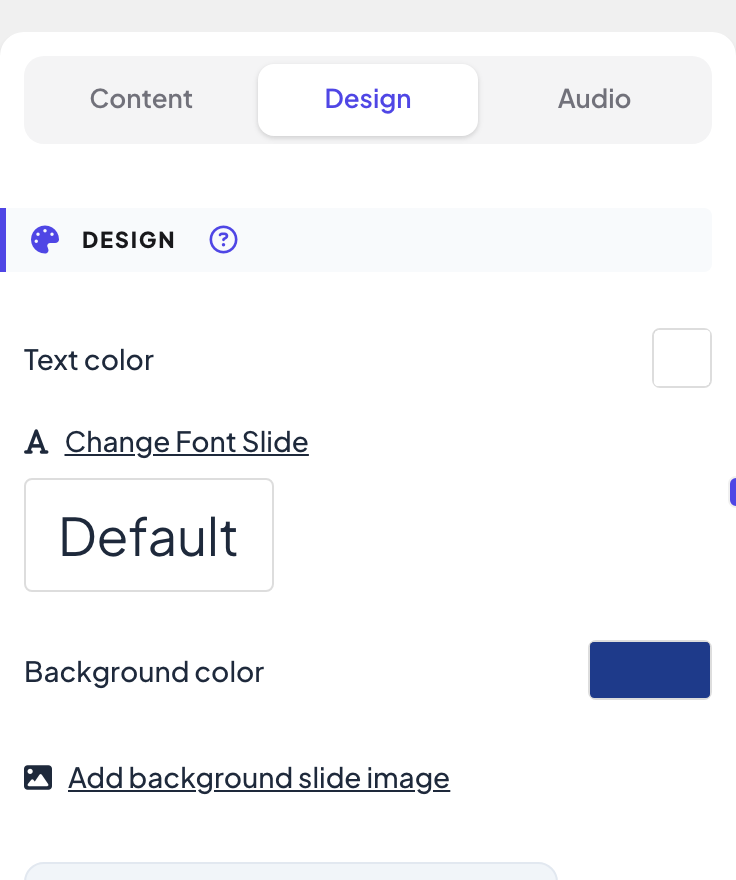
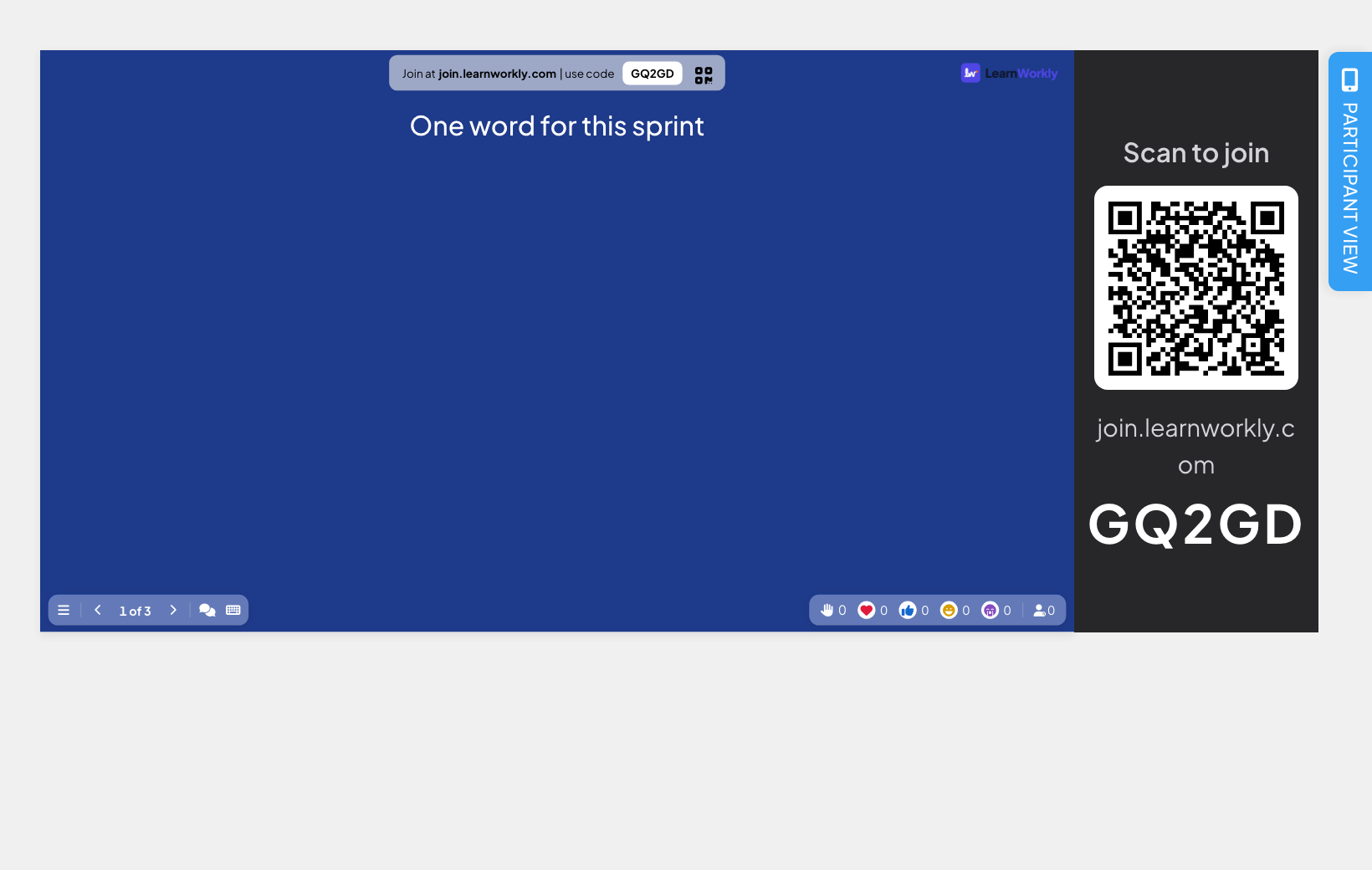
Every slide has a Design tab in the right column of the editor, next to Content and Audio. What you set there changes how the slide looks on the big screen and on participants’ phones.
- 1
Open the Design tab
Select the slide and click Design at the top of the right column.
- 2
Pick the colours
Click the square next to Text color or Background color and choose a colour.
- 3
Pick a font
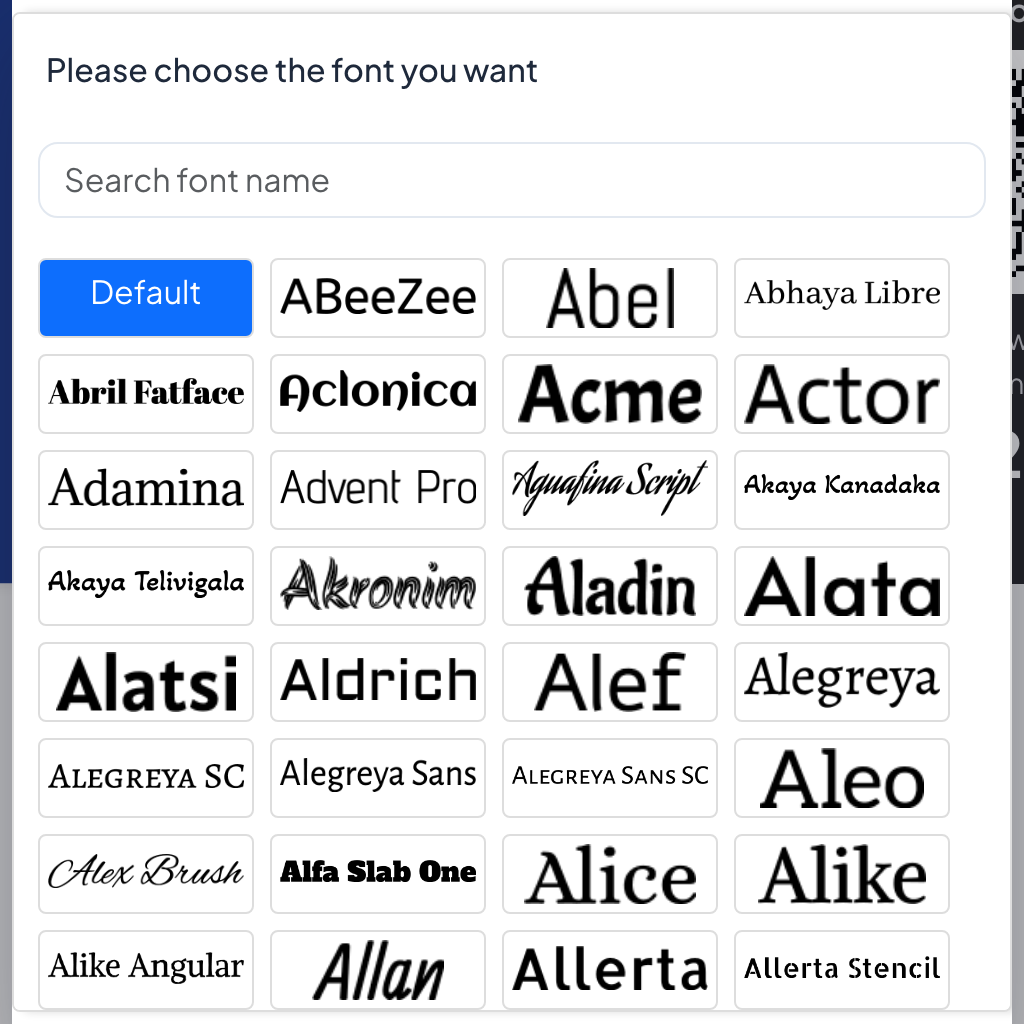
Click Change Font Slide. A searchable list of Google Fonts opens (Search font name); click one for this slide, or Default to use the presentation font.
- 4
Add a background image
Click Add background slide image and upload a picture. Background visibility then appears: drag the slider (0–100%) to fade the image so text stays readable. Remove takes the image away.
- 5
Use it everywhere
Click Apply background and color to all slides to copy this slide’s background image, text colour and background colour to every slide.
Frequently asked questions
Do participants see the same font?
Yes. The font you choose is loaded on the big screen and on participants’ phones for that slide.
My text is hard to read on the background image.
Lower Background visibility to fade the image, or choose a darker or lighter Background color behind it.
Can I undo Apply background and color to all slides?
There is no undo. Change one slide back and click Apply background and color to all slides again.
Last checked against the app on 17 November 2026.
Related articles
- Add your logo, fonts and coloursBrand your presentation with your logo on the Pro and Enterprise plans, and choose fonts, text and background colours and images on every plan.
- Content slides: design your own slidesBuild a designed slide with titles, text, images, shapes, video and GIFs, or start from a ready-made layout, then present it between your questions.
- Slide audio: background music and quiz soundsAdd background music to a slide, upload your own audio, choose whether it plays on participants’ phones, and pick the lobby and playing music for quizzes.