A Drawing question gives each student a page to draw on. Use it to see working in maths, label a diagram in science, sketch a graph, or practise handwriting a new alphabet. You can add a worksheet, graph or map for students to draw on top of.
Add a Drawing question
- 1
Choose the type
In the editor, click Add a question or content and choose Drawing.
- 2
Write the task
Type it in Type your question…, for example "Solve 3x + 5 = 20. Show your working."
- 3
Add a picture to draw on (optional)
Under Picture to draw on (optional), click Add a picture. Use Change or Remove to replace it.
- 4
Decide on photos
Allow photos of handwritten work is on by default, so students can also send a photo of their paper.
- 5
Set the points
Type the points, or add a Rubric, for example Method and Answer.

What students see
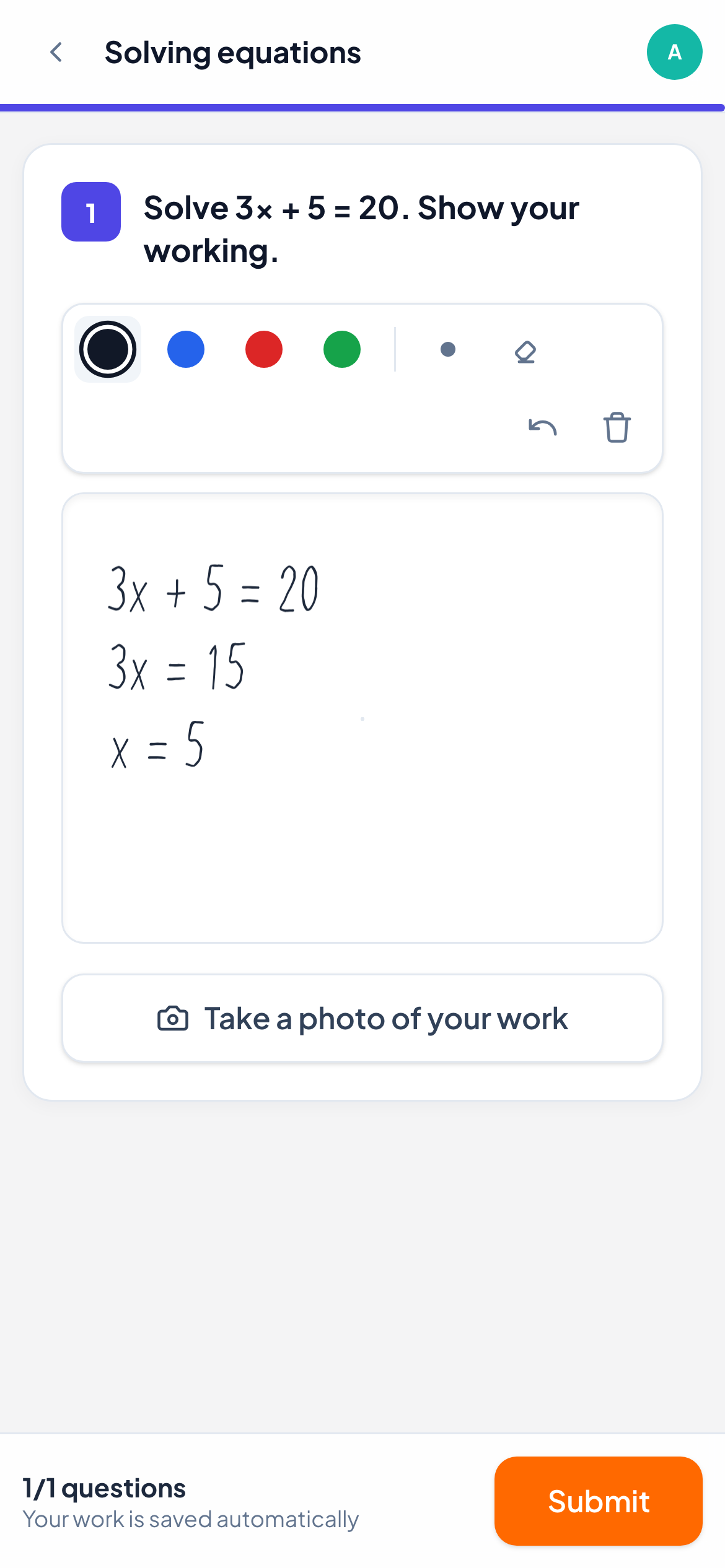
Students get a drawing area with four pen colours, a Thick pen, an Eraser, Undo and Clear all. They can draw with a finger, a mouse or a stylus. Once a stylus is used, touches of the hand no longer draw, so they can rest their palm on the screen.
If photos are allowed, they can also send a photo of handwritten work, from the phone camera or by scanning a QR code on a computer.
How it is marked
You mark drawings yourself. In the live view, each drawing appears as the student draws it. Open the answer to type a Score, click Full marks, or score each rubric criterion.
In the same panel you can draw on the student’s work in red, blue or green, add a comment, then press Send. The student sees your marks on top of their drawing.
Frequently asked questions
Do students need a stylus?
No. A finger on a phone or tablet works, and so does a mouse on a computer.
Can I draw on a photo a student sent?
You draw on the drawing area. Photos are shown below it, and you can reply to them with a comment or a voice note.
Last checked against the app on 11 November 2026.
Related articles
- Drawing and maths questionsLet students show their working with a pen, finger or stylus, draw on top of your worksheet, send a photo of paper work, and type maths with a math keyboard.
- Collect photos of handwritten workStudents scan a QR code with their phone, photograph their paper and the photo lands in the right question on your live view, no pen tablet needed.
- Give feedback on students’ workSend a written comment or a voice note on any answer, draw on a student’s drawing to circle a mistake, and the student sees it straight away.
- Number questionsAsk for a numeric answer with an optional margin and unit. Students can write 3.5 or 3,5, and LearnWorkly marks the answer automatically.