An Audio question asks students to answer by speaking. They record in the browser, with no app to install. Use it for speaking tasks, pronunciation, reading aloud, or explaining a method out loud.
Add an Audio question
- 1
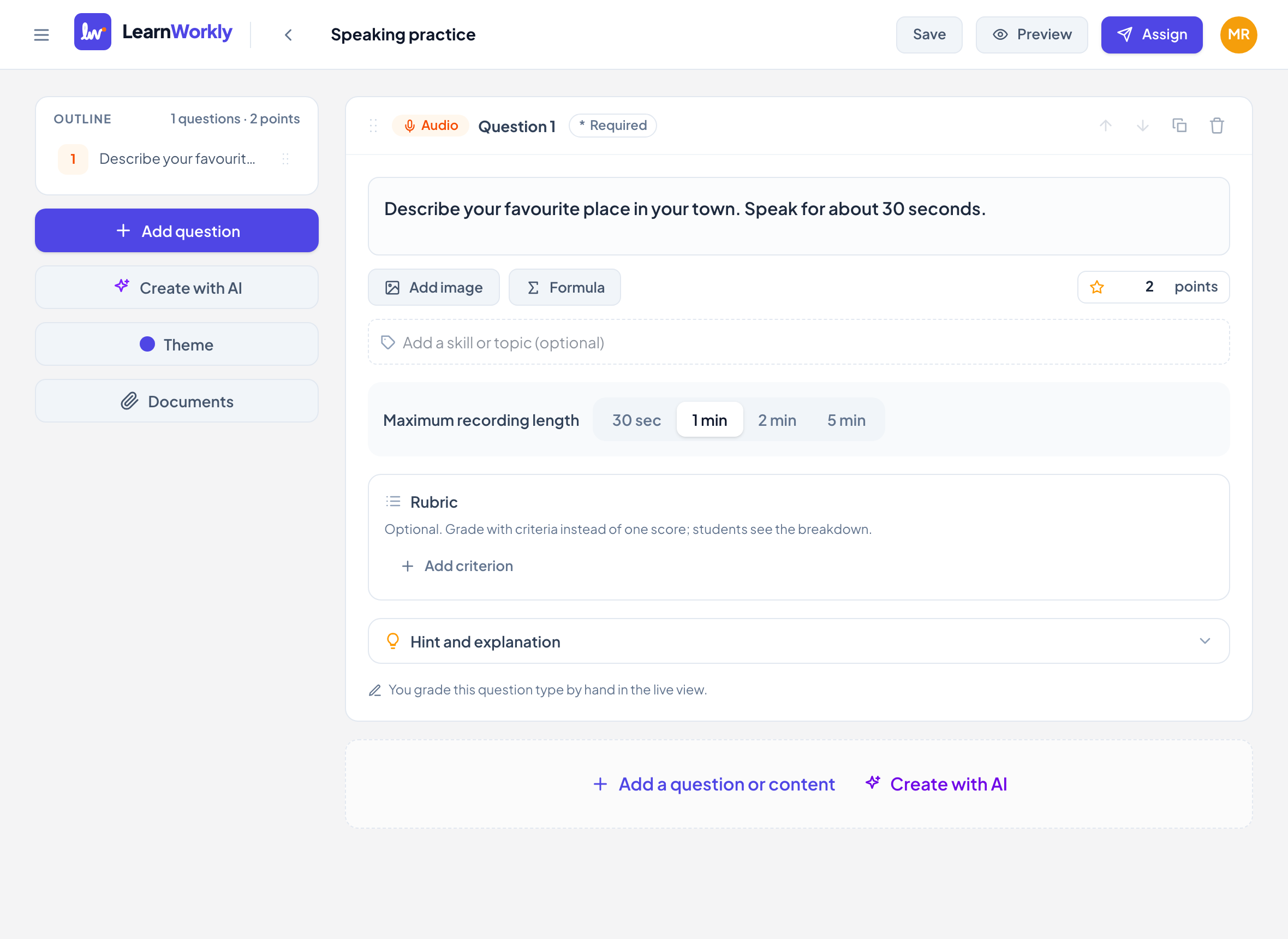
Choose the type
In the editor, click Add a question or content and choose Audio.
- 2
Write the task
Type it in Type your question…. Say how long you expect students to speak.
- 3
Choose the length
Under Maximum recording length, pick 30 sec, 1 min, 2 min or 5 min. New questions start at 2 minutes.
- 4
Set the points
Type the points, or add a Rubric, for example Fluency, Pronunciation and Vocabulary.
What students see
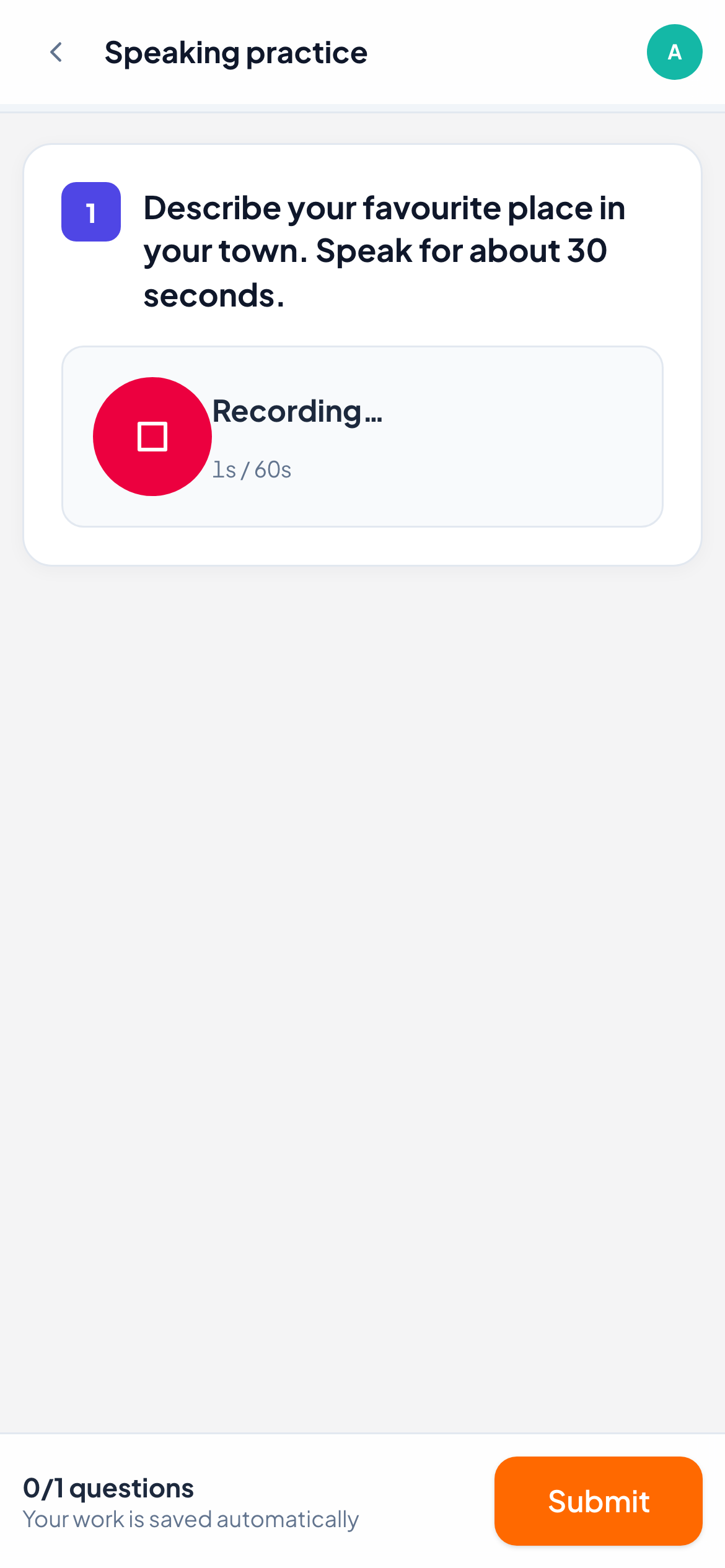
Students see a round microphone button with Tap to record. The browser asks for microphone access the first time. While recording, a bar shows the seconds used out of the maximum, and the recording stops by itself when the time is up. They can stop earlier with the stop button.
When the recording is saved it shows Recorded, with a player to listen back. Tapping the button again records a new answer that replaces the old one.
How it is marked
You mark recordings yourself. Open the answer in the live view to play it and see its length. Type a Score and click Save, click Full marks, or score each rubric criterion. You can reply with a written comment or a voice note of your own, for example to model the right pronunciation.
Frequently asked questions
The recording does not start. What should the student check?
The browser must be allowed to use the microphone. If it was blocked, they see a message asking them to allow microphone access.
Can students record more than once?
Yes, while the work is still open. Only the latest recording is kept.
Last checked against the app on 11 November 2026.
Related articles
- The 13 question typesWhat each of the 13 question types is for, which ones LearnWorkly marks automatically and which ones you mark yourself, with partial credit where it applies.
- Give feedback on students’ workSend a written comment or a voice note on any answer, draw on a student’s drawing to circle a mistake, and the student sees it straight away.
- Mark answers and give pointsWhich question types are marked automatically, how to score open answers, use a rubric and grade a whole class quickly with keyboard shortcuts.