A True / False question shows one statement. Students decide whether it is true or false with a single tap. It is the fastest question to answer, so it works well for a quick check in the middle of a lesson or for spotting misconceptions before you teach a topic.
Add a True / False question
- 1
Choose the type
In the editor, click Add question and choose True / False.
- 2
Write the statement
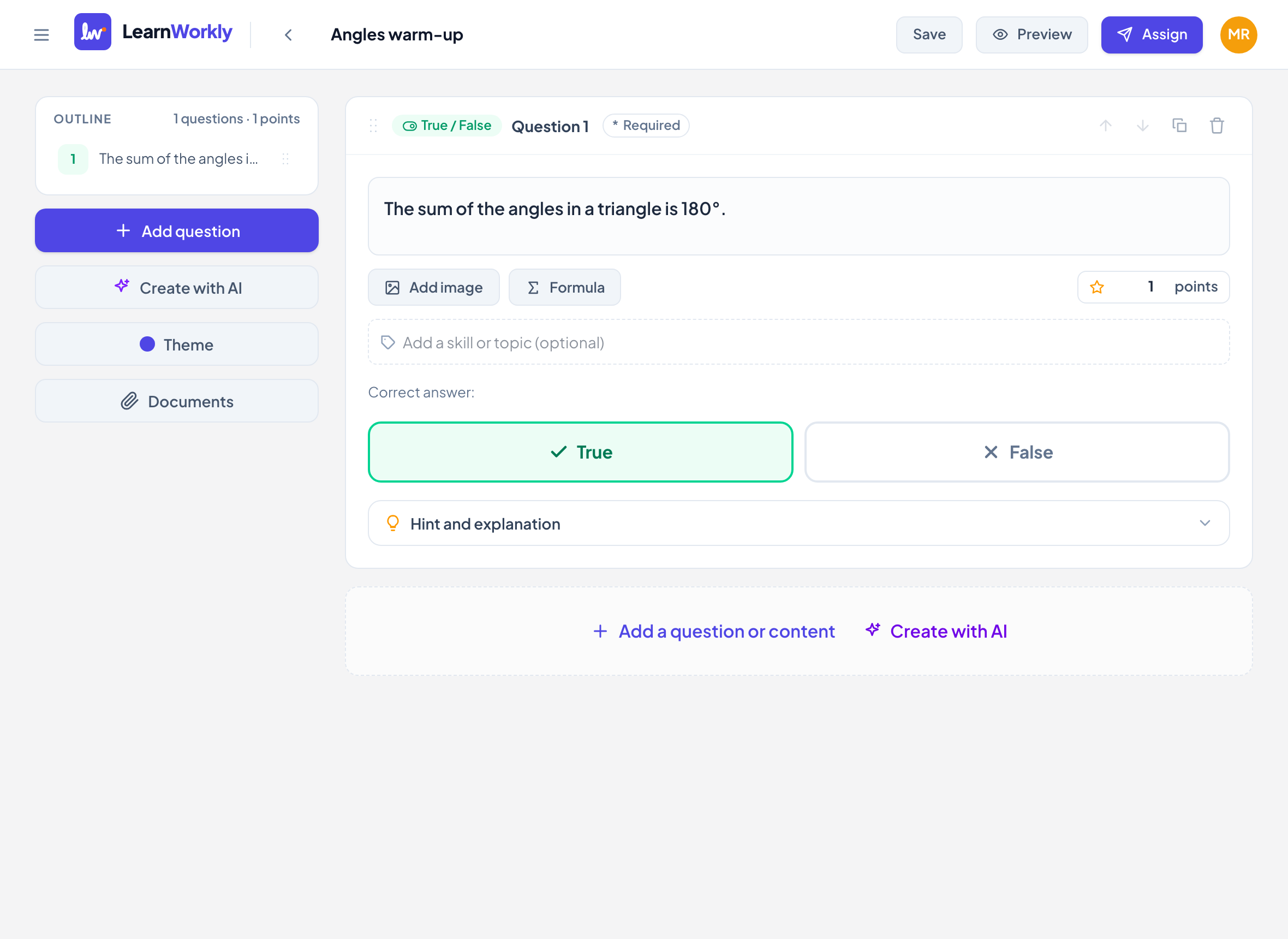
Type it in Type a statement…, for example "The sum of the angles in a triangle is 180°." You can Add image or insert a Formula.
- 3
Choose the correct answer
Under Correct answer:, click True or False. The chosen button turns green for True or red for False.
- 4
Set the points and extras
Type the points in the points box (default 1). Add skills, and open Hint and explanation if you want to add a hint or an explanation.
What students see
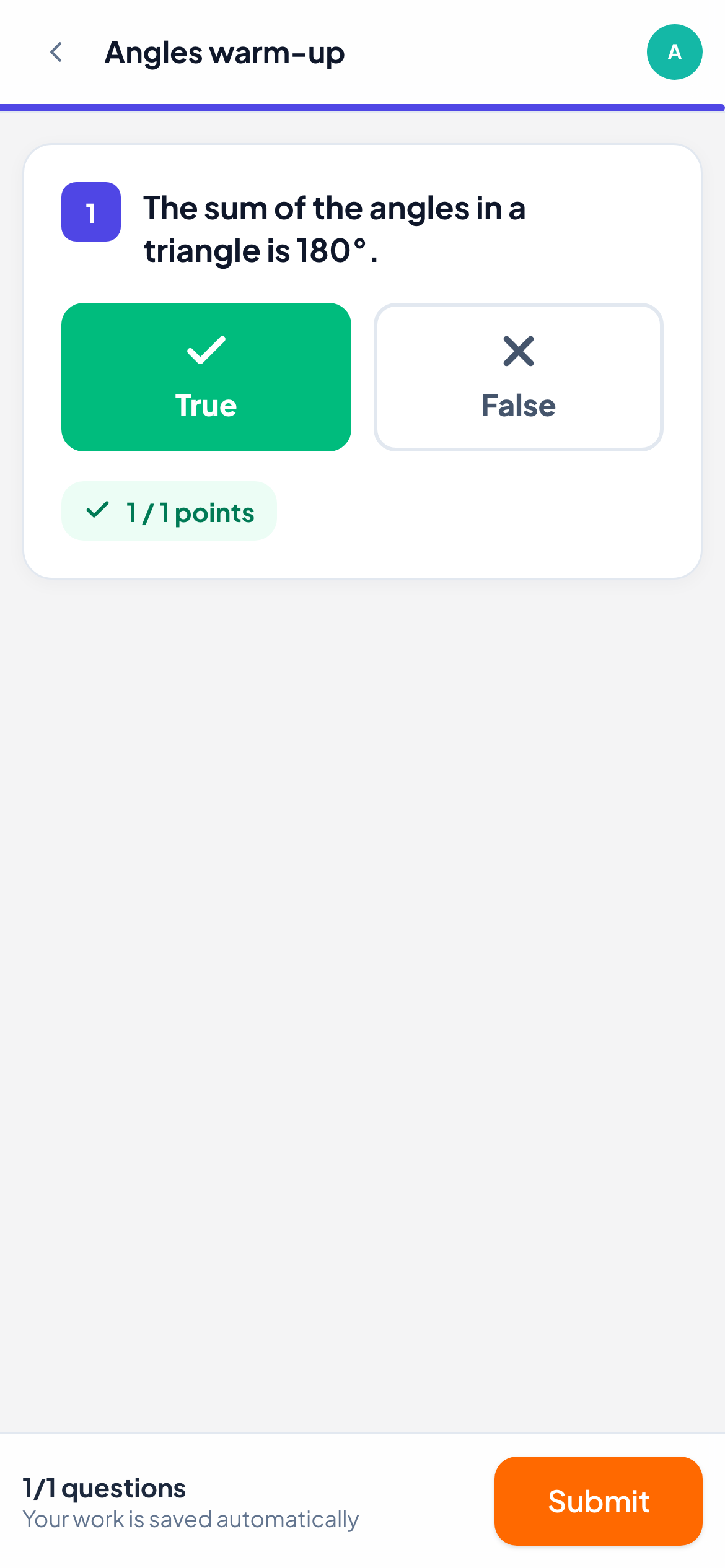
Students see the statement and two large buttons, True with a tick and False with a cross. The button they tap fills with colour, and they can change their mind until they submit.
How it is marked
The answer is marked automatically: full points when it matches your correct answer, 0 when it does not. If you leave Correct answer: unset, the question is not marked automatically and you give the score yourself in the live view.
In the live view, each student’s answer shows in green when right and red when wrong. You can still change an automatic score.
Frequently asked questions
When do students see the explanation?
The explanation is shown with the correct answer, when you let students see correct answers. The hint is different: students open it themselves with Show hint, and you see who used it.
Can a statement be neither true nor false?
Not with this type. For "Not given" answers, as in reading exams, use Multiple choice with three options: True, False and Not given.
Last checked against the app on 11 November 2026.
Related articles
- Multiple choice questionsSet up a multiple choice question with one or several correct answers, see what students tap, and how LearnWorkly marks it for you.
- Short answer questionsAsk for a word or a short phrase, list every answer you accept, and choose whether capital letters count. LearnWorkly marks it for you.
- The 13 question typesWhat each of the 13 question types is for, which ones LearnWorkly marks automatically and which ones you mark yourself, with partial credit where it applies.