A Fill in the blank question is a sentence or short text with gaps. Students type a word in each gap, and LearnWorkly marks every gap separately, so a student who gets two out of three right gets partial credit.
It suits grammar (verb forms, prepositions, articles), vocabulary in context, and cloze texts. In maths and science, use it for key words in a definition.
Add a fill in the blank question
- 1
Choose the type
In the editor, click Add question and choose Fill in the blank.
- 2
Add instructions (optional)
Type them in Instructions (optional), for example "Complete the sentence with the correct words."
- 3
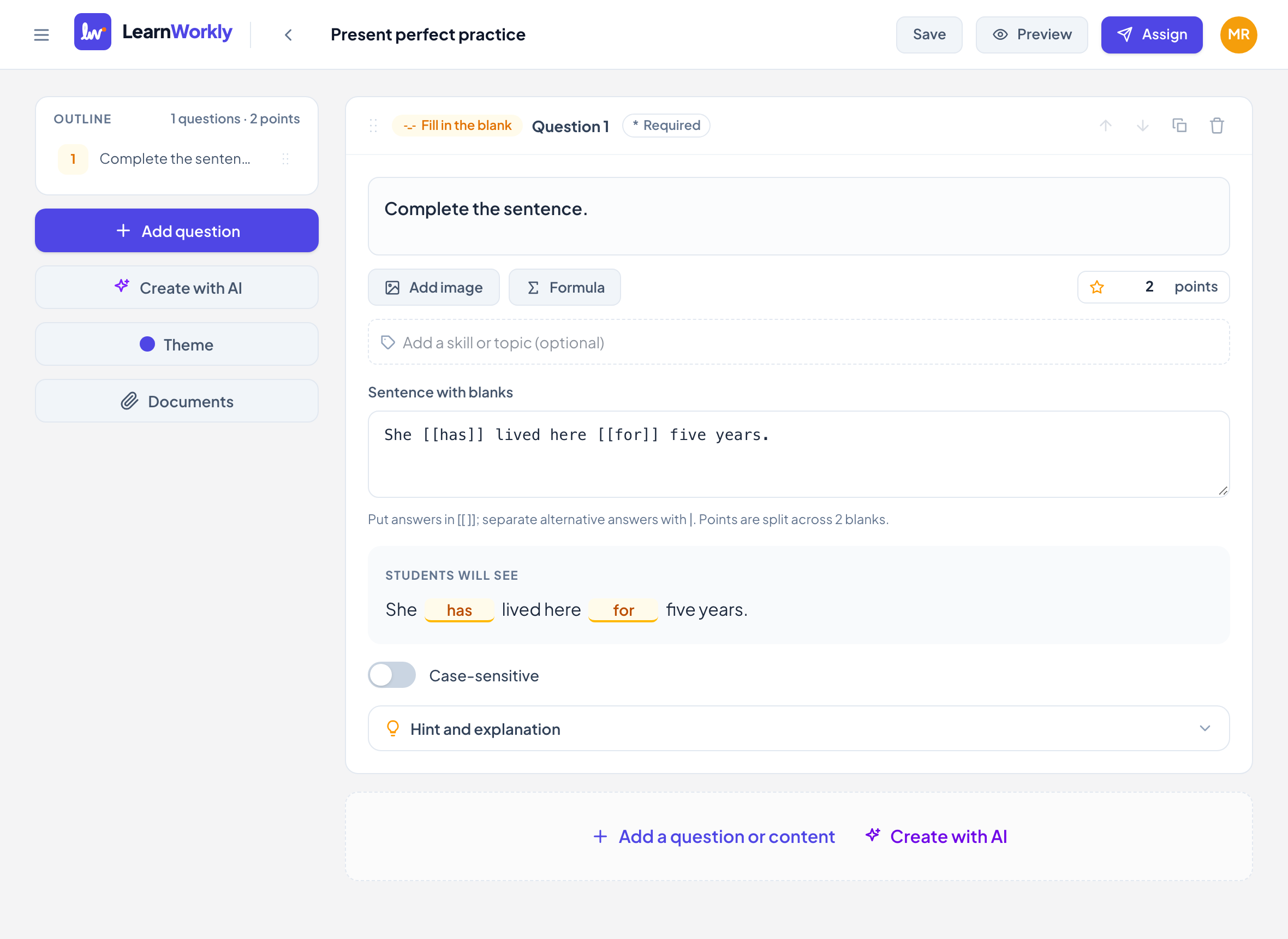
Write the sentence with blanks
In Sentence with blanks, put each answer in double square brackets: "She [[has]] lived here [[for]] five years." To accept several answers for one blank, separate them with |, for example [[has|’s]].
- 4
Check the preview
Under Students will see, the sentence appears with each blank highlighted. The note under the box tells you how many blanks the points are split across.
- 5
Set case sensitivity and points
Turn on Case-sensitive if capital letters matter. Type the points in the points box (default 1).
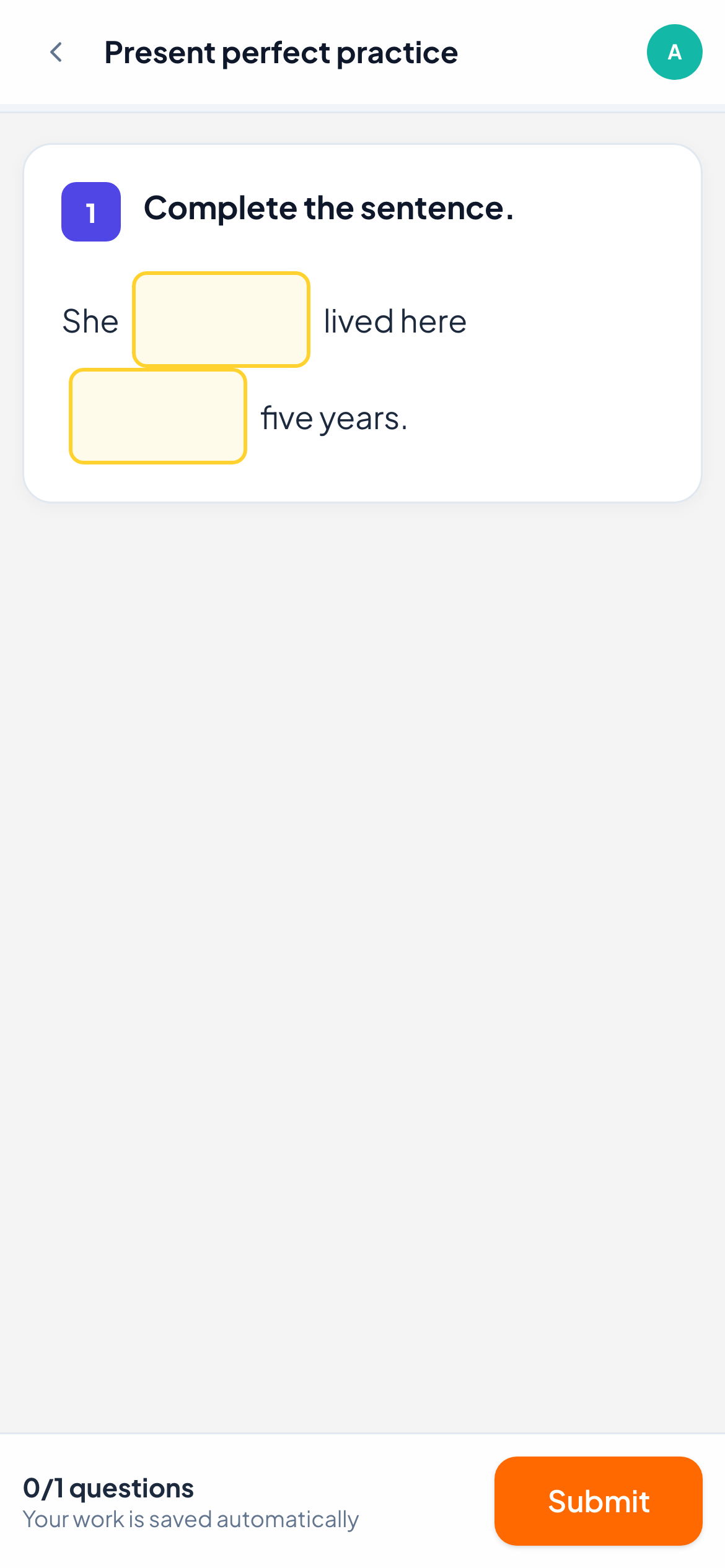
What students see
Students see the sentence with a small text box in place of each blank. The boxes grow as they type, so longer answers still fit. The answers are never sent to the student’s device, only the gaps.
How it is marked
Each blank is checked against its answers. As with Short answer, extra spaces are ignored and capital letters only count when Case-sensitive is on. The points are split evenly across the blanks: in a 1-point question with 2 blanks, each right blank is worth 0.5.
In the live view you see the student’s words in place in the sentence, and you can change the score if you want to accept another answer.
Frequently asked questions
Can students choose from a list instead of typing?
No, students type each answer. For a choice of words, use Multiple choice or Matching.
What if I forget the square brackets?
Without any [[ ]] there are no blanks, so the question is not marked automatically. Check the Students will see preview before you save.
Can I use one question for a whole paragraph?
Yes. The sentence can be up to 5,000 characters, and the points are split across all its blanks.
Last checked against the app on 11 November 2026.
Related articles
- Short answer questionsAsk for a word or a short phrase, list every answer you accept, and choose whether capital letters count. LearnWorkly marks it for you.
- Matching questionsWrite pairs such as words and definitions; students match each item to its partner, with partial credit for every correct pair.
- The 13 question typesWhat each of the 13 question types is for, which ones LearnWorkly marks automatically and which ones you mark yourself, with partial credit where it applies.