A Matching question is a list of pairs. Students see the left sides in your order and choose the matching right side for each one from a shuffled list. Every correct pair earns its share of the points.
Use it for words and definitions, countries and capitals, terms and examples, questions and answers, or English words and their translations.
Add a matching question
- 1
Choose the type
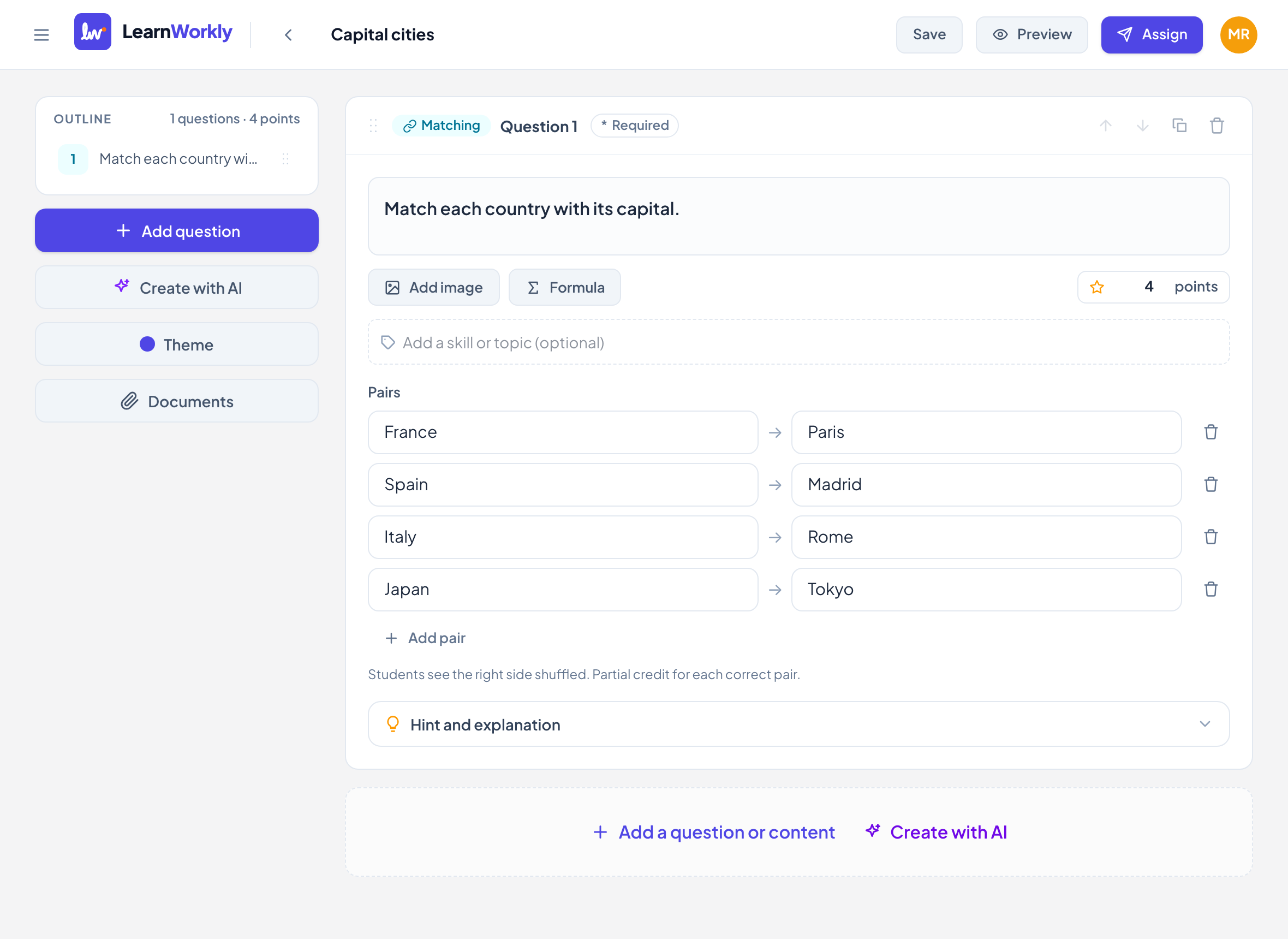
In the editor, click Add question and choose Matching. It starts with three empty pairs and 2 points.
- 2
Write the question
Type the instruction in Type your question…, for example "Match each country to its capital."
- 3
Write the pairs
Under Pairs, type the item in Left side and its partner in Its match, such as France → Paris. Click Add pair for more (up to 10), or the bin to remove one (at least 2 stay).
- 4
Set the points and extras
Type the points in the points box. Add skills and open Hint and explanation if you want them.
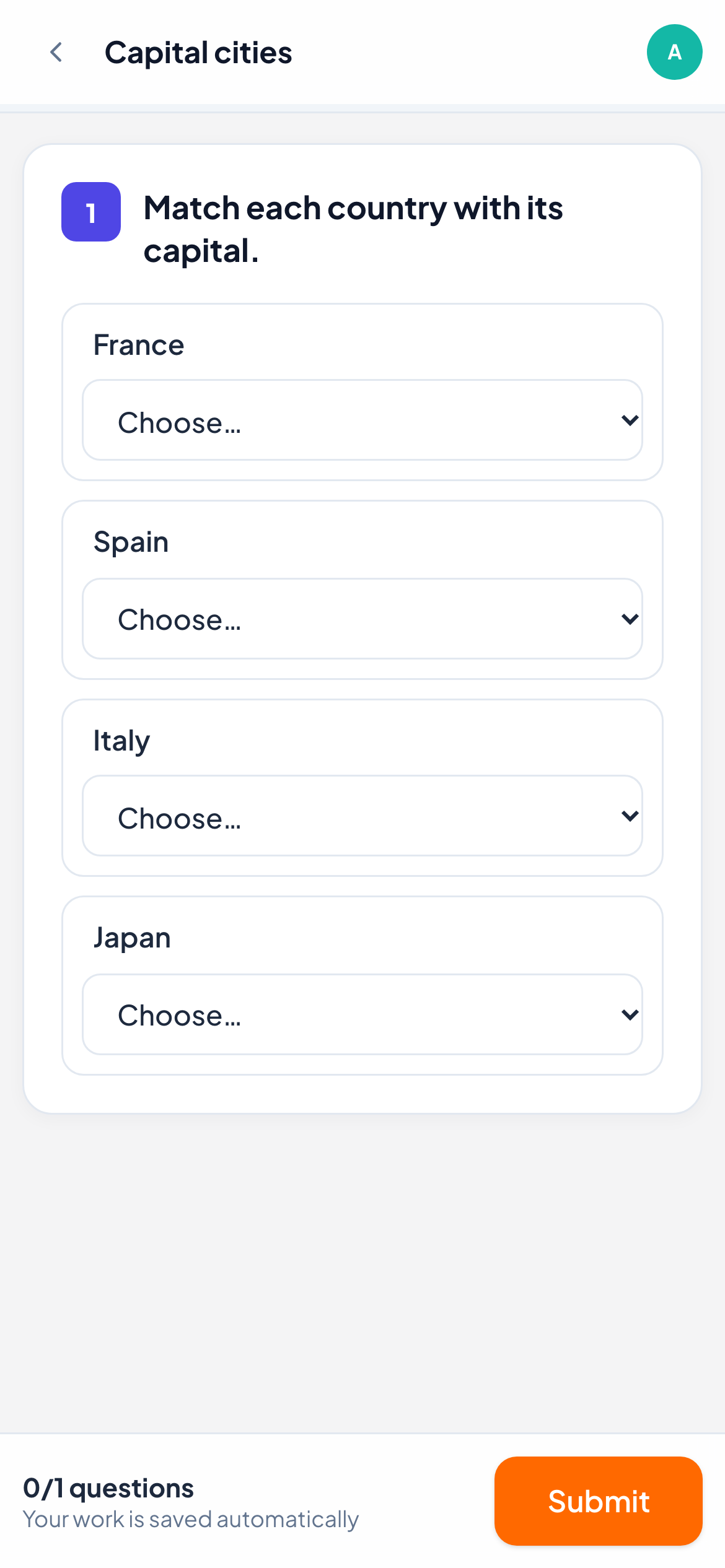
What students see
Students see each left side with a Choose… menu next to it. The menu lists all the right sides in a shuffled order. A right side already chosen for another item shows a tick, so students can see what they have used. This works by tap on a phone and with the keyboard on a computer.
How it is marked
Matching is always marked automatically, with partial credit: the points are split across the pairs. In a 2-point question with 4 pairs, each correct pair is worth 0.5. Pairs left empty count as wrong.
In the live view you see each left side with the student’s choice next to it, in green when right and red when wrong. You can still change the score.
Frequently asked questions
Can I add more right sides than left sides, as distractors?
No. Every right side belongs to a pair. For distractors, use a Multiple choice question instead.
Do students see the pairs in the same order each time?
The left sides stay in your order. The right sides are shuffled, and the shuffle never leaves them all in the original order.
Last checked against the app on 11 November 2026.
Related articles
- Categorize questionsStudents sort items into two to five groups you define, such as nouns and verbs. Marked automatically, with partial credit for each item sorted.
- Put in order questionsStudents arrange shuffled items into the right sequence: steps, events or stages. Marked automatically, with partial credit for each item in place.
- The 13 question typesWhat each of the 13 question types is for, which ones LearnWorkly marks automatically and which ones you mark yourself, with partial credit where it applies.