Some work is best done on paper: long maths working, diagrams, handwriting practice. With LearnWorkly, students photograph that paper and the photo is attached to their answer, so you see it on the live view next to everything else.
Which questions accept photos
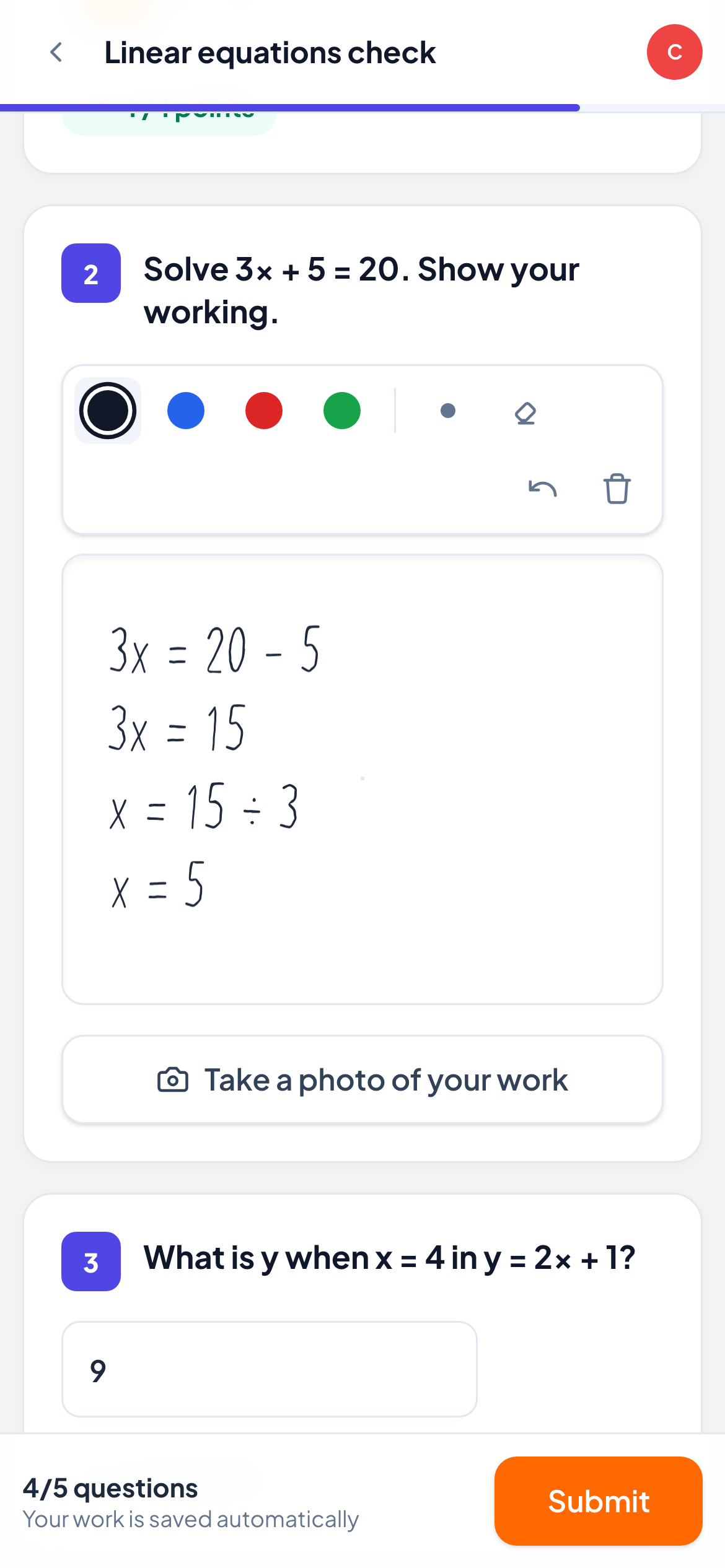
Photos work on Free response and Drawing questions. In the activity editor these questions have an Allow photos of handwritten work switch, which is on by default. Turn it off if you want typed or drawn answers only.
What students do
- 1
On a computer: show the QR code
Under the question, the student presses Use your phone to photograph handwritten work. A QR code appears with the message Scan with your phone camera.
- 2
Scan and take the photo
They scan the code with their phone camera. A page opens showing their name and the question; they press Take a photo and send it. No app and no login are needed on the phone.
- 3
The photo appears
The photo shows up in the question on their computer and on your live view straight away. The QR code closes by itself once a photo has arrived.
- 4
On a phone or tablet
Students who work on a phone or tablet see Take a photo of your work instead, which opens the camera directly. On a computer they can also press Choose a photo to upload an image file.
Good to know
- The QR code works for 15 minutes. If it expires, the student just shows a new one.
- A question keeps up to five photos. Students see small previews and can remove a photo while the work is still open.
- Photos follow the same rules as other answers: once the work is submitted, closed or past the due date (when late work is off), no new photos can be added.
- Photos are made smaller on the device before upload, so they send quickly on a mobile connection.
Frequently asked questions
How do I mark a photo?
Click the student’s card to open their answer. The photos are shown under the answer, and you give a score and feedback as for any other open question.
Can students send more than one page?
Yes. After the first photo, the phone page shows Take another photo. Only the five most recent photos are kept for a question.
Does the student’s phone need to join the class?
No. Scanning the code is enough. The phone page shows the student’s name and the question so they can check it is the right one.
Last checked against the app on 11 November 2026.
Related articles
- See every answer liveStart a live lesson from a class, watch each student’s answers and drawing appear as they work, and hide names before you share your screen.
- The 13 question typesWhat each of the 13 question types is for, which ones LearnWorkly marks automatically and which ones you mark yourself, with partial credit where it applies.
- Mark answers and give pointsWhich question types are marked automatically, how to score open answers, use a rubric and grade a whole class quickly with keyboard shortcuts.