LearnWorkly vs Whiteboard.fi
Live whiteboards, and everything around them
Whiteboard.fi gives every student a whiteboard you can watch live. LearnWorkly has that too, as the Drawing question, plus 12 other question types, auto-marking, homework and progress tracking.
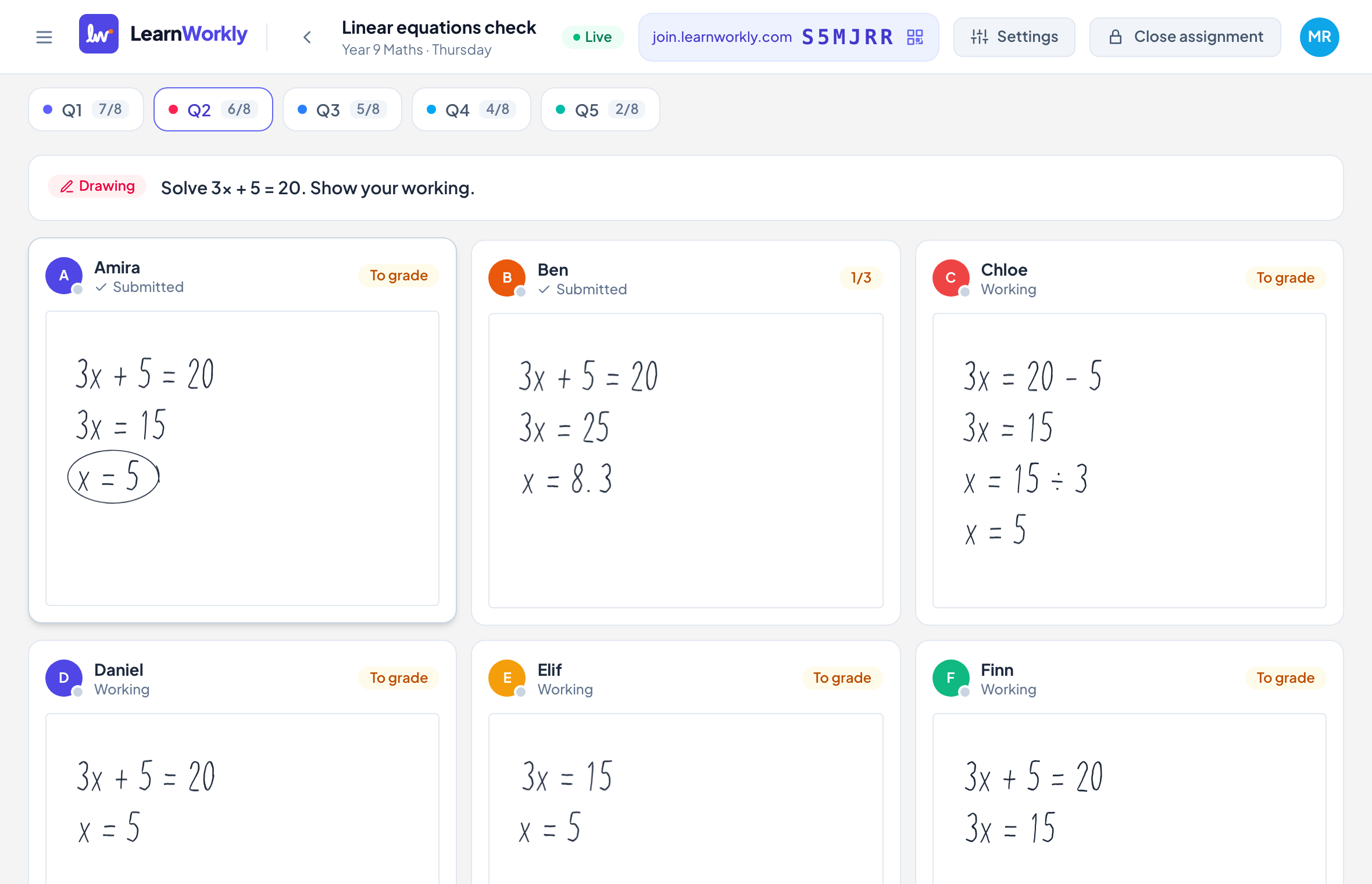
LearnWorkly and Whiteboard.fi side by side
Whiteboard.fi is built for one thing: a live whiteboard for every student, simple and quick to start.
| LearnWorkly | Whiteboard.fi | |
|---|---|---|
| Live whiteboards for every student | Yes | Yes |
| Other question types | 12 more, 9 of them auto-marked | Not the focus |
| Photos of handwritten work from a phone | Yes, by QR code with any phone | Not stated |
| Homework with due dates | Yes | Not stated |
| Gradebook and progress by skill | Yes | Not stated |
| Progress reports for parents | Yes, from real scores and skills (Solo and up) | Not stated |
| Free plan | 10 students, unlimited classes | Yes |
Information about Whiteboard.fi from its public website and reviews, checked November 2026. It may have changed: check their website for the latest details. Whiteboard.fi is a trademark of its owner; LearnWorkly is not affiliated with it.
Why tutors choose LearnWorkly
More than a whiteboard
Mix drawing with multiple choice, maths, audio and more in one activity.
Track progress
Scores and skills over time, per student and per class.
Feedback that stays
Comments, voice notes and drawings on each answer, kept with the work.
Fair to say: Choose Whiteboard.fi if a quick live whiteboard is all you need and you do not need scores, homework or reports.
See how it works
Question types
Every way a student can show what they know
Some things are best checked with a quick tap, others need a drawing, a spoken answer or a page of working. LearnWorkly has 13 question types, and none of them is locked behind a paid plan.
Learn more: 13 question types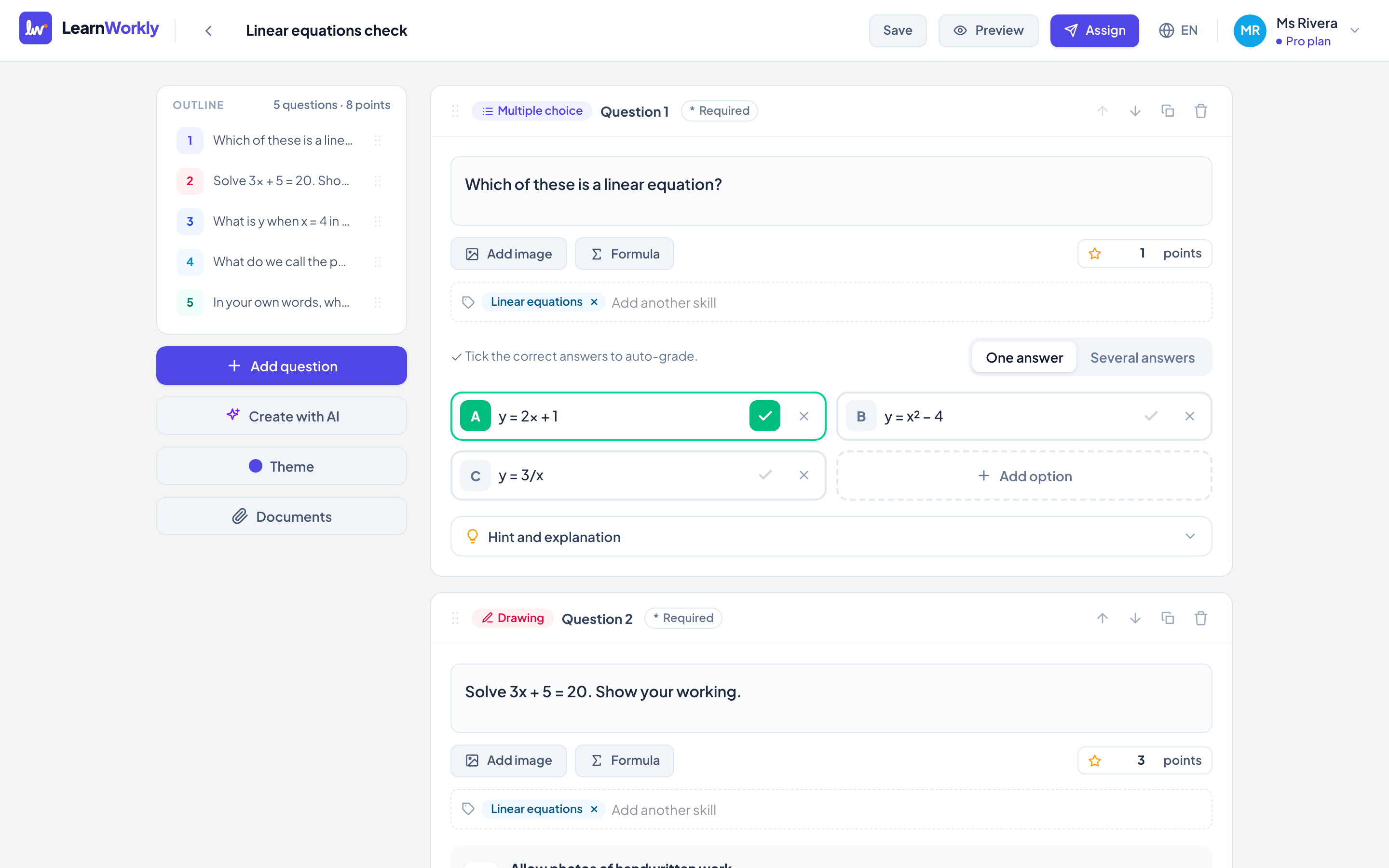
Feedback
Feedback that lands while it still matters
The best moment to correct a misconception is right after it happens. Reply to any answer with text, a voice note or a drawing on top of the work, and students see it at once and can answer back.
Learn more: Two-way feedback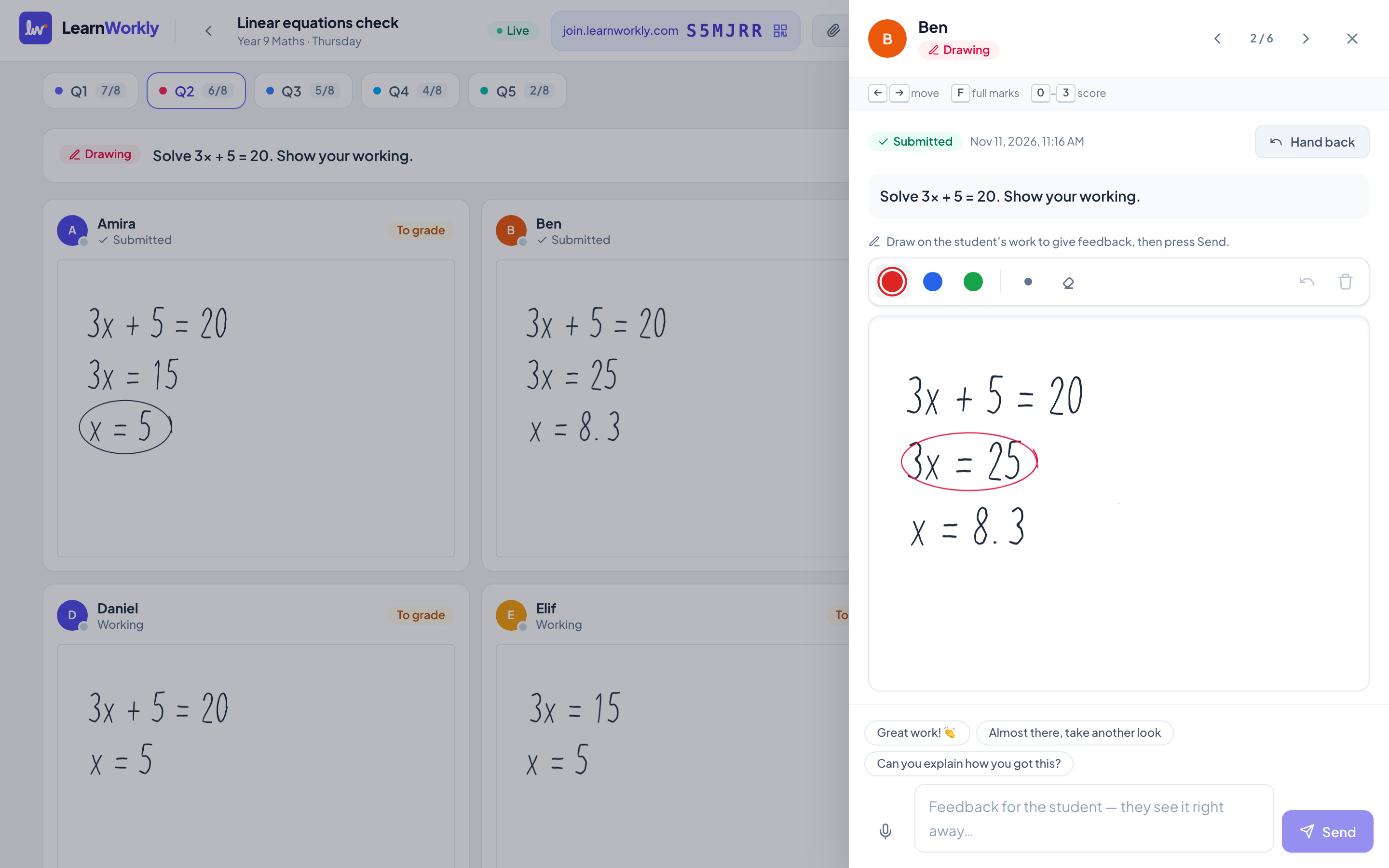
Frequently asked questions
Can I draw on a student’s whiteboard?
Yes. Open any drawing and add your own marks in another colour; the student sees them straight away.
Does it work on tablets and phones?
Yes. Students draw with a finger or a pen on any touch screen, or use a mouse on a computer.
Other comparisons
Try it in your next lesson
Free for up to 10 students, with every question type. Set up your first activity in five minutes.
Free for up to 10 students · No credit card