A Multiple choice question shows a question and between 2 and 10 options. Students pick one option, or several if you allow it. It is the quickest way to check understanding of a fact, a rule or a common mistake, and it is marked automatically.
Use it for vocabulary and grammar checks, for spotting the right method in maths, or as a warm-up at the start of a lesson.
Add a multiple choice question
- 1
Choose the type
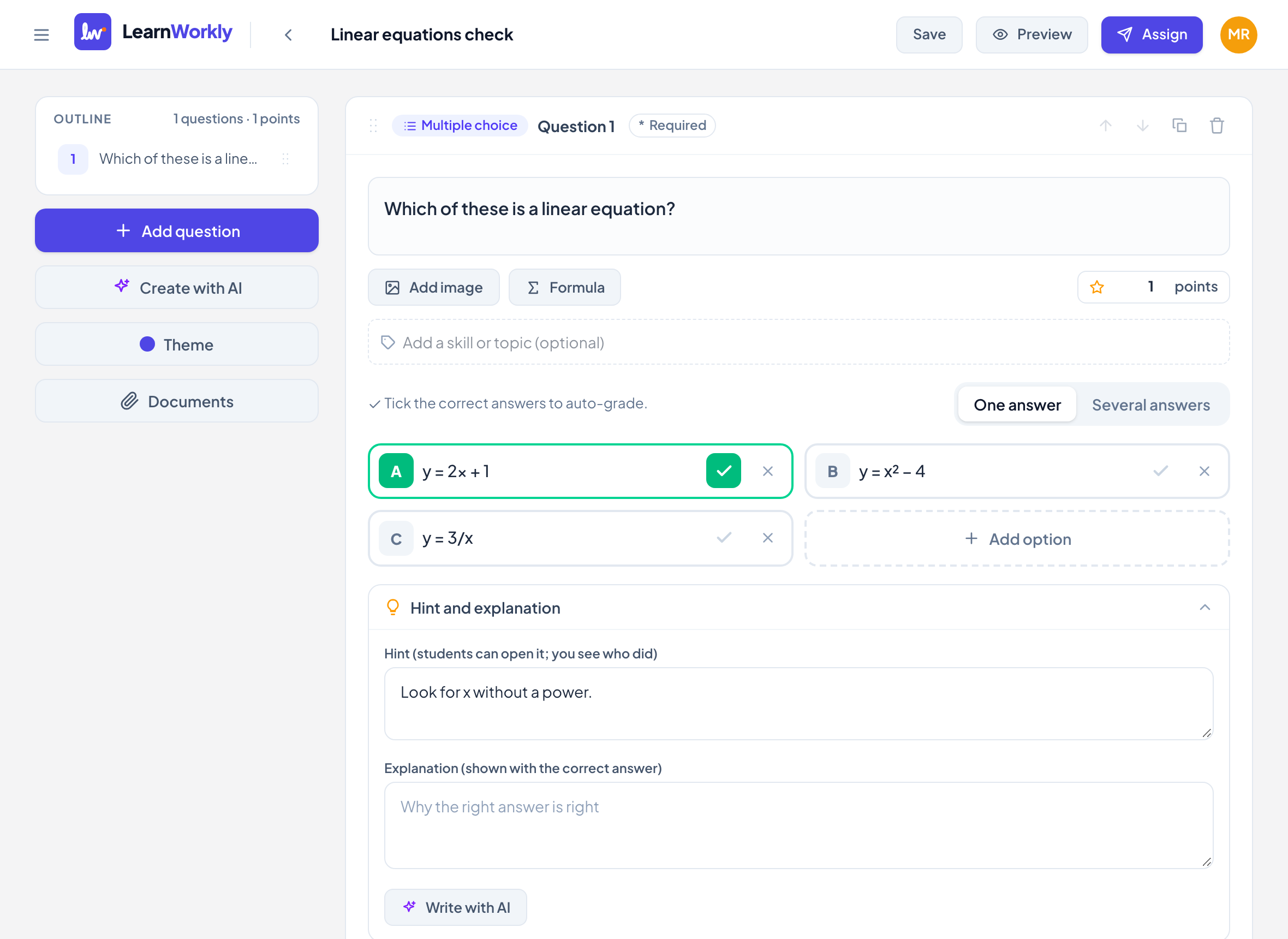
In the editor, click Add question and choose Multiple choice. A new question starts with three empty options.
- 2
Write the question
Type it in Type your question…. You can Add image or insert a Formula, and add skills under Add a skill or topic (optional) to follow progress by skill.
- 3
Write the options
Type each option in Option A, Option B and so on. Click Add option for more (up to 10), or the cross to remove one (at least 2 stay).
- 4
Tick the correct answers
Click the tick next to each correct option; it turns green. Choose One answer or Several answers above the options. With One answer, ticking another option moves the tick.
- 5
Set the points
Type the points in the points box (default 1). Open Hint and explanation to add a hint or an explanation, or click Write with AI to draft both.
What students see
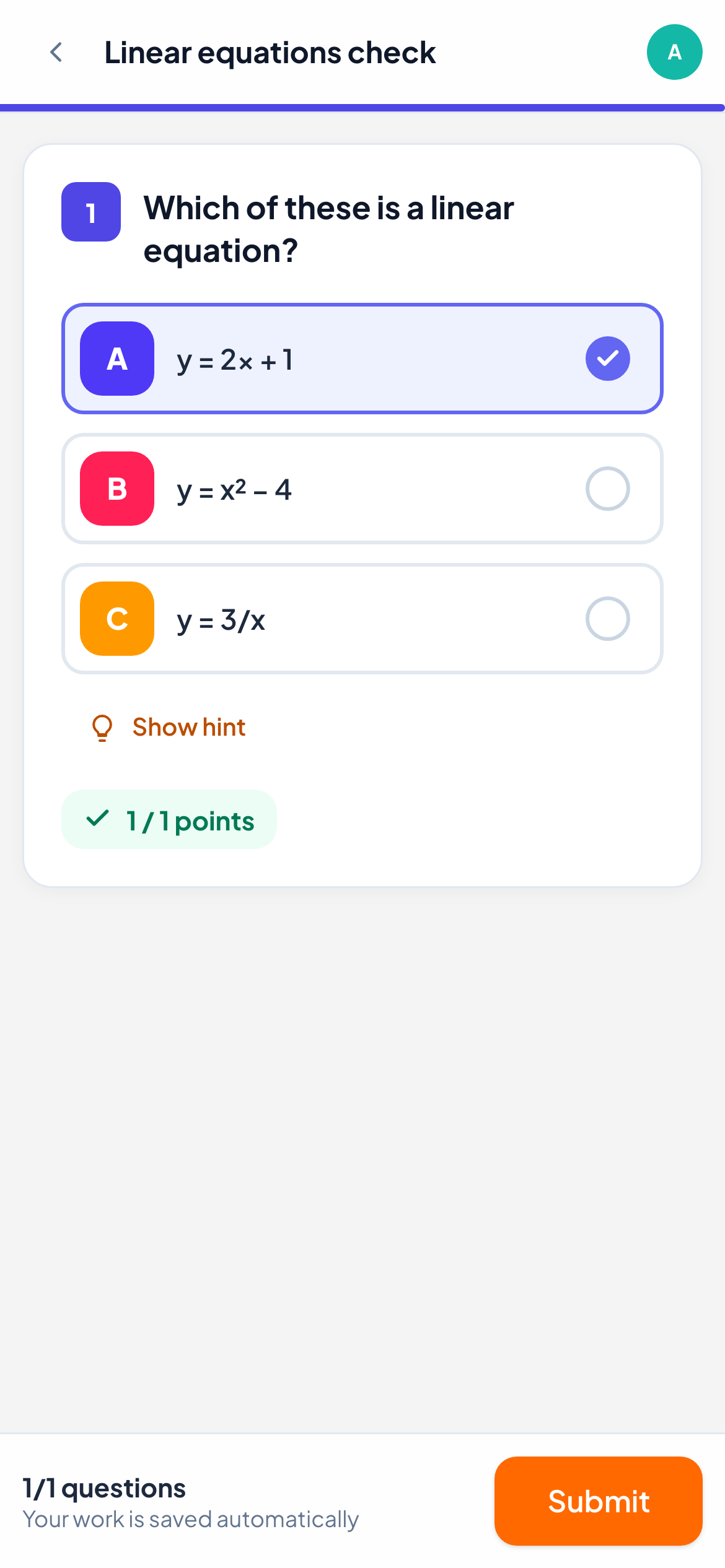
Students see each option as a large button with a coloured letter, easy to tap on a phone. With Several answers, a Select all correct answers label appears above the options and students can pick more than one.
To show the options in a different order for each student, turn on Shuffle answer options in the assignment settings.
How it is marked
| Situation | Result |
|---|---|
| The student picks exactly the ticked options | Full points |
| Any option missing or extra | 0 points. There is no partial credit |
| No option ticked in the editor | Not marked automatically: you mark it yourself in the live view |
In the live view, the options a student picked appear in green when right and red when wrong. The score is filled in for you, and you can still change it.
Frequently asked questions
Is there partial credit with several answers?
No. The question is right only when the student picks exactly the correct options. For partial credit, use Matching, Categorize or Fill in the blank.
Can I add a picture to an option?
Options are text, up to 1,000 characters each. You can add one image to the question itself with Add image.
Last checked against the app on 11 November 2026.
Related articles
- True / False questionsWrite a statement, choose whether it is true or false, and let LearnWorkly mark every answer automatically. Ideal for quick checks.
- The 13 question typesWhat each of the 13 question types is for, which ones LearnWorkly marks automatically and which ones you mark yourself, with partial credit where it applies.
- Mark answers and give pointsWhich question types are marked automatically, how to score open answers, use a rubric and grade a whole class quickly with keyboard shortcuts.