A Math question gives students a formula box instead of a plain text box. They can type fractions, powers, square roots and symbols, and see them properly typeset as they write. You list the answers you accept, and LearnWorkly marks the answer automatically.
Use it for simplifying expressions, solving equations, fractions and surds. For a plain numeric answer with a margin or a unit, Number is simpler.
Add a math question
- 1
Choose the type
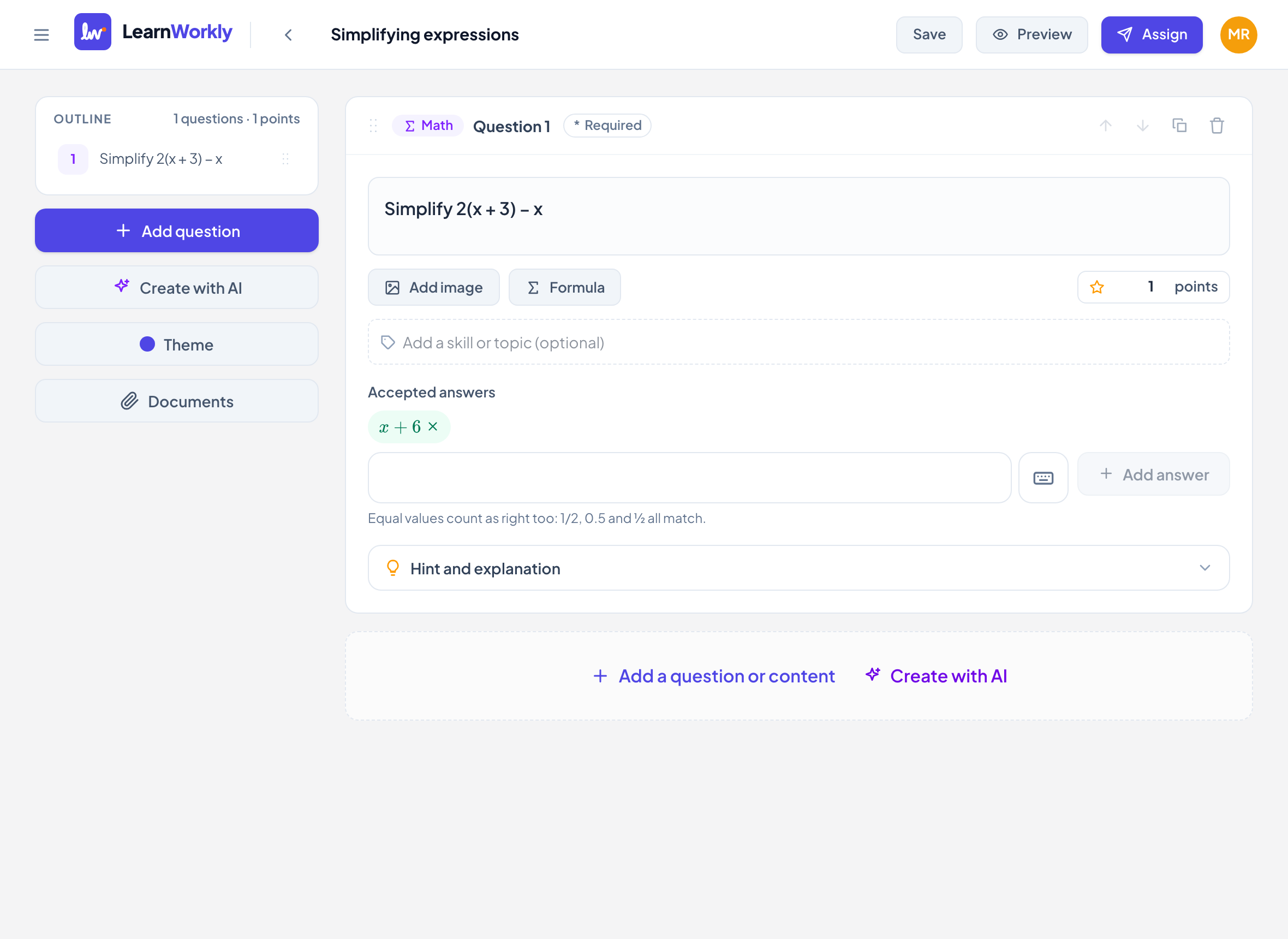
In the editor, click Add question and choose Math.
- 2
Write the question
Type it in Type your question…. Click Formula to put typeset maths in the question, for example "Simplify 2(x + 3) − x".
- 3
Add the accepted answers
Under Accepted answers, type an answer in the formula box, then click Add answer or press Enter. Add every form you accept, up to 20.
- 4
Set the points and extras
Type the points in the points box (default 1), add skills, and open Hint and explanation if you want them.
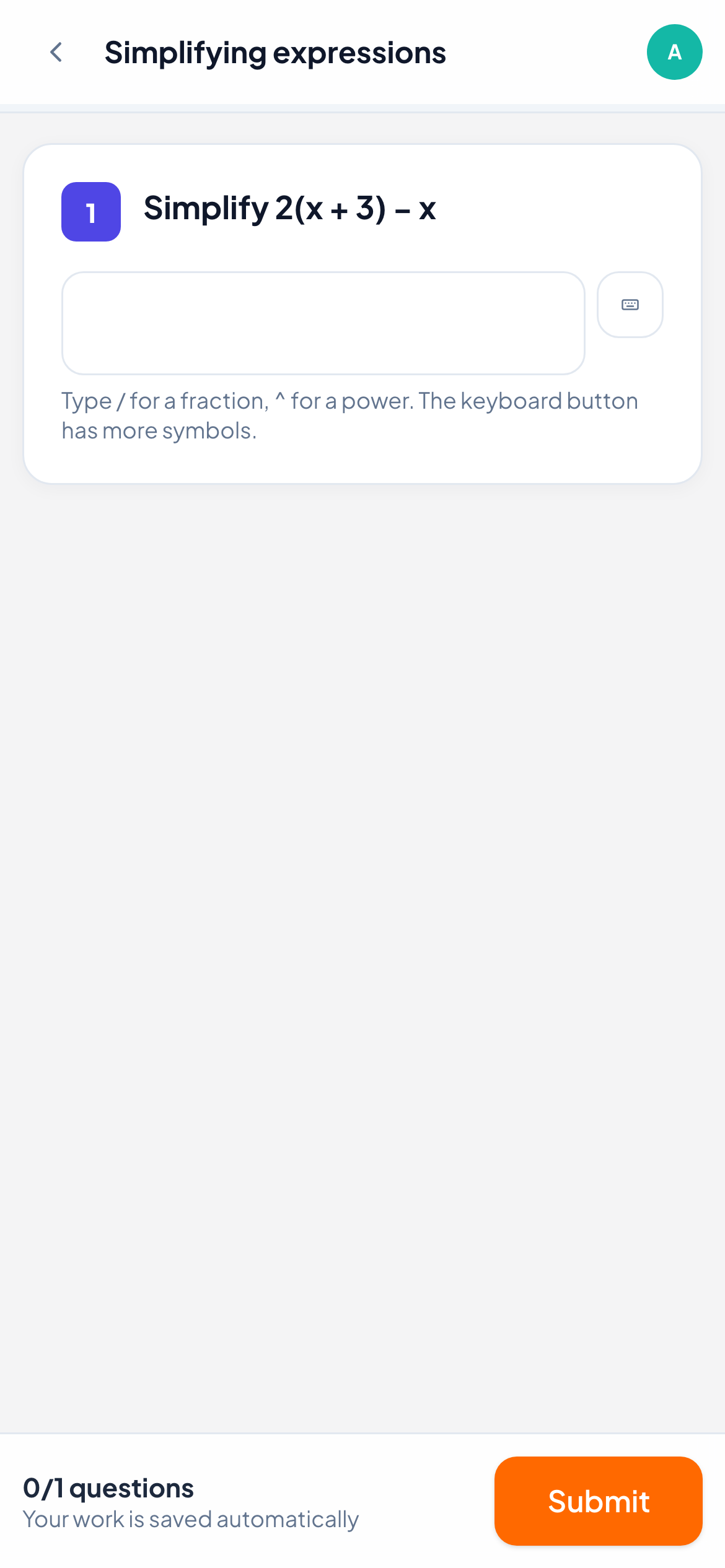
What students see
Students see a large formula box. On phones and tablets a math keyboard opens when they tap it; on a computer they type directly, and the keyboard button next to the box opens the math keyboard too. A note reminds them: "Type / for a fraction, ^ for a power. The keyboard button has more symbols."
How it is marked
| Kind of answer | What counts as right |
|---|---|
| A number, fraction or root, such as 1/2 | Any answer with the same value: 1/2, 0.5 and ½ all match |
| An expression with letters, such as x + 6 | The same expression as one of your accepted answers. Spaces do not matter, and × and · count the same |
A right answer gets full points, any other answer 0. Without accepted answers, you mark the question yourself in the live view. In the live view you see each student’s answer typeset, and you can change an automatic score.
Frequently asked questions
Do students need to know LaTeX?
No. They type with the keyboard or the math keyboard, and the formula is typeset as they go.
Is 0.333 the same as 1/3?
No. Values must be equal, not just close, so 0.333 does not match 1/3. Add a rounded value as another accepted answer if you want to accept it.
Last checked against the app on 11 November 2026.
Related articles
- Number questionsAsk for a numeric answer with an optional margin and unit. Students can write 3.5 or 3,5, and LearnWorkly marks the answer automatically.
- Drawing questionsStudents draw, handwrite or show their working with a finger, mouse or stylus, on a blank page or on a picture you add. You see it as they draw.
- The 13 question typesWhat each of the 13 question types is for, which ones LearnWorkly marks automatically and which ones you mark yourself, with partial credit where it applies.