A Short answer question asks students to type a word or a short phrase. You list the answers you accept, and LearnWorkly marks each answer automatically. Students have to recall the answer instead of recognising it, so it is a stronger check than multiple choice.
Use it for key terms, spellings, verb forms, short calculations with a word answer, or one-word answers to reading questions.
Add a short answer question
- 1
Choose the type
In the editor, click Add question and choose Short answer.
- 2
Write the question
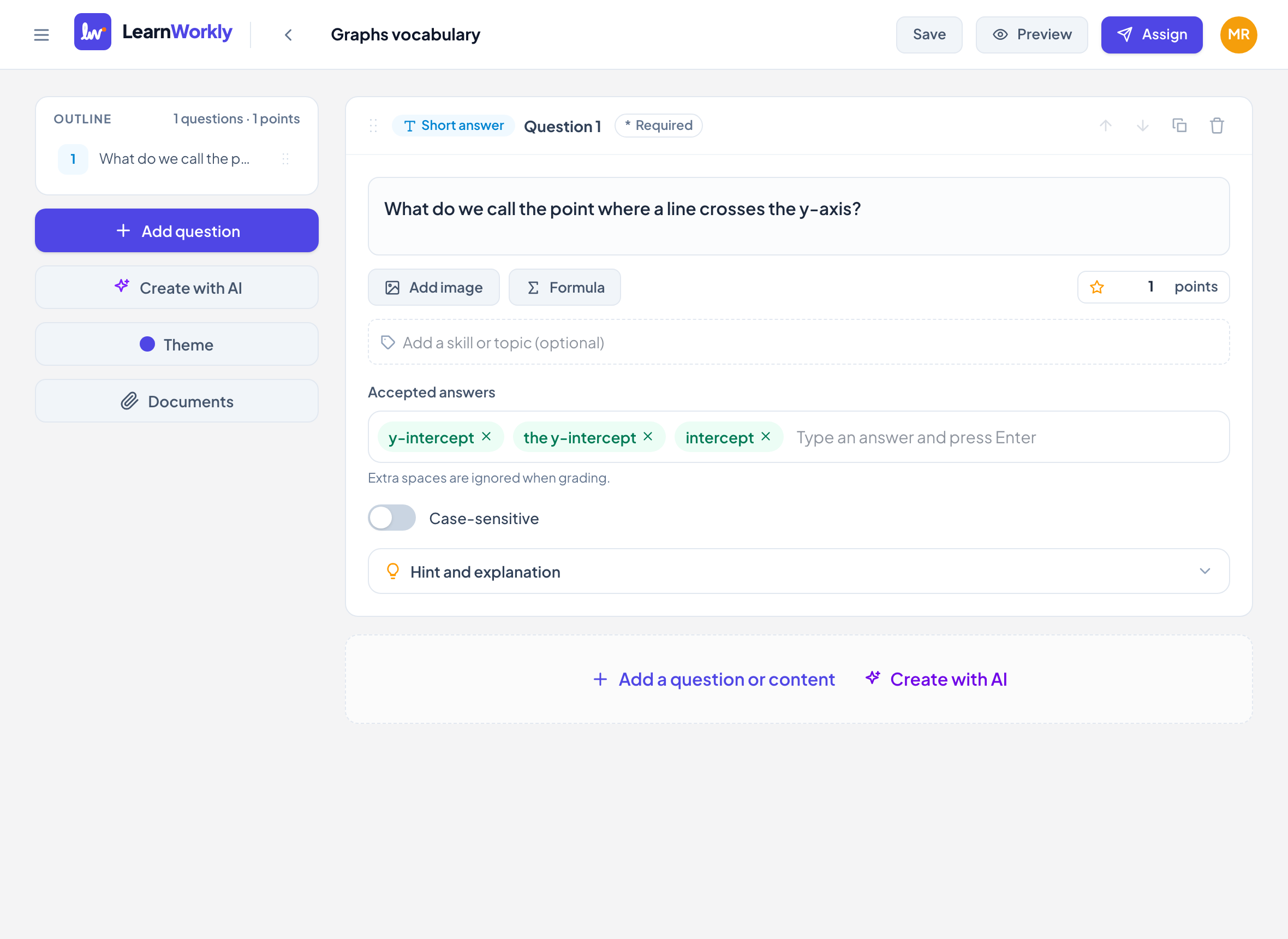
Type it in Type your question…, for example "What do we call the point where a line crosses the y-axis?"
- 3
Add the accepted answers
Under Accepted answers, type an answer and press Enter. Repeat for every answer you accept, up to 20. Each one appears as a green tag; click its cross to remove it.
- 4
Choose case sensitivity
Turn on Case-sensitive only when capital letters matter, for example for proper nouns or German nouns. It is off by default.
- 5
Set the points and extras
Type the points in the points box (default 1), add skills, and open Hint and explanation if you want them.
What students see
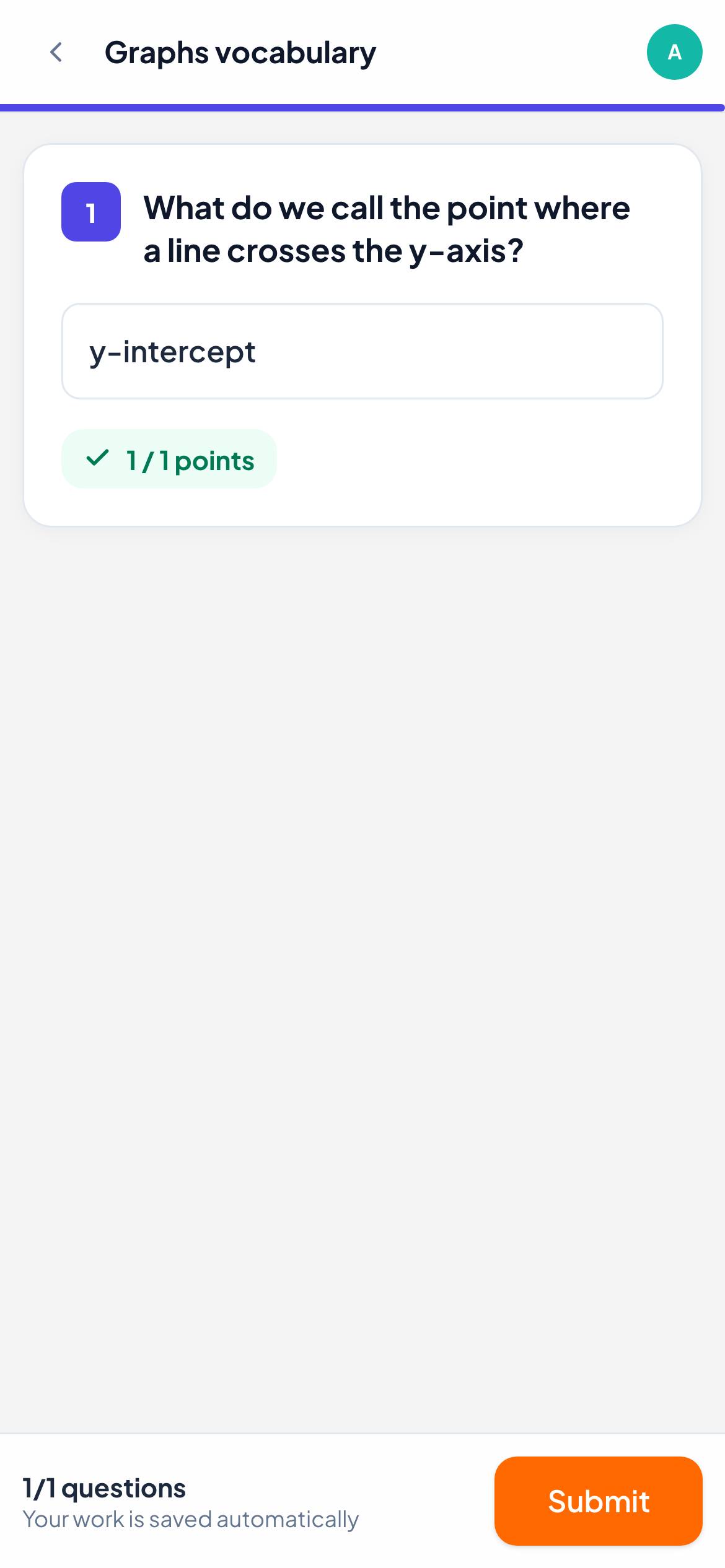
Students see the question and one text box marked Your answer. They type their answer and can change it until they submit.
How it is marked
An answer is right when it matches one of your accepted answers. Spaces at the start and end are ignored, and several spaces count as one. Capital letters are ignored unless Case-sensitive is on. Everything else must match: punctuation, hyphens and spelling. A right answer gets full points, any other answer 0.
If you add no accepted answers, the question is not marked automatically: you mark it yourself in the live view. You can also change any automatic score there, for example to accept a spelling you did not expect.
Frequently asked questions
Does a small typo count as wrong?
Yes. Only exact matches (apart from spaces and, by default, capital letters) are marked right. Add common misspellings you want to accept, or change the score yourself in the live view.
How long can an answer be?
Students can type up to 1,000 characters. For longer written answers, use Free response, which you mark yourself.
Last checked against the app on 11 November 2026.
Related articles
- Fill in the blank questionsWrite a sentence with gaps, put the answers in double square brackets, and give partial credit for each blank. Great for grammar and vocabulary.
- Free response questionsAsk for a written answer in the student’s own words, or a photo of handwritten work. You mark it yourself, with one score or a rubric.
- Mark answers and give pointsWhich question types are marked automatically, how to score open answers, use a rubric and grade a whole class quickly with keyboard shortcuts.