A Number question asks for a single number. You give the right answer, and if you want, an allowed margin and a unit. It is the best choice for a calculation with one numeric result: arithmetic, percentages, measurements, or physics with rounding.
For an answer with letters, fractions or symbols, such as x + 6 or ½, use Math instead.
Add a number question
- 1
Choose the type
In the editor, click Add question and choose Number.
- 2
Write the question
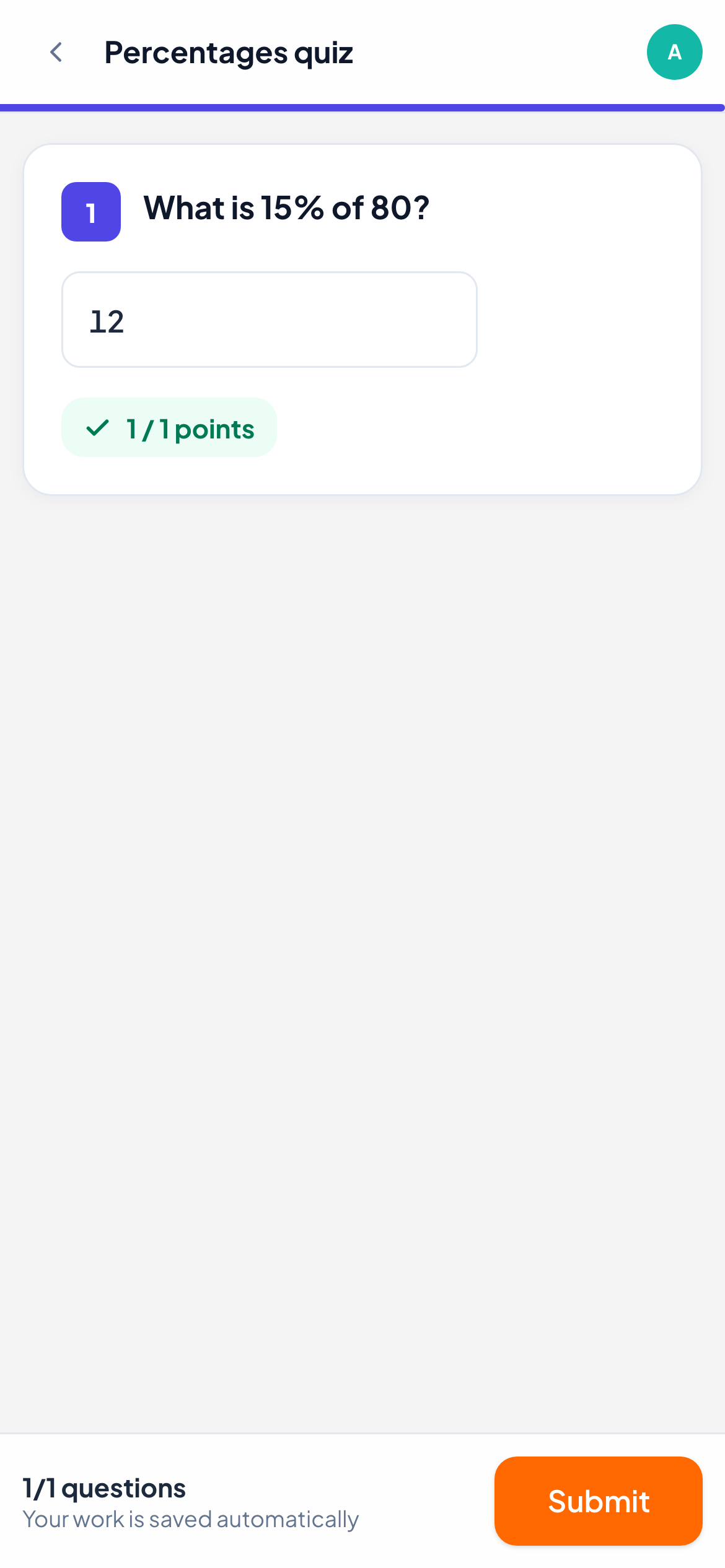
Type it in Type your question…, for example "What is 15% of 80?"
- 3
Enter the right answer
Type it in Right answer, for example 12. You can write a decimal with a point or a comma.
- 4
Set a margin (optional)
In Allowed margin (±), type how far an answer may be from yours and still count. Leave it at 0 for an exact answer. The note below shows the range, for example "Any answer from 9.76 to 9.86 is right."
- 5
Add a unit (optional)
Type it in Unit (optional), such as cm or kg, up to 20 characters. Then set the points (default 1).

What students see
Students see one box marked Your answer, with your unit next to it. On phones and tablets a number keypad opens. If they type something that is not a number, a note asks them to write a number, for example 12, 3.5 or 3,5. The right answer and the margin are never sent to the student’s device.
How it is marked
| Student writes | Right answer 12, margin 0 |
|---|---|
| 12, 12.0 or 12,0 | Right |
| 12.5 | Wrong |
| twelve | Wrong: not a number |
Spaces are ignored, and a point or a comma both work as the decimal mark. Thousands separators are understood when the meaning is clear, as in 1,234.5. A right answer gets full points, anything else 0. Without a Right answer, you mark the question yourself in the live view, where you can also change any automatic score.
Frequently asked questions
Should students type the unit?
No. The unit is shown next to the box, so students type only the number. If they type letters, the answer is not read as a number.
Can I accept two different numbers?
A number question has one right answer and a margin around it. To accept separate values, use Math, which takes several accepted answers.
Last checked against the app on 11 November 2026.
Related articles
- Math questionsStudents type formulas with a math keyboard, and answers with the same value, such as 1/2 and 0.5, are marked right automatically.
- The 13 question typesWhat each of the 13 question types is for, which ones LearnWorkly marks automatically and which ones you mark yourself, with partial credit where it applies.
- Mark answers and give pointsWhich question types are marked automatically, how to score open answers, use a rubric and grade a whole class quickly with keyboard shortcuts.