Feedback in LearnWorkly is attached to one answer, so the student sees exactly which question it is about. You can write, record your voice or, on drawing questions, draw on the student’s work. Students see it right away, during the lesson or later at home.
Send feedback
- 1
Open the answer
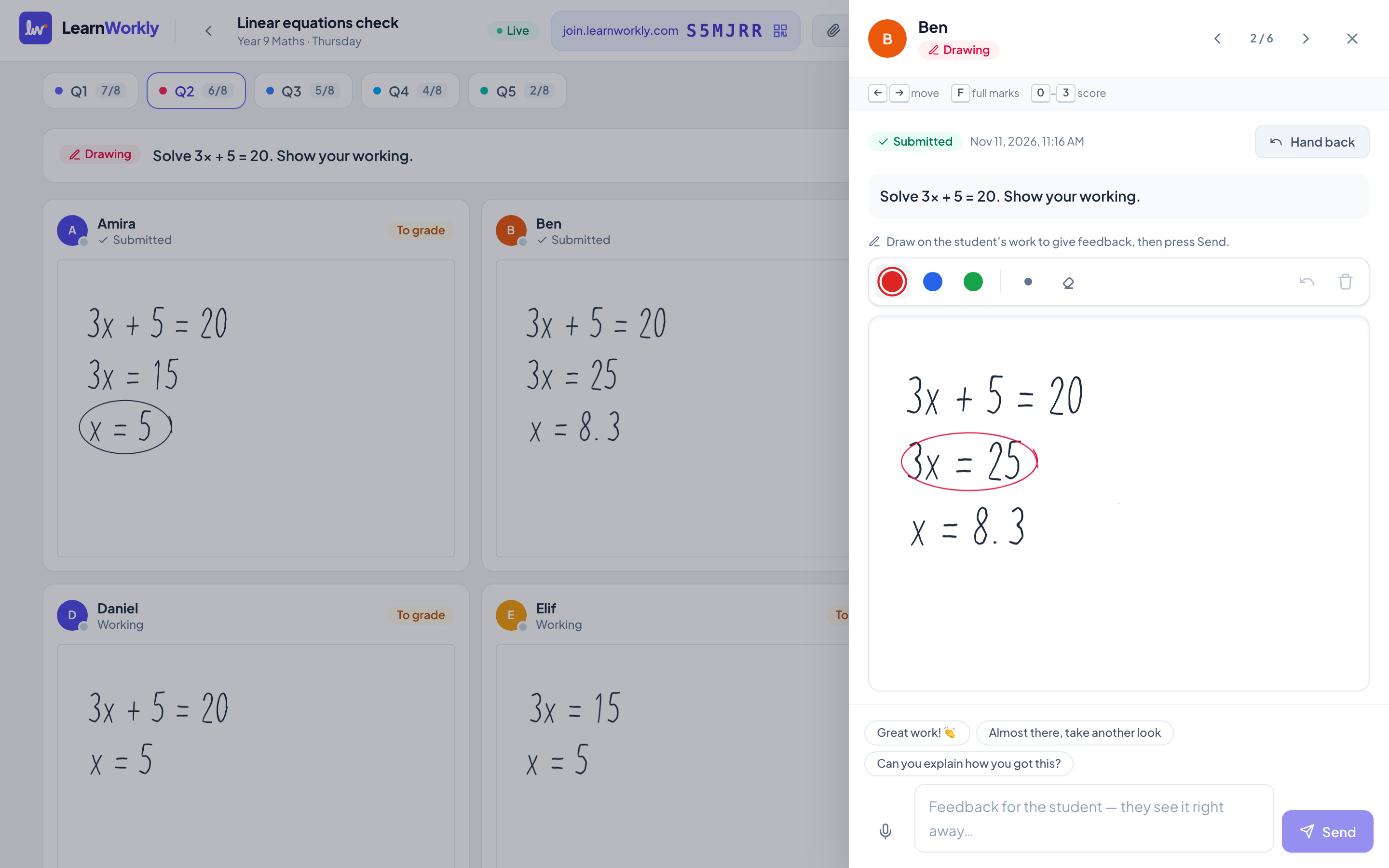
On the live view, click the student’s card or their cell in the Gradebook. The answer panel opens on the side.
- 2
Write a comment
Type in the box at the bottom, or click one of the quick replies such as Great work! 👏 or Can you explain how you got this?, then press Send (or Enter).
- 3
Or record a voice note
Press the microphone button (Voice feedback) and record up to two minutes. The recording is sent when you finish.
Draw on a student’s drawing
On Drawing questions, the student’s work appears on a canvas with red, blue and green pens. Circle a mistake, underline a step or write a correction, then press Send. You can send the drawing on its own or together with a comment. The student sees your marks on top of their own work.
Where students see your feedback
- Under the question, in a Teacher feedback box, as soon as you send it.
- Voice notes play right there; drawings show over their work.
- Feedback on earlier attempts stays visible, labelled with the attempt number.
- If you saved the student’s email address with their permission and Email students is on, they also get an email. At most one per assignment per day.
Frequently asked questions
Can I draw on a photo of handwritten work?
No, drawing is available on Drawing questions. For photos and other answers, send a comment or a voice note.
Can I give feedback after the assignment is closed?
Yes. Students can no longer change their work, but they can still read your feedback.
Does feedback change the score?
No. Feedback and scores are separate. Give the score in the same panel, above the conversation.
Last checked against the app on 11 November 2026.
Related articles
- Reply to students and see their answersStudents can reply to your feedback on each question. See where a student has written back and keep the conversation going, one question at a time.
- Mark answers and give pointsWhich question types are marked automatically, how to score open answers, use a rubric and grade a whole class quickly with keyboard shortcuts.
- See every answer liveStart a live lesson from a class, watch each student’s answers and drawing appear as they work, and hide names before you share your screen.