A Free response question asks students to write an answer in their own words. Use it when the reasoning matters more than a single right answer: explaining a concept, writing a paragraph, justifying a method or summarising a text.
Students can also send a photo of work they wrote on paper, so it works for longer handwritten answers too.
Add a Free response question
- 1
Choose the type
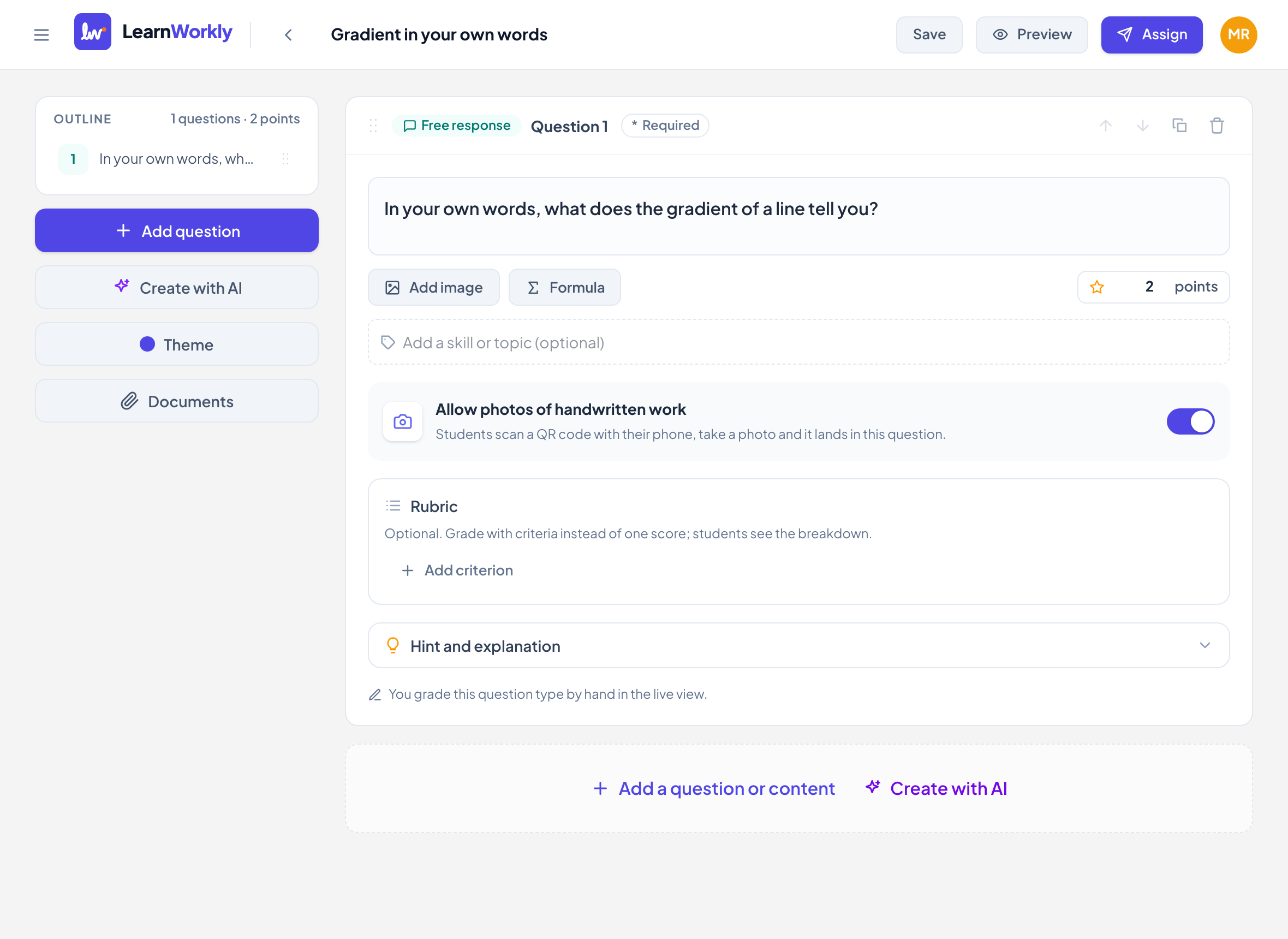
In the editor, click Add a question or content and choose Free response.
- 2
Write the question
Type the question in Type your question…. Use Add image for a picture and Formula for maths.
- 3
Decide on photos
Allow photos of handwritten work is on by default. Turn it off if you only want typed answers.
- 4
Set the points
Type the points (up to 100), or add a Rubric with up to 10 criteria. With a rubric, the question is worth the total of its criteria.
- 5
Add a hint (optional)
Open Hint and explanation to add a hint students can open and an explanation shown with the answer.
What students see
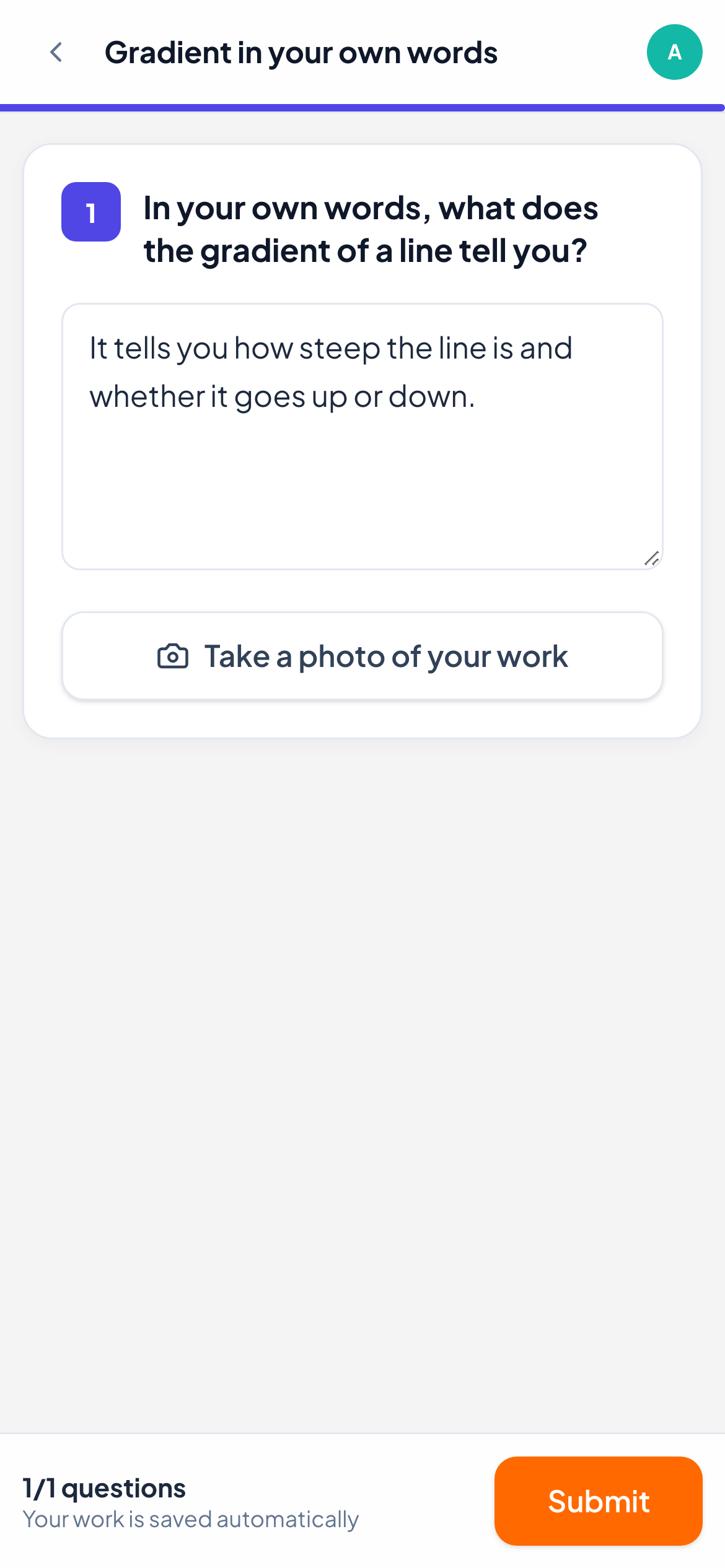
Students see the question and a large box that says Write your answer…. Their answer is saved as they type, and in a live lesson you see it appear on your screen.
If photos are allowed, a button lets them add a photo of their paper. On a phone, Take a photo of your work opens the camera. On a computer, they can scan a QR code with their phone or click Choose a photo. Each question keeps up to five photos.
How it is marked
Free response is never marked automatically. Open a student’s answer in the live view, type a Score and click Save, or click Full marks. With a rubric, you score each criterion and students see the breakdown. You can also send a comment or a voice note in the same panel: see Give feedback.
Frequently asked questions
Can students both type and send a photo?
Yes. A typed answer and photos can sit in the same question, and you see both when you mark it.
Can I change the points after adding a rubric?
The points box then shows the rubric total. Change the points of the criteria instead, or remove the rubric.
Last checked against the app on 11 November 2026.
Related articles
- Collect photos of handwritten workStudents scan a QR code with their phone, photograph their paper and the photo lands in the right question on your live view, no pen tablet needed.
- Mark answers and give pointsWhich question types are marked automatically, how to score open answers, use a rubric and grade a whole class quickly with keyboard shortcuts.
- Give feedback on students’ workSend a written comment or a voice note on any answer, draw on a student’s drawing to circle a mistake, and the student sees it straight away.
- Drawing questionsStudents draw, handwrite or show their working with a finger, mouse or stylus, on a blank page or on a picture you add. You see it as they draw.