A Categorize question asks students to sort items into groups. Use it for parts of speech, living and non-living things, odd and even numbers, or any classification task.
Add a Categorize question
- 1
Choose the type
In the editor, click Add a question or content and choose Categorize.
- 2
Write the question
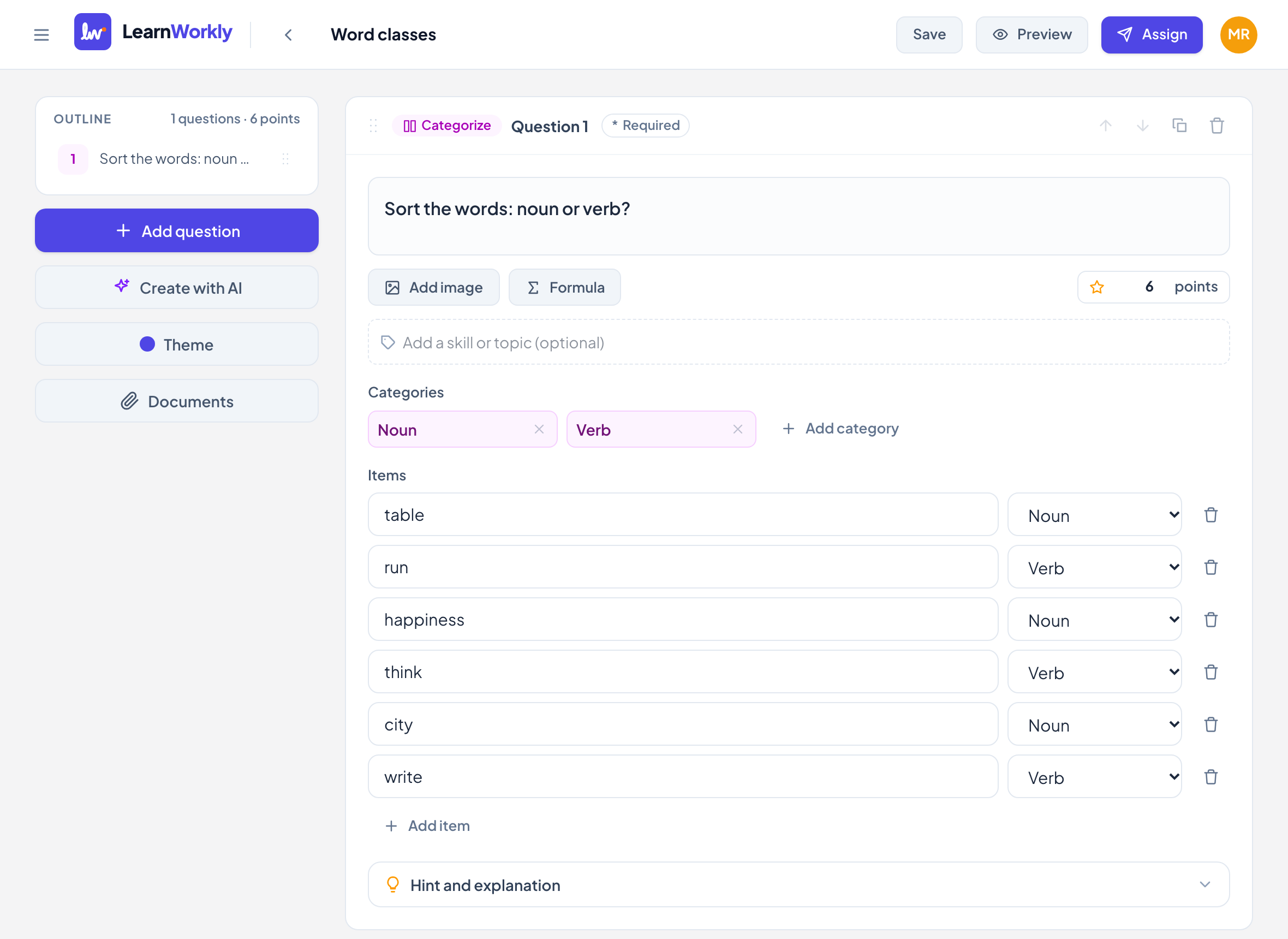
Type it in Type your question…, for example "Sort the words: noun or verb".
- 3
Name the categories
Under Categories, name each group. Use Add category for more: 2 to 5 categories.
- 4
Add the items
Under Items, type each item and pick its category from the list next to it. Use Add item for more: 2 to 20 items.
- 5
Set the points
New questions are worth 2 points. Change it in the points box.
What students see
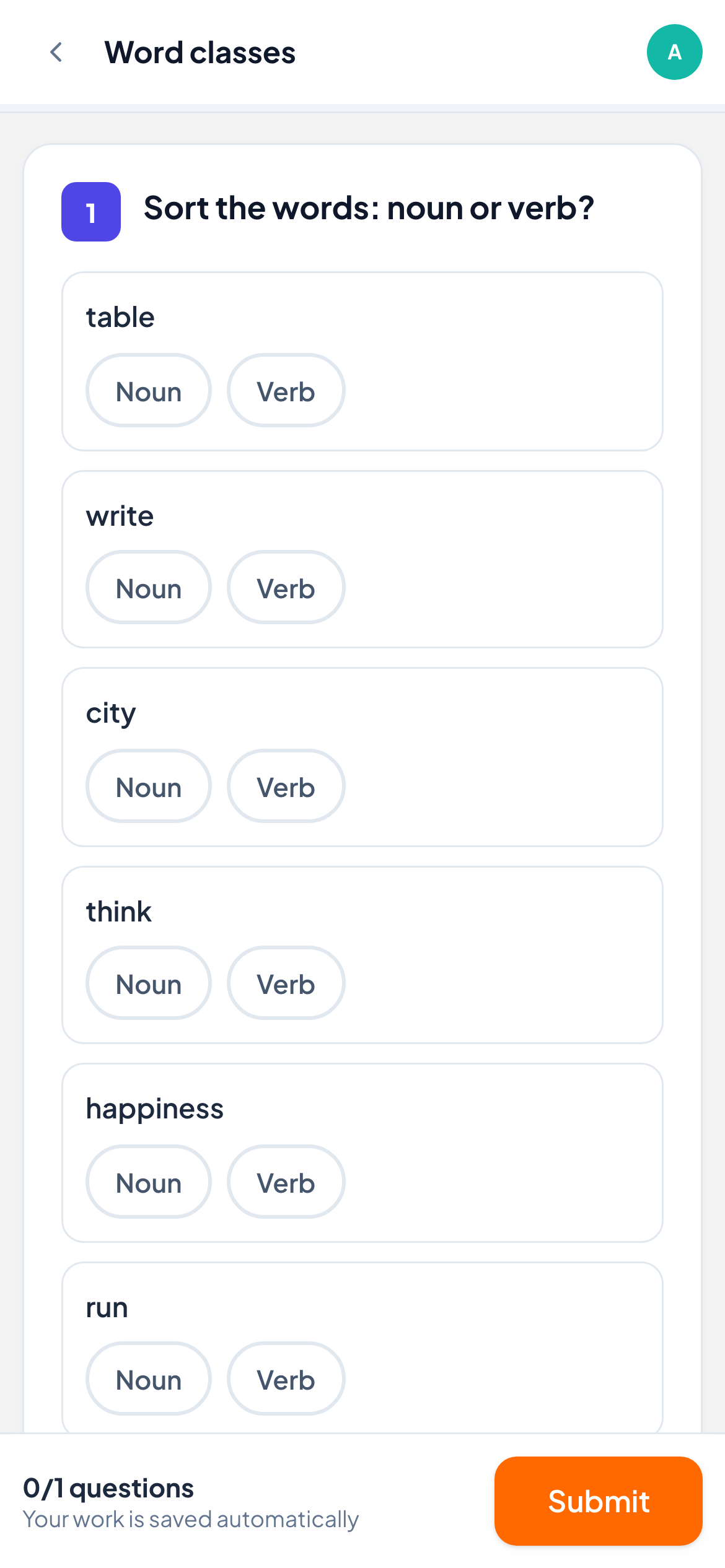
Students see the items in a shuffled order. Under each item there is a button for every category, and they tap the one it belongs to. They can change their choice at any time while the work is open. This works the same on a phone, a tablet or a computer.
How it is marked
Categorize is marked automatically, with partial credit: each item in the right category earns its share of the points. Items left without a category count as wrong. For example, with 6 items worth 2 points, 3 items sorted correctly give 1 point.
In the live view you see where each item was placed, shown green when right and red when wrong. You can still change the score by hand.
Frequently asked questions
Can an item belong to two categories?
No. Each item has exactly one correct category.
What happens to the items if I delete a category?
Items that were in it move to the first remaining category. Check them before you assign the activity.
Last checked against the app on 11 November 2026.
Related articles
- The 13 question typesWhat each of the 13 question types is for, which ones LearnWorkly marks automatically and which ones you mark yourself, with partial credit where it applies.
- Put in order questionsStudents arrange shuffled items into the right sequence: steps, events or stages. Marked automatically, with partial credit for each item in place.
- Matching questionsWrite pairs such as words and definitions; students match each item to its partner, with partial credit for every correct pair.
- Mark answers and give pointsWhich question types are marked automatically, how to score open answers, use a rubric and grade a whole class quickly with keyboard shortcuts.