Seeing how a student got to an answer often matters more than the answer itself. LearnWorkly has several ways to collect working, and none of them needs a drawing tablet.
Create a Drawing question
- 1
Add the question
In the editor, click Add question and choose Drawing. Type the task, for example "Solve 3x + 5 = 20. Show your working."
- 2
Add a picture to draw on (optional)
Under Picture to draw on (optional), click Add a picture to upload a worksheet, graph, map or diagram. Students draw on top of it.
- 3
Allow photos (optional)
Keep Allow photos of handwritten work on if students may also send a photo of their paper.
- 4
Set the points
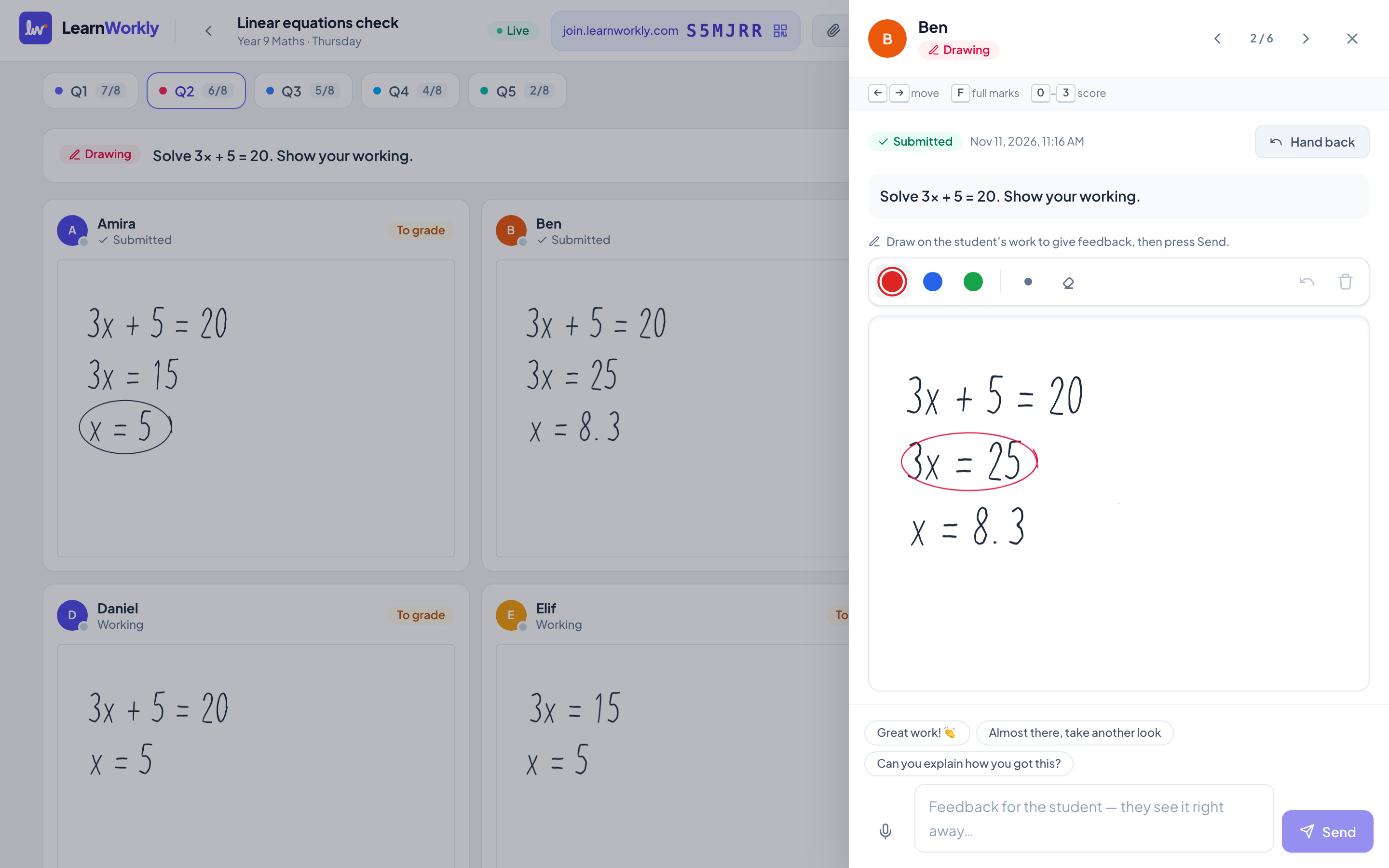
Type the points, or add a Rubric with criteria. You mark drawings yourself in the live view.
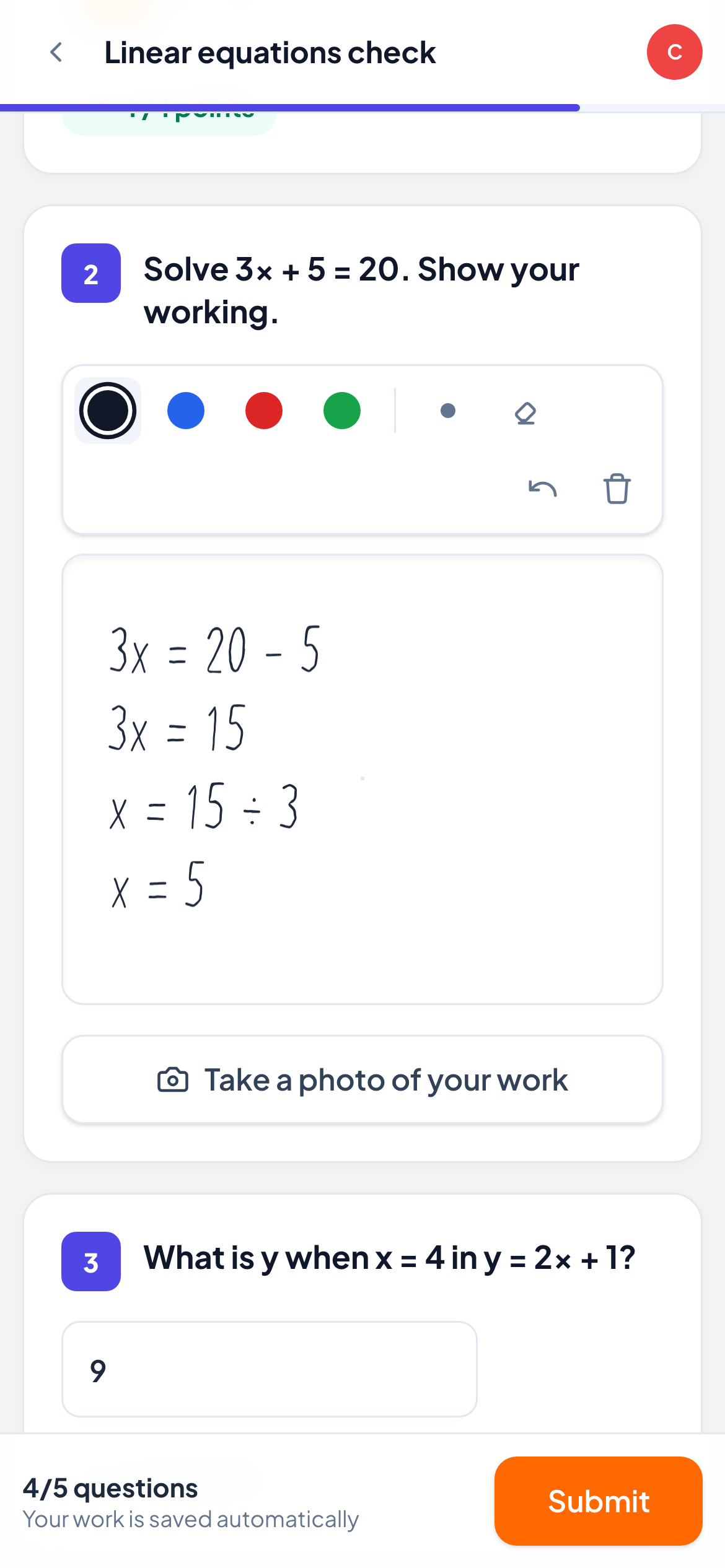
What students can do
- Draw with a finger, a mouse or a stylus. Once a stylus is used, touches of the hand no longer draw, so students can rest their palm on the screen.
- Choose one of four pen colours, a Thick pen or the Eraser, and use Undo or Clear all.
- Tap Take a photo of your work to send a photo of handwritten work. On a phone the camera opens directly; on a computer a QR code appears to scan with a phone. The code expires in 15 minutes.
Maths in questions and answers
To put a formula in any question, click Formula under the question text. In the Insert formula dialog, type / for a fraction and ^ for a power; the keyboard button has more symbols. The formula is shown properly typeset to students.
For answers, use one of these types:
| Type | Student answers with | How it is marked |
|---|---|---|
| Math | A formula, with a math keyboard that opens on phones and tablets | Automatically against your Accepted answers. Equal values count, so 1/2 and 0.5 both match |
| Number | A plain number, such as 12, 3.5 or 3,5 | Automatically, with an optional Allowed margin (±) and Unit (optional) |
| Drawing | Handwritten working | By you |
Frequently asked questions
Do students need a stylus?
No. A finger on a phone or tablet works, and so does a mouse on a computer. A stylus simply gives neater handwriting.
Can I check the working and the final answer separately?
Yes. Use a Drawing question for the working and a Number or Math question for the final answer, which is then marked automatically.
Last checked against the app on 11 November 2026.
Related articles
- The 13 question typesWhat each of the 13 question types is for, which ones LearnWorkly marks automatically and which ones you mark yourself, with partial credit where it applies.
- Collect photos of handwritten workStudents scan a QR code with their phone, photograph their paper and the photo lands in the right question on your live view, no pen tablet needed.
- Give feedback on students’ workSend a written comment or a voice note on any answer, draw on a student’s drawing to circle a mistake, and the student sees it straight away.