The Instructions slide shows instructions and a QR code for participants to join. Put it first in your presentation and leave it on screen while people arrive.
- 1
Add the slide
In the editor, click + New Slide. In Choose Slide Type, open the Content tab and pick Instructions. Drag it to the top of the slide list if it is not first.
- 2
Add a title (optional)
Type a title such as "Join the quiz on your phone". The join details are filled in for you.
- 3
Present
Click Present. The slide reads Go to with the join address, Enter the code with your presentation code, and Or use QR code under a large QR code.
- 4
Start when the room is in
The counter at the bottom right shows how many people have joined. Press Next or the right arrow key to start.
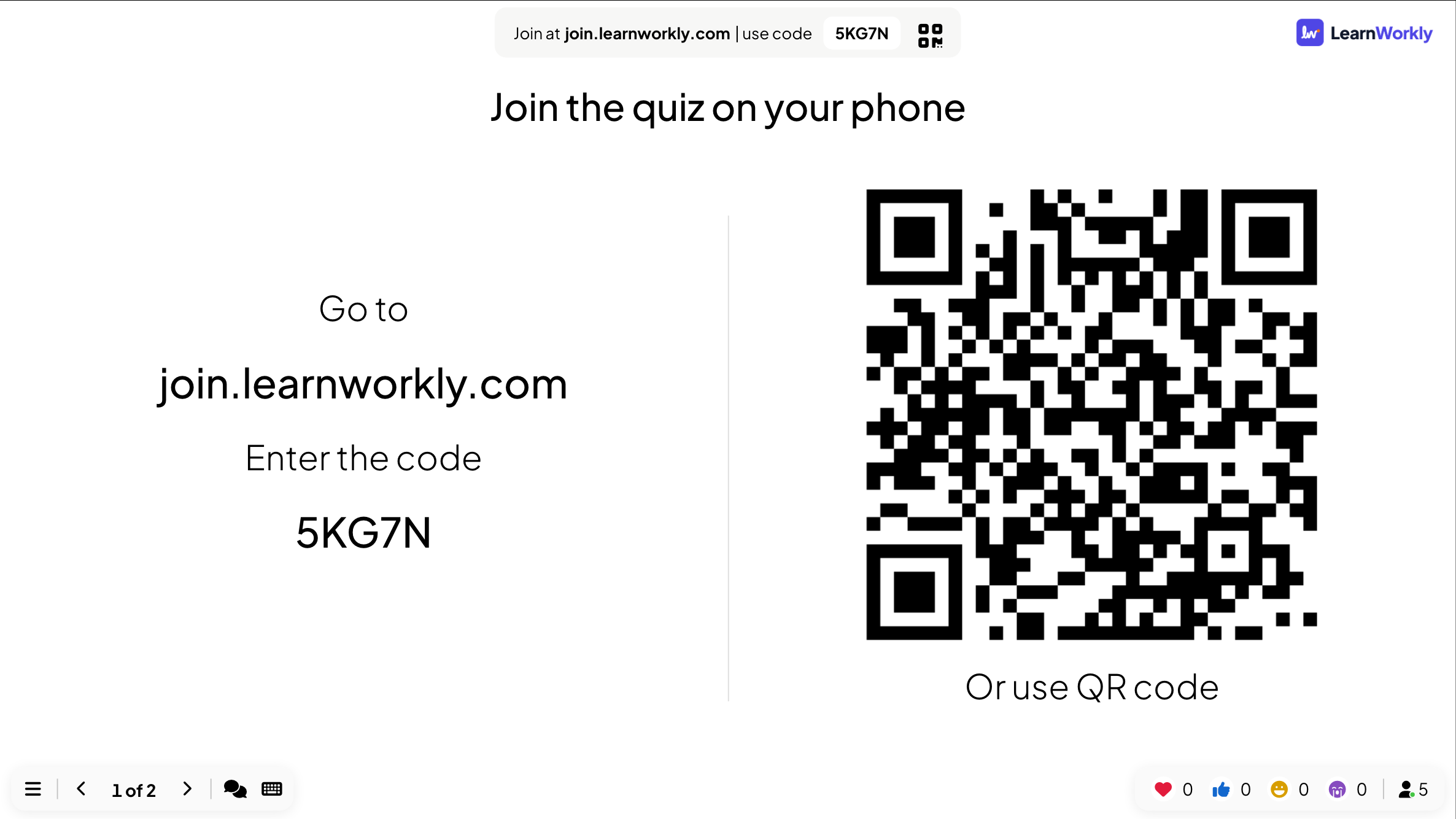
What participants see
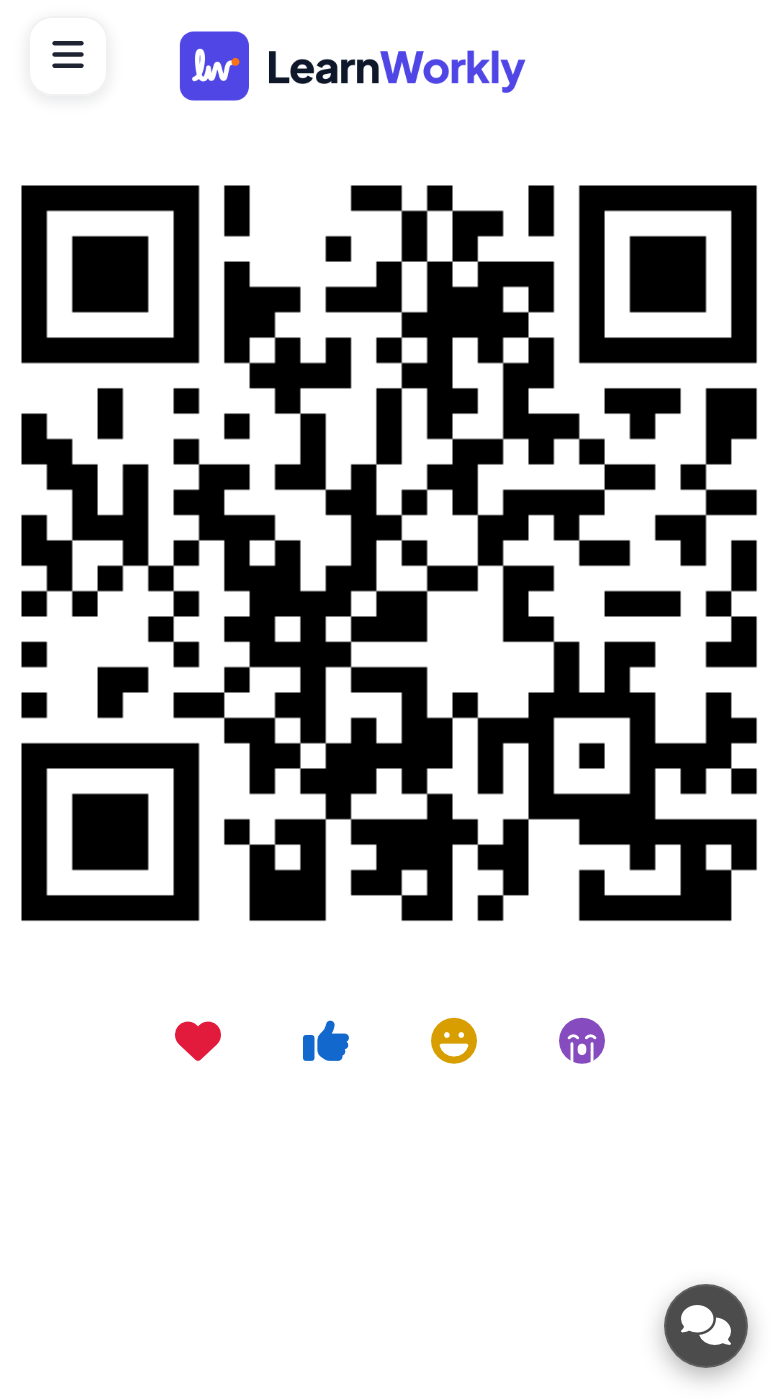
Anyone who has already joined sees the same QR code on their phone, so they can hold it up for a neighbour to scan.
The join bar and QR code can also stay beside every slide while you present: see Join bar and QR code.
Frequently asked questions
Does the code change each time?
No. The code belongs to the presentation, so you can print it or put it in an email in advance.
Can people join after I move on?
Yes. They can join at any time with the code; their phone opens on the slide you are showing.
Do I need this slide?
No. The join bar at the top of every slide also shows the address and code. The Instructions slide makes them large while people arrive.
Last checked against the app on 17 November 2026.
Related articles
- How participants join your presentationPeople join at join.learnworkly.com with your code or by scanning the QR code, with no app and no account. See what they do and how to change the code.
- The join bar and QR codeThe bar at the top of each slide and the QR column beside it tell people how to join. Learn how to show, hide, share and print them.
- Private sessions, login and access codesLimit who can join your presentation: make it private, ask participants to log in, or give each person a unique access code to enter.