Content slides are the slides you talk over: a title page, a section header, key points, a photo or a closing slide. You place each element freely on a 16:9 canvas, so the slide looks exactly as you designed it on the big screen and on every phone.
Use them between your polls, quizzes and games so the whole session lives in one presentation.
Add a content slide
- 1
Add the slide
In the editor, click + New Slide. In Choose Slide Type, open the Content tab and pick Content. An empty slide says Start with a title, or pick a layout on the right.
- 2
Start from a layout (optional)
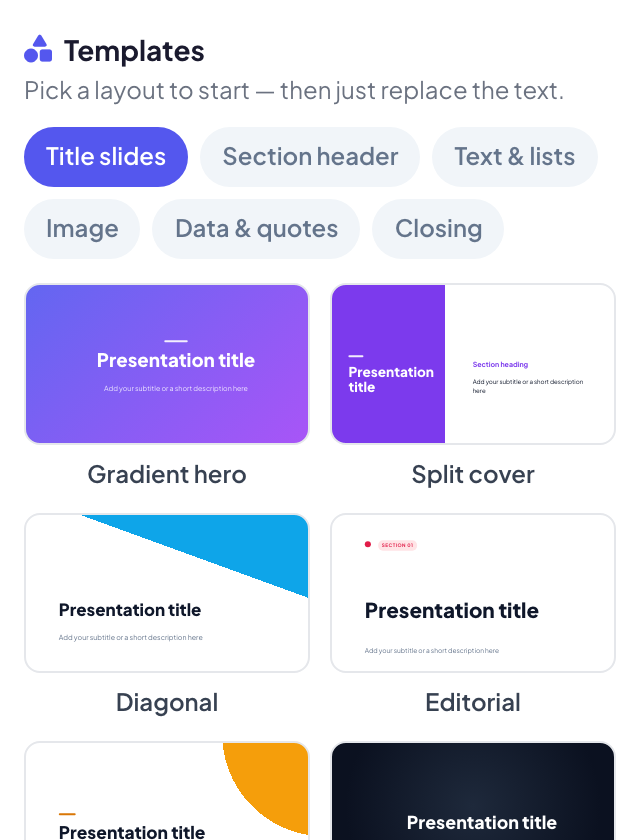
In the right column, scroll to Templates and pick a layout from one of the tabs: Title slides, Section header, Text & lists, Image, Data & quotes or Closing. Click Replace to confirm, then type over the sample text.
- 3
Add elements
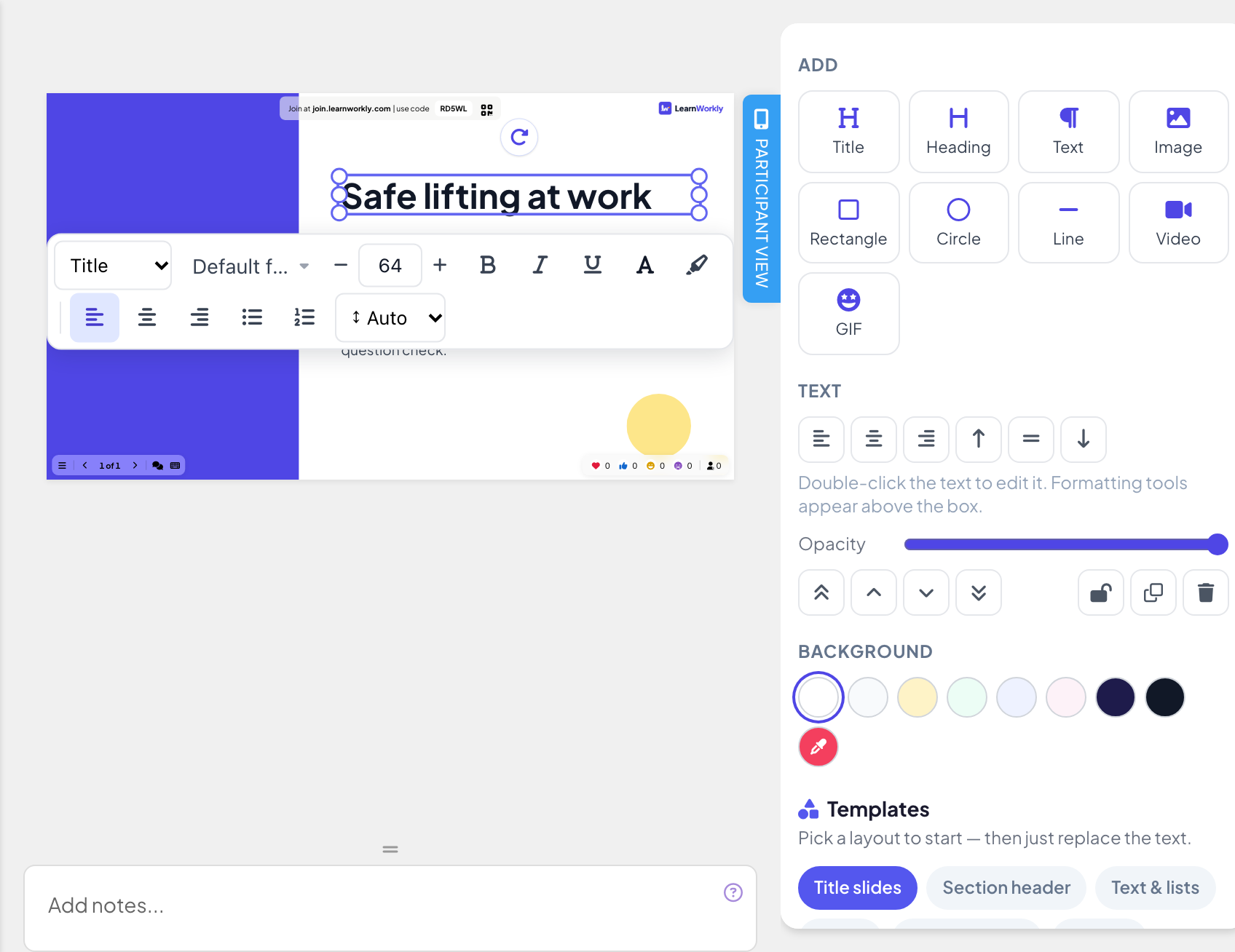
Under Add, choose Title, Heading, Text, Image, Rectangle, Circle, Line, Video or GIF. The new element appears on the slide, ready to move and resize. Image and Video upload a file from your computer; GIF opens a search.
- 4
Edit and arrange
Drag an element to move it and drag its handles to resize it. Double-click a text box to edit it: a toolbar appears above the box with the font, size, bold, italic, underline, text and highlight colour, bulleted and numbered lists, alignment and line height.
- 5
Set the background
Pick a colour under Background, or use Custom color for any colour you like. For a background picture, use the Design tab: see Slide design.
Element options
- Alignment: select one or more elements (Shift-click to add more) to align them; with three or more selected, Space evenly spreads them out.
- Shapes: Fill, Border (colour and width) and, for rectangles, rounded Corners.
- Images: rounded Corners, Fit (Fill the box or Show whole image) and Replace image.
- Every element: Opacity, Bring to front, Bring forward, Send backward, Send to back, Lock, Duplicate and Delete.
- Undo and Redo sit at the top of the panel, next to the Saved indicator. Changes save automatically.
Keyboard shortcuts in the slide editor
| Keys | What they do |
|---|---|
| ⌘/Ctrl Z, ⇧ ⌘ Z | Undo, redo |
| ⌘ C, ⌘ V, ⌘ D | Copy, paste, duplicate |
| Arrow keys | Nudge the selection (hold Shift for 10px) |
| Shift | Click to select several elements, drag to keep a straight line |
| Alt | Drag without snapping |
| Enter, Esc | Edit text, finish editing |
Present it
Click Present. The big screen shows the slide full size. Participants who have joined see the same slide, scaled to fit their phone, with the same text, images, shapes and videos. There is nothing to answer on a content slide, so nothing goes into the report.


Frequently asked questions
Can I use my own fonts?
Each slide can use a different font from the Google Fonts list: open the Design tab and click Change Font Slide. Inside a text box, the Font menu of the text toolbar changes the font of the selected text. See Slide design.
I already have slides in PowerPoint. Do I need to rebuild them?
No. Import the file with Import PPT/PDF: PowerPoint slides keep their animations and stay editable. See PowerPoint Animated slides.
An element will not move.
It is probably locked. Select it and click the lock icon (Unlock) in the panel.
Will a template overwrite my slide?
Yes. Picking a template replaces the current content of the slide, after you confirm with Replace. Start a new Content slide first if you want to keep this one.
Last checked against the app on 17 November 2026.
Related articles
- PowerPoint Animated: imported slides with animationsImport a .pptx file and every slide keeps its PowerPoint animations. Edit text and layout, add or change animation steps, then present click by click.
- Slide design: colours, fonts and backgroundsChange the text colour, font, background colour and background image of a slide in the Design tab, then apply the same look to every slide at once.
- Create your first presentationStart a blank presentation, add slides from more than 50 slide types, write your questions and check what participants will see before you present.