How to teach an interactive lesson: slides, questions, games
How to teach an interactive lesson from the classroom screen: a 50-minute structure with timings, what goes on each slide, and how to act on live answers.
LearnWorkly team· Updated 7 min read
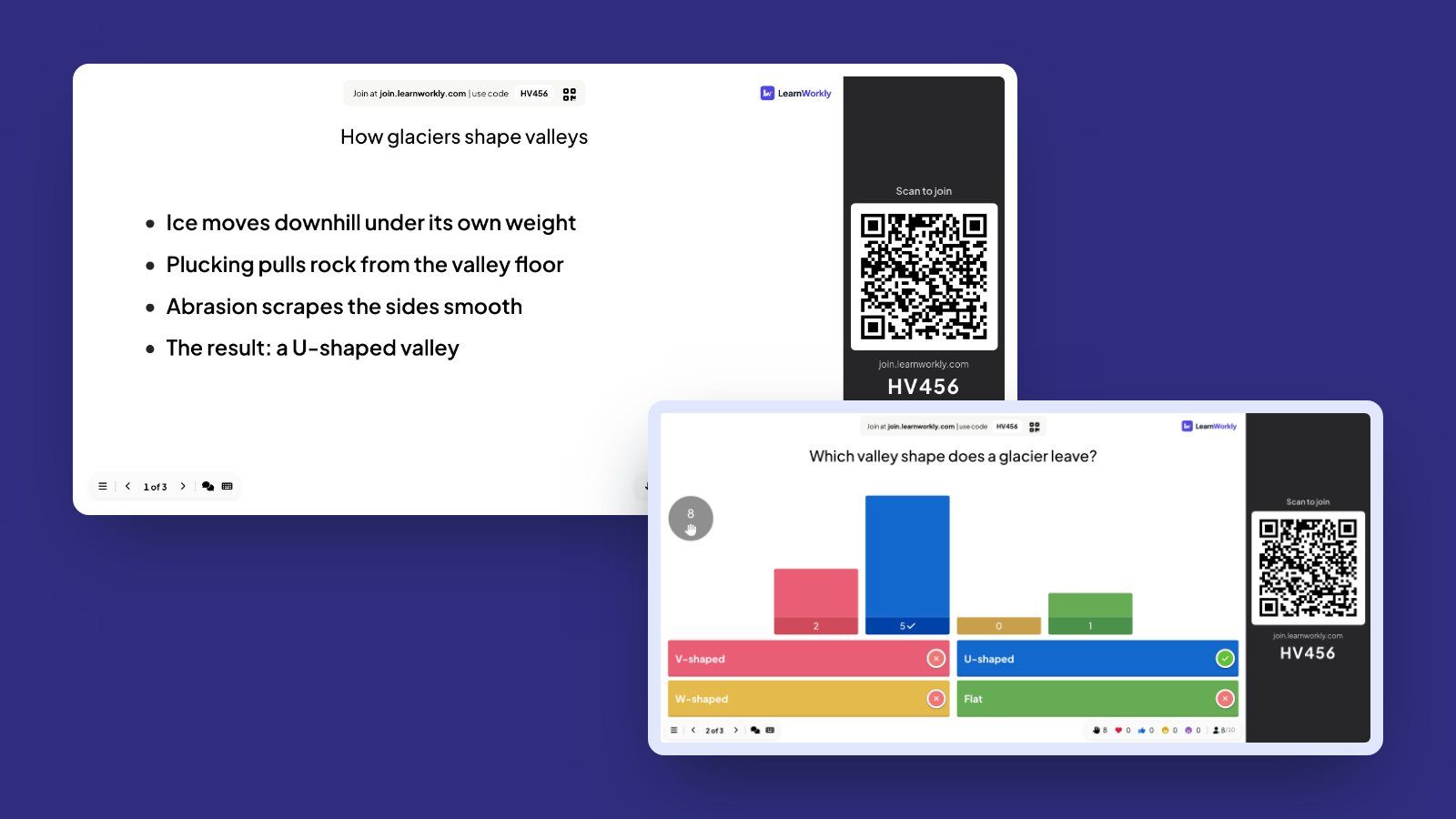
An interactive lesson is one where students answer, decide or make something every few minutes, and the teacher uses those answers to steer what happens next. That last part matters most. A lesson can have a poll on every third slide and still be a lecture if nobody changes course when half the class gets something wrong.
This guide is about teaching the lesson itself from the classroom screen. Your slides are the lesson deck, and the questions, polls, word clouds and a short game sit inside it, in the order you teach. Below is a 50-minute structure with timings, what to put on each kind of slide, and rules for reacting to answers live. It suits interactive lessons for students from about 10 upwards, in any subject.
What makes an interactive lesson work
Most advice on interactive teaching comes back to three old ideas.
Small steps, then practice. In his Principles of Instruction, Barak Rosenshine summarised decades of classroom research. The most effective teachers presented new material in small amounts, had students practise after each step, asked many questions and checked the responses of all students, not only the ones with hands up.
A success rate that is high but not perfect. Rosenshine reports that about 80 percent correct seems to be the best rate during practice: students are learning, and they are still being stretched. That gives you a useful line for reading live answers, which we come back to below.
Short chunks of input. You will often read that attention drops after 10 to 15 minutes. Treat that as a rough guide, not a law. In a 2016 review in Advances in Physiology Education, Neil Bradbury traced the claim back to thin evidence and argued that attention varies with the teacher, the material and the students more than with the clock. Still, an 8- to 10-minute chunk followed by a task is a sensible rhythm for most classes, because it forces you to check before you build on something.
A 50-minute interactive lesson, minute by minute
The example is a Year 8 geography lesson on glaciers.
| Time | Phase | On the screen | Students do |
|---|---|---|---|
| 0–5 | Hook and join | Title slide, then a word cloud | Join with the code and send one word |
| 5–13 | Input 1 | 3–5 slides: one idea each | Listen, look, note one thing |
| 13–16 | Check 1 | One multiple-choice question | Answer alone, then see the class result |
| 16–24 | Input 2 | 3–5 slides, with a worked example | Follow the steps as they appear |
| 24–28 | Check 2 | A sketch or a one-line answer | Draw or write on their device |
| 28–40 | Practice | A few questions in a row | Work alone, at their own pace |
| 40–46 | Game | A short quiz game on the key words | Play on their phones |
| 46–50 | Plenary | A confidence poll and an exit question | Rate themselves, answer one last question |
The hook (0–5 minutes)
Open with something every student can answer without having learned anything yet. A word cloud is ideal: “One word: what comes to mind when you hear ‘glacier’?” Words like “ice”, “cold” and “Antarctica” will be big; the odd “valley” or “erosion” tells you who already knows something. It also covers the time while late arrivals join.
Input chunks (8 minutes each)
Keep one idea per slide, with a picture or a diagram doing most of the work and very little text. If you build up a process, reveal it one step at a time instead of showing the finished diagram. Two chunks of 8 minutes cover more than one block of 16, because the check in between catches problems before you stack the next idea on top.
Checks after each chunk (2–4 minutes)
Each check is one question, aimed at the most likely misunderstanding. For example, “Which shape does a glacier carve into a valley?” with V-shaped as a wrong option works because many students already know rivers make V-shaped valleys. Use a multiple-choice question when the wrong answers are predictable, and a sketch or one-line answer when you need to see their reasoning.
Practice (10–12 minutes)
After that, students work alone on four to six questions, at their own pace. Mix easy and harder ones and put the question you care about most first. Walk the room while the answers come in.
Game and plenary (10 minutes)
A short game on the key words is a good retrieval round once the new material is in. Then finish with a confidence poll (“How sure are you that you could explain abrasion to a friend?”) and one exit question that tells you where to start next lesson.
What to put on slides, questions, polls and games
- Slides explain and show: models, images, worked examples. Students should never have to read a paragraph off the board.
- Questions with a right answer check understanding. They belong straight after the idea they test.
- Polls with no right answer ask for a prediction or a level of confidence. They are good at the start of a chunk (“What do you think will happen?”) and at the end of the lesson.
- Word clouds collect prior knowledge or a one-word summary. They are poor for checking a precise answer.
- Games are for retrieval of things already taught. Avoid them in the middle of new content, where speed matters more than thought. Points can discourage weaker students, so let them play in teams or under a nickname when the gap is large.
How to react to answers in the moment
Decide in advance what you will do with each result, so you are not improvising in front of 30 faces. A simple rule built on Rosenshine’s 80 percent:
- About 80 percent or more right: say why the right answer is right in one sentence, address the most common wrong answer, and move on.
- Between about half and 80 percent: students explain their answer to a neighbour for one minute, then answer again. The second result usually rises, and the discussion does the reteaching for you.
- Under half: stop and reteach with a different example, not the same slide again. Then ask a parallel question.
Two habits help. First, hide the results while students answer, so nobody copies the biggest bar. And when you discuss a wrong answer or a sketch, talk about the answer, not who gave it. For more ways to see what every student thinks, our list of check for understanding strategies has 40 ideas.
Teaching an interactive lesson from LearnWorkly
If you want to know how to teach an interactive lesson without juggling programs, LearnWorkly keeps the lesson slides and the questions in one presentation. You can import a PowerPoint (.pptx) and keep its animations, import a PDF where each page becomes a slide, or build slides in the editor from content slides, lists and templates. Questions, polls, word clouds and games go between the slides in the order you teach them.
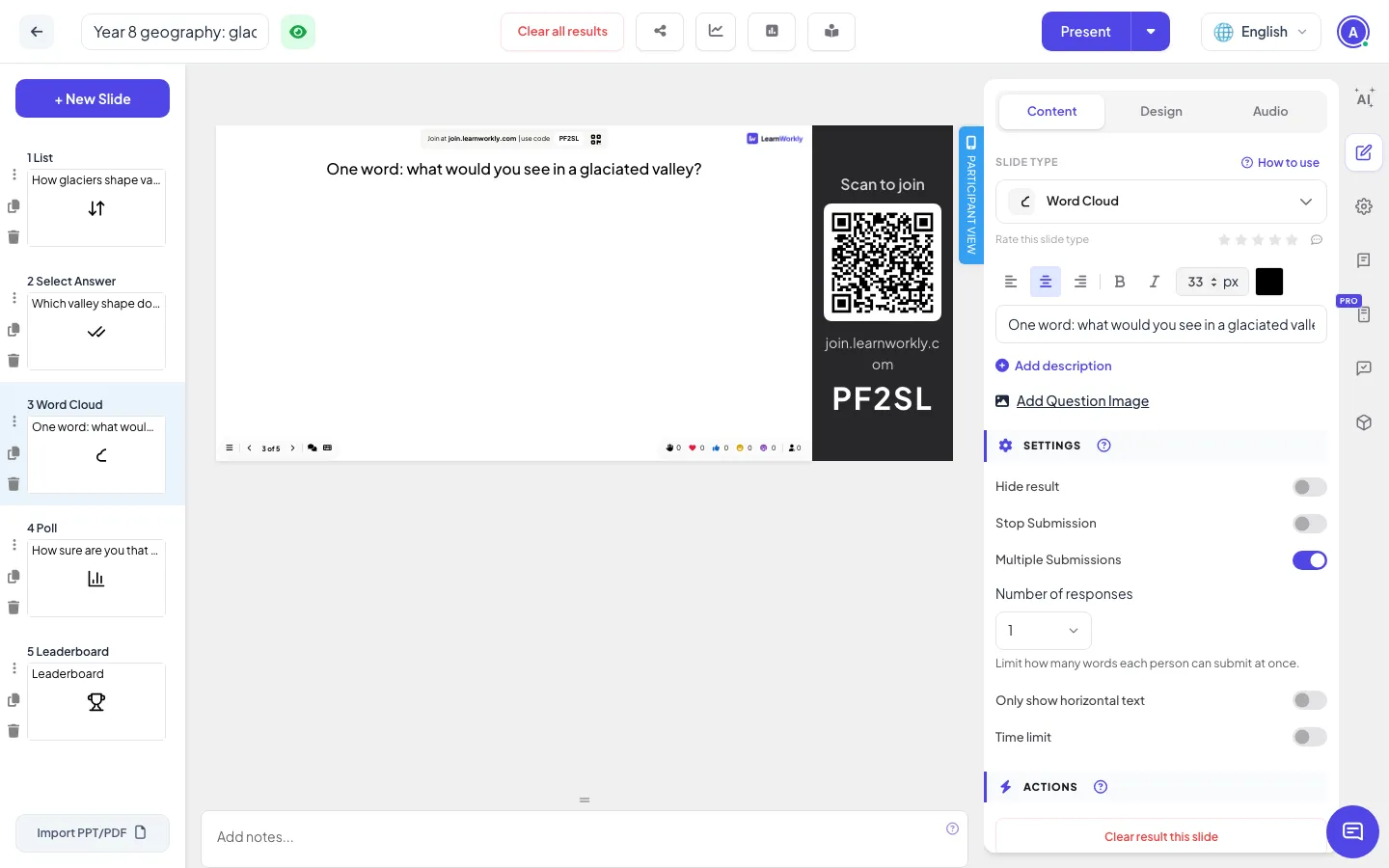
To teach it, press Present. The slide fills the projector, with the join address and the code at the top and a QR code beside the slide. Students join on their own device with no account, and their screens follow your slides. On a list slide you can reveal the points one by one with the arrow keys, and an imported animated PowerPoint plays its animations click by click. The guide to present mode covers every control, including remote control from your phone on the Pro plan.
Reacting to answers on the big screen
The tools from the section above are settings on each slide: Hide result on a poll keeps the chart hidden while students answer, a quiz question reveals the right answer and how many picked each option when the timer ends, and Stop Submission closes a question. Clear all results lets the class answer again after a discussion, and the Vote · Discuss · Revote slide builds the “talk to your neighbour, then answer again” step into the slide itself. For the practice block, you can switch the presentation from presenter-paced to participant-paced, so students work through the questions alone.
There are about fifty slide types in five groups: quizzes, games such as Last One Standing, interactive questions such as word clouds and polls, content slides and integrations. Fast right answers in quiz slides earn points for the leaderboard. All of this is on every plan, including Free. The page on interactive lessons in class shows a full lesson deck.
Start with one lesson
You do not need to rebuild every lesson. Take one you will teach next week, cut it into two or three chunks of 8 to 10 minutes, and write one check question for the end of each chunk, aimed at the mistake you expect. Add a word cloud at the start and a confidence poll at the end. Then teach it and see what the answers tell you.