LearnWorkly marks most question types for you the moment a student answers. Open answers, such as writing, drawings, recordings and uploaded files, wait for you. You can change any score, including the automatic ones.
Automatic or by you
| Question types | How they are marked |
|---|---|
| Multiple choice, True / False, Short answer, Number, Math | Automatically, when you have set the correct answer. Full points or zero. |
| Fill in the blank, Matching, Put in order, Categorize | Automatically, with partial points for each part that is right. |
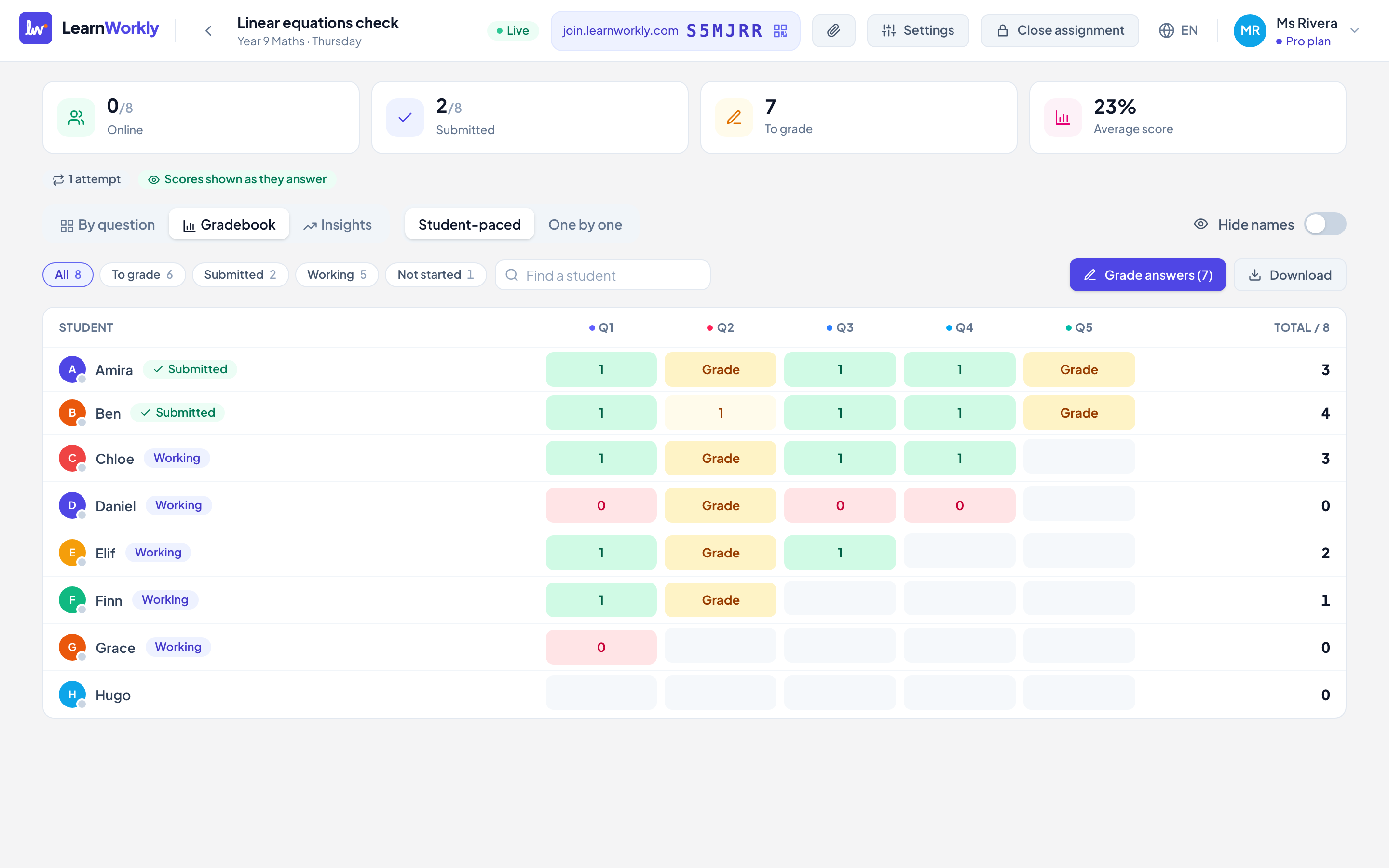
| Free response, Drawing, Audio, File upload | By you. They show as To grade until you give a score. |
Score an answer
- 1
Open the answer
On the live view, click a student’s card in By question, or a cell in the Gradebook. Cells that say Grade are waiting for you.
- 2
Give a score
Type the score next to Score (half points are allowed) and press Save, or press Full marks or 0.
- 3
Check the label
Under the score you see Auto-graded — you can still change it., Graded by you. or Not graded yet.
Grading with a rubric
Open questions can have a rubric of up to ten criteria, set in the activity editor. When you open such an answer, you pick the points for each criterion and press Save. The Total becomes the score, and students see the points for each criterion when scores are visible to them.
Grade a whole class quickly
Press Grade answers (n) on the live view to go through every answer that still needs a score, question by question. After you grade one, the next opens by itself, and you see All answers graded when you are done. Use the To grade filter to see only the students with answers waiting.
Keyboard shortcuts in the answer panel
| Key | Action |
|---|---|
| ← and → (or K and J) | Previous or next answer |
| F | Full marks (every criterion, for a rubric) |
| 0 to 9 | That score, for questions worth up to 9 points without a rubric |
| Esc | Close the panel |
Frequently asked questions
Do students see scores as soon as I give them?
That depends on Show scores in the assignment settings: as they answer, after they submit, or when you release them. See Return results to students.
Can I see earlier attempts?
Yes. When a student has made more than one attempt, the answer panel lists Earlier attempts with their scores. Click one to see that attempt’s answer.
Last checked against the app on 11 November 2026.
Related articles
- Give feedback on students’ workSend a written comment or a voice note on any answer, draw on a student’s drawing to circle a mistake, and the student sees it straight away.
- Return results to studentsDecide when students see their scores and the correct answers, release results to the whole class at once, and hand work back to a student to improve.
- Gradebook, scores and skillsSee every score for an assignment in the gradebook, download it as Excel or CSV, and follow each student’s progress by assignment and by skill.
- The 13 question typesWhat each of the 13 question types is for, which ones LearnWorkly marks automatically and which ones you mark yourself, with partial credit where it applies.