Anyone with your presentation code can join by default. Three settings let you control who gets in.
Make the presentation private
- 1
Click the eye icon
It is next to the presentation name at the top of the editor. Green means public; red with a line through it means private. Click it again to switch back.

- 2
What participants see
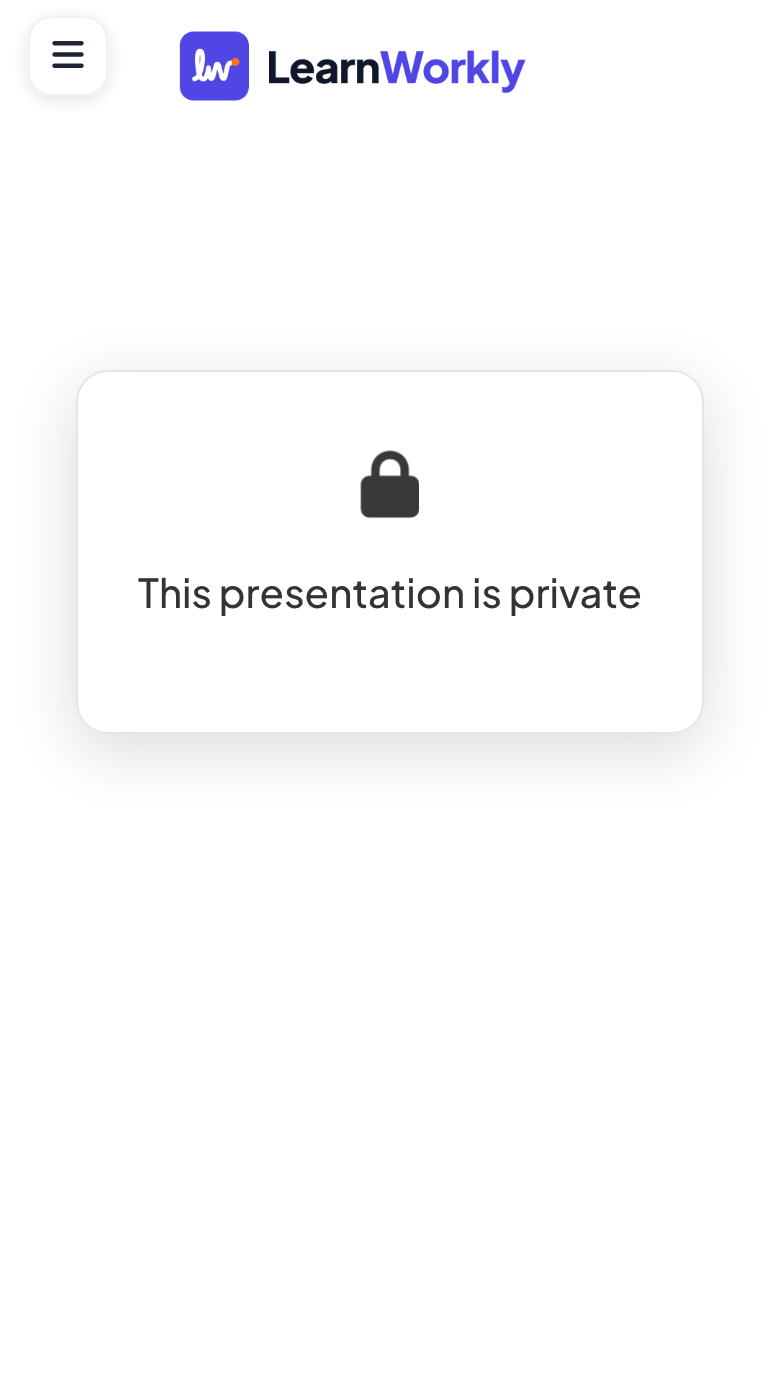
Anyone who uses the code sees This presentation is private and cannot take part.
Require Participant Login
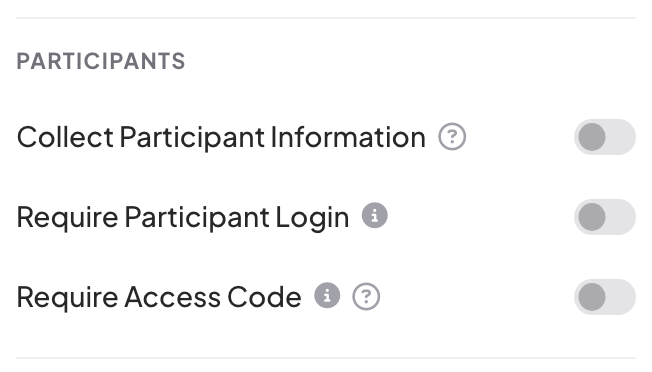
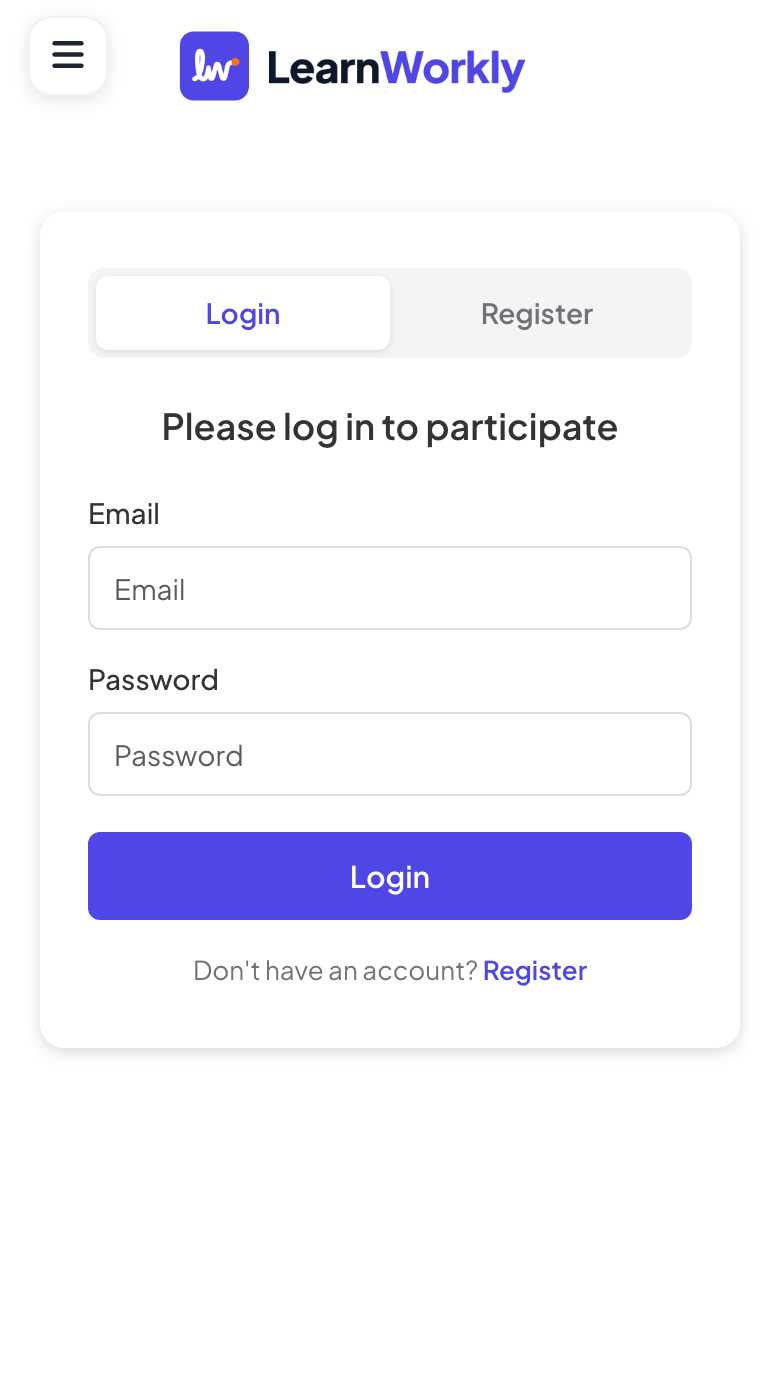
In Presentation settings (the gear on the right edge of the editor) → General Settings → Participants, turn on Require Participant Login. Participants see Please log in to participate with Login and Register tabs, and must log in or create a free LearnWorkly account before they can join.
Require Access Code
- 1
Turn it on
In the same Participants section, turn on Require Access Code.
- 2
Generate codes
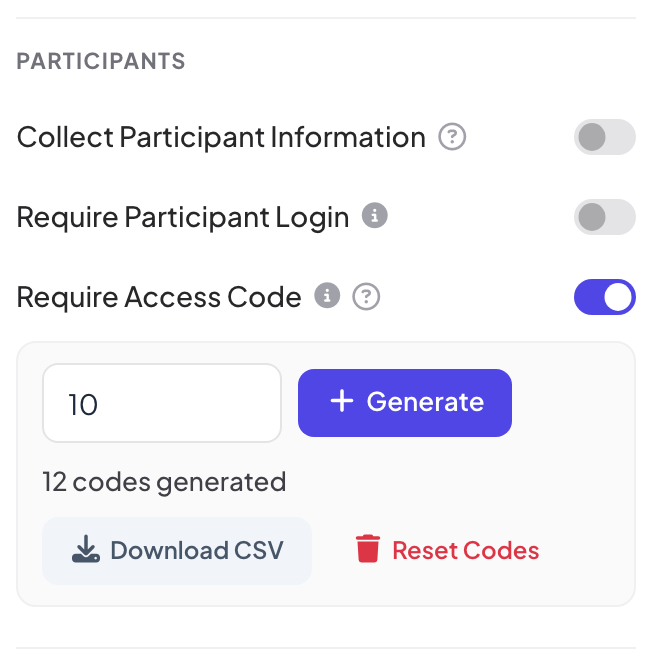
Type how many codes you need (1 to 500) and click + Generate. The panel shows how many codes are generated.
- 3
Hand them out
Click Download CSV for the list of codes and whether each one is in use, then give one code to each participant.
- 4
Participants enter their code
After joining, they see Enter your code, type it in CODE and tap Verify.
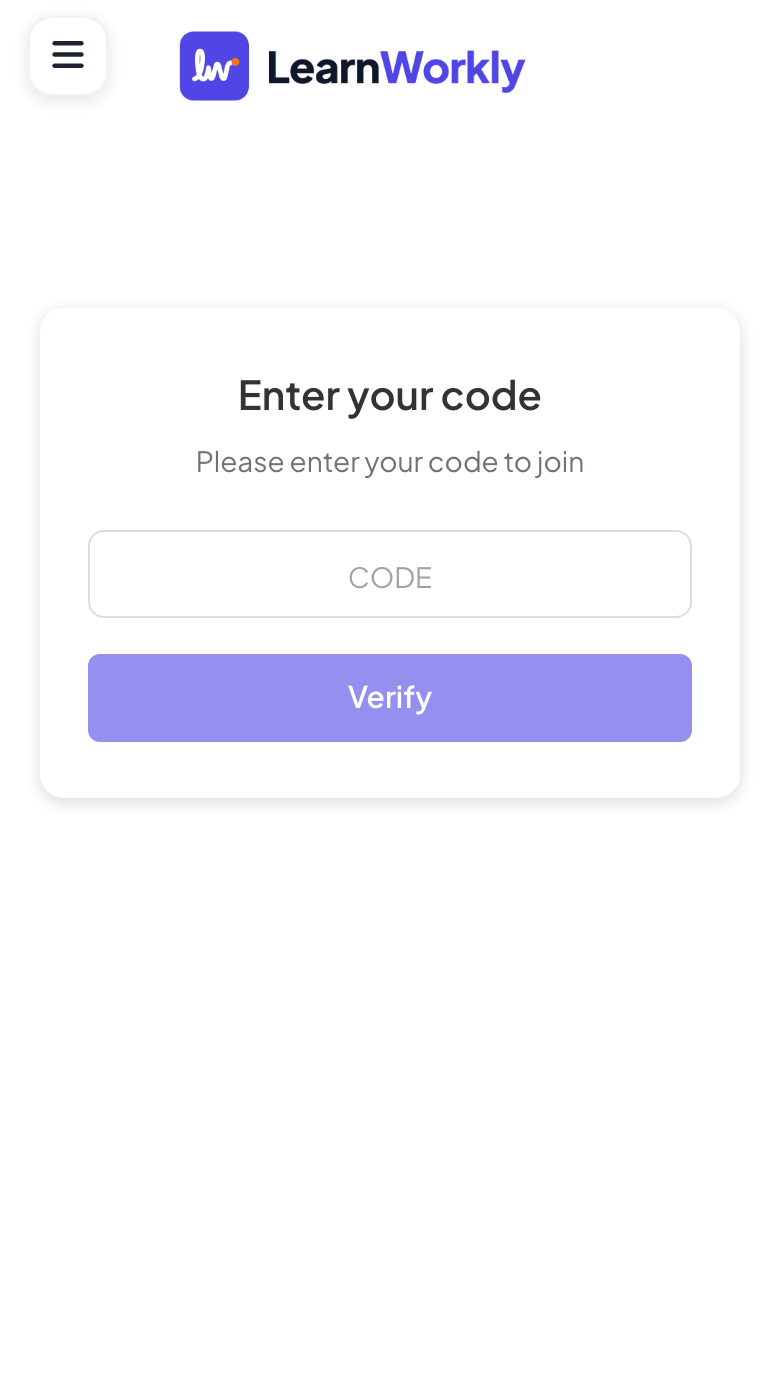
Codes are not case-sensitive. Once someone uses a code, it stays tied to their device for 3 hours: anyone else who types it sees Code already in use. Reset Codes deletes every code so you can start again.
Frequently asked questions
Can I combine these settings?
Yes. Participants first log in, then enter their access code, then fill in any participant information you ask for.
A participant lost their code.
Open the CSV again with Download CSV and give them an unused code, or generate a few spare codes before the session.
Does making a presentation private stop the session?
Yes. While it is private, nobody can join or answer. Make it public again before you present.
Last checked against the app on 17 November 2026.
Related articles
- Collect participant informationAsk participants for their name and any other details you need, such as a team or a department, before they can take part in your presentation.
- How participants join your presentationPeople join at join.learnworkly.com with your code or by scanning the QR code, with no app and no account. See what they do and how to change the code.
- Read the report of a presentationEvery presentation has a report: participants, submissions, reactions and ratings, the results of each slide, who answered what and audience feedback.