The LearnWorkly add-on puts LearnWorkly slides into your Google Slides deck from a panel beside your slides. It is free on every plan. See the Google Slides add-on page for an overview.
Install
- 1
Open Google Slides
Open any presentation you can edit, signed in with the Google account you want to use.
- 2
Find the add-on
Choose Extensions › Add-ons › Get add-ons, search for LearnWorkly and open it.
- 3
Install
Click Install, choose your Google account and review the permissions, then click Allow.
- 4
Open the panel
Choose Extensions › LearnWorkly › Open Panel. The first time, sign in to LearnWorkly or create a free account in the panel.
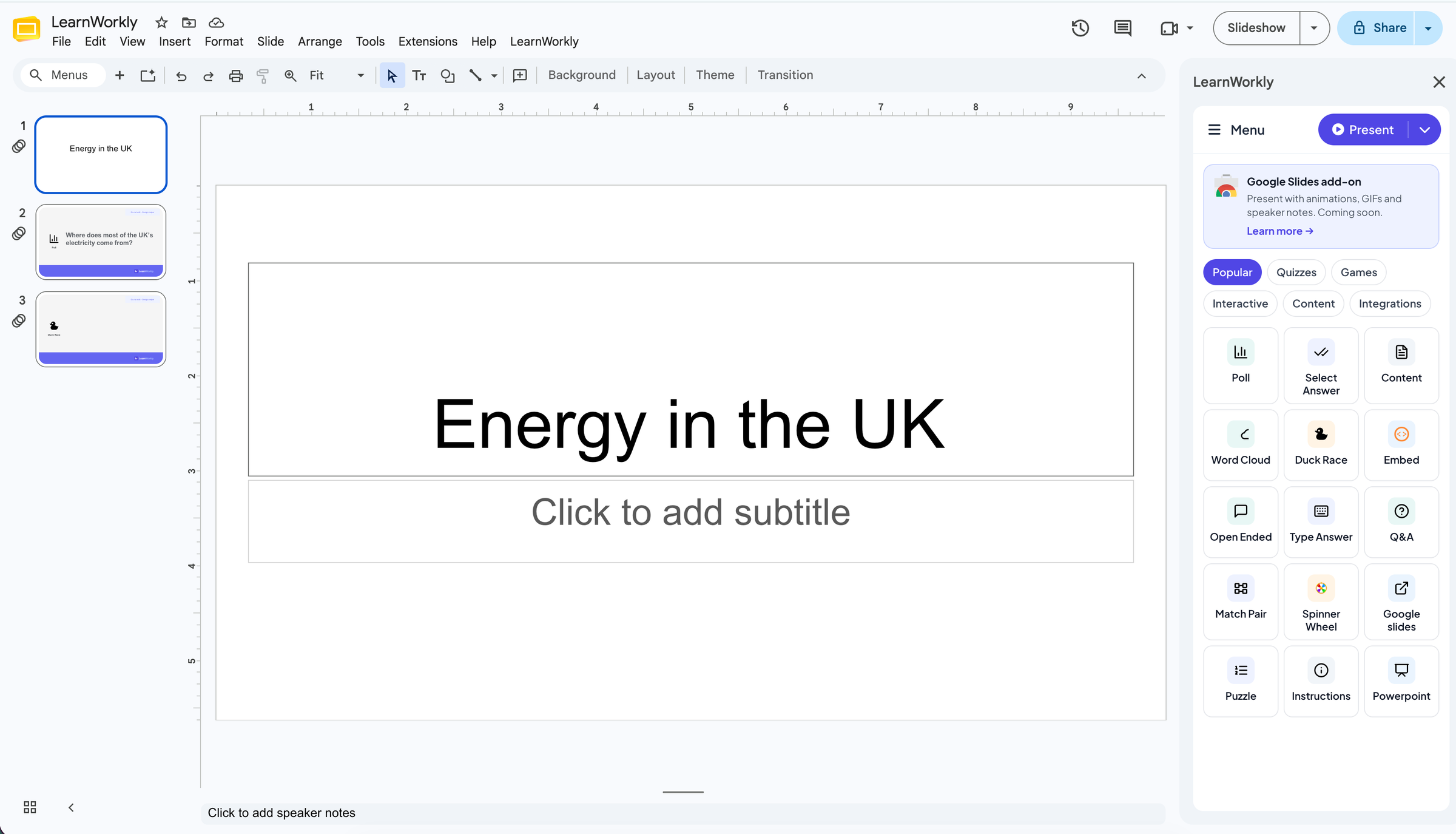
Add LearnWorkly slides
- 1
Choose where
Select the Google slide the new slide should follow.
- 2
Pick a slide type
Click a slide type in the panel. They are grouped as Popular, Quizzes, Games, Interactive, Content and Integrations. A LearnWorkly slide is added to your deck after the selected one.
- 3
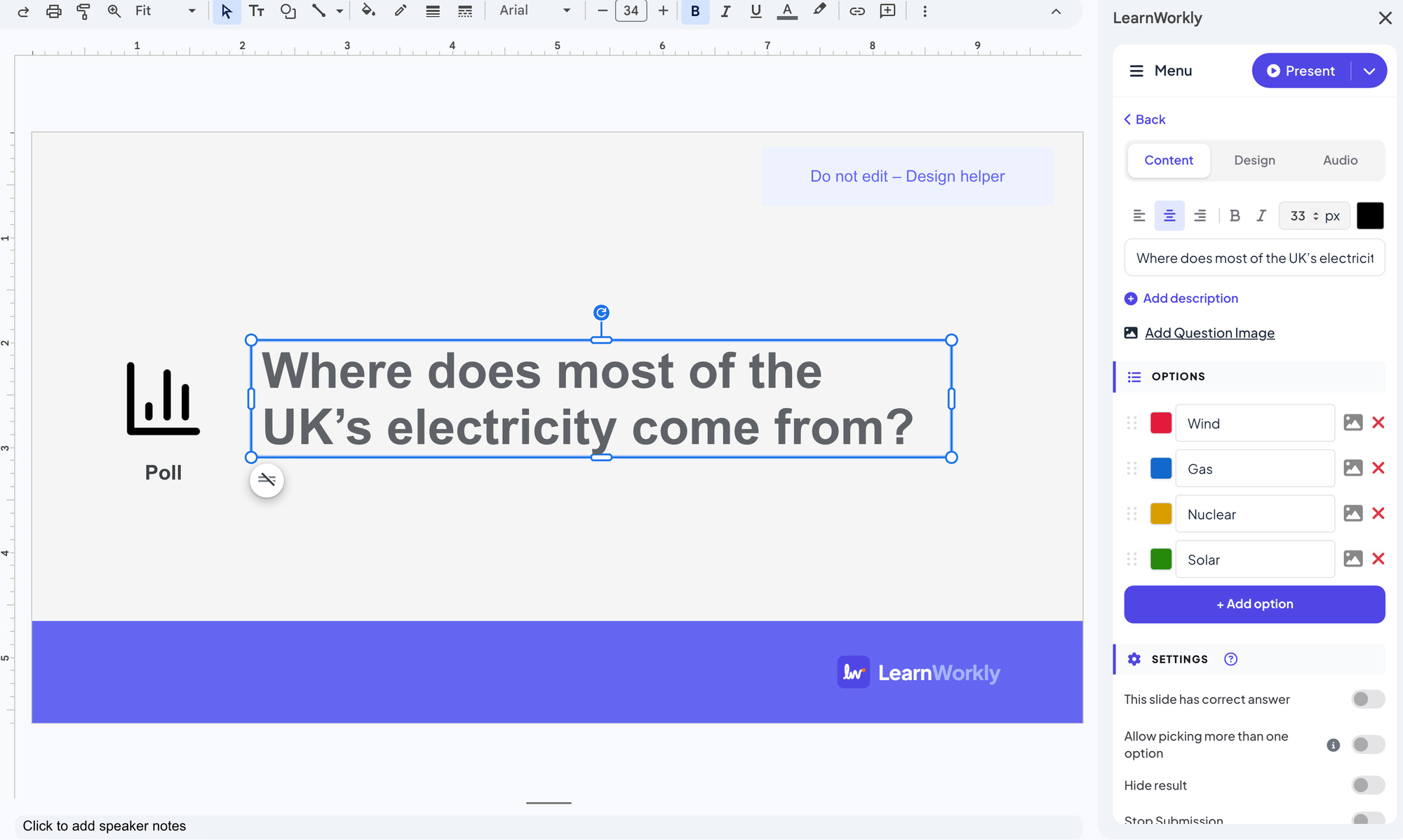
Edit it in the panel
The panel shows the slide’s editor: type the question and the options, and change the design and settings as in the LearnWorkly app. The question on the Google slide changes as you type.
- 4
Edit it again later
Select the LearnWorkly slide in the slide list, then click Click to edit in the panel.
Present
Click Present at the top of the panel, or open its menu to choose Present from beginning or Present from current slide. Your deck opens in LearnWorkly in a new tab, with your Google slides as pictures and the LearnWorkly slides live: the join code is on screen, participants join from their phones and their answers appear on the slide.
A LearnWorkly extension for Chrome is coming soon. With it, Present starts the slideshow in Google Slides itself, with your animations, GIFs and speaker notes, and each LearnWorkly slide goes live when you reach it.

The ☰ menu
- Copy participant link: the address participants open to join.
- Reset results this presentation: clears the answers of every slide in this presentation.
- Help Center and Contact Us: help pages and our email address.
- Language and Logout.
What the add-on can see
Only the presentation you open it in. It adds LearnWorkly slides to that deck, updates their questions as you edit them, and makes pictures of your slides so LearnWorkly can show them when you present. It does not open your other files.
Uninstall
In Google Slides, choose Extensions › Add-ons › Manage add-ons, open the menu on LearnWorkly and choose Uninstall. Your LearnWorkly presentations stay in your LearnWorkly account.
Frequently asked questions
The panel says it could not load this presentation.
Check that you can edit the presentation: the add-on cannot change a deck you can only view or comment on. If you are signed in to several Google accounts in the same browser, Google may run the add-on with another account: sign out of the other accounts or use a private window with one account, then open the panel again.
LearnWorkly is not in the Extensions menu.
Reload the presentation. If you opened a PowerPoint file (.pptx) directly, add-ons do not run on it: create a Google Slides presentation and choose File › Import slides first.
Click to edit does not appear.
It only appears on slides the add-on made. Select the LearnWorkly slide in the slide list and wait a moment.
Do participants need Google Slides or an account?
No. They scan the QR code or open the join address in their phone’s browser and type the code shown on the slide.
Last checked against the app on 20 November 2026.
Related articles
- Google Slides slide: present a published deckShow a Google Slides presentation inside your LearnWorkly presentation: publish it to the web in Google Slides, then paste the link into the slide.
- PowerPoint add-in: install and use itInstall the LearnWorkly add-in for PowerPoint on Windows or Mac, add polls, quizzes and games to your slides and run them in the slideshow.
- Import PowerPoint and PDF slidesImport a .pptx with its animations kept and editable, or turn every page of a PDF into a slide, then add quizzes and polls between your slides.