The Gamma slide embeds a Gamma AI presentation or webpage directly into the slide. The whole Gamma deck is embedded in one slide: you move between its cards with the arrows inside the Gamma frame.
Publish and copy from Gamma
- 1
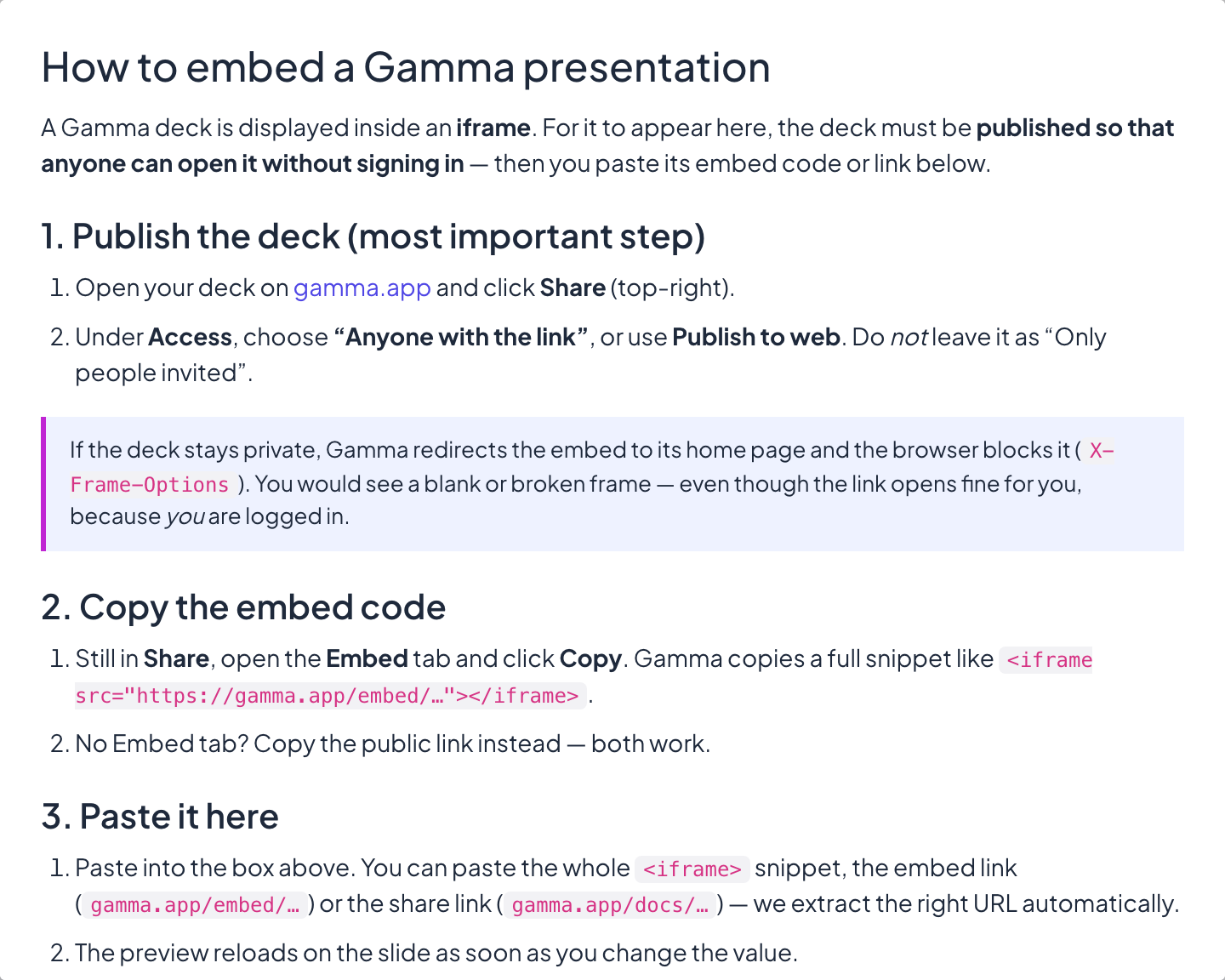
Publish the deck
Open your deck on gamma.app and click Share. Under Access, choose Anyone with the link, or use Publish to web: the deck must open for anyone without signing in.
- 2
Copy the embed code
Still in Share, open the Embed tab and click Copy. No Embed tab? Copy the public link instead: both work.
Add it to your presentation
- 1
Add the slide
In the editor, click + New Slide. In Choose Slide Type, open the Integrations tab and pick Gamma.
- 2
Paste the code or link
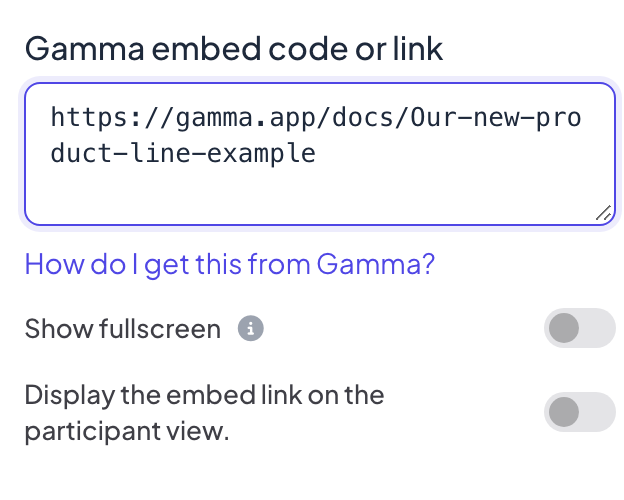
Paste the whole embed snippet, the embed link (gamma.app/embed/…) or the public link (gamma.app/docs/…) into Gamma embed code or link. The preview reloads on the slide as soon as you change it.
Display settings
- Show fullscreen: the embedded content fills the whole slide, edge to edge, and the slide title is hidden. The top header and bottom control bar float on top, so you can still move between slides. Off by default.
- Display the embed link on the participant view: when this is on, participants can open and browse the same content on their own phones. When it is off (the default), their phones show View on presenter screen.
Present it
Click Present. The content loads live on the big screen and you can scroll or click inside it like in a browser tab. Use the arrows of the bottom control bar, or click outside the embedded content and use the arrow keys, to move to the next slide. Nothing is collected from participants on an embed slide, so nothing goes into the report.
Frequently asked questions
The frame is blank or shows the Gamma home page.
The deck is still private. Set Access to Anyone with the link or publish it, then paste the link again.
Can I show one card of the deck on its own?
No. The whole deck is embedded; move between its cards with the arrows inside the Gamma frame.
Can I edit the deck in LearnWorkly?
No, edit it on gamma.app; the slide shows the published version. To get editable slides, export the deck from Gamma as PowerPoint and import it with Import PPT/PDF.
Last checked against the app on 17 November 2026.
Related articles
- Embed slide: show a live web pageShow a live website inside your presentation with an Embed slide: paste a link, choose fullscreen, and decide whether participants can open it too.
- Google Slides slide: present a published deckShow a Google Slides presentation inside your LearnWorkly presentation: publish it to the web in Google Slides, then paste the link into the slide.
- Create a presentation with AIDescribe what you need in one sentence and AI builds the slides for you, then refine them with the AI Assistant inside the editor. Free while in beta.