The Embed slide embeds a live website or external content directly into the slide. Use it to show a web page, an online tool or a dashboard without leaving your presentation.
Set it up
- 1
Add the slide
In the editor, click + New Slide. In Choose Slide Type, open the Integrations tab and pick Embed.
- 2
Give it a title
Type a title. It shows above the page unless you turn on Show fullscreen.
- 3
Paste the link
Copy the address of the page from your browser’s address bar (it starts with https://) and paste it into Embed Link. The page loads on the slide preview straight away.
- 4
Choose the display settings
Turn on Show fullscreen for more room, and Display the embed link on the participant view if people should open the page on their phones too.
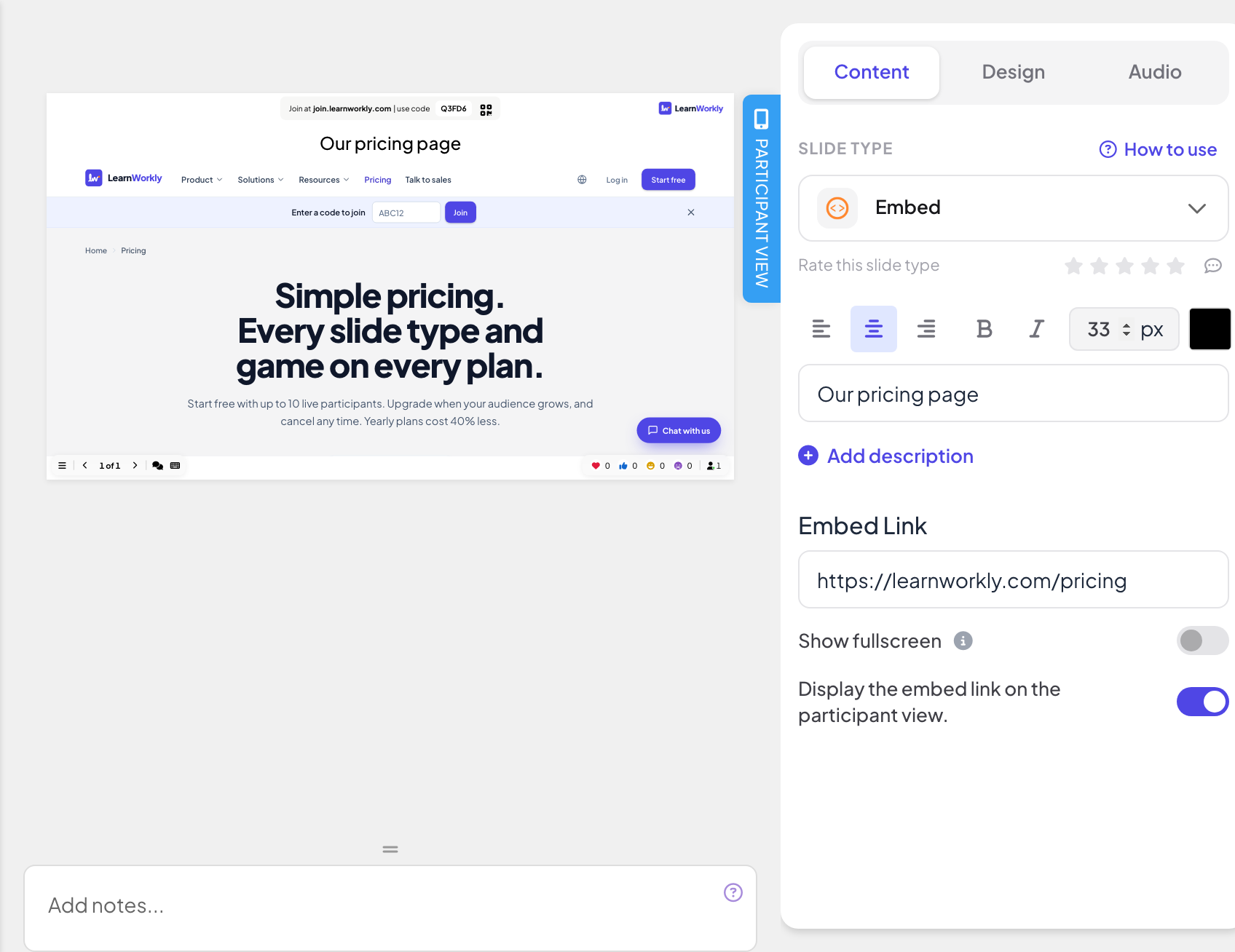
Display settings
- Show fullscreen: the embedded content fills the whole slide, edge to edge, and the slide title is hidden. The top header and bottom control bar float on top, so you can still move between slides. Off by default.
- Display the embed link on the participant view: when this is on, participants can open and browse the same content on their own phones. When it is off (the default), their phones show View on presenter screen.
Present it
Click Present. The content loads live on the big screen and you can scroll or click inside it like in a browser tab. Use the arrows of the bottom control bar, or click outside the embedded content and use the arrow keys, to move to the next slide. Nothing is collected from participants on an embed slide, so nothing goes into the report.

What participants see
With Display the embed link on the participant view on, each phone shows the slide title and the same page in a frame they can scroll and tap. With it off, phones show View on presenter screen.

Frequently asked questions
The slide stays blank.
The site does not allow embedding, or the link starts with http:// instead of https://. Try the site’s own embed link, or open it in another tab.
The page asks participants to sign in.
The page is private. Phones are not signed in to the site, so use a page that is public, or turn off Display the embed link on the participant view
Can I embed a video?
Use the embed link the video site gives you (for example under Share › Embed). To keep the video inside LearnWorkly, upload it to a Content slide instead.
Does LearnWorkly see what people do on the embedded page?
No. The page is loaded directly from the other site; nothing people do inside it is saved in LearnWorkly.
Last checked against the app on 17 November 2026.
Related articles
- Google Slides slide: present a published deckShow a Google Slides presentation inside your LearnWorkly presentation: publish it to the web in Google Slides, then paste the link into the slide.
- Miro slide: show a Miro boardEmbed a Miro collaboration board directly in your presentation: copy the board link in Miro, paste it into the slide and present it on the big screen.
- Content slides: design your own slidesBuild a designed slide with titles, text, images, shapes, video and GIFs, or start from a ready-made layout, then present it between your questions.