Word cloud activities: 15 ways to use a live word cloud
15 word cloud activities for lessons, ESL, lectures, training and events, each with the prompt to type and what to do with the cloud once it appears.
LearnWorkly team· Updated 6 min read

A live word cloud takes thirty seconds to run and gives you something a show of hands never does: every person’s answer at once, with the common ones in big letters. The catch is that most word cloud activities stop there. The class says “ooh”, the teacher moves on, and the cloud is gone. The fifteen ideas below each come with the exact prompt to type and, more importantly, what to do with the cloud once it appears.
They are grouped by situation: the start of a lesson, ESL vocabulary, the end of a lesson, lectures, training and meetings, and events. Every prompt works with the Word cloud slide: people type on their phones, the more often a word is sent, the bigger it shows on the big screen, and no names appear next to the words.
Word cloud activities for the start of a lesson
Barak Rosenshine’s Principles of Instruction start with a short review of previous learning, and another asks teachers to check the responses of all students, not just the few who put their hands up. A word cloud for the classroom does both in under a minute.
1. First thoughts on a new topic
Prompt: “One word that comes to mind when you hear photosynthesis.”
Screenshot the cloud before you teach anything. You will use it again at the end (see idea 7). The small words matter as much as the big ones: if “food” is huge and “light” is tiny, you know where to start.
2. What do you already know?
Prompt: “Up to three words: what do you already know about the Romans?”
Set Number of responses to 3 so each student gets three boxes. Three words per person spread the cloud out and stop one confident answer from dominating. Ask the class to group what they see into two or three themes before you say anything.
3. Misconception hunt
Prompt: “In one word: what makes a heavy object fall faster than a light one?”
The question is a trap, and that is the point. If “weight” or “gravity” comes out biggest, you have found a misconception that the whole room shares. Point at the outliers (“air”, “nothing”) and ask who wrote them to explain, if they want to.
Word cloud for ESL vocabulary
Language classes get the most out of a live word cloud, because the cloud is made of the very thing you are teaching.
4. Adjective warm-up
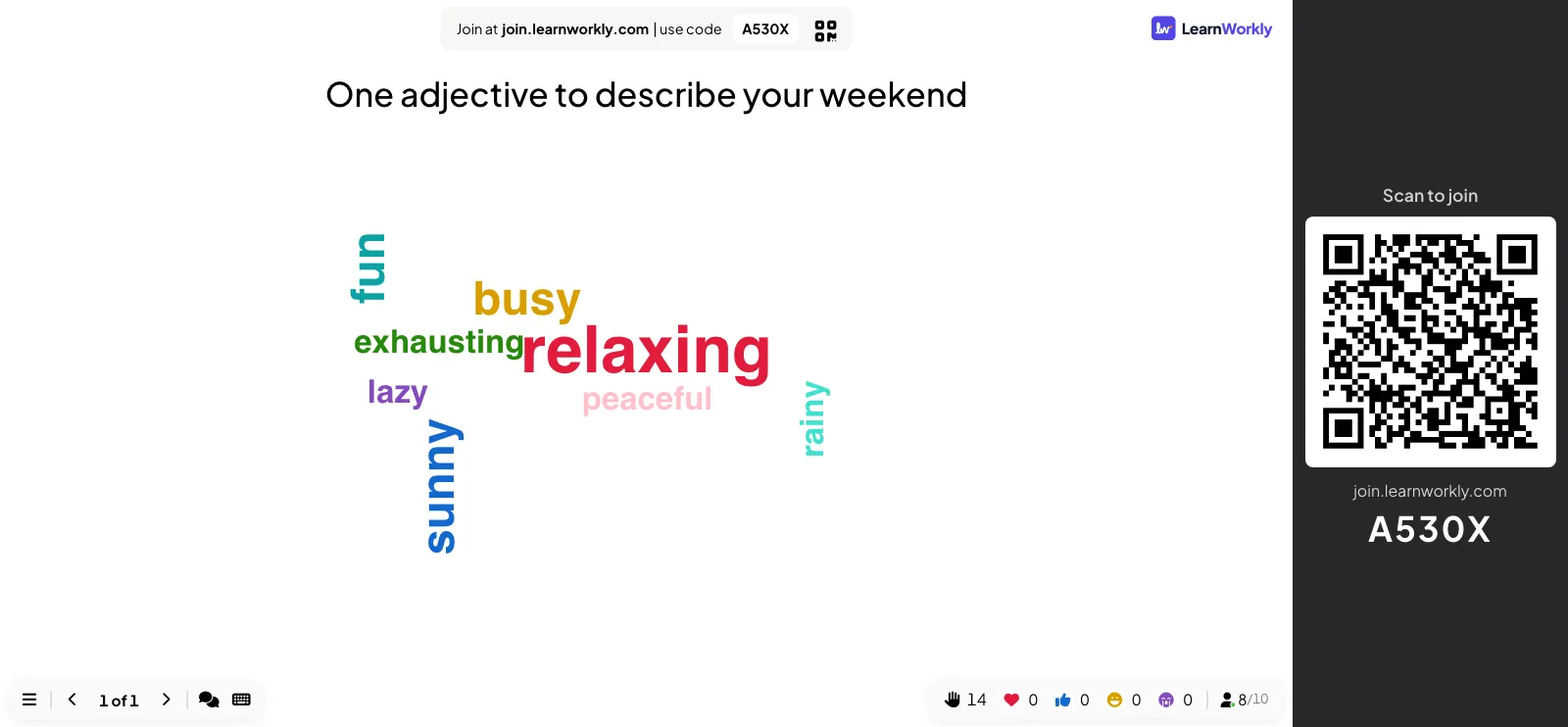
Prompt: “One adjective that describes your weekend. Lower case, please.”
Small differences in spelling can split one answer into two words. Asking for lower case helps; for the rest, click a word on the presenter screen and choose Edit to fix the spelling. Leave real spelling mistakes up for a moment first. “Exausting” next to “exhausting” makes a better lesson than any worksheet.
5. Collocation check
Prompt: “Which verb goes with homework?”
If “make” shows up beside “do”, you have your next five minutes. Ask students who chose each verb to say a full sentence, then try “a decision” and “a mistake”.
6. Synonym storm
Prompt: “Other words for happy. Send as many as you can.”
Leave Multiple Submissions on so students can keep sending, and turn on a Time limit of 60 seconds. When time is up, the cloud is a class word bank. Ask which words sound formal, which sound casual, and which nobody would say out loud.
Word cloud activities for the end of a lesson
7. Before and after
Prompt: the same one as idea 1.
Show the opening screenshot next to the new cloud. The words that grew (and the ones that vanished) are your summary of the lesson. Students usually spot the change before you point it out.
8. The muddiest point
Prompt: “One word for the part of today that is still unclear.”
This is one of the quickest exit questions you can ask. Turn on Hide result so students don’t copy each other, then click Show result after everyone has answered. The biggest word tells you how to open the next lesson.
9. Remember tomorrow
Prompt: “One word from today you think you will remember tomorrow.”
Run the same prompt as homework too: switch the presentation to participant-paced and share the code, so each student answers in their own time and the cloud builds up as they do.
Live word cloud ideas for lectures
In a hall of 200, a live word cloud lets everyone answer without anyone speaking. For more ideas on keeping big audiences active, see active learning in large lectures.
10. Last week’s key term
Prompt: “One key term from last week’s reading.”
This is retrieval practice disguised as a warm-up. Pick a small word, ask what it means, and you have a ready-made review question. Missing terms are useful too: if nobody names the concept you spent half the lecture on, it did not stick.
11. Predict the result
Prompt: “In one word: what happened to inflation after the rate rise?”
Ask before you show the data. A spread of answers (“fell”, “rose”, “nothing”, “delayed”) sets up the next slide better than any build-up you could write.
Training and meetings
12. What gets in the way?
Prompt: “One word: what stops you from giving feedback to your team?”
People tend to answer more honestly when nobody can see who wrote what, and the screen shows only the words. Keep Hide result on, reveal the cloud, and pick the biggest blocker to work on first. When the topic is sensitive, turn on Enable Profanity Filter in the presentation settings: offensive words are then hidden on the big screen.
13. Expectations, then review
Prompt: “Up to three words: what do you want to leave today with?”
Run it in the first five minutes and come back to it at the end of a workshop. Tick off the words you covered out loud and be honest about the ones you didn’t.
Word cloud games for events
14. Sum up the year
Prompt: “In one or two words: how was this year for our team?”
At a staff party or end-of-year meeting, this word cloud game works as a warm opening. Read a few of the small words aloud too; they are often the funniest.
15. Describe the picture
Prompt: “Describe this picture in one word.” Add the photo to the slide with Add Question Image.
Use a baby photo of the head teacher at a fun day, or a strange object at a museum event. Guesses build up live, and the room laughs at the outliers. More slide types for these occasions are in our guide to interactive lessons.
What a word cloud can’t tell you
A cloud counts words. It does not show understanding. “Gravity” in giant letters means many students typed it, not that they can explain it. The University of Arizona described a lecturer who found “cheat” standing out in a word cloud of course feedback and worried; the comments turned out to be about the cheat sheet she allowed. The article sums it up as “Context matters.”
Three habits keep word clouds honest:
- Follow with a question. After the cloud, ask one student to explain the biggest word, or add a short multiple-choice question that checks the idea behind it.
- Tidy before you read it. Fix spellings with Edit and remove off-topic words with Delete before you discuss the cloud.
- Ask for one word. Long phrases rarely repeat, so they never grow. One word per box, in lower case, gives a cloud you can read.
It is also worth being clear about what a live cloud is not. A word cloud generator for students turns pasted text into a picture; a live cloud collects answers from the room as they come in. It gives no score, so keep it for thinking out loud, not for marking.
Setting one up
Add a Word Cloud slide from the Interactive group when you pick a new slide, type the prompt and choose the settings: how many words each person can send, whether they can send more than once, and horizontal words only if you want a cloud that is easier to read. Students join with a code or the QR code beside the slide. Word clouds and the other polls and interactive slides are on every plan, Free included, so you can try idea 1 in your next lesson.