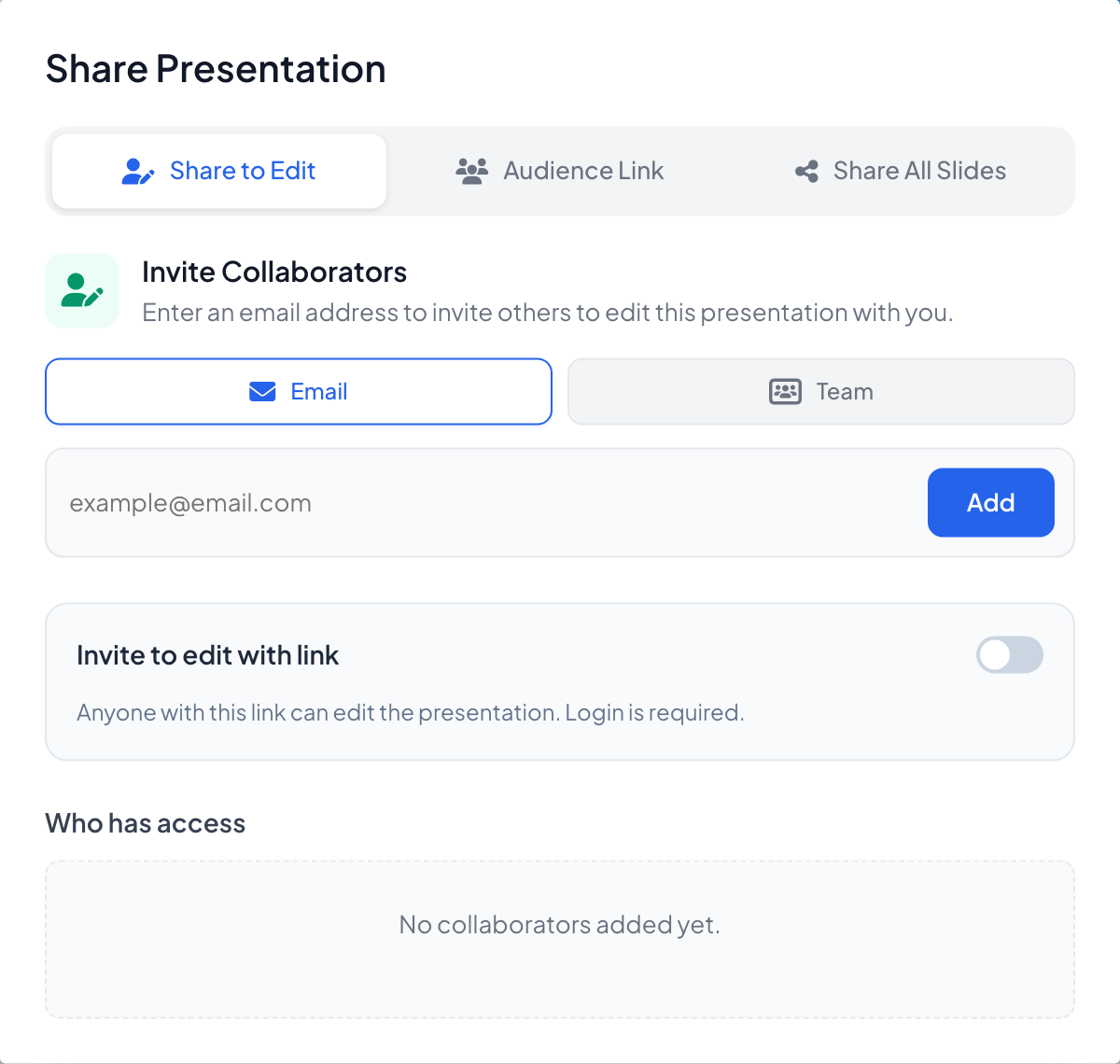
Click the share icon in the editor’s top bar. The Share Presentation window has three tabs: Share to Edit, Audience Link and Share All Slides.
Invite someone to edit
- 1
Open Share to Edit
Under Invite Collaborators, choose Email, type the address and click Add, or choose Team to add a whole team. Inviting editors needs a paid plan.
- 2
Or share an edit link
Turn on Invite to edit with link: anyone with the link can edit the presentation after logging in.
- 3
Manage access
Who has access lists everyone with their role (Owner or Editor) and Pending invitation until they accept. Remove access takes it away.
Share all slides to view
- 1
Copy the link
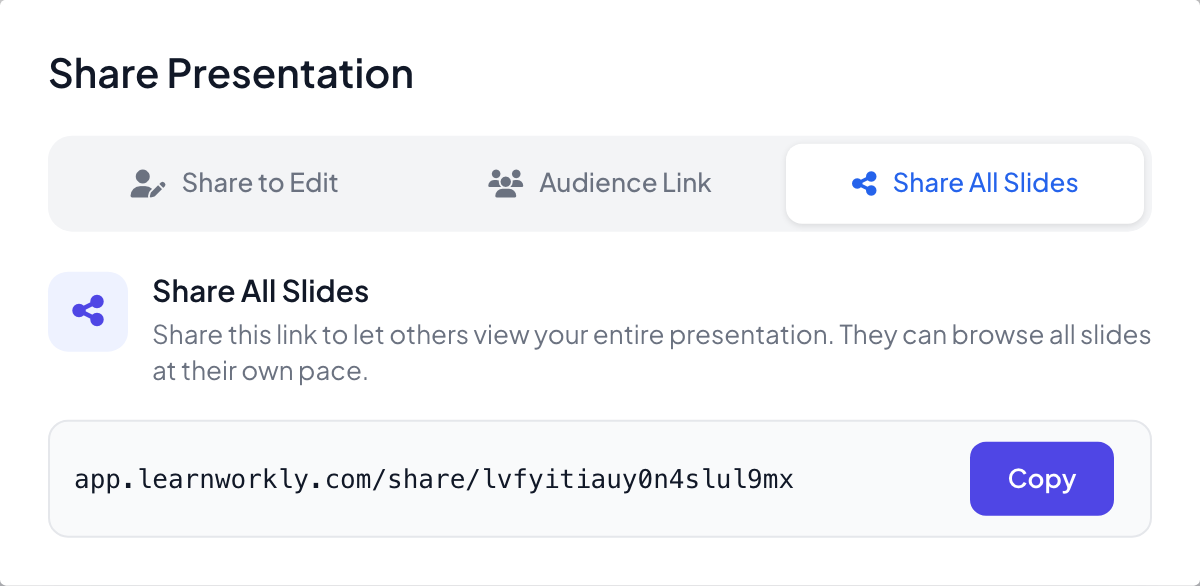
On Share All Slides, click Copy. Others can look through all your slides at their own pace. Signed-in viewers can click Copy this presentation to get their own copy.
Create a team
- 1
Start the team
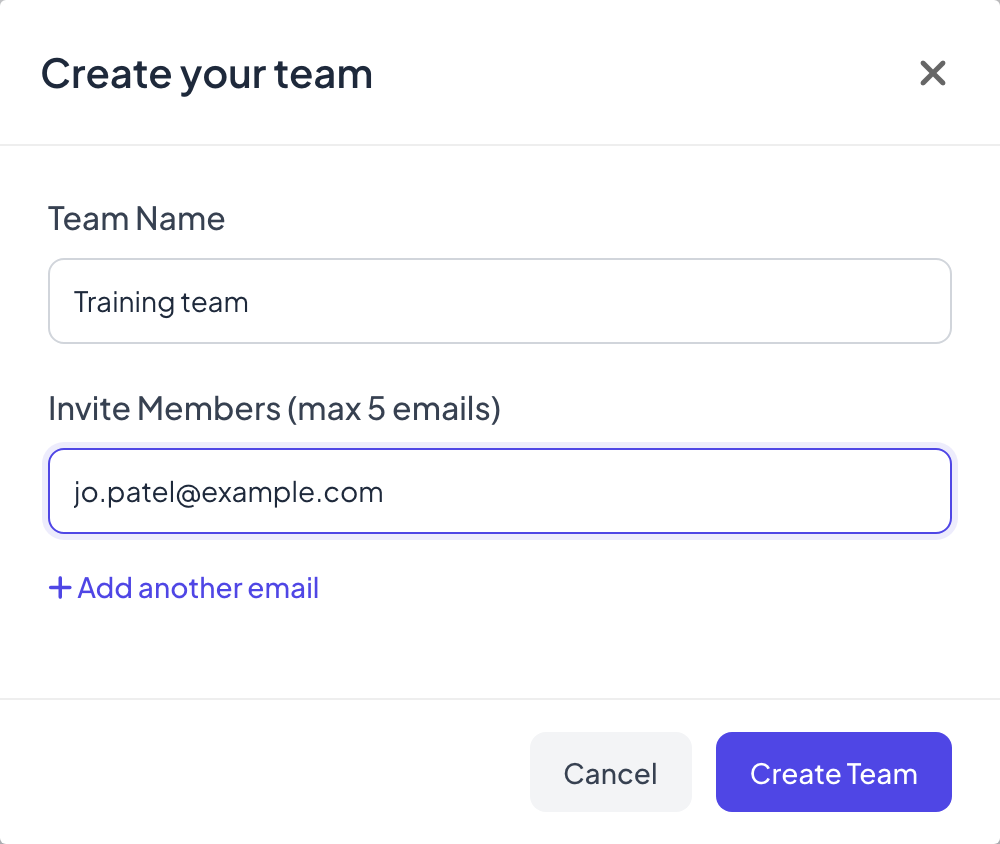
In the menu on the left, under TEAM, click Add team member. In Create your team, enter a Team Name and up to 5 email addresses under Invite Members (max 5 emails) (+ Add another email adds a box), then click Create Team.
- 2
Manage members
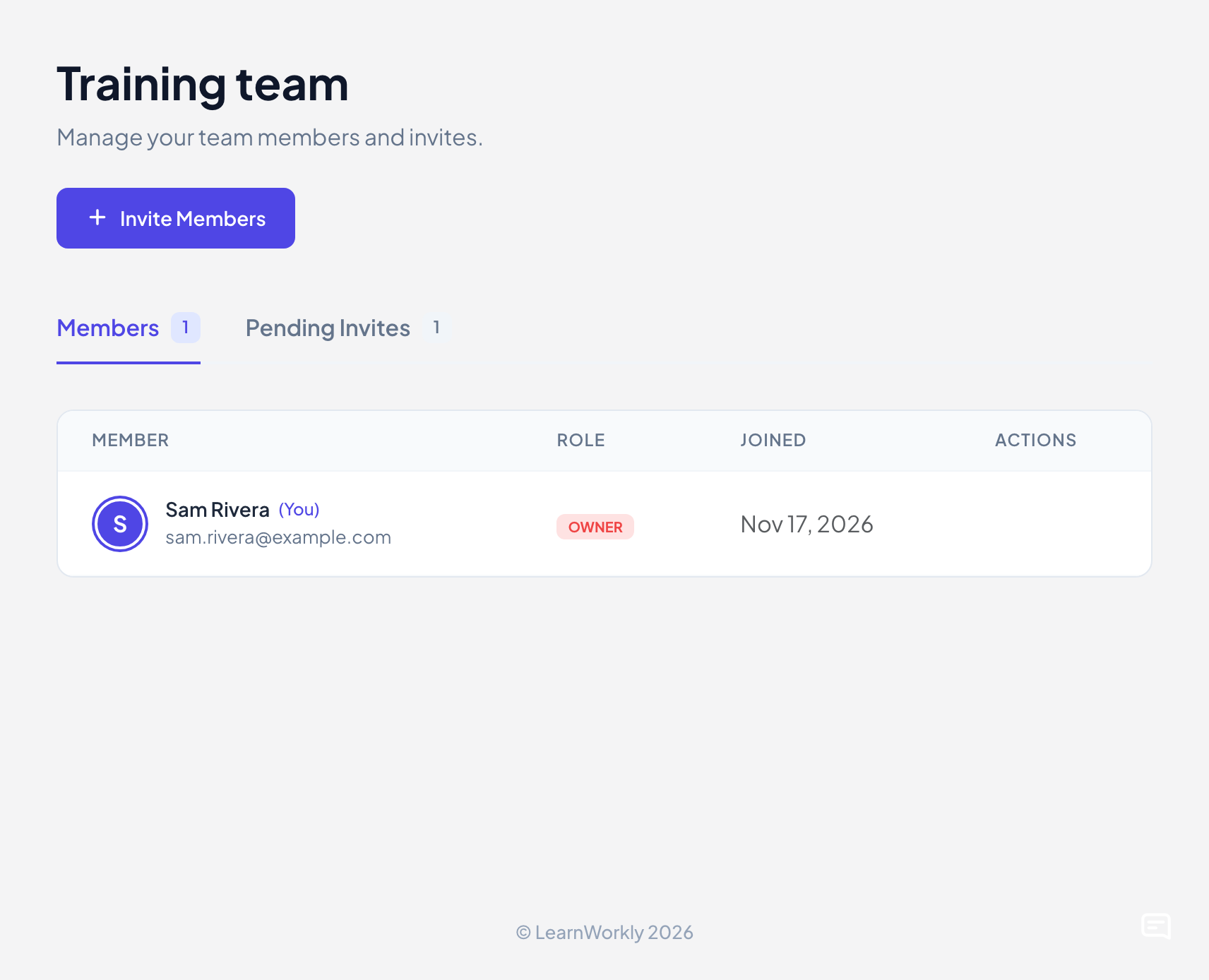
The menu item becomes Team Manager. It lists Members with their role and joining date, and Pending Invites. Invite Members adds more people, up to 5 emails at once.
- 3
Share with the team
In Share to Edit, choose Team, select your team and click Add Team. Every member can then edit the presentation.
Presentations shared with you
Click Shared with me in the menu on the left to see presentations other people have invited you to edit. Until someone shares one, it says No presentations have been shared with you yet.
Frequently asked questions
My colleague did not get the invitation.
Check the address in Who has access, ask them to look in their spam folder, or turn on Invite to edit with link and send them the link yourself.
Does an editor need a paid plan?
The person who invites needs a paid plan. The people invited can be on any plan, including Free.
How do I leave a team?
Open Team Manager and click Leave Team. The owner can remove members or delete the team.
Last checked against the app on 17 November 2026.
Related articles
- Plans and billingCompare the Free, Basic, Pro and Enterprise plans, pay monthly or yearly in US dollars, stop the renewal, see your invoices and ask for a refund.
- The join bar and QR codeThe bar at the top of each slide and the QR column beside it tell people how to join. Learn how to show, hide, share and print them.
- Start from a templateBrowse ready-made presentations from LearnWorkly, preview every slide and make your own copy to edit. The original template never changes.