The live view opens when you press Assign and watch live. You can open it again any time from Assignments in the menu, or from Assigned to this class on the class page. Everything updates as students work.
On narrower screens some buttons move into the ☰ menu, which has every control of this page: the class code, View, Pace, Hide names and the Assignment actions.
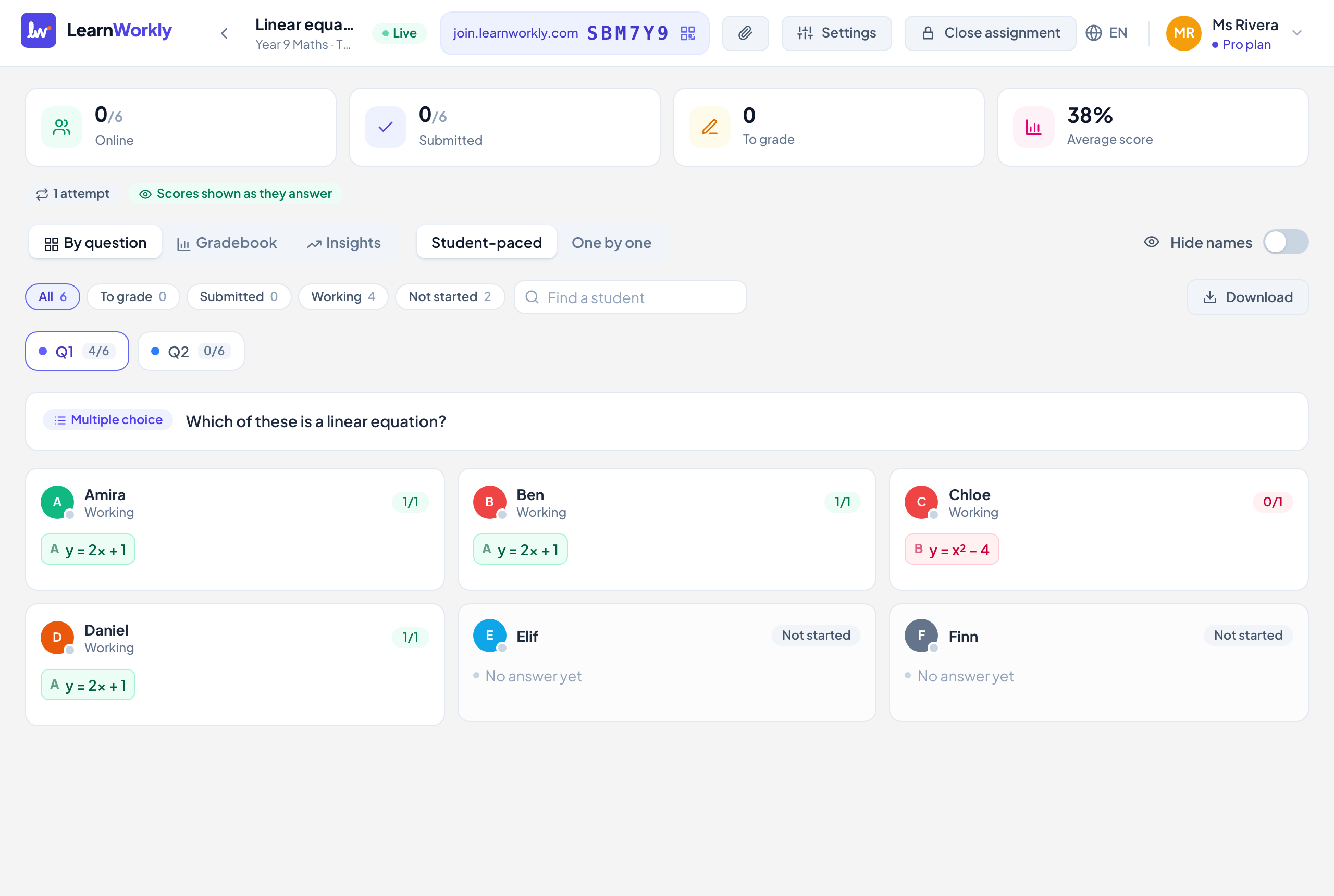
Top bar
| Control | What it does | Default | Plans/limits |
|---|---|---|---|
| Live / Closed | Shows whether students can still answer. | Live after assigning | All plans |
| Class code | The join address and the class code. Click it to open the join screen with a QR code. On smaller screens it is in the ☰ menu with Copy join link and Show join screen. | All plans | |
| Documents | Documents for this assignment: only students of the class see them, inside this assignment. Documents added to the activity show here too. See Share documents. | All plans | |
| Settings | Opens Assignment settings. See Assignment settings. | All plans | |
| Close assignment | Students can no longer change their answers. They still see their work and your feedback, and they see their scores whatever you chose under Show scores. | All plans | |
| Reopen | Shown on a closed assignment. Students can answer again. | All plans |
Summary and rules
| Control | What it does | Default | Plans/limits |
|---|---|---|---|
| Counters | Online, Submitted (Self-paced) or Answers (One by one and Practice), To grade and Average score. | All plans | |
| Rule badges | A summary of the settings: due date, time limit, attempts, pass mark, late penalty, Page activity tracked, Shuffled for each student and when scores are shown. | All plans | |
| Release results | Shows every student their scores now (and the correct answers, if Show correct answers is on). Appears while the assignment is open and scores are not shown as students answer. | All plans | |
| Hide results again | Undoes Release results: scores follow the Show scores setting again. | All plans |
Views and pace
| Control | What it does | Default | Plans/limits |
|---|---|---|---|
| By question | One card per student with their answer to the chosen question. Use the Q1, Q2… tabs to switch; each tab shows how many students answered. | Selected | All plans |
| Gradebook | One row per student and a score for each question, with Total, late penalty, Passed / Not passed and attempt number. Click a cell to open the answer. | All plans | |
| Insights | Score distribution (Average, Median, Highest, Lowest and Pass rate with a pass mark) and how each question went. Sort with In order or Hardest first; click a question to open it in By question. | All plans | |
| Student-paced / One by one | Switches the pace of a running assignment. Practice assignments show a Practice badge instead. | The mode you assigned | All plans |
| Hide names | For sharing your screen: students show as “Student 1”, “Student 2” and so on. It only changes your screen and stays on for this assignment until you turn it off. | Off | All plans |
| Previous / Next | One by one only. Moves the whole class to the previous or next item; the bar shows what Everyone sees:. | No question open yet | All plans |
Students, grading and downloads
| Control | What it does | Default | Plans/limits |
|---|---|---|---|
| Filters | All, To grade, Not started; Submitted and Working (Self-paced); Late (with a due date); Left the page (with page activity tracking); Passed and Not passed (with a pass mark). Each shows a count. | All | All plans |
| Find a student | Shows only students whose name contains what you type. | Empty | All plans |
| Grade answers (n) | Walks through every answer still to grade, question by question, for the students shown. Grading one moves on to the next. | Shown when answers need grading | All plans |
| Download | Excel (.xlsx): scores and question analysis. CSV: scores only. The file includes every student, whatever filter is on. | All plans |
A student’s answer
| Control | What it does | Default | Plans/limits |
|---|---|---|---|
| Score, Save, Full marks, 0 | Grade the answer. Auto-graded answers can still be changed. See Marking answers. | Auto-graded or not graded | All plans |
| Rubric | For questions with a rubric: points per criterion, then Save. | All plans | |
| Feedback | Type a message, use a quick reply, record Voice feedback (up to 2 minutes) or draw on a drawing, then Send. See Give feedback. | All plans | |
| Hand back | Reopens a submitted attempt so the student can change their answers and submit again. Not possible after the due date with late work off. | All plans | |
| Earlier attempts | Shows the answer and score from each earlier attempt. | All plans | |
| Previous / Next | Moves to the same question for the next student. | All plans |
Keyboard shortcuts in an answer
| Key | What it does |
|---|---|
| ← / → (or K / J) | Previous or next answer |
| F | Full marks (every rubric criterion at its full points) |
| 0 to 9 | That score, on questions worth up to 9 points without a rubric |
| Esc | Close the answer |
Frequently asked questions
Does closing an assignment delete anything?
No. Students keep their work and your feedback, and you can press Reopen at any time.
Why is there no Release results button?
It only appears while the assignment is open and Show scores is not As they answer. Once results are released, the button changes to Hide results again.
Can I see who is on which question?
Yes. In the Gradebook, the question a student is working on right now has a coloured ring, and a dot on the avatar shows who is online.
Last checked against the app on 11 November 2026.
Related articles
- See every answer liveStart a live lesson from a class, watch each student’s answers and drawing appear as they work, and hide names before you share your screen.
- Assignment settingsEvery option when you assign an activity or edit an assignment: mode, due date, late work, time limit, attempts, scores, answers, pass mark and emails.
- Mark answers and give pointsWhich question types are marked automatically, how to score open answers, use a rubric and grade a whole class quickly with keyboard shortcuts.
- Run the lesson and wrap it upLead the class question by question, check Insights to see what to reteach, mark answers, download the results and close the assignment at the end.