Click your name at the top right of the page and choose Profile. The same menu shows your plan, which opens Plans and billing, and Log out. The language menu sits next to your name; on smaller screens it is in the menu that opens with the ☰ button.
Header menus
| Setting | What it does | Default | Plans/limits |
|---|---|---|---|
| Language menu | The language of everything you see in LearnWorkly. It is saved to your account. Students use the language of their class instead. | The language you chose when you signed up | All plans. 18 languages. |
| Plan (under your name) | Shows your current plan and opens Plans and billing. | — | All plans |
| Profile | Opens your profile. | — | All plans |
| Log out | Logs you out on this device. | — | All plans |
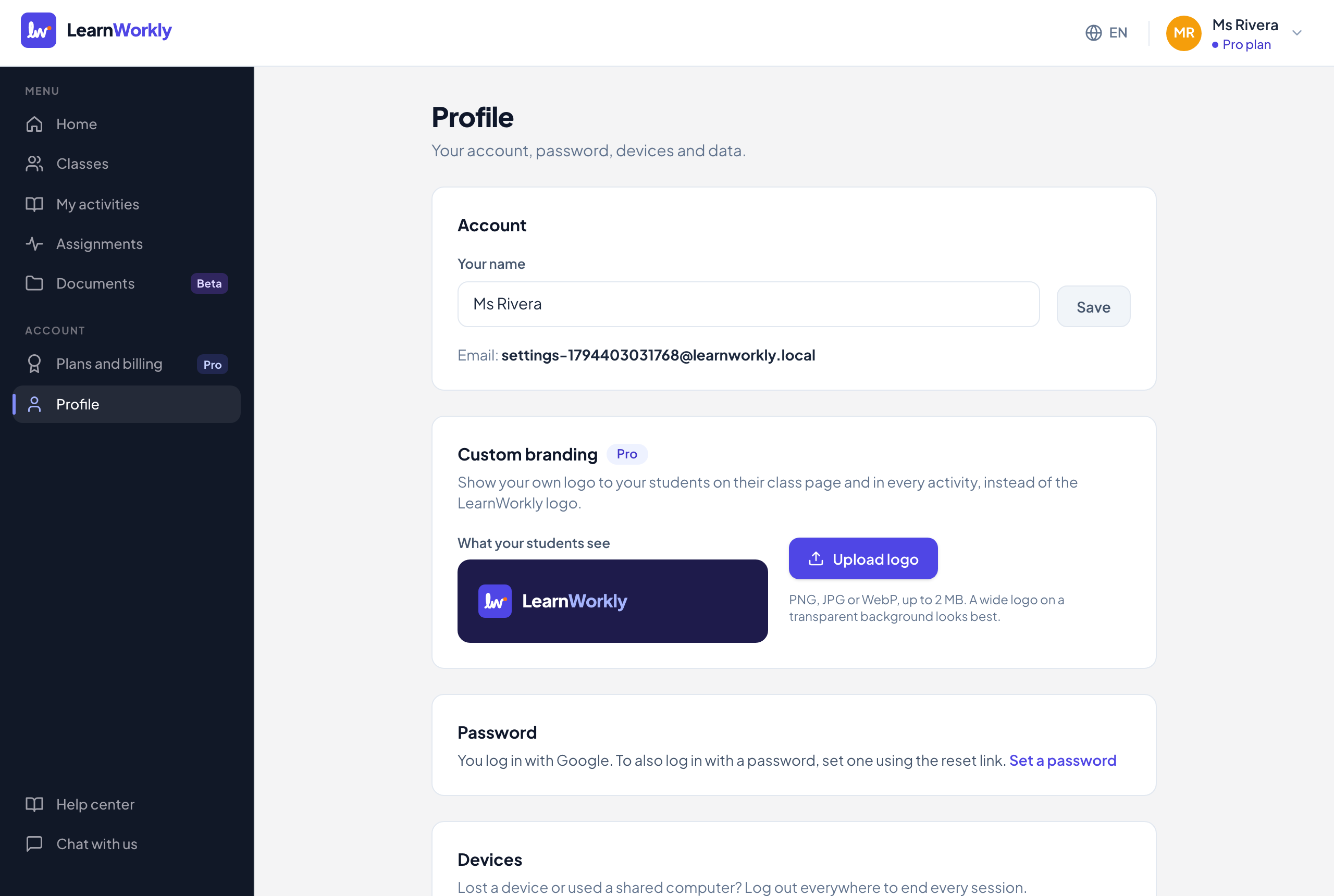
Profile
| Setting | What it does | Default | Plans/limits |
|---|---|---|---|
| Your name | Your name in LearnWorkly. Click Save. | The name you signed up with | All plans. Up to 100 characters. |
| Shown for reference. It cannot be changed here. | — | All plans | |
| Custom branding | Upload logo, Change logo or Remove logo. Your logo replaces the LearnWorkly logo on your students’ class page and in every activity. What your students see shows a preview. | LearnWorkly logo | Pro and Academy. PNG, JPG or WebP, up to 2 MB. Removing works on any plan. |
| Change password | Enter your Current password, a New password and Confirm new password. You stay logged in here and are logged out on your other devices. | — | All plans. At least 6 characters. |
| Set a password | For accounts that log in with Google: sends you a reset link so you can also log in with a password. | No password | All plans |
| Log out of all devices | Ends every session after you confirm, including the one you are using. | — | All plans |
| Download my data | Downloads everything stored about your account, classes, students and their answers as a JSON file. | — | All plans |
| Delete my account… | Deletes your account and all its data for good. See below. | — | All plans |
Delete your account
- 1
Open it
Under Delete account, click Delete my account…. You see how many classes, students, activities, assignments and answers will be deleted.
- 2
Type your email
Type your email address exactly as shown.
- 3
Prove it is you
Enter your Current password. If you log in with Google, this works within 10 minutes of logging in; if it has been longer, log out and log in again first.
- 4
Confirm
Tick the box that says you understand it cannot be recovered, then click Delete my account permanently.
Plans and billing
| Setting | What it does | Default | Plans/limits |
|---|---|---|---|
| Current plan | Your plan, its renewal or end date, and how many Students, Classes and AI generations this month you use. | — | All plans |
| Monthly / Yearly | Shows monthly or yearly prices. Yearly costs about 10 months (2 months free). | Monthly, or the interval of your subscription | Solo and Pro |
| Choose Solo / Choose Pro | Opens secure checkout for the plan and interval you picked. | — | When you do not have a paid plan yet |
| Upgrade / Switch plan | Changes your paid plan. Opens the subscription page, where time already paid for is credited. | — | When you have a paid plan |
| Downgrade | On the Free card: opens the subscription page, where you cancel. You move to Free when the period you paid for ends. Nothing is deleted. | — | When you have a paid plan |
| Contact us | Emails us about the Academy plan. | — | Academy |
| Manage subscription | Cancel in one click, switch between monthly and yearly, update your card and download invoices. | — | When you have or had a paid plan |
| Ask for a refund | Emails us to ask for a refund of your first payment. | — | Within 14 days of your first payment for a plan |
Frequently asked questions
Why can I not upload a logo?
Custom branding is part of the Pro plan and above. On Free and Solo the card shows See plans instead. If you move to a smaller plan, students see the LearnWorkly logo again; your logo file is kept.
Does changing my language change what students see?
No. Students see the language set for their class, or the one they picked on their device. See Class settings.
What happens to my classes if I cancel?
You keep your plan until the end of the period you paid for, then move to Free. Nothing is deleted; you just cannot add more than Free allows.
Last checked against the app on 11 November 2026.
Related articles
- Language, password and devicesChange the language LearnWorkly speaks to you and to your students, update your name and password, and log out of all your devices at once.
- Download your data or delete your accountDownload a copy of everything LearnWorkly stores about your account and students, learn how deleting works, and delete your account for good.
- Show your logo to studentsOn the Pro plan and above, upload your own logo so students see it on their class page and in every activity instead of the LearnWorkly logo.
- Plans and billingCompare the Free, Solo, Pro and Academy plans, pay monthly or yearly, switch or cancel in one click, and learn how refunds and currencies work.