The live view is the heart of LearnWorkly. As soon as you assign an activity to a class, you see every student’s work on one screen: typed answers when they are saved, and drawings stroke by stroke while the student is still writing.
Start a live lesson
- 1
Open your class
Go to Classes and open the class you are teaching. You can also press Assign in the activity editor and choose a class.
- 2
Choose the activity and the pace
Under Assign an activity, pick an activity and choose Self-paced (students work at their own pace, then submit) or One by one (you move through the questions and the whole class sees the same one).
- 3
Press Assign and watch live
Press Assign and watch live. The live view opens straight away and students see the activity as soon as they join.
- 4
Let students join
The class code is at the top of the live view. Click it, or press Show join screen, to show a full-screen code and QR code that students can scan.
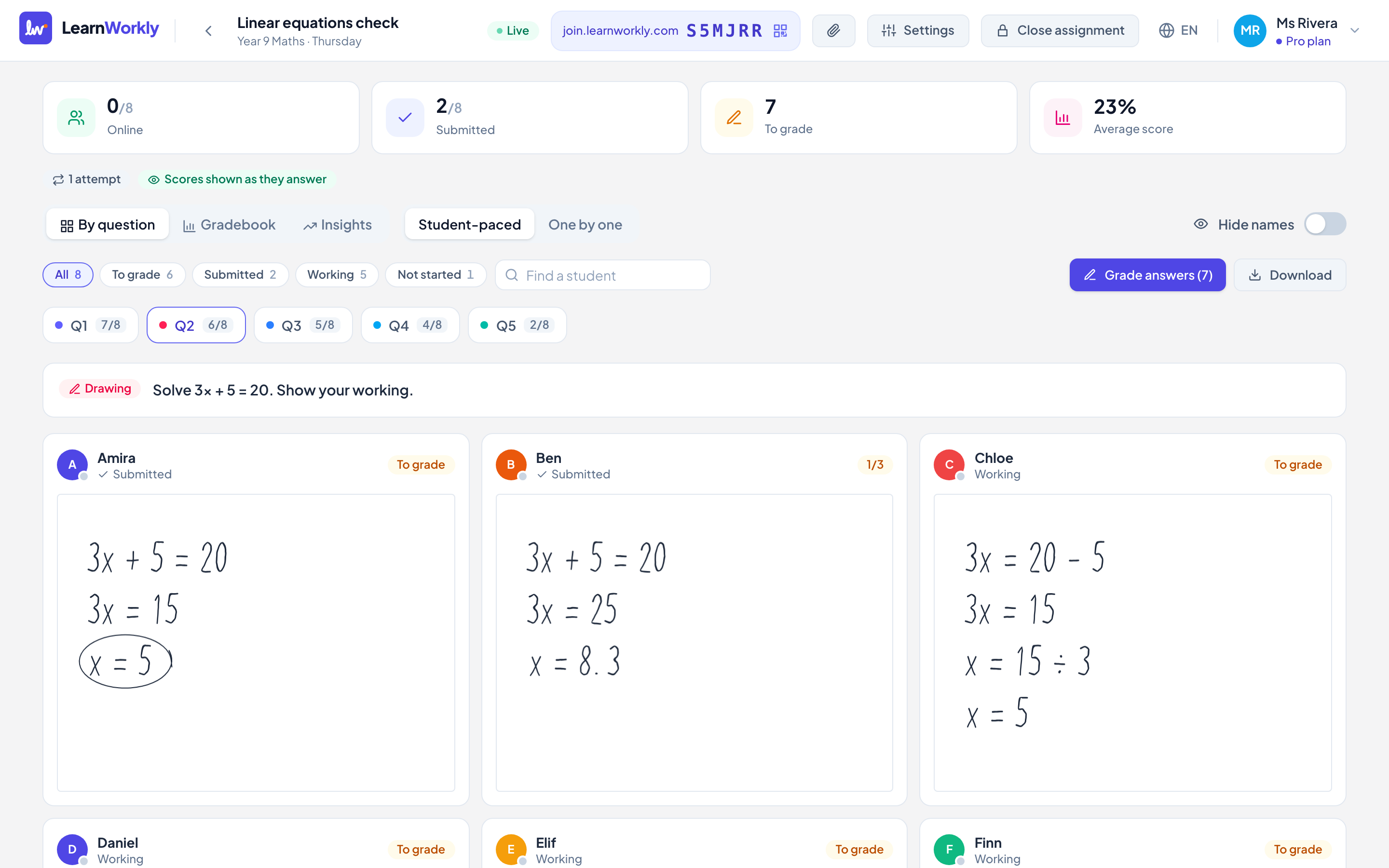
What you see on the live view
| Part | What it shows |
|---|---|
| Counters | Online, Submitted (or Answers when you lead one by one), To grade and Average score. |
| By question | One card per student for the question you pick (Q1, Q2…). Each tab shows how many students have answered. |
| Gradebook | A table with one row per student and one column per question, plus the total. |
| Insights | The score distribution and which questions were hardest, with the most common wrong answer. |
| Filters | All, To grade, Submitted, Working, Not started and more, with a Find a student search box. |
Student-paced or one by one
You can switch the pace during the lesson with Student-paced and One by one above the cards. In One by one, a bar shows Everyone sees: and the open question, with Previous and Next buttons. Students only see that question and move with you; before you open one they see a waiting message. A Practice assignment always stays self-paced.
Signs to look out for on a student’s card
- A status under the name: Working, Submitted, Submitted late, a countdown such as “4:12 left” for timed work, or Time ran out.
- A green dot on the avatar when the student is online right now.
- A new badge when the student has replied to your feedback.
- A score badge, or To grade when the answer needs your marking.
Frequently asked questions
Do I need to refresh the page to see new answers?
No. Answers, submissions, replies and students joining all appear on their own. Drawings update while the student is drawing.
Can I reopen the live view later?
Yes. Every assignment is listed on the Assignments page and on the class page under Assigned to this class. Open it to see the same live view.
Can I change the settings after assigning?
Yes. Press Settings at the top of the live view to change the due date, time limit, attempts, when scores are shown and the other options.
Last checked against the app on 11 November 2026.
Related articles
- Collect photos of handwritten workStudents scan a QR code with their phone, photograph their paper and the photo lands in the right question on your live view, no pen tablet needed.
- Run the lesson and wrap it upLead the class question by question, check Insights to see what to reteach, mark answers, download the results and close the assignment at the end.
- Run your first live lessonAssign an activity to a class, let students join with the code, and watch every answer and drawing arrive on your screen as they work.
- Give feedback on students’ workSend a written comment or a voice note on any answer, draw on a student’s drawing to circle a mistake, and the student sees it straight away.