Once students have joined, the live view gives you everything you need to run the lesson: control of the pace, a view of what the class found hard, quick marking and a way to close the activity when you are done.
Lead the class one question at a time
- 1
Switch to One by one
Choose One by one above the student cards (or when you assign). Students now see a waiting screen until you open a question.
- 2
Open the first question
Press Next in the bar at the top. The bar shows Everyone sees: and the question that is open on every student’s screen.
- 3
Watch the answers come in
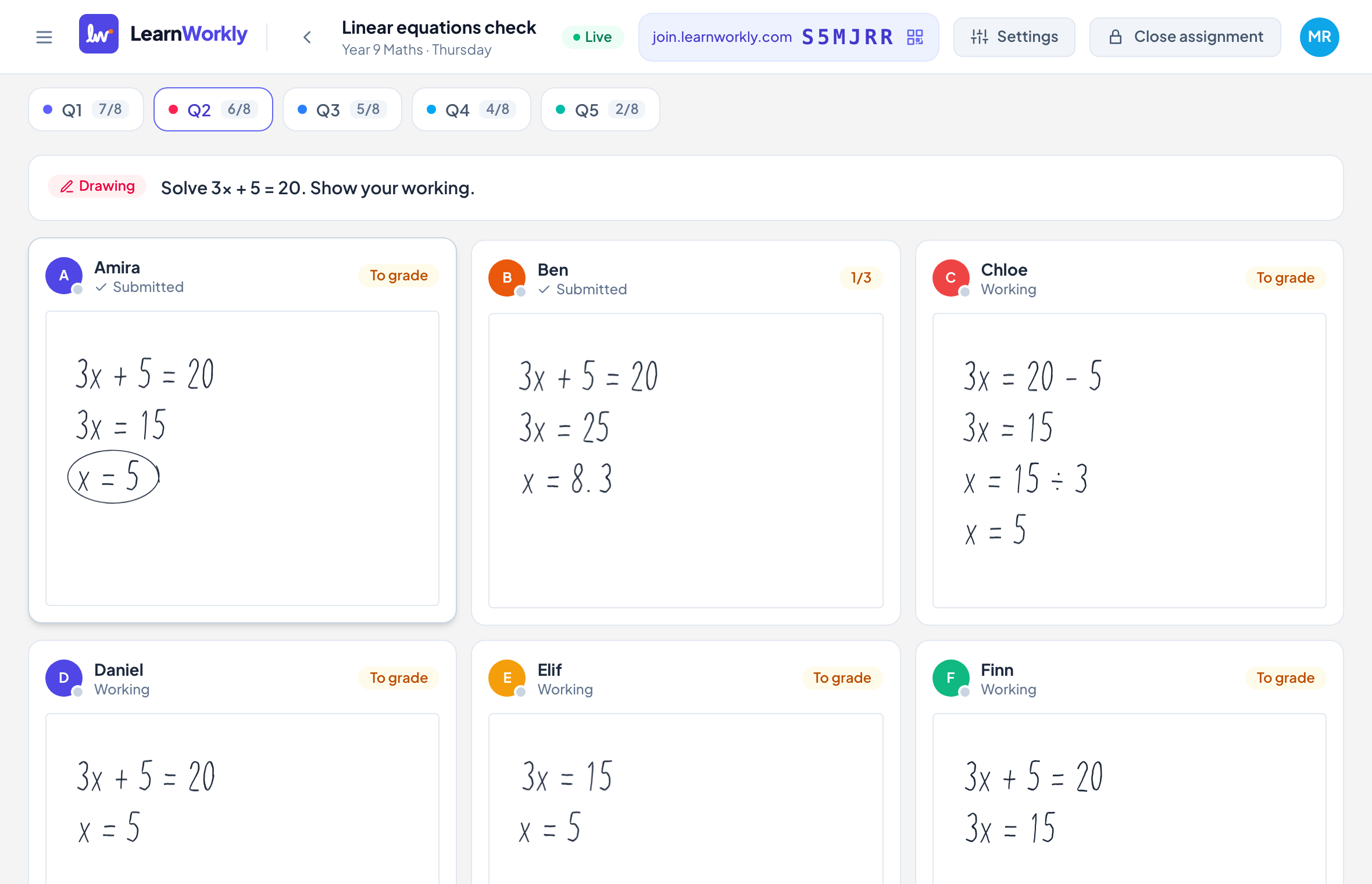
The cards update as students answer. Click a card to look closer, give a score or send feedback.
- 4
Move on
Press Next for the next item or Previous to go back. Instruction slides in the activity are part of the sequence too.
See what to reteach with Insights
Open Insights to see the Score distribution across the class and a list of Questions with how many students got each one right, partly right or wrong. Choose Hardest first to put the questions the class struggled with at the top. For many question types you also see the Common wrong answer, which often shows the misconception to address. Click a question to jump to its answers.
Useful tools during the lesson
| Tool | What it does |
|---|---|
| Grade answers (n) | Walks you through every answer still waiting for a score, one after another. |
| Download | Saves the results as Excel (.xlsx, scores and question analysis) or CSV (scores only). |
| Show join screen | Shows the class code and a QR code in full screen for students who join late. |
| Documents | Shares files with the students of this assignment, inside the activity. |
| Settings | Changes the due date, time limit, attempts, pass mark and when scores are shown. |
End the lesson
Press Close assignment when you are done. Students can no longer change their answers, but they can still see their work and your feedback. Closing also shows students their scores, whatever you chose under Show scores. If you need more time, press Reopen.
Frequently asked questions
Can students go back to earlier questions in One by one mode?
No. They only see the question you have open. Switch back to Student-paced if you want them to move freely.
What happens to answers if I switch pace in the middle?
Nothing is lost. Answers are saved per question, so switching between Student-paced and One by one keeps everything students have written.
Can I keep marking after I close the assignment?
Yes. Closing only stops students from changing their work. You can still give scores and feedback afterwards.
Last checked against the app on 11 November 2026.
Related articles
- See every answer liveStart a live lesson from a class, watch each student’s answers and drawing appear as they work, and hide names before you share your screen.
- Mark answers and give pointsWhich question types are marked automatically, how to score open answers, use a rubric and grade a whole class quickly with keyboard shortcuts.
- Return results to studentsDecide when students see their scores and the correct answers, release results to the whole class at once, and hand work back to a student to improve.
- Gradebook, scores and skillsSee every score for an assignment in the gradebook, download it as Excel or CSV, and follow each student’s progress by assignment and by skill.