There are two AI dialogs. Create an activity with AI opens from Create with AI on My activities or Home and makes a new activity. Create questions with AI opens from Create with AI in the activity editor and adds questions to the end of that activity. Parent reports are on each student’s page, in the Progress report for parents card.
For a walkthrough, see Create questions with AI and Send progress reports to parents.
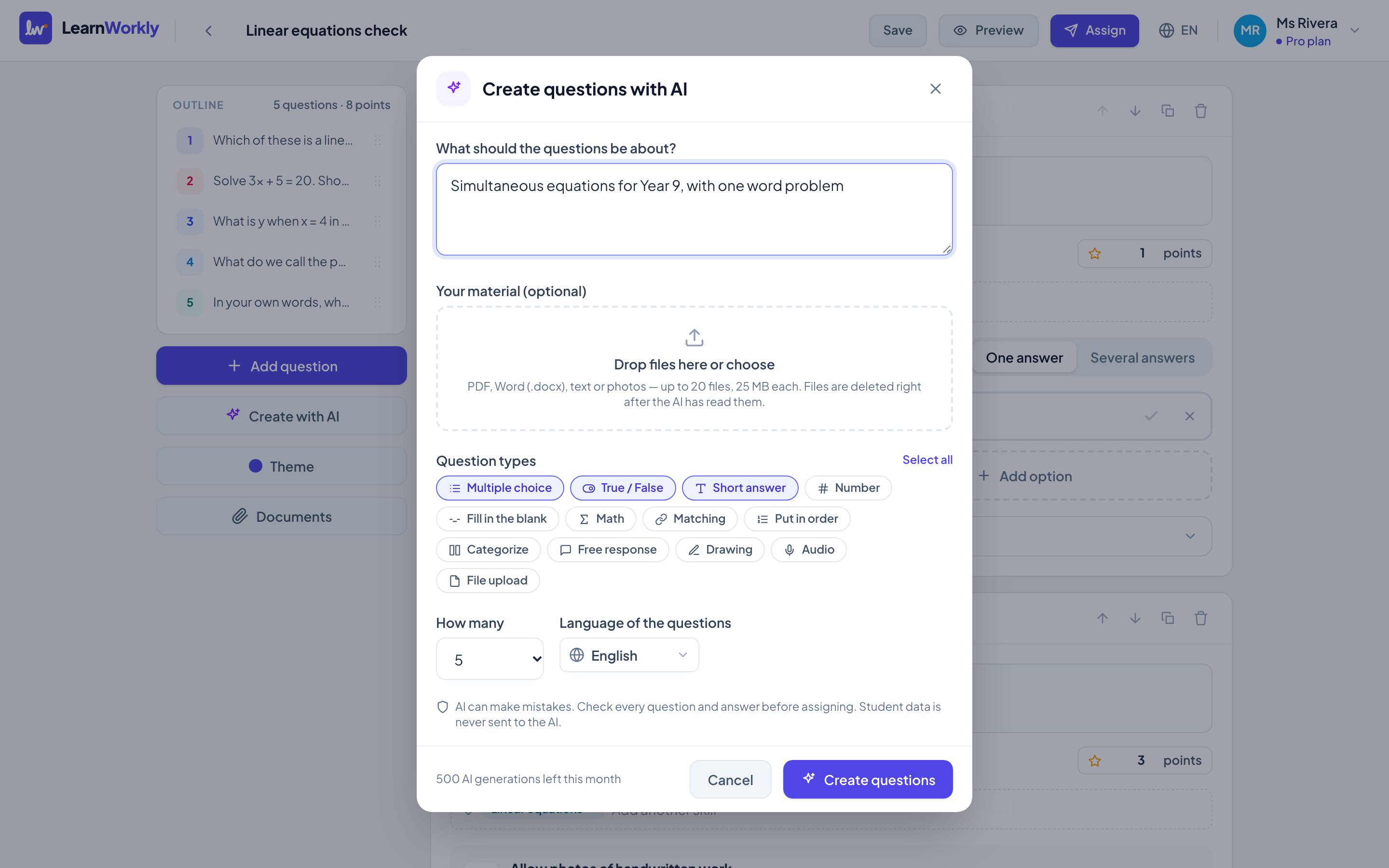
Create questions with AI (in the editor)
| Setting | What it does | Default | Plans/limits |
|---|---|---|---|
| What should the questions be about? | Topic, level, age and focus. | Empty | All plans. Up to 4,000 characters. You need a description or at least one file. |
| Your material (optional) | Worksheets, notes or photos the questions are based on. See the files table below. | No files | All plans |
| Question types | Which types the AI may use. Click a type to turn it on or off. Select all picks every type; Clear goes back to Multiple choice only. At least one type stays on. | Multiple choice, True / False, Short answer | All plans. Every question type except content blocks. |
| How many | How many questions to add: 3, 5, 10, 15, 20 or 30. | 5 | All plans |
| Language of the questions | The language the questions are written in. It does not have to match your app language. | Your app language | All plans. 18 languages. |
| Create questions | Writes the questions and adds them at the end of the activity. | — | Uses one AI generation: Free 20, Solo 200, Pro 500 a month; Academy as agreed. |
Create an activity with AI
| Setting | What it does | Default | Plans/limits |
|---|---|---|---|
| What should students practise? | Topic, level, age and focus. Click one of the examples under the box to fill it in. | Empty | All plans. Up to 4,000 characters. You need a description or at least one file. |
| Your material (optional) | Worksheets, notes or photos. See the files table below. | No files | All plans |
| Question types | Same as in the editor, including Select all and Clear. | Multiple choice, True / False, Short answer, Fill in the blank, Matching | All plans |
| Number of questions | 5, 10, 15, 20, 30, 40 or 50. | 10 | All plans |
| Language of the activity | The language the activity is written in. | Your app language | All plans. 18 languages. |
| Create activity | Starts the job. It usually takes one to three minutes; the new activity opens when it is ready. | — | Uses one AI generation. |
| Keep working | Closes the window while the activity is being created. A notice tells you when it is ready. | — | All plans |
Your material (both dialogs)
| Setting | What it does | Default | Plans/limits |
|---|---|---|---|
| File drop area | Drop files or click to choose them. Each file uploads when you add it. Click × next to a file to remove it. | No files | PDF, Word (.docx), text or photos. Up to 20 files, 25 MB each. |
| Files with no description | The exercises in your files are turned into questions as they are. | — | All plans |
| Files with a description | New questions are written based on your material. | — | All plans |
At the bottom of both dialogs you see how many AI generations you have left this month. When none are left, the create button is turned off and See plans appears. Runs that fail are not counted.
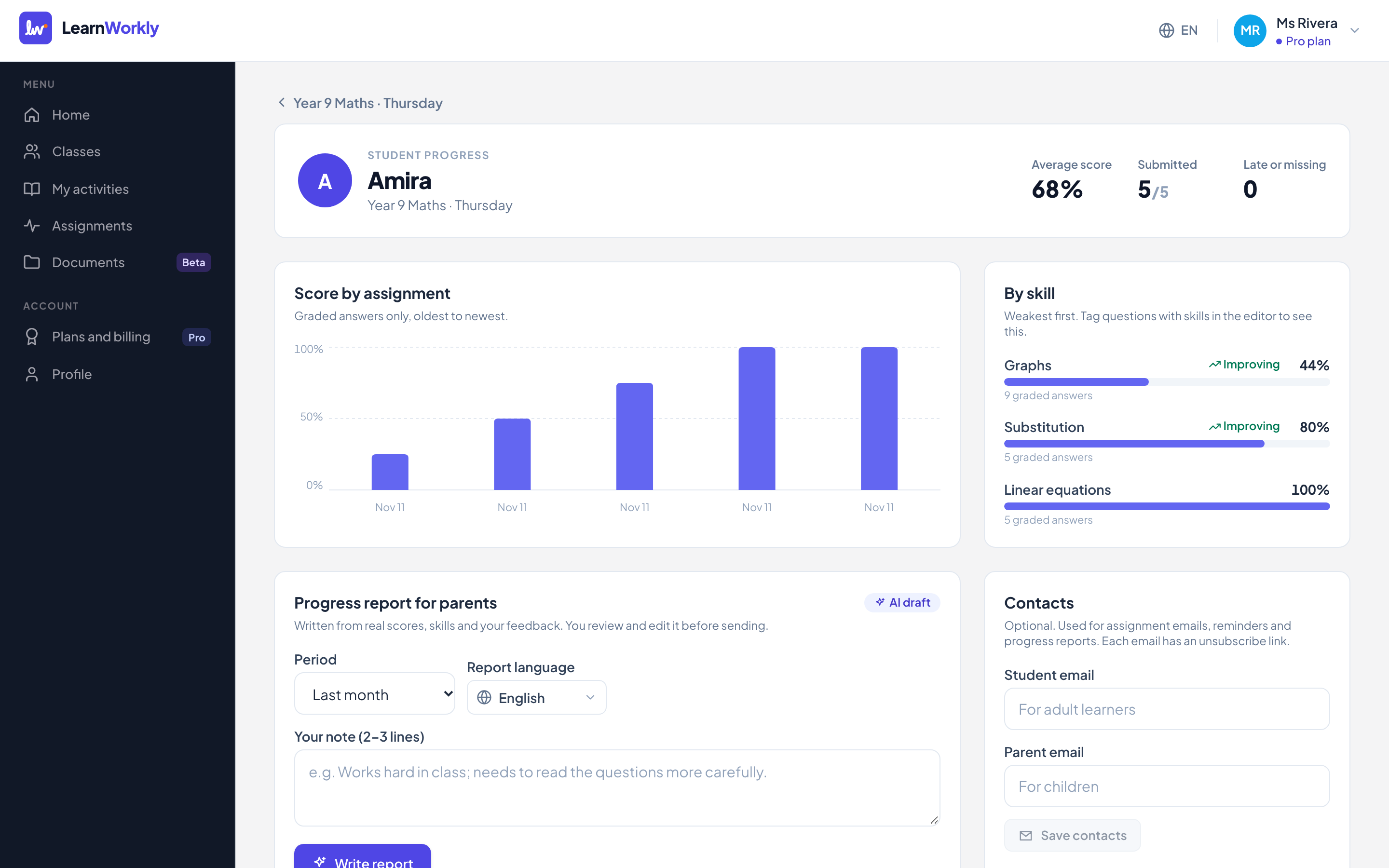
Progress report for parents
| Setting | What it does | Default | Plans/limits |
|---|---|---|---|
| Period | Which work the report is based on: Last 2 weeks, Last month or Last 3 months. | Last month | Solo, Pro and Academy |
| Report language | The language the report is written in, for example the parent’s language. | Your app language | 18 languages |
| Your note (2–3 lines) | What only you know, such as how the student works in lessons. It is used in the draft. | Empty | Up to 2,000 characters |
| Write report | Writes a draft from the student’s scores, skills and your feedback in that period. | — | Uses one AI generation. |
| Report text | Edit the draft in the text box before sending. | — | Up to 10,000 characters. Read-only once sent. |
| Email to parent | Saves your edits and emails the report to the parent after you confirm. | — | Needs a parent email saved with their permission. |
| Save draft | Saves your edits without sending. | — | Before sending |
| Copy text | Copies the report so you can paste it anywhere. | — | Any report |
| New report | Goes back to the form to write another report. | — | — |
| Earlier reports | Lists past reports by period, marked Sent or Draft. Click one to open it. | — | — |
Frequently asked questions
Why is Email to parent turned off?
The student has no parent email yet. Add one on the student’s page, with the parent’s permission. You can still click Copy text and send it yourself.
Can I generate more than 30 questions in the editor?
Not in one go. Click Create with AI again, or use Create an activity with AI, which goes up to 50 questions. Each run uses one AI generation.
What happens if I clear all question types?
You cannot: at least one type always stays on. Clear goes back to Multiple choice only.
Last checked against the app on 11 November 2026.
Related articles
- Create questions with AIDescribe a topic or upload a worksheet, PDF or photo, and get editable questions with answers. See how many AI generations each plan includes.
- Send progress reports to parentsWrite a progress report for a parent in minutes: AI drafts it from the student’s real scores, skills and your feedback, then you edit and send it.
- Plans and billingCompare the Free, Solo, Pro and Academy plans, pay monthly or yearly, switch or cancel in one click, and learn how refunds and currencies work.
- Activity settings: editor, theme and previewEvery setting of an activity outside its questions: title, saving, theme colour, font and cover image, preview, assign, import, duplicate and delete.