Open Classes in the menu and click a class. To create one, press New class, type a name and press Create. Each class card on the Classes page shows its name, number of students and class code.
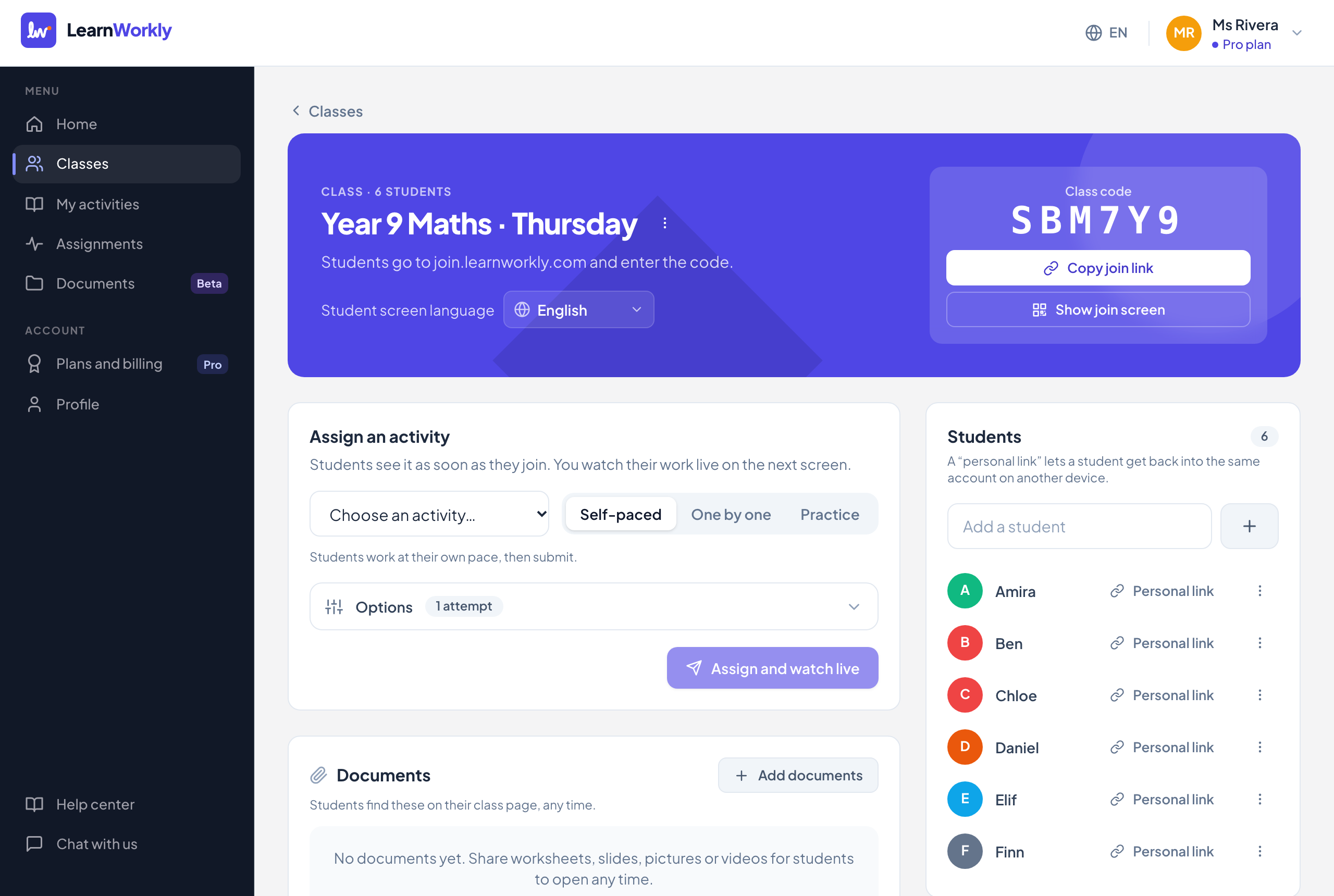
Class header
| Setting | What it does | Default | Plans/limits |
|---|---|---|---|
| Rename class | In the three-dot menu next to the class name. The class code does not change. | The name you typed | All plans. Up to 120 characters |
| Delete class | Students can no longer open it, and it disappears from your classes and assignments. See Manage classes and students. | All plans. Unlimited classes on every plan | |
| Student screen language | What students of this class see, and the emails sent to them and their parents. Saved straight away. See Class language. | English | All plans. 18 languages |
| Class code | Students go to the join address and enter it. Six characters, without easily confused ones such as 0, O, 1 and I. It cannot be changed. | Created with the class | All plans |
| Copy join link | Copies a link that opens the join page with the code already filled in. | All plans | |
| Show join screen | Full screen with the address, the code and a QR code to scan with a phone camera, plus Copy join link. Press Esc or the close button to leave. | All plans |
Assigning and documents
| Setting | What it does | Default | Plans/limits |
|---|---|---|---|
| Assign an activity | Pick an activity, a mode and Options. Every option is in Assignment settings. | Self-paced | All plans. Unlimited open assignments |
| Documents | Files and links students find on their class page, any time. Add documents lets you choose Who can see it (Whole class or Some students) and Show from a date. See Share documents. | Whole class, visible now | All plans. Storage depends on the plan |
| Document menu | Details and who opened it, Download (files only, not links) and Stop sharing here (the file stays in your documents). The eye counter shows how many students opened it. | All plans | |
| Assigned to this class | Every assignment of the class, with its mode, date, due date and Open or Closed. Click one to open its live view. | All plans |
Students
| Setting | What it does | Default | Plans/limits |
|---|---|---|---|
| Add a student | Type a name and press Enter or the plus button. Students who join with the code are added automatically. | Free 10, Solo 50, Pro 1,000 students across all classes; Academy by contract | |
| Personal link | Copies the student’s own link. It lets them get back into the same account on another device, without the class code. | All plans | |
| Rename | In the three-dot menu next to the student. Useful when a student joined with a nickname. | All plans. Up to 60 characters | |
| Remove | Removes the student and all of their work from the class; their personal link stops working. They no longer count towards your student limit. | All plans | |
| Student name | Opens the student page with scores, skills, contacts and parent reports. | All plans |
Contacts (on the student page)
| Setting | What it does | Default | Plans/limits |
|---|---|---|---|
| Student email | For adult learners: assignment emails, feedback emails and reminders. | Empty | All plans. Reminders: Solo, Pro and Academy |
| Parent email | For children: due-date reminders and progress reports. Parents never receive the student’s personal link. | Empty | All plans. Reports and reminders: Solo, Pro and Academy |
| I have permission to email these addresses (for a child, from a parent or guardian). | Must be ticked before a new address can be saved. Removing every address also removes the permission. | Not ticked | All plans |
| Save contacts | Saves the addresses. An address that used the unsubscribe link shows Unsubscribed. | All plans |
Frequently asked questions
What happens when my student limit is reached?
You cannot add more students, and a student joining with the code sees “This class is full. Please ask your teacher.” Removing a student frees a place.
Does changing the class language change my questions?
No. It changes the buttons and messages students see and the emails. Your questions are shown exactly as you wrote them.
Last checked against the app on 11 November 2026.
Related articles
- Invite students to a classStudents join with the class code, a join link or a QR code, with no account. Personal links bring a student back to their own work on any device.
- Manage classes and studentsRename or delete a class, add, rename or remove students, and open a student’s page to see their scores, skills and contact details.
- Emails to students and parentsAdd an adult student’s or a parent’s email with their permission to send new assignments, reminders, feedback alerts and progress reports.
- Document settings and share optionsEvery document setting: title, description, folder, tags, downloads, replacing a file, deleting, and each share option such as some students or a start date.