Open My activities, click an activity and you are in the editor. Each question is a card with the same settings at the top and bottom; the answer fields in the middle depend on the question type, see Question types. Every change is saved automatically; Save saves straight away.
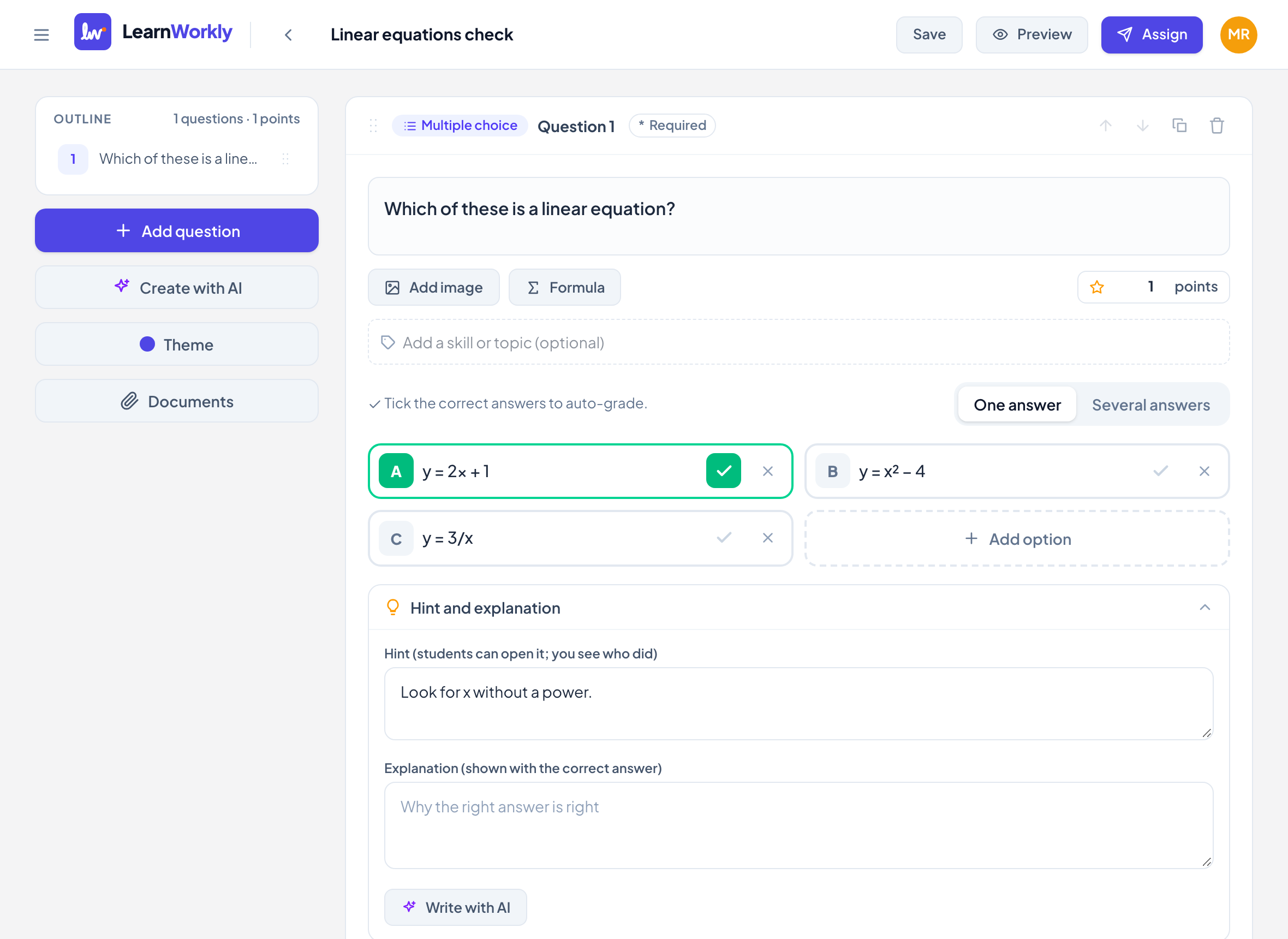
Question card header
| Setting | What it does | Default | Plans/limits |
|---|---|---|---|
| Required | Students must answer it before submitting; they see a star next to the question. Not enforced when the time limit runs out. Not on content blocks. | Off | All plans |
| Drag handle | Drag a card to reorder. In the Outline you can also drag rows, or press Alt + ↑ / ↓. | All plans | |
| Move up / Move down | Moves the item one place. | All plans | |
| Duplicate | Adds a copy right below, with every setting. | All plans | |
| Delete | Removes the item after you confirm. Student answers to it are deleted too. | All plans. Up to 200 items per activity |
Question text, image and points
| Setting | What it does | Default | Plans/limits |
|---|---|---|---|
| Question text | What students read. Formulas show as they will look. | Empty | All plans. Up to 5,000 characters |
| Add image | One picture under the question. Change it with Change image or remove it with the × button. | None | All plans |
| Formula | Opens Insert formula: type in the Formula field (/ for a fraction, ^ for a power, the keyboard button for more symbols) or as LaTeX, check the Preview, then Insert. Click a formula in the text to change it (Save) or Remove it. | All plans | |
| points | What the question is worth. Locked when the question has a rubric. | 1 (2 for Matching, Put in order and Categorize) | All plans. 0 to 100, in steps of 0.5 |
| Add a skill or topic (optional) | Tags the question, for example “Fractions”. Press Enter or a comma to add; suggestions come from skills you used before. Used for progress by skill. See Gradebook and skills. | None | All plans. Up to 5 skills, 40 characters each |
Hint and explanation
| Setting | What it does | Default | Plans/limits |
|---|---|---|---|
| Hint (students can open it; you see who did) | Students press Show hint to read it. Their answer then shows Used the hint on your live view. | Empty | All plans. Up to 1,000 characters |
| Explanation (shown with the correct answer) | Why the right answer is right. Students see it when they see the correct answers. | Empty | All plans. Up to 3,000 characters |
| Write with AI | Drafts both from your question. Check and edit them before assigning. | Uses one AI generation: Free 20, Solo 200, Pro 500 per month; Academy by contract |
Questions you grade yourself
| Setting | What it does | Default | Plans/limits |
|---|---|---|---|
| Rubric | Grade with criteria instead of one score; students see the breakdown. Add criterion, then give each a name and points. The question is worth their total. Free response, Drawing, Audio and File upload. | No criteria | All plans. Up to 10 criteria, 0.5 to 100 points each |
| Allow photos of handwritten work | Students scan a QR code with their phone, take a photo and it lands in this question. Free response and Drawing. See Handwritten work. | On | All plans |
| Type-specific settings | Maximum recording length for Audio, Files per student for File upload and Picture to draw on (optional) for Drawing. | All plans |
Frequently asked questions
Can a question be worth 0 points?
Yes. Set the points to 0 for a warm-up or a survey-style question that does not count towards the score.
Do students see the hint straight away?
No. They see a Show hint button and choose to open it. You see on their answer that they used it.
Where do I set the correct answer?
In the middle of the card, which depends on the question type, for example ticking options in Multiple choice.
Last checked against the app on 11 November 2026.
Related articles
- Build and organise activitiesAdd and reorder questions, mark skills, add hints and explanations, preview as a student, and duplicate or import activities to save time.
- The 13 question typesWhat each of the 13 question types is for, which ones LearnWorkly marks automatically and which ones you mark yourself, with partial credit where it applies.
- Mark answers and give pointsWhich question types are marked automatically, how to score open answers, use a rubric and grade a whole class quickly with keyboard shortcuts.
- Activity settings: editor, theme and previewEvery setting of an activity outside its questions: title, saving, theme colour, font and cover image, preview, assign, import, duplicate and delete.